
File transfer software has different right answers based on the physical distance the files actually travel, and most comparison articles ignore this fundamental factor. Four distinct distance categories cover most realistic file transfer needs. Local network transfer between devices in the same building uses different infrastructure than transfer between rooms or floors of an office. Transfer to people in the same city uses different tools than international transfer. Intercontinental transfer has bandwidth and latency characteristics that local tools handle poorly. Each category has different optimal tools and different trade-offs that matter.
The other framing point is that “file transfer” describes several different activities. One-time transfer of specific files to specific people is different from ongoing sync between locations. Transfer of confidential content is different from transfer of public content. Transfer between devices you own is different from transfer to recipients you do not control. Lumping these together produces tool recommendations that fit some uses and fail others.
This guide is structured around the actual physics and use patterns. For broader context on the file management and storage software stack, our guide to the best software and apps covers the adjacent categories.
For Local Network Transfer: LocalSend or Built-In Windows Sharing
For transferring files between devices on the same local network — your phone to your computer, between two computers in the same house or office, between Mac and Windows machines on the same wifi — the right tools work entirely over the local network without involving any cloud services. The transfer is fast (limited by your local network rather than internet upload speeds), private (the data does not leave your network), and free.
LocalSend (free, open-source; localsend.org) is the modern tool for cross-platform local file transfer. The application runs on Windows, macOS, Linux, iOS, and Android, automatically discovers other LocalSend instances on the same network, and lets you transfer files between them with a few clicks. The setup is genuinely minimal — install on both devices, both devices appear in each other’s available targets, drag and drop files between them.
The case for LocalSend specifically is the combination of speed, simplicity, and cross-platform support. For users who frequently move files between their own devices on the same network, the workflow eliminates the friction of “upload to cloud, wait for sync, download on other device” that cloud-based alternatives produce. The 100 MB photo album that takes 10 minutes through cloud sync transfers in 5 seconds through LocalSend on a reasonable wifi network.
For Windows-to-Windows transfer specifically, the built-in network sharing handles this case adequately if less elegantly. Setting up a shared folder, granting permissions, and accessing it from the other Windows machine works without third-party software. The case for using built-in sharing is when you only need Windows-to-Windows transfer and want zero additional software; the case against is when LocalSend’s cross-platform support and simpler workflow matter.
Snapdrop (snapdrop.net) is the browser-based alternative for occasional local transfer without any installation. The service works in any browser, automatically discovers other Snapdrop users on the same network, and handles file transfer through browser APIs. For one-off transfers where neither party wants to install software, Snapdrop solves the problem with minimum friction.
The realistic limit for all these tools is they work only on local networks. For transfer beyond your network, the tools below become necessary. Our file sync software comparison covers the related category for users wanting ongoing sync between devices rather than one-time transfers.

For Quick Transfer Across the Internet: Wormhole or Send Anywhere
For transferring files to people not on your local network — colleagues at other locations, clients, family members, anyone reachable only through the internet — the right tools depend on the file size, the sensitivity, and the recipient experience matters.
Wormhole (free; wormhole.app) is the right answer for quick transfer of files up to 10 GB to specific recipients. The product uses end-to-end encryption (the service cannot read the file contents), produces a shareable link, and lets recipients download through their browser without accounts or installation. Links expire after 24 hours by default, which produces appropriate security through limited exposure.
The case for Wormhole specifically is the combination of capability and simplicity. The 10 GB limit covers most realistic file transfer needs that are not full backups or media libraries. The end-to-end encryption means you do not need to think separately about whether the file is sensitive. The recipient experience is browser-based with no friction.
Send Anywhere (send-anywhere.com; free with 10 GB limit) is the alternative with similar capability and a slightly different workflow emphasis. The product supports both direct device-to-device transfer (when both parties are online simultaneously) and link-based delayed transfer. For users who specifically want device-to-device for immediate transfer without files sitting on intermediate servers, Send Anywhere handles this case.
WeTransfer (wetransfer.com; free for 2 GB per transfer, paid plans for larger transfers) is the older alternative that many recipients are already familiar with. The case for WeTransfer is name recognition — recipients who have received WeTransfer files before recognise the workflow without explanation. The case against is that the 2 GB free limit is smaller than the modern alternatives, and the paid pricing model has changed over time in ways that some users find unwelcome.
For most users transferring files occasionally to others, Wormhole or Send Anywhere produce better outcomes than WeTransfer at no cost. For users where recipient familiarity with the workflow matters, WeTransfer’s name recognition has value.
For Confidential or Sensitive Transfer: Tresorit Send
When the transferred files are genuinely sensitive — confidential business documents, personal information that should not be exposed, content where security matters substantially — the right tools provide stronger security guarantees than the general-purpose options above.
Tresorit Send (send.tresorit.com; free for files up to 5 GB, paid plans included in Tresorit subscriptions) is the right answer for sensitive transfer where the recipient is non-technical and you cannot assume they will install special software. The encryption is end-to-end (Tresorit cannot read the file contents), the link expiration is configurable, optional password protection adds another security layer, and the recipient experience is just clicking the link and downloading through their browser.
The case for Tresorit Send specifically over Wormhole for sensitive transfer is the explicit security positioning and the Swiss-based company providing the service. For confidential business contexts, the explicit security focus matters more than the marginal price difference. For personal use where the security marketing is mostly reassurance, either tool produces adequate protection.
For the most sensitive transfers where any third-party server is unacceptable, OnionShare provides peer-to-peer transfer over the Tor network without any intermediate service. The use case is genuinely narrow (journalist-to-source communication, activist coordination in repressive contexts, security professional transfers) but the tool produces protection that no commercial alternative can match. Our secure file sharing software comparison covers this specialised category in depth.
For FTP and Server-Based Transfer: FileZilla
One category that older users specifically associate with “file transfer software” is FTP and similar server-protocol tools for uploading to web servers, downloading from server resources, or managing files on hosted infrastructure. The category has different requirements than person-to-person file sharing.
FileZilla (free, open-source) remains the dominant choice for FTP/SFTP/SCP transfers in 2026. The product handles the realistic use case — connecting to servers via various file transfer protocols, browsing remote file systems alongside local ones, transferring files between them with appropriate handling of permissions and timestamps.
The case for FileZilla specifically is the established reliability and the comprehensive protocol support. The product supports FTP, FTPS, and SFTP through one interface. The connection management handles credentials reasonably and supports the various authentication mechanisms server administrators use.
For users whose file transfer needs specifically involve server protocols (web developers managing hosting, system administrators transferring files between servers, users working with infrastructure that uses these protocols), FileZilla or similar dedicated FTP clients are the right answer. Our FTP client comparison covers this specialist category in depth, including alternatives and the security considerations specific to file transfer protocols.
The case against using FTP-class tools for general file transfer is that they are designed for server contexts rather than person-to-person sharing. Asking a non-technical recipient to install FileZilla to receive your files is more friction than using Wormhole or similar tools. The right tool depends on what infrastructure the file is going to.
For Large Files and Recurring Transfer: Cloud Storage Sharing
For files too large for the one-time transfer tools (over 10 GB), for content that needs to be available to multiple recipients over time, or for transfers that recur regularly with the same recipients, dedicated transfer tools are usually the wrong category. Cloud storage with sharing features handles these patterns more naturally.
Standard cloud storage (Google Drive, OneDrive, Dropbox, iCloud) handles large file sharing well for users already in these ecosystems. Upload the file once, share the link with whoever needs access, and the recipients download at their own pace. The transfer is asynchronous (you do not wait while it happens), the file remains available for recipients to re-download if needed, and the share can be revoked when no longer needed.
The case for cloud storage sharing rather than dedicated transfer tools is when the file or files need to remain available rather than being transferred once and forgotten. Project files that multiple collaborators need access to over time, reference materials that recipients may need to download multiple times, large content libraries that exceed dedicated transfer tools’ limits — all of these benefit from cloud storage’s persistent availability rather than transfer tools’ one-time-and-expire model.
The case against using cloud storage for one-time transfer is the overhead. Setting up sharing permissions, communicating the link, and managing the file’s lifecycle in your cloud storage is more friction than dedicated transfer tools for files that just need to be delivered once. For the one-time use case, the dedicated tools are better-fitting; for the ongoing-availability use case, cloud storage is better. Our cloud storage for business comparison covers this category in depth.
For Intercontinental and International Transfer
One specific consideration for very long-distance file transfer is the physics of internet routing. Files moving between continents traverse undersea cables, multiple internet service providers, and various network infrastructure that all introduce latency and potential bandwidth constraints.
The practical implications are real for large files. A 1 GB transfer between two computers in the same country may take 5 minutes; the same transfer between continents may take 30 minutes or substantially longer depending on routing. The tools themselves rarely make this difference — the physics dominate the experience.
For users who frequently transfer large files internationally, the realistic considerations: ensuring you have a service with appropriate global infrastructure (the major cloud providers maintain servers worldwide for this reason), accepting that initial transfers may be slow and planning around that, and using protocols that handle interrupted transfers well (resumable transfers matter more for international use than for local use because the disruptions are more likely).
For specifically large international transfers where the data does not need to be accessed immediately, physical shipping of storage media is genuinely sometimes faster than internet transfer. The “AWS Snowball” approach for enterprise-scale data migration uses this principle deliberately. For individual users, mailing a USB drive may be slower than internet transfer for occasional needs, but worth considering for the rare case of very large transfers where the recipient does not need immediate access.

The Bandwidth and Connection Considerations
One framing point that affects all file transfer regardless of tool: your internet upload speed determines maximum transfer speed to recipients on the internet. The same tool produces dramatically different transfer times based on your connection quality, and tools cannot exceed the physical capacity of your network connection.
For users with asymmetric internet connections (which is most home internet), the upload speed is typically much slower than the download speed. A “100 Mbps” home internet connection often has 10-20 Mbps upload. This matters substantially for transfer speeds — sending a 10 GB file at 10 Mbps upload takes over two hours regardless of which tool you use.
For users whose file transfer work is regular and large, network speed becomes a meaningful constraint that affects what is practically possible. Some users specifically prioritise higher-upload-speed internet (fibre connections with symmetric speeds, business-class internet with different upload provisioning) for this reason.
The corollary for tool choice is to use tools that handle interrupted transfers gracefully. Network connections drop occasionally; tools that resume transfers from where they stopped rather than restarting completely make a meaningful difference for large transfers. Most modern transfer tools handle this; older tools sometimes do not. Our network monitoring software comparison covers the related category for users diagnosing connection performance.
The Security Considerations Across Categories
One specific consideration worth making explicit: the security characteristics of different file transfer tools vary substantially in ways that affect which tools are appropriate for which content.
End-to-end encrypted tools (Wormhole, Tresorit Send) protect content from the service provider and from network interception. For sensitive content, these tools are appropriate.
Transit-encrypted but server-readable tools (most cloud storage sharing, WeTransfer) protect content from network interception but the service provider can read it. For non-sensitive content, this is fine; for sensitive content, the provider exposure is a real consideration.
Plaintext or weakly-encrypted tools (FTP without TLS, some older transfer tools) provide essentially no protection. These should not be used for sensitive content regardless of who you are sending to.
The realistic implication: think about the sensitivity of what you are sending before choosing the tool. The convenient default may not match the security needs of specific transfers. For sustained business use, having a default tool for routine transfers and a more secure tool for specifically sensitive transfers handles both cases without compromising on either. Our password manager comparison covers the related category for generating and storing the strong passwords that file encryption requires.
The Practical Recommendation
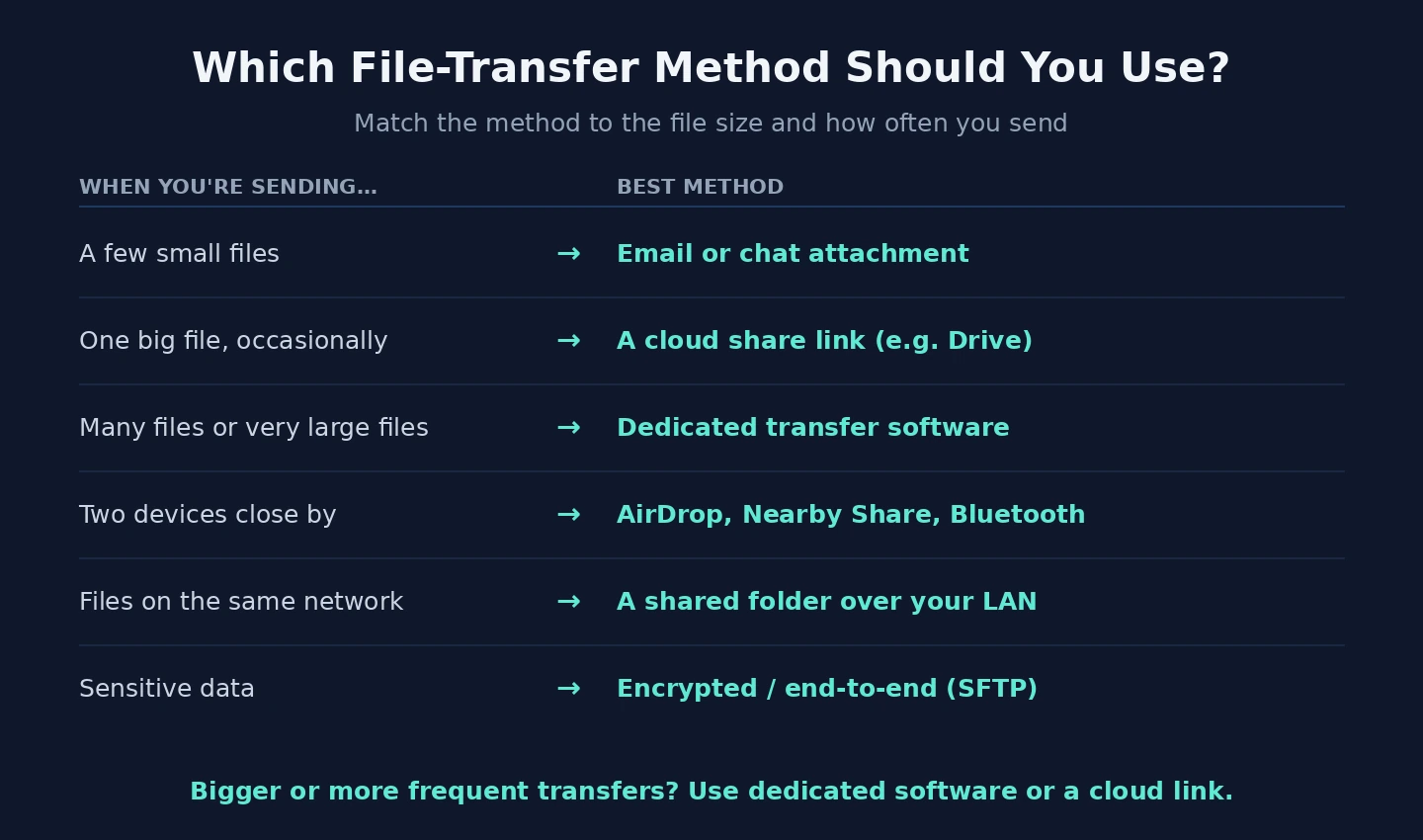
For most users in 2026, the answer follows from where the files are actually going. Local network transfer between your own devices: LocalSend for the cross-platform simplicity, built-in network sharing for Windows-to-Windows only. Quick one-time transfer to specific recipients across the internet: Wormhole for the combination of capability and security, Send Anywhere as the alternative, WeTransfer if recipient familiarity specifically matters. Sensitive transfer where security matters substantially: Tresorit Send for the combination of strong security and easy recipient experience. Server-based and FTP transfers: FileZilla for the comprehensive protocol support. Large files or ongoing recipient access: cloud storage sharing rather than dedicated transfer tools. Intercontinental transfer: accept the physics and use whatever tool fits the other dimensions of your use case. The wrong move is using the same tool for every transfer regardless of the distance, file size, or sensitivity, because the same tool that excels in one context produces friction or security compromises in others. Match the tool to the transfer’s actual characteristics, and the category becomes useful infrastructure rather than ongoing tool churn.