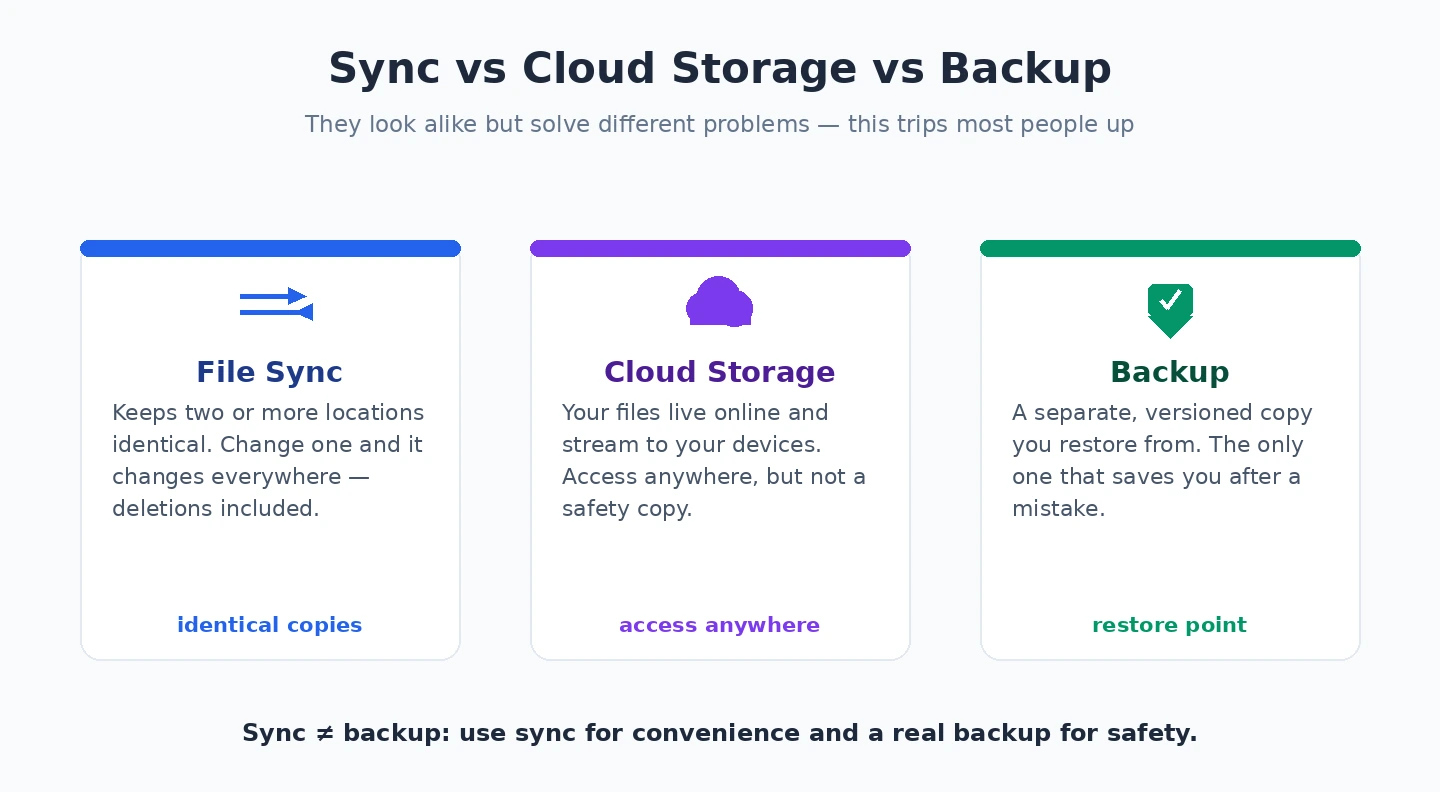
The most common reason teams pick the wrong file sync software is that they have not yet understood the difference between three categories that look superficially similar but solve entirely different problems. File sync, cloud storage, and backup are three distinct things. Most products in the broader category occupy one or two of these roles. Picking a sync tool when you actually needed backup, or vice versa, produces frustration that no amount of feature exploration fixes.
File sync keeps two or more locations identical. Change a file in one place, it changes in the others, automatically and continuously. Sync is good for working across devices, keeping a backup copy of your active work, and collaboration with people who need the same files. Sync is genuinely bad for protection against accidental deletion or ransomware, because the deletion or corruption propagates immediately to every synced copy.
Cloud storage hosts your files on remote infrastructure and provides access through the network. It usually includes a sync component (so files are also on your local devices), but the canonical copy lives in the cloud. Cloud storage is good for access from anywhere and sharing with collaborators. The lines with sync software have blurred substantially as cloud storage products added sync capability.
Backup creates point-in-time copies that are independent from your active files. A backup taken yesterday remains intact even if you delete or corrupt today’s files. Backup is good for recovery from disaster, ransomware, or accidental loss. Backup is genuinely bad for cross-device working because it is intentionally lagged behind your current state.
This guide covers file sync software specifically — the tools that keep multiple locations in continuous lockstep — and addresses how to combine sync with proper backup for businesses that need protection against the failure modes sync alone cannot cover. For broader context on the Windows software stack involved, our complete guide to Windows software covers the adjacent categories.
OneDrive: The Default Sync Layer for Most Windows Users
OneDrive (built into Windows 11, included with Microsoft 365 plans; microsoft.com) is the file sync software most Windows users already have running, often without having actively chosen it. For most people, the default OneDrive setup that ships with Windows is genuinely sufficient for cross-device working and basic redundancy against single-device failure. The 5 GB free tier is small for serious use but functional for documents-only workflows; the 1 TB included with Microsoft 365 Personal is generous for most individual users.
OneDrive’s sync behaviour is well-implemented. The Files On-Demand feature shows all your cloud files in File Explorer without actually downloading them until you open them, which means you can browse a large library without consuming local disk space. Changes propagate quickly between devices. Conflict resolution when two devices edit the same file is reasonable. The Windows Explorer integration is native rather than bolted on.
The case for using OneDrive as your default sync tool: it is already there, the cost is included with Windows or Microsoft 365 anyway, the reliability is good, and adding another tool alongside it usually produces sync conflicts rather than benefits. The case against is the same as the broader Microsoft 365 trade-off — your data lives in Microsoft’s infrastructure, the privacy posture is what it is, and the integration with non-Microsoft tools is less seamless than with Microsoft ones.
For the basic sync use case (keeping files identical across two or three of your own devices, accessing them from a phone, light sharing with collaborators), OneDrive is genuinely the right answer for most Windows users. Adding alternative sync tools on top of it usually creates problems rather than solving them.
FreeFileSync: The Power User’s Two-Way Sync
FreeFileSync (free, open-source; freefilesync.org) is the file sync software for users whose sync needs go beyond what OneDrive handles well — specifically, syncing between local folders and network drives, syncing on demand rather than continuously, and configuring sync rules that respect specific file types or exclusions. The tool is genuinely free (with donation requests for the user-friendly installer), open-source, and actively maintained.

The strength is the precise control. FreeFileSync can compare two folders, show exactly which files differ and how, and let you decide which way the sync goes for each difference. The batch configuration system lets you save sync rules and run them on demand or on schedule. The filters let you include or exclude specific patterns (sync everything except the temporary files my software creates, sync only PDFs from a downloads folder, sync but skip files modified in the last hour). For users with specific sync needs that the always-on cloud tools handle clumsily, this is the right tool.
The case for FreeFileSync specifically: backing up to external drives on a schedule, syncing between local computers without cloud intermediation, mirroring folders to network-attached storage, and any sync scenario where you want explicit control over what gets synced when. The case against is that for most cross-device working scenarios, the always-on cloud-mediated sync of OneDrive or Dropbox is more convenient and the explicit-batch nature of FreeFileSync becomes friction.
The tool requires more configuration thought than the cloud-sync alternatives. New users sometimes set up rules that produce surprising results (deleting files they intended to preserve, syncing too aggressively, missing edge cases in conflict handling). Investing time in understanding the tool’s mental model before using it for important data is the right approach. Our Windows backup software comparison covers the dedicated backup tools that complement FreeFileSync for users who need both sync and proper backup.
Syncthing: The Peer-to-Peer Privacy-First Option
Syncthing (free, open-source; syncthing.net) is the file sync software for users who specifically want to keep their files synchronised across their own devices without those files passing through any cloud service. The architecture is peer-to-peer: each Syncthing instance talks directly to other instances you have authorised, encrypts the traffic between them, and replicates files without involving a third party.
The case for Syncthing is clear and specific. If your reason for syncing files is to keep your own work consistent across your own devices, and you have a strong preference against your files being hosted by anyone else, Syncthing accomplishes this elegantly. The setup involves installing Syncthing on each device, exchanging device IDs, and configuring which folders to sync between which devices. After the initial setup, the sync runs continuously in the background.
Syncthing’s strengths are privacy (your files never leave your devices), no subscription costs, no storage limits beyond your own disk capacity, and reliability (the protocol has been refined over many years). The weaknesses are the lack of cloud-based access when none of your devices are online (you cannot access files from a colleague’s computer the way you can with cloud sync tools), the complexity of initial setup compared to install-and-sign-in cloud tools, and the lack of features like file versioning that the commercial alternatives include.
For privacy-conscious users syncing their own devices, Syncthing is genuinely excellent. For collaborative sync with people who do not run Syncthing themselves, or for users who want cloud-based access as an option, the cloud alternatives serve those needs better.
Resilio Sync: The Commercial Peer-to-Peer Option
Resilio Sync (free for personal use with limitations, Home Pro from $59.99 one-time; resilio.com) is the commercial cousin of Syncthing — peer-to-peer file sync software built on the same underlying BitTorrent technology, packaged for users who want a friendlier interface and are willing to pay for it. The architecture is similar to Syncthing’s: files sync directly between devices without cloud intermediation, traffic is encrypted, and you control which devices participate.
The case for Resilio over Syncthing is essentially polish. The Resilio interface is more refined, the mobile apps are more capable, and the configuration experience is friendlier for non-technical users. For users who like the peer-to-peer model but want a more commercial-grade product, Resilio is the right answer.
The case against is the cost (compared to Syncthing’s free), and a complicated history with the underlying BitTorrent Inc. company that has caused some privacy-focused users to prefer Syncthing’s fully open-source approach. The base product remains competent, but the trust posture matters for users whose reason for choosing peer-to-peer was privacy in the first place.
The Sync Home Pro license at $59.99 one-time is reasonable for users who want the polish and reliability of a commercial product without ongoing subscription fees. For users comfortable with open-source software, Syncthing remains the better choice; for those who want commercial support, Resilio is reasonable.
GoodSync: The Established Commercial Sync Tool
GoodSync (Personal license from $40/year; goodsync.com) is the long-established commercial file sync software in the same category as FreeFileSync but with a more polished commercial product positioning. The tool handles two-way sync, one-way mirror, real-time monitoring, scheduled sync, and integration with various cloud storage services as sync targets.
The case for GoodSync over FreeFileSync is the integration breadth — GoodSync can sync to and from Google Drive, OneDrive, Dropbox, SFTP servers, FTP servers, network drives, and various other targets natively, without requiring those services to be mounted locally first. For users with complex sync topologies involving multiple cloud services and on-premise storage, GoodSync handles scenarios that FreeFileSync cannot.
The case against is the subscription pricing (annual rather than one-time) and the fact that for most simple sync scenarios, FreeFileSync does the job for free. GoodSync’s value is concentrated in users with specific cloud-integration needs or who value commercial support for sync configurations they cannot debug themselves.
The specific situations where GoodSync makes sense: syncing between multiple cloud storage services (keeping a copy of your Google Drive content also in OneDrive), syncing to SFTP servers for website file management workflows, and complex enterprise sync scenarios with reporting and audit requirements. Our FTP client comparison covers the related tools for server file transfer that overlap with these workflows.
The Sync-Plus-Backup Pattern That Actually Protects You
The most important practical insight in this category: sync alone is not protection. If you sync your important files between your laptop, desktop, and phone, and a ransomware attack encrypts your laptop’s files, the encrypted versions will sync to your desktop and phone, potentially within minutes. The sync software is functioning correctly — it is propagating the changes you made. The changes happen to be malicious, but the sync tool cannot tell the difference.
The right pattern is sync plus independent backup. Sync handles the day-to-day cross-device working. Backup runs separately, takes point-in-time copies that are not affected by sync, and retains those copies long enough to recover from ransomware, accidental mass deletion, or other failures that propagate through sync. The backup target should be independent of your sync infrastructure — if your sync uses OneDrive, your backup should not be in OneDrive too.
For most users, the practical implementation is OneDrive (or equivalent) for sync, plus a dedicated backup tool with versioning and retention going to a different target. Our cloud backup service comparison covers the cloud backup options, and our Windows 11 backup guide covers the broader local backup workflow that complement cloud backup for full coverage.

The mistake of treating sync as backup is consistent enough that it deserves an explicit warning: the “I have my files in OneDrive so they are safe” mental model is dangerously wrong if your only protection is sync. The files are accessible across devices, which is what sync does; they are not protected against versioning failures or malicious modification, which is what backup does.
Common Sync Configuration Mistakes
Three patterns of sync configuration failure that recur regardless of which tool you choose.
Syncing the wrong folders. The default behaviour of cloud sync tools is to sync your Documents folder (or equivalent), which contains the things you actively work with but often excludes important content stored elsewhere on your computer. Application configuration files, locally saved game progress, project files in non-standard locations, and downloaded archives often live outside the synced folders. Reviewing what is and is not synced periodically catches the gaps before you discover them after a hardware failure.
Syncing too much. The opposite mistake is syncing everything, including caches, temporary files, and large media that does not need to be on every device. This produces sync conflicts, slow sync performance, and storage pressure that creates real costs over time. Sync only the files you actively need across devices; archive or back up the rest separately.
Ignoring sync conflicts. All sync tools handle simultaneous edits to the same file by creating conflict copies. Most users notice the first one, address it, and then start ignoring subsequent conflict files that accumulate in their synced folders. Six months of ignored conflicts produce dozens of conflict-suffix files that contain content you may have lost track of. Establishing a habit of reviewing and resolving sync conflicts as they happen prevents this accumulation.
The Practical Recommendation
For most Windows users in 2026, the answer is simpler than the category suggests. Use OneDrive (or your existing cloud sync tool) for cross-device sync. Use a dedicated backup tool with versioning for protection against the failure modes sync cannot handle. If you have specific sync needs that go beyond what cloud sync handles well, FreeFileSync is the right open-source tool and GoodSync is the right commercial one. If privacy is a primary requirement, Syncthing is the right answer with no real alternative for that posture. The mistake is layering multiple sync tools (OneDrive plus Dropbox plus Google Drive all running simultaneously) hoping that more is better — it consistently produces more sync conflicts and more confusion rather than more protection. Pick one sync tool, configure it well, pair it with proper backup, and stop thinking about it. Our cloud storage for business comparison covers the related question of which sync-and-storage platform suits team workflows specifically.