


You double-click a program or launch a game, and instead of opening it stops you cold with a message like “The program can’t start because MSVCP140.dll is missing from your computer.” It is one of the most common errors in Windows, and one of the most confusing, because the file it is complaining about is one you have probably never heard of. The good news is that a missing DLL error is usually quick to fix once you understand what is really going on.
Before anything else, one warning that matters more than any fix below: do not rush to a website offering to let you download the missing DLL file directly. It is the obvious-seeming solution, and it is a well-known trap — those sites are a major source of malware, and a mismatched file can cause more problems than it solves. The safe fixes are almost always easier anyway.
This guide explains what causes a missing DLL error, why the tempting shortcut is dangerous, and the proper fixes in order — from installing the runtime packages that most missing files belong to, through reinstalling the program, to repairing Windows itself. Work through them and your program will almost certainly be running again shortly.
What Causes a Missing DLL Error?
A DLL, or Dynamic Link Library, is a bundle of shared code that many programs draw on rather than each carrying its own copy. When a program launches, it expects certain DLLs to be present, and a missing DLL error simply means one it needs cannot be found or has become damaged. Because these libraries are shared, a single missing file can stop several different programs at once.
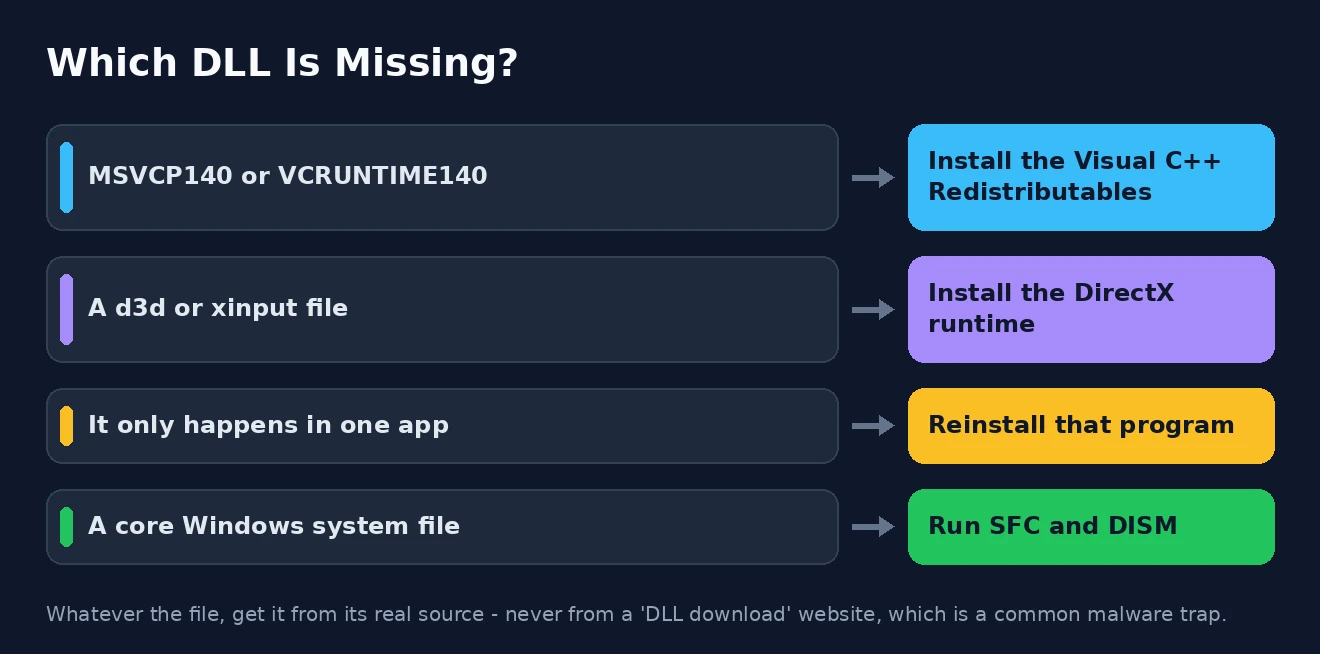
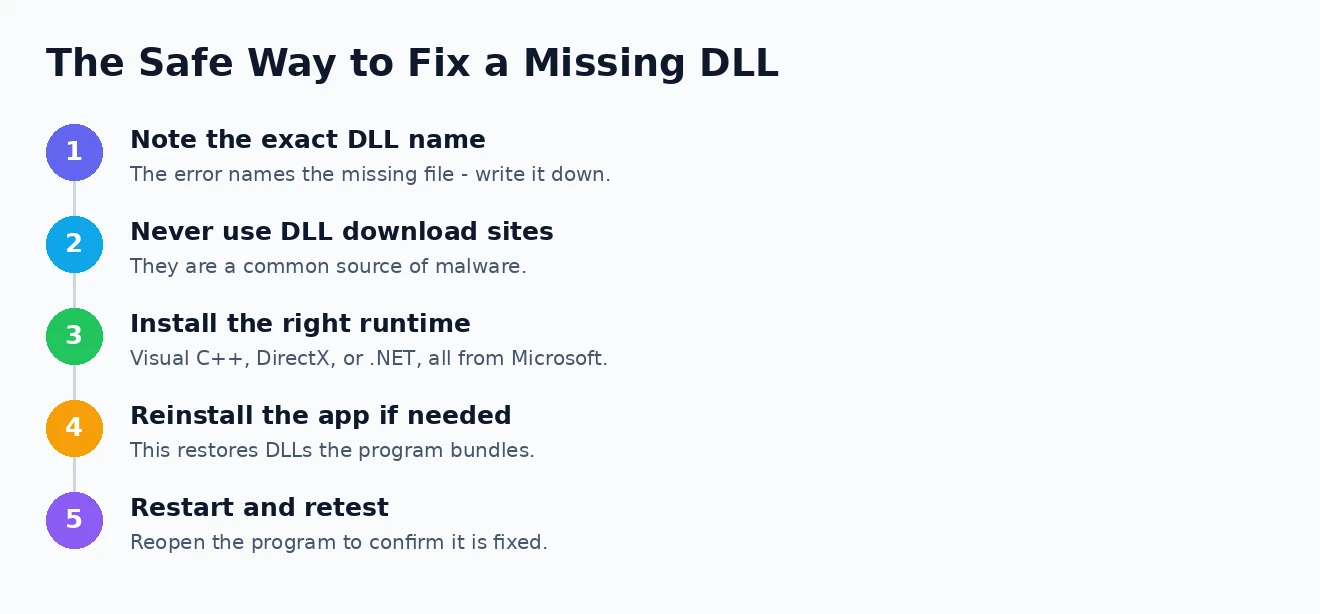
It is worth reading the error message carefully, because it names the exact file that is missing — something like MSVCP140.dll or d3dx9_43.dll. That file name is your most useful clue, since it usually reveals which runtime package the missing library belongs to, and therefore which fix to try first. Jotting it down before you begin saves time and stops you guessing later.
The reassuring part is that the great majority of these missing files belong to a small number of common runtime packages from Microsoft — chiefly the Visual C++ Redistributables, along with DirectX and the .NET runtime. Files with names like MSVCP140.dll or VCRUNTIME140.dll come straight from those packages, so when they go missing, installing the package restores them in one go. That is why the fix is usually far simpler than the cryptic file name suggests.
The other common causes are a program that did not install completely, a file that was accidentally deleted, or an overzealous antivirus that quarantined a legitimate DLL by mistake. Occasionally the missing file is a core Windows component rather than an app runtime, which calls for a slightly different repair. Knowing which of these applies points you to the right fix, and the steps below cover them all in a sensible order.
Never Download DLL Files From Random Websites
This point is worth its own section because it is the single most common mistake people make with a missing DLL error, and it can turn a minor annoyance into a genuine security problem. Search for the name of a missing DLL and you will find countless sites promising a free download of exactly that file — and you should avoid them.
There are two serious problems with these sites. The first is malware: DLL download sites are a favourite disguise for attackers, and because a DLL is executable code, running a malicious one hands over control of your system. The second is that even a “clean” downloaded DLL is often the wrong version, and dropping a mismatched system file into place can break other software or destabilise Windows in ways that are hard to trace later.
The rule is simple: never download an individual DLL file from a third-party website. Every legitimate fix gets the file from its proper source — the official runtime installer or the program itself — which is both safer and more reliable.
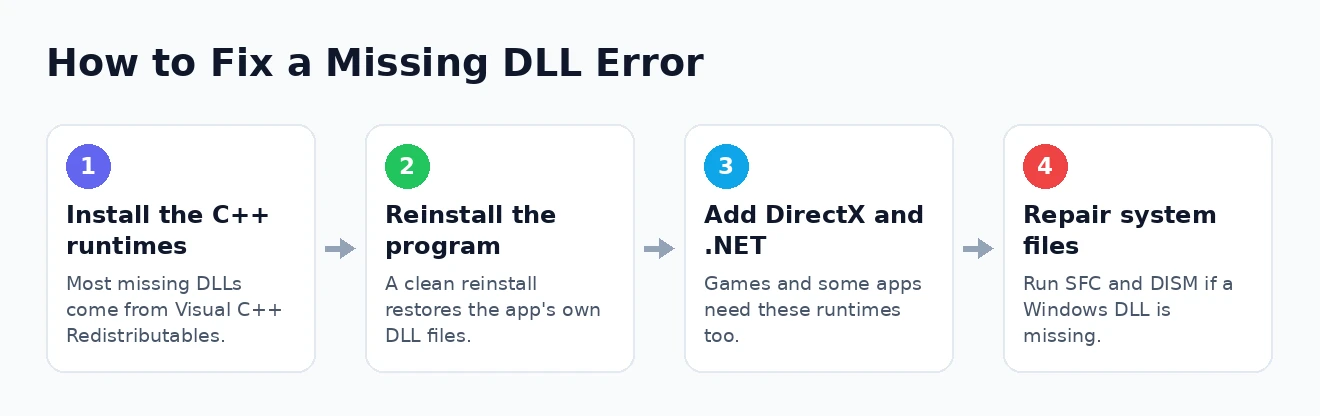
Fix 1: Install the Visual C++ Redistributables
This is the most important fix, because the Visual C++ Redistributables are the source of the DLLs behind the largest share of these errors — if your missing file is MSVCP140.dll, VCRUNTIME140.dll, or something similar, this is very likely all you need. These small, free packages from Microsoft supply the shared libraries that a huge number of programs depend on.
- Go to the official Microsoft download page for the latest supported Visual C++ Redistributable — the Microsoft website has resources you may find useful for finding it.
- Download both the x64 and the x86 versions, as many programs need the 32-bit libraries even on a 64-bit system.
- Run each installer and follow the prompts; if it offers to repair an existing installation, choose that option.
- Restart your PC and try opening the program again.
It is also worth knowing that several versions of the Visual C++ Redistributables can, and often should, sit side by side, because different programs were built against different years’ releases. Installing the latest package does not remove the older ones, so having the full set present is completely normal and causes no conflict — it simply maximises the chance that whatever a program is looking for is already there.
Installing these redistributables resolves a remarkable proportion of missing DLL errors in one step, which is why it is the first thing to try. If you have had similar trouble before, it is worth installing them proactively, since so much software relies on them. Should the specific file still be reported as missing afterwards, the next step depends on what kind of program is failing.
Fix 2: Reinstall the Program
The error message itself suggests reinstalling the program, and that advice is sound: many applications bundle their own DLLs, and a clean reinstall replaces any that went missing or got corrupted during the original installation. It is a reliable fix when the problem is confined to a single piece of software.
There is a subtle but important point here: reinstalling only helps if the missing file genuinely belongs to that program rather than to a shared runtime. If the same file is reported missing across several programs, the runtime fixes above are the real answer, and a reinstall alone will not hold. For a fault confined to a single application, though, a clean reinstall is often the quickest route back.
Uninstall the program properly first, then download a fresh copy from the developer’s official website or the Microsoft Store rather than reusing an old installer, and install it again. This ensures you get a complete, current set of files. If the trouble started recently, it may simply be that the first install was incomplete, and a fresh one puts everything in place.
Games are an especially common source of these errors, and game platforms make this easy: most can verify and repair a game’s files automatically, reinstalling any missing components including the runtimes they depend on. On Steam, for instance, the option to verify the integrity of game files does exactly this, and the Steam website has resources you may find useful for that process. If your issue is a game or app that refuses to launch at all, our guide to Steam not launching and to apps crashing on Windows 11 cover related fixes.
Fix 3: Install DirectX and .NET
If the Visual C++ Redistributables did not cover your missing file, the other two major runtime sources are worth installing, particularly for games and for apps built on Microsoft’s frameworks. Different missing DLLs point to different packages, so matching the file to its source is the key.
Missing files with names beginning “d3d” or including “xinput” belong to DirectX, so installing the DirectX End-User Runtime from Microsoft will restore them — this is a frequent fix for older games. Other applications, especially business and productivity tools, are built on the .NET platform, and installing the appropriate .NET runtime resolves DLL errors relating to it. Both are free official downloads, and both are safe sources for exactly the kind of file the error is asking for.
Between the Visual C++ Redistributables, DirectX, and .NET, you have covered the origins of almost every missing DLL that belongs to a shared runtime. Installing the right one for your particular file is the correct, safe alternative to hunting the file down individually. If the missing file does not seem to belong to any of these and is instead part of Windows itself, the next fix is the one you need.
Fix 4: Repair System Files With SFC and DISM
When the missing DLL is a core Windows component rather than an app runtime, the solution is to repair Windows’ own files using two built-in tools. This handles cases where system corruption, rather than a missing package, is behind the error, and it requires no downloads at all.
- Open the Start menu, type cmd, and choose Run as administrator to open an elevated Command Prompt.
- Type sfc /scannow and press Enter. The System File Checker will scan for and repair damaged or missing Windows files, which can take several minutes.
- When it finishes, run DISM /Online /Cleanup-Image /RestoreHealth and press Enter to repair the underlying system image that SFC relies on.
- Restart your PC once both have completed, then check whether the error is gone.
These two commands work as a pair, with DISM repairing the component store and SFC then restoring individual system files from it, so running both in that order gives the best result. It is a genuinely useful routine for a whole range of Windows problems, not just this one. If a system file was the culprit, this will typically put it right.
Fix 5: Check Antivirus and Windows Update
Two final causes are worth ruling out, and both are quick. The first is your antivirus software, which occasionally mistakes a legitimate DLL for a threat and quarantines it, making it “disappear” and triggering the error even though nothing was actually wrong with the file.
Check your antivirus program’s quarantine or protection history, and if you find a DLL belonging to a program you trust, restore it and add an exclusion so it is not removed again. Alongside that, make sure Windows is fully up to date, since Windows Update can install and repair system components, including framework files that a missing DLL error may relate to. Install any pending updates and restart. Running the built-in Windows troubleshooters can also catch related problems automatically.
If you have worked through all of these and a single program still reports the same missing file, its installation is likely damaged in a way a normal reinstall has not fixed, or it needs a specific component the developer can identify — checking the program’s own support resources is the next step. As a last resort for a system-wide problem, resetting Windows 11 reinstalls everything cleanly, and the related 0xc000007b startup error guide covers a closely connected issue.
How to Fix a Missing DLL Error: Frequently Asked Questions
What is a DLL file?
A DLL, or Dynamic Link Library, is a file containing shared code and resources that multiple programs can use at once, rather than each program including its own copy. This saves space and keeps things consistent, but it also means that if a shared DLL goes missing, several programs can be affected together.
Is it safe to download DLL files from the internet?
No. Third-party DLL download sites are a common source of malware, and a downloaded file is often the wrong version, which can cause further problems. Always restore a missing DLL through its proper source instead — the official runtime installer, the program itself, or Windows’ own repair tools.
What are MSVCP140.dll and VCRUNTIME140.dll?
These are among the most commonly missing DLLs, and both come from the Microsoft Visual C++ Redistributables. A huge number of programs rely on them, so installing the latest Visual C++ Redistributables from Microsoft usually restores these files and clears the error immediately.
Why do games so often get missing DLL errors?
Games depend heavily on runtime packages like the Visual C++ Redistributables and DirectX, and if those are missing or outdated, a game will fail to launch with a missing DLL error. Installing those runtimes, or using your game platform’s option to verify and repair the game’s files, normally fixes it.
That is the complete, safe way to deal with a missing DLL error. Skip the dangerous download sites entirely, install the Visual C++ Redistributables first, reinstall the program or verify a game’s files, add DirectX or .NET if the file belongs to them, and repair Windows with SFC and DISM if it is a system file. Approached in that order, this intimidating little error turns out to be one of the more straightforward ones to put right.





