Sooner or later, almost every Windows PC reaches a point where nothing quite works right. It has grown sluggish, some setting is broken in a way you cannot track down, an infection will not shift, or you are simply about to sell it and want your data gone. For all of these, there is one reliable answer: reset Windows 11 and start from a clean slate.
Resetting sounds drastic, and in a sense it is — it reinstalls Windows from scratch. But the tool built into Windows 11, called Reset this PC, makes it genuinely straightforward, and it offers a crucial choice that surprises people: you can wipe everything, or you can reset the system while keeping your personal files. It is far less frightening than it first appears.
This guide walks through the whole thing in plain terms — what a reset actually does, how to choose between keeping and removing your files, the steps to do it, what to sort out beforehand so nothing is lost, and when a reset is the right move versus when you should try something gentler first.
What Does Resetting Windows 11 Actually Do?
When you reset Windows 11, the system reinstalls a fresh copy of Windows and returns it to a clean state, as though the machine were close to new. Every program you installed is removed, and your settings go back to their defaults. What happens to your personal files, though, is up to you, because the reset tool gives you two distinct paths to choose from.
The first option keeps your personal files — documents, photos, and the like — while removing your installed apps and resetting your settings. The second removes everything, wiping your files along with the apps and settings for a completely blank machine. Both leave you with a fresh installation of Windows; they differ only in whether your own data survives the process. Which one you want depends entirely on why you are resetting, which is the subject of the next section.
It is worth being clear about how this differs from System Restore, since the two are easily confused. A reset reinstalls Windows and removes your programs, whereas System Restore merely rolls the system back to an earlier point in time and keeps your apps in place. Reset is the heavier, more thorough tool — the one you reach for when a rollback is not enough and you need a genuinely clean foundation.
Keep My Files or Remove Everything?
This single choice is the most important decision in the whole process, and getting it right comes down to one question: are you keeping this PC, or parting with it? The reset tool presents the two options plainly, but understanding what each really does will save you any nasty surprises.
Keep my files is the option for a computer you intend to go on using. It is the classic fix for a machine that has become slow, unstable, or riddled with some problem you cannot pin down. It preserves your personal files but strips out every installed application and resets your settings to default, so you will need to reinstall your programs afterwards. Think of it as a deep clean that leaves your documents untouched while sweeping away everything that might have been causing trouble.
Remove everything is the option for a computer you are letting go — selling, giving away, trading in, or recycling — or when you want a truly fresh start. It erases your files along with the apps and settings, leaving nothing of yours behind. When you choose this path, Windows also offers an extra setting to clean the drive more thoroughly, which takes considerably longer but makes your old data far harder for anyone to recover. If you are handing the machine to a stranger, that thorough option is the one to pick.
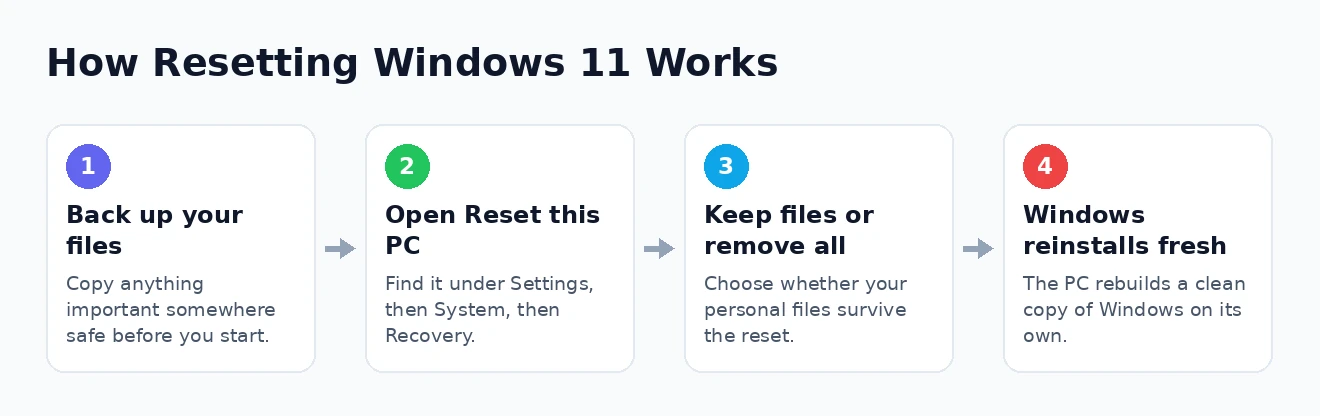
The simple rule: choose “Keep my files” when you are fixing a PC you are keeping, and “Remove everything” when the PC is leaving your hands. When in doubt, back up first and you cannot go far wrong.
One caution worth stating plainly: even the “Keep my files” option is not a substitute for a backup. It is reliable, but no reset is completely guaranteed, and it would be a poor moment to discover a problem. Whichever route you take, backing up your files first is non-negotiable, which brings us neatly to the preparation.
What to Do Before You Reset
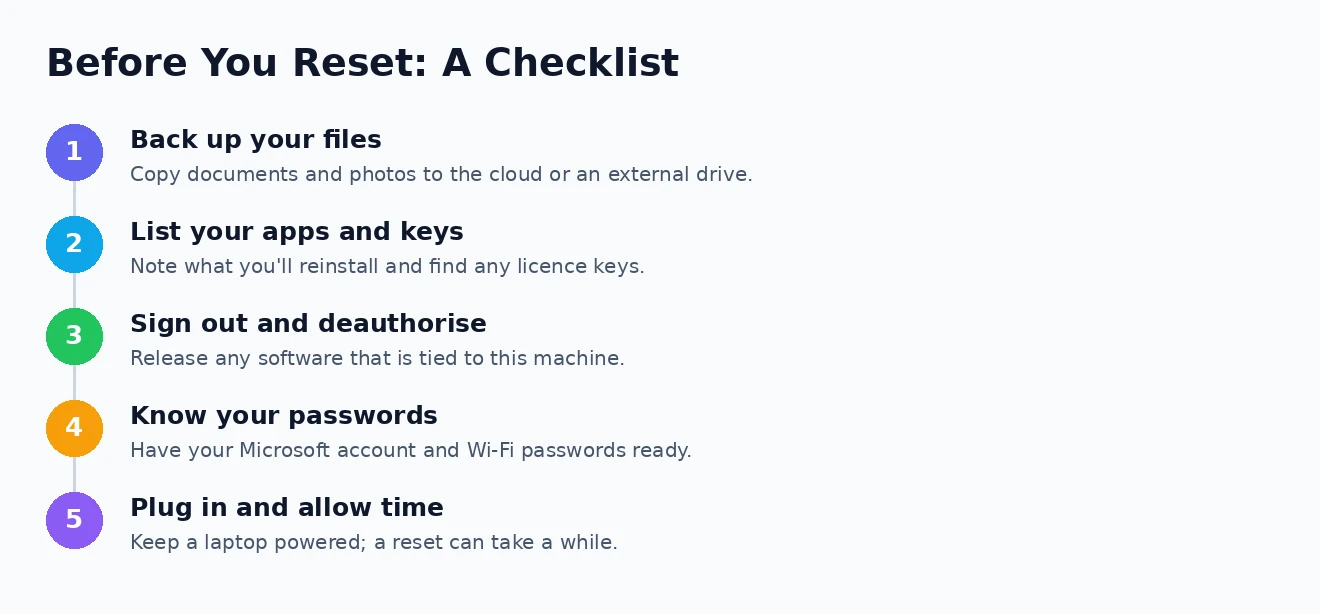
A little preparation turns a reset from a nerve-wracking gamble into a routine bit of maintenance. None of these steps takes long, and skipping them is how people end up losing something they cared about. Run through this list before you begin.
- Back up your files. This is the essential one. Copy anything important to an external drive or the cloud, even if you plan to keep your files, so that a problem during the reset costs you nothing.
- Note your apps and licences. Your installed programs will be gone, so make a list of what you will need to reinstall, and locate any product keys or licence details for paid software.
- Sign out and deauthorise. Some software is tied to your machine and limits how many devices can use it, so sign out of those accounts and deauthorise the PC before wiping it.
- Know your passwords. You will set the PC up again afterwards, so make sure you know your Microsoft account password and your Wi-Fi password before you start.
- Stay powered and patient. Plug a laptop into the mains so it cannot die mid-reset, and set aside enough time, as the process can take anywhere from half an hour to a few hours.
The backup step deserves special emphasis because it is the one people regret skipping. Copying your files to OneDrive or an external drive first means the reset carries no real risk to your data, and our full guide to backing up files in Windows 11 covers the options if you are not sure where to start. With your files safe and your passwords to hand, you are ready to proceed.
How to Reset Windows 11 Step by Step
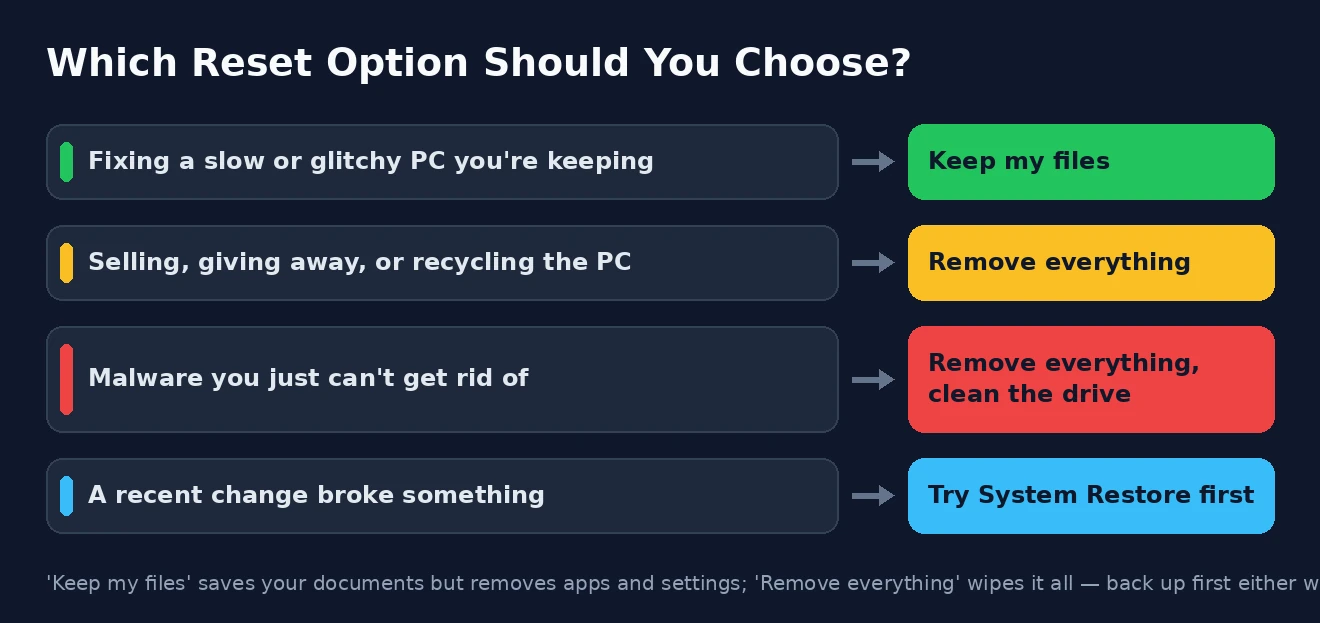
With the preparation done, the reset itself is refreshingly simple — a short wizard walks you through it. Here is the full sequence from start to finish.
- Open Settings, then go to System and select Recovery.
- Under “Reset this PC,” click the Reset PC button to launch the wizard.
- Choose Keep my files or Remove everything, based on the decision from earlier.
- Choose how to reinstall Windows: Cloud download fetches a fresh copy from Microsoft, while Local reinstall rebuilds from the files already on your PC.
- If you chose Remove everything and are giving the PC away, open the additional settings and turn on the option to clean the drive fully for a more thorough wipe.
- Review the summary of what will happen, then click Reset to begin. Your PC will restart and may reboot several times as it reinstalls Windows.
- When it finishes, work through the Windows setup screens and begin reinstalling your applications.
That is all there is to it. Once you click Reset, the process is largely hands-off — you can walk away while Windows does the work, returning to a clean system once it lands on the setup screen. Do resist the urge to interrupt it or cut the power partway through, as a reset that is halted midway can leave Windows in a worse state than when you started.
Cloud Download or Local Reinstall?
That fourth step, choosing how Windows reinstalls itself, is the one that puzzles people most, so it is worth a moment’s explanation. The two options reach the same destination by different routes, and which is better depends on your situation.
Cloud download pulls a brand-new copy of Windows straight from Microsoft’s servers. It requires a solid internet connection and downloads several gigabytes of data, but because the files are fresh, it is the better choice if you suspect your existing Windows files are corrupted — a likely culprit when the PC has been badly misbehaving. Local reinstall, by contrast, rebuilds Windows from the copy already on your machine. It is faster and uses no data, but it cannot help if those local files are themselves damaged, since it is reusing them.
As a rule of thumb, if you have a reliable, reasonably fast connection and the machine has been seriously unwell, cloud download is the safer bet. If your connection is slow or capped and you simply want a quick refresh, local reinstall will do the job. Neither is wrong; they are just suited to different circumstances, and the reset works the same way once you have chosen.
When to Reset, and When to Try Something Else
A reset is powerful, but it is also a blunt instrument, and it is not always the right first move for a PC you are keeping. Reaching for it too quickly means reinstalling all your software to solve a problem that a smaller fix might have cleared in minutes. It helps to know where a reset genuinely belongs.
A reset is the right call when a computer is persistently slow or glitchy in ways that ordinary cleanup has not fixed, when malware simply will not go away, when you want a clean slate, or — always — when you are passing the machine on to someone else. In those situations, nothing short of a fresh start will do, and a reset is exactly the tool for the job. For a PC being sold or recycled, it is not a last resort at all but the correct and necessary step.
For a machine you are keeping, though, it is worth trying the gentler options first. Running the built-in Windows troubleshooters can fix many common faults automatically. If a specific recent change caused the trouble, System Restore may undo it without touching your apps. And a great deal of sluggishness comes down to too many background programs, which managing your startup programs resolves without any reinstalling at all. Save the reset for when those have not worked.
After the Reset: Getting Back Up and Running
Once the reset completes, your PC greets you with the same setup experience as a new machine, and getting back to normal is a matter of methodically putting things back. It is a good opportunity to set the computer up more tidily than before.
You will first walk through the Windows setup screens, much as you would on a new device, so our guide to setting up Windows 11 for the first time applies directly here. After that, reinstall the applications you actually use — and if you chose to keep your files, Windows helpfully leaves a list of the removed apps on your desktop to jog your memory. If you removed everything, this is the point at which you restore your documents from the backup you so wisely made.
From there it is a matter of signing back into your accounts, reconnecting your devices, and reapplying the settings you prefer. Take the chance to only reinstall what you need rather than recreating every bit of old clutter, run Windows Update to bring the fresh installation fully current, and enjoy a machine that, for once, feels genuinely fast again. For the bigger picture of living with the system, our complete guide to Windows 11 is a useful companion. Microsoft also documents the recovery options, and the Microsoft website has resources you may find useful; if you are wiping a PC to pass it on, the FTC website has resources you may find useful on disposing of an old computer safely.
How to Reset Windows 11: Frequently Asked Questions
Does resetting Windows 11 delete my files?
Only if you choose to. The reset tool offers “Keep my files,” which preserves your personal documents and photos while removing apps and settings, and “Remove everything,” which erases your files as well. Either way, your installed programs are removed — and you should always back up first regardless of which option you pick.
Will resetting Windows 11 remove viruses and malware?
In most cases, yes. Choosing “Remove everything,” especially with the thorough drive-cleaning option, wipes the system and clears the large majority of infections. “Keep my files” is less certain, since malware hiding among your personal files could survive, so for a serious infection the remove-everything option is the safer choice.
How long does it take to reset Windows 11?
Anywhere from about 30 minutes to a few hours, depending on your PC’s speed, your storage drive, and whether you chose cloud download or local reinstall. The thorough drive-clean option adds considerably more time. Keep a laptop plugged in throughout and do not interrupt the process.
Is resetting the same as a clean install of Windows?
They are similar but not identical. A reset reinstalls Windows while keeping the same version and is much easier to perform, whereas a full clean install wipes the entire drive, including the recovery partition, and requires separate installation media. For the vast majority of people, a reset is thorough enough and far simpler.
That is everything you need to reset Windows 11 with confidence. Decide whether to keep or remove your files, back up either way, work through the short wizard, and put things back afterwards — and whatever was ailing your computer, you will almost certainly have left it behind. It is the closest thing Windows has to a fresh start, and used sensibly, it is one of the most useful tools at your disposal.