For routine media playback in 2026, every free media player for Windows works fine. VLC plays your videos. MPC-HC plays your videos. The Movies & TV app built into Windows plays your videos. The Windows 11 Media Player app plays your videos. PotPlayer, mpv, KMPlayer — all play your videos. The differences between them on the typical case of “double-click a video file and watch it” are essentially invisible to users. Comparison articles that focus on the routine playback case end up making distinctions that do not matter.
Where the players genuinely differ is in what breaks on edge cases. Subtitle handling for files with unusual subtitle formats or multiple subtitle tracks. Playback of obscure codec combinations from older content or specific niches. Hardware acceleration that makes the difference between smooth playback and stuttering on demanding content. Network stream playback for users accessing media servers, IPTV, or live streams. Each player handles these edge cases differently, and the right pick depends on which edges you actually encounter.
This guide is structured around what breaks rather than what works, because the breaking is what actually distinguishes the players. For broader context on the Windows media software stack including the format conversion tools that pair with players, our complete guide to Windows software covers the adjacent categories.
VLC: The Safe Default That Handles Almost Everything
VLC media player (free, open-source; videolan.org) is the right free media player for Windows for users who want one tool that plays essentially anything without thinking about whether the format is supported. The product has been the default for serious users for over twenty years, and the dominance reflects genuine capability — the codec support is the most comprehensive in the free category, the format handling is reliable across the unusual edge cases that break other players, and the platform support across Windows, Mac, Linux, iOS, and Android is consistent enough to learn the tool once and use it everywhere.
The strengths for the edge-case scenarios are real. VLC plays Matroska (MKV) files with proper handling of multiple audio and subtitle tracks. It plays older formats (AVI with DivX or Xvid, OGG video, RealMedia) that newer players sometimes struggle with. It handles damaged or partially-downloaded files gracefully where many players would crash. The built-in network stream support handles HTTP streams, RTSP, RTMP, and the various other protocols that media servers and streaming sources use.
The subtitle handling deserves specific mention because subtitles are where many media players visibly fail. VLC handles external subtitle files (SRT, SSA/ASS, VTT, others), embedded subtitles within video containers, and multiple subtitle tracks where the user wants to switch between languages. The advanced formatting in SSA/ASS subtitle files (which anime fansubs and some other content rely on) renders correctly in VLC where simpler players sometimes lose the formatting entirely.
The honest concerns with VLC are about polish and resource use. The interface looks the same as it has for many years, which suits some users (consistency, familiarity) but feels dated to others. The application is not the lightest in memory or CPU use — it does more than simpler players and the resource cost shows. Hardware acceleration works but requires some configuration depending on your specific GPU.
For most users in 2026, VLC is the right default with essentially no real competition for the “I want one player that handles everything” use case. The alternatives matter for users with specific reasons to prefer them; for users without specific reasons, VLC produces the broadest format support with the least configuration.
MPC-HC: The Lightweight Windows-Focused Alternative
Media Player Classic Home Cinema (MPC-HC; free, open-source; available from various community sources after the original project was abandoned and revived by community maintainers) is the free media player for Windows for users who specifically want a lightweight player with a traditional Windows interface that does not consume resources unnecessarily.
The case for MPC-HC specifically is real for the relevant use cases. The interface is genuinely minimal — a video window with basic controls, no media library trying to organise your files, no recommended content trying to engage you with the application. The application is small (downloads as a few megabytes), starts essentially instantly, and uses minimal memory during playback. For users on older or less capable hardware, this efficiency matters substantially.
The playback quality is genuinely excellent. MPC-HC uses DirectShow filters that integrate with the Windows codec ecosystem cleanly, supports hardware acceleration through multiple paths (DXVA2, NVDEC, others depending on your GPU), and produces video quality that matches or exceeds VLC for most realistic content. For users with high-quality video files they want to watch at full quality without compression artefacts from the player itself, MPC-HC handles this well.
The realistic concerns with MPC-HC are about maintenance and ecosystem. The original MPC-HC project was abandoned in 2017, and the current community-maintained version (often distributed alongside the K-Lite Codec Pack) has been maintained but development pace is slower than active projects. The Windows-only positioning means cross-platform users need different players on other systems.
For users specifically wanting a lightweight Windows player with traditional interface and excellent playback quality, MPC-HC remains the right pick. For users who want active development, cross-platform consistency, or the broadest format support without configuration, VLC is better-positioned in 2026.
mpv: The Power-User Player With Configuration Depth
mpv (free, open-source; mpv.io) is the free media player for Windows for users who specifically want maximum control over playback quality and configuration through a deeply configurable command-line and config-file driven application. The product is the modern successor to MPlayer and has gained substantial following among power users who want their media player tuned precisely for their preferences.
The case for mpv specifically is concentrated in users who genuinely benefit from the customisation depth. The video output quality, particularly with custom shaders for upscaling and post-processing, can exceed what other players produce by meaningful margins for users with appropriate playback equipment and the patience to configure mpv properly. The configuration covers essentially every aspect of playback behaviour — keyboard shortcuts, default subtitle behaviour, audio output routing, video processing chains, OSD appearance, screenshot formats.
The realistic friction with mpv is that the configuration is the product. The default settings are reasonable but the value comes from tuning the configuration for your specific use. New users sometimes install mpv expecting a polished click-and-play experience and find a player that requires actual setup investment to produce its best results. Users who invest that setup time get dramatically better playback than the defaults; users who do not get a player that is fine but not obviously better than the alternatives.
The graphical wrappers (mpv.net for Windows, IINA for macOS, others) add a more traditional player interface on top of mpv’s playback engine. These provide a useful middle ground — the playback quality of mpv with a more familiar interface — for users who want some of the benefits without committing to the full power-user configuration. mpv.net specifically is a credible choice for Windows users who want mpv’s playback quality with a more standard Windows player interface.
For typical users, mpv is more configuration depth than they want. For power users who specifically care about playback quality and are willing to invest in setup, mpv produces results that nothing else matches. The choice is honestly about whether you are the kind of user who would actually configure it, not about whether the underlying capability justifies the choice.
PotPlayer: The Capable Closed-Source Alternative
PotPlayer (free, closed-source; potplayer.daum.net) is the free media player for Windows for users who specifically want a feature-rich player with a more polished interface than the open-source alternatives. The product comes from the Korean company Kakao (formerly Daum) and has been actively developed for over a decade.
The case for PotPlayer specifically is the interface and feature set. The player handles all the standard formats competently with broad codec support, includes features like 3D video playback and 360-degree video support that some other players lack, and produces a more polished user experience than VLC or mpv default configurations. The customisation depth sits between mpv’s deep configuration and VLC’s more limited preferences.
The honest concerns with PotPlayer are about provenance and ad-supported features. The product is closed-source, which means you cannot verify what it actually does. Some installations have included optional advertising features. The product’s history under various Korean ownerships has included occasional concerns about bundled software and user data handling that the open-source alternatives do not face.
For users who specifically value the polished interface and feature set and are comfortable with the closed-source provenance, PotPlayer is a credible choice. For users who specifically prefer open-source software or want maximum confidence in what the player is doing, VLC or mpv remain better fits. Our video converter software comparison covers the related category for users whose media work involves format conversion alongside playback.
The Built-In Windows Options
Windows 11 includes several media playback options that some users overlook in favour of third-party players. The realistic positioning of these.
Windows 11 Media Player (the newer one, replacing the older Windows Media Player and the Groove Music app) handles common audio and video formats competently. The interface is reasonably polished and the integration with Windows is native. For users whose playback needs are limited to common formats (MP4 video, MP3 audio, the standard set) and who do not want to install additional software, the built-in player is genuinely adequate.
The Movies & TV app handles video specifically with similar capability. For users who acquire their content through the Microsoft Store, the app provides integration with that ecosystem. For other content, the app is functional but not specifically better than the alternatives.
The case against the built-in options is the format support limitation. Anything beyond the mainstream codec set may not play, and the recovery from “this file does not work” is more friction than just installing VLC. For users whose content is consistently mainstream, the built-in options work. For users who occasionally need to play unusual files, VLC’s broader support eliminates the surprise-and-frustration cycle that the built-in players sometimes produce.
The Subtitle and Audio Track Concerns
One specific area where players genuinely differ is subtitle and audio track handling, which matters substantially for users who watch foreign-language content, content with optional commentary tracks, or anime with fansub-style subtitle formatting.
VLC handles essentially every subtitle format and audio track configuration competently. The right-click menu provides quick access to switching subtitle tracks, audio tracks, and disabling either. The subtitle styling for SSA/ASS files (which include positioning, fonts, and colours) renders correctly.
mpv with appropriate configuration produces subtitle rendering quality that exceeds VLC for users who care about typography details. The configuration depth specifically allows tuning subtitle appearance to match user preferences precisely.
The built-in Windows players handle basic external subtitle files but tend to struggle with complex SSA/ASS formatting and with multiple-track content where users need to switch between tracks. For users whose content frequently involves these features, the built-in options produce friction that the dedicated players avoid.
For users who specifically need subtitle features, VLC is the safe default and mpv is the power-user upgrade. The other players work but with less consistent results across the edge cases. Our video downloader comparison covers the related category for users whose content acquisition involves subtitle preservation through download workflows.
Network Streams and Media Server Integration
For users whose media playback extends beyond local files into network streams from media servers, IPTV services, or other internet-based sources, the player choice matters specifically for the protocol support.
VLC handles the broadest range of network stream sources of any free media player. HTTP and HTTPS streams, RTSP from IP cameras and some streaming sources, RTMP from older streaming setups, UDP multicast for IPTV configurations, and many others all work without additional setup. For users with diverse network media needs, VLC reduces the friction of trying multiple players to find one that handles their specific source.

The Plex, Jellyfin, and Emby media server clients (covered in our media server software comparison) are usually better choices than general-purpose players for accessing those specific platforms, because the dedicated clients integrate with the server’s metadata and library structure. For accessing media servers, the dedicated client typically beats playing the stream directly in a general player.
For users with simple HTTP streams or direct file URLs (like a video file served from a NAS without proper media server software), VLC’s direct URL opening (File → Open Network Stream) handles the basic case adequately. For more sophisticated streaming workflows, dedicated tools serve better.
Hardware Acceleration and Performance
One specific consideration that affects which player is right for some users: hardware acceleration for video decoding. Modern video formats (H.264, H.265/HEVC, AV1) benefit substantially from GPU-based decoding rather than pure software decoding on the CPU. The difference matters for two reasons — power consumption (laptops on battery use dramatically less power with hardware acceleration) and capability (some content at high resolution and frame rates is impractical without hardware acceleration).
The player support for hardware acceleration varies in default behaviour and configuration. VLC includes hardware acceleration but requires some configuration to use it consistently across content. MPC-HC integrates with Windows hardware acceleration cleanly. mpv supports it but the configuration is part of the broader mpv configuration depth. PotPlayer enables it by default with reasonable behaviour.
For users specifically wanting hardware-accelerated playback for power efficiency or high-resolution content, checking that your chosen player has hardware acceleration enabled and working with your specific GPU is worth doing during initial setup. The 30 seconds spent verifying this prevents the longer debugging session when battery life is mysteriously short or when 4K HEVC content stutters during playback.
The relevant test is opening a high-bitrate H.265 or AV1 video and checking CPU usage during playback. If the CPU is at 50%+ during playback, hardware acceleration is likely not active. If the CPU is at 5-15%, hardware acceleration is working as intended. Adjusting player settings to fix the former is worth the effort. Our screen recorder comparison covers the related category for users whose media work involves capturing content alongside playing it back.
The Practical Recommendation
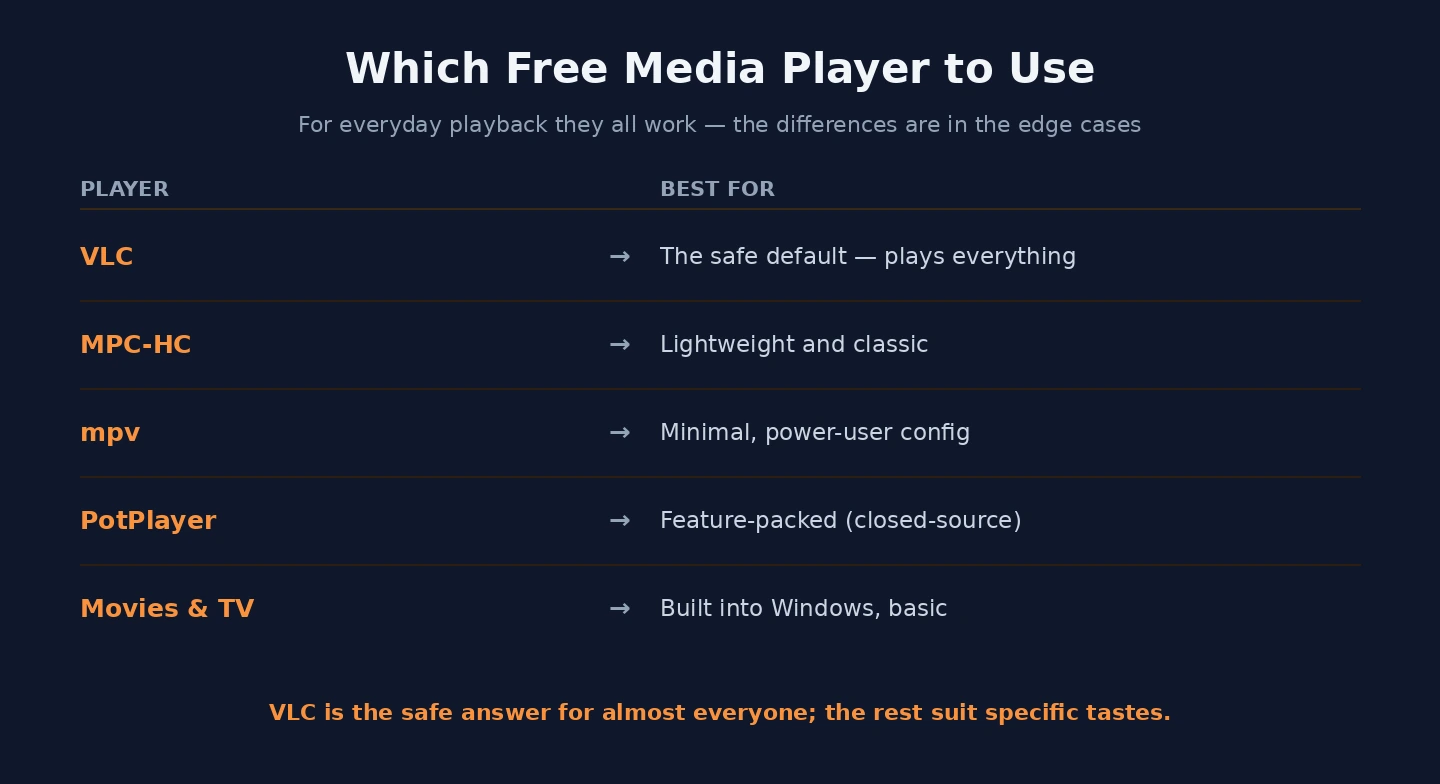
For most Windows users in 2026, the answer is simple: install VLC as the default and reach for it whenever the built-in Windows player fails. For users who specifically want a lightweight player with traditional Windows interface: MPC-HC. For power users who want maximum playback quality and are willing to invest in configuration: mpv (or mpv.net for the wrapper). For users who specifically prefer a polished closed-source product: PotPlayer with awareness of the provenance concerns. For users whose content is consistently mainstream and who do not want to install additional software: the built-in Windows 11 Media Player handles the realistic case. The wrong move is spending time comparing detailed features when most of those features matter only at edge cases you may not actually encounter. Identify what actually breaks for you when you try to play media, pick the player that handles those specific failures well, and the category becomes a non-issue rather than ongoing frustration.