
FTP is one of the oldest protocols still in everyday use, and that age shows. Most of the people who first need an FTP client today are interacting with legacy infrastructure — a web host that has not modernised its workflow, a corporate file transfer system that predates cloud sync, a server that exposes files exactly the way servers did in the 1990s. The good news is that the modern Windows FTP clients have caught up with what users actually need from the experience, even when the underlying protocol has not. The bad news is that FTP itself has security and reliability problems that no client can fully solve, and the right answer in many cases is not which FTP client to use but whether to use FTP at all.
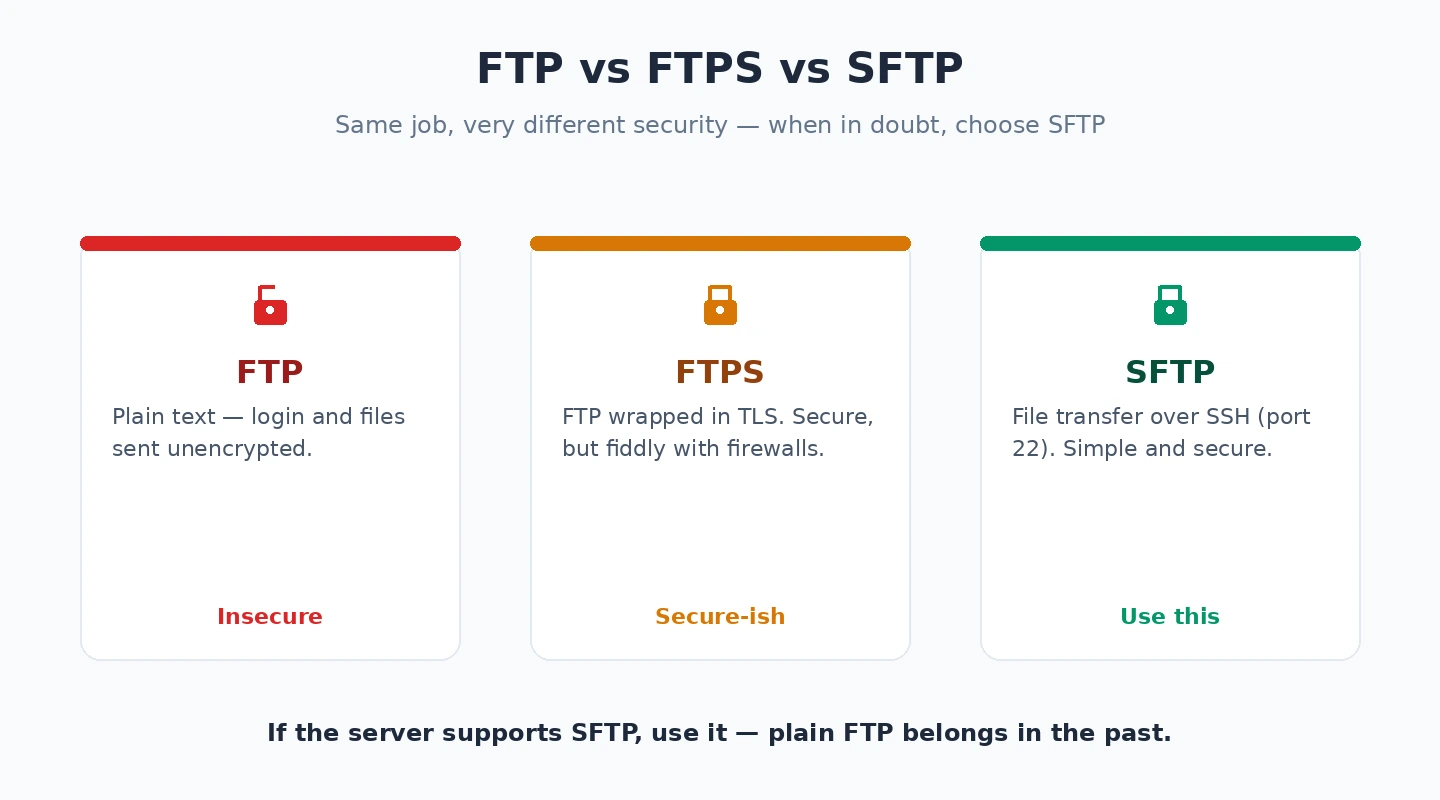
Before recommending specific tools, the protocol landscape worth understanding: plain FTP transmits credentials and data in cleartext over the network, which is acceptable only on internal trusted networks and never over the open internet. FTPS adds TLS encryption to traditional FTP and is the modern minimum for any FTP-protocol use case. SFTP is a different protocol entirely, layered on SSH, with stronger security guarantees and better firewall behaviour — for most modern use cases that “feel like FTP,” SFTP is actually what you want, and most servers that offer FTP also offer SFTP. A serious FTP client for Windows should handle all three protocols competently because in practice you will encounter all three.
This guide covers the clients that earn their place in 2026 and is upfront about the workflow patterns that make a meaningful difference once you are doing serious file transfer work. For broader context on the Windows software stack a power user needs, our complete guide to Windows software covers the adjacent categories.
FileZilla: The Free Default That Earned the Position
FileZilla (free; filezilla-project.org) is the FTP client for Windows that most people start with as an FTP client for Windows, and despite being free and over two decades old, it remains genuinely good for the core use case. It handles FTP, FTPS, and SFTP. It offers tabbed connections to multiple servers, queue management for batch transfers, drag-and-drop between local and remote panels, resume support for interrupted transfers, and a site manager for storing connection details. The interface is dated by modern standards but is functionally complete and stable.
Two practical caveats with FileZilla worth flagging. First, the official Windows installer historically bundled adware (browser toolbars, search redirectors) at install time, and several download mirrors carry modified versions with more aggressive bundled software. Always download from the official site, deselect any optional bundled software during install, and consider using the portable version which avoids the installer entirely. Second, the password storage in older versions stored saved credentials in plain text in the configuration file. Recent versions support a master password to encrypt the credential store; enable it during initial setup rather than discovering later that your saved logins are sitting in a readable file.
For most people doing occasional FTP transfers — uploading website files to a host, downloading log files from a server, syncing media to a CDN — FileZilla is genuinely the right answer. The free pricing is honest (no paid tier, no upsell), the cross-platform availability means your knowledge transfers if you move between Windows and Mac or Linux, and the maturity of the codebase means the rough edges have been smoothed over many years.
WinSCP: The Power User’s Choice
WinSCP (free; winscp.net) is the FTP client for Windows that I personally use most often, and the reason is the integration with the rest of the Windows scripting and automation ecosystem. WinSCP supports all the protocols FileZilla does (FTP, FTPS, SFTP, plus SCP), provides a similar dual-pane interface, and adds features that matter for serious workflow: a synchronisation mode that compares local and remote directories and only transfers changed files, a built-in scripting language for automated batch transfers, integration with PuTTY for SSH terminal sessions to the same server, and the ability to integrate with Windows Task Scheduler for automated transfers.

The synchronisation mode alone justifies the switch from FileZilla for anyone who regularly mirrors local development environments to remote servers, deploys websites by syncing changed files, or maintains backup workflows that copy to remote storage. The “Synchronise” command compares timestamps and file sizes, shows you exactly what will be transferred in which direction, and executes only what is needed. This is dramatically faster than re-uploading entire directory trees and avoids the common mistake of overwriting newer remote files with older local copies.
The scripting capability is the second major differentiator. WinSCP can be driven from a command-line scripting language for automated deployments, scheduled backups, or batch operations. The .NET assembly version allows direct integration into PowerShell scripts, C# applications, or other Windows automation. For DevOps and system administration contexts where FTP/SFTP is part of a larger workflow, WinSCP is clearly the better choice than FileZilla.
WinSCP’s main weakness is the same as FileZilla’s: the interface is functional rather than beautiful, and new users sometimes find it dense. For everyday casual use, FileZilla feels slightly friendlier. For frequent or automated use, WinSCP’s depth more than compensates.
Cyberduck: The Cleanest Modern Interface
Cyberduck (free with a “please donate” registration prompt, optionally £20 one-time donation; cyberduck.io) is the FTP client for Windows that takes the most modern approach to the user interface and the broader concept of what file transfer means. Beyond FTP, FTPS, and SFTP, Cyberduck handles cloud storage protocols directly: Amazon S3, Google Cloud Storage, Microsoft Azure, OpenStack Swift, Backblaze B2, and several others. For workflows that move files between traditional servers and cloud storage, Cyberduck is meaningfully more capable than the FTP-only alternatives.
The interface is the single-pane file-browser style rather than the dual-pane local-and-remote layout. This is a deliberate design choice that some users prefer (it matches Windows Explorer conventions) and others find limiting (you cannot see both sides of a transfer simultaneously). Cyberduck integrates with Windows Explorer through a “drag to upload, drop to download” model that works once you internalise it.
The donation request is worth understanding clearly. Cyberduck is open-source and genuinely free to download, but the unsigned installer triggers a donation prompt at launch. A one-time £20 donation removes the prompt and supports continued development. This is good practice from a software ethics standpoint and most users who use Cyberduck regularly contribute, but the friction of the prompt is a real consideration for casual users who would rather have FileZilla’s straightforward free model.
The case for Cyberduck specifically: if your file transfer workflow regularly touches cloud storage (S3, GCS, Azure) alongside traditional FTP, Cyberduck consolidates those interactions in one tool. For pure traditional FTP/SFTP work, FileZilla or WinSCP are simpler choices.
Transmit (Mac Only): Worth Mentioning for Cross-Platform Teams
Transmit (paid, $45 one-time license; panic.com/transmit) is Mac-only and therefore outside the scope of this Windows-focused guide, but worth a brief note for cross-platform teams. Transmit is widely considered the polished best-in-class FTP client on macOS, with significantly more design refinement than any Windows option in this category. For teams that work across both platforms, the realistic situation is that Mac users will use Transmit and Windows users will use one of FileZilla, WinSCP, or Cyberduck. There is no single tool that gives equivalent experiences across both platforms.
If cross-platform consistency matters more than per-platform polish, FileZilla on both is the obvious answer. If per-platform polish matters more than consistency, Transmit on Mac and WinSCP or Cyberduck on Windows is the pairing most teams settle on.
When FTP Is Not the Right Tool
The genuine question many readers should ask is whether they actually need FTP for the workflow they have in mind, because for many common cases FTP is the wrong choice and the modern alternative is both easier and more reliable.
Website file management for static sites is increasingly served better by Git-based deployment workflows (push to GitHub or GitLab, automatic deployment to the host) than by FTP uploads. The Git workflow gives you version history, rollback capability, atomic deployments, and collaboration between multiple developers — none of which FTP provides. If your host supports Git deployment (Netlify, Vercel, Cloudflare Pages, modern WordPress hosts), use that instead of FTP. Our file sync software comparison covers the related question of synchronisation tools that work better than manual FTP for many backup and replication use cases.
File backup and synchronisation between systems is better served by sync tools (Resilio Sync, Syncthing, OneDrive, Dropbox, Google Drive) than by FTP. Sync tools handle change detection, bandwidth efficiency, conflict resolution, and resumption automatically, while FTP requires you to manage all of that manually. Our cloud storage for business comparison covers the business-grade alternatives.
Sharing individual files with external collaborators is better served by file-sharing services (WeTransfer, Dropbox Transfer, Wormhole) than by giving them FTP credentials. The security model of named shareable links with expiration is fundamentally safer than authenticated FTP access. And our Windows backup software comparison covers the dedicated tools for the backup use case specifically.
Server administration and remote command execution is better served by SSH directly than by SFTP. Most servers that offer SFTP also offer SSH; if your goal is to run commands rather than transfer files, use the right tool.
The remaining cases where FTP genuinely is the right tool: web hosts that only support FTP (still common with budget shared hosting), legacy enterprise file transfer infrastructure, integration with FTP-only third-party services, and one-off file moves to servers where setting up sync infrastructure is not worth the trouble. For those cases, the clients above are genuinely good. For the cases where FTP is not the right tool, no client choice fixes the deeper mismatch.
Workflow Tips That Reduce Frustration
A few practical patterns that significantly improve the experience of working with any FTP client for Windows:
Use the site manager rather than typing connection details every time. All three of the major Windows clients support saved connection profiles with credentials, paths, and per-site settings. Setting these up properly during initial use saves hours over the course of a year and reduces the risk of typing the wrong server credentials into the wrong context.
Use SSH keys instead of passwords for SFTP wherever possible. Password authentication is convenient but vulnerable to brute-force attacks against exposed servers. SSH key authentication is more secure, eliminates the need to type passwords on every connection, and is supported by all the clients covered here. Generate keys once, store them in the standard Windows location, and configure your clients to use them. The initial setup is fiddly; the ongoing benefit is substantial.

Use connection-specific encoding settings for servers with non-ASCII filenames. The classic FTP standard predates Unicode, and servers vary in how they handle filenames with accented characters, non-Latin scripts, or even spaces. If you regularly see corrupted filenames, the issue is almost always character encoding mismatch; setting the connection-specific encoding to UTF-8 or the server’s specific encoding usually resolves it.
Use the transfer queue rather than fire-and-forget transfers. All three clients support pausing and resuming the transfer queue, which matters when you are uploading large amounts of data over an unstable connection. Resuming an interrupted batch transfer is dramatically easier than restarting from scratch.
Use synchronisation mode rather than re-uploading entire directories. Both WinSCP and FileZilla support this; many users do not know it exists and re-upload the same files repeatedly. A single afternoon of learning the sync feature pays back permanently.
What About the Built-In Windows FTP Capability?
Windows 11 includes basic FTP functionality through File Explorer (you can type an ftp:// URL into the address bar and browse a server) and through Internet Explorer’s legacy components, and PowerShell can drive FTP transfers through cmdlets. None of these are serious replacements for a dedicated FTP client for Windows. The File Explorer FTP support is read-only friendly but unreliable for uploads, has limited protocol support (no SFTP, weak FTPS), and lacks the queue management, scripting, and synchronisation features that make dedicated clients worth installing. PowerShell FTP cmdlets work for narrow scripted use cases but are clumsy compared to WinSCP’s scripting environment. The honest practical advice is to install one of the three dedicated clients above rather than fight the built-in tools.
The Honest Recommendation
For most Windows users in 2026, the recommendation is straightforward. If you do occasional FTP work and want the simplest tool, install FileZilla. If you do regular FTP/SFTP work or need automation, install WinSCP. If your workflow regularly touches cloud storage alongside traditional FTP, install Cyberduck. If you need all three at various times, install all three — they coexist fine, do not consume meaningful resources, and using the right tool for each specific task is faster than forcing one FTP client for Windows to handle everything. Disk space and installation time are not the cost; the cost is fighting the wrong tool for a task it was not designed for. Pick the FTP client for Windows that matches your most common use case as the default, install the others for when defaults do not fit, and treat FTP itself as a means to an end rather than an end in itself. For complementary tooling, our Windows Terminal guide covers the command-line side that frequently sits alongside SFTP work in a typical DevOps or system administration workflow.