Picture what a really well-organised calendar actually does for you in the course of a typical day. You start the morning with a quick scan of your schedule and immediately see what is moving (the meeting that got rescheduled, the conflict between two acceptable meeting times you offered yesterday). When colleagues propose meetings, the calendar shows your availability without requiring you to check three places. When you accept a meeting, the location, attendees, and any associated documents are right there — not buried in an email thread you have to find. The calendar surfaces blocks of focus time you have deliberately reserved and gently warns when meetings encroach on them. You move appointments around with confidence because the calendar correctly handles the dependencies. At the end of the day, you can see tomorrow at a glance and know whether you need to prepare anything.
Almost nothing about this experience comes from features. It comes from one calendar app handling everything cohesively rather than your calendar information being split across multiple systems that do not talk to each other. The single biggest predictor of whether someone gets value from calendar software is not which app they pick but whether they use one consistently rather than scattering events across Outlook for work, Google Calendar for personal, paper notes for vague reminders, and email threads for the things that should have been calendar events. The right calendar app for Windows is therefore the one you will commit to using as your single source of truth for time-based information.
This guide walks through the options with that framing in mind. For broader context on the Windows productivity software stack that calendar applications sit within, our complete guide to Windows software covers the adjacent categories like email clients and task management.
Microsoft Outlook Calendar: The Default for Microsoft 365 Workplaces
Microsoft Outlook Calendar (included with Microsoft 365 plans, accessible from outlook.com or the desktop Outlook application) is the calendar app for Windows users in workplaces standardised on Microsoft 365, which is most professional contexts. The calendar functionality is genuinely good — clear scheduling interface, integration with email for the typical “accept meeting from email invitation” workflow, free-busy scheduling against colleagues, conference room booking, and the integration with Teams that makes meeting attendance one-click.
The strengths are concentrated around the workplace context. When everyone in your organisation is on the same Exchange or Microsoft 365 tenant, the scheduling features work as designed — proposed meeting times show conflicts immediately, room booking actually reflects room availability, and the recurring meeting handling is sophisticated enough for the realistic complexity of organisational scheduling. None of these features work the same way when you try to use Outlook Calendar against a non-Microsoft external calendar, which is the case for personal use and many cross-organisation contexts.
The case for Outlook Calendar specifically is when your organisation uses Microsoft 365 and you want a single calendar that combines work and personal events. The desktop Outlook application lets you add personal Google or iCloud accounts alongside your work Exchange account, which produces a unified view of everything across accounts. The mobile Outlook app handles the same unification.
The honest concerns with Outlook Calendar in 2026 are real. The “new Outlook” rollout has been messy, with the new interface lacking features the old one had, the synchronisation between desktop and mobile sometimes producing odd behaviours, and Microsoft pushing users toward the new version with varying levels of success. For users who specifically want stability, the older Outlook for Windows remains preferable for most while Microsoft continues iterating on the replacement.

Google Calendar: The Default for Google Workspace and Personal Use
Google Calendar (web at calendar.google.com, mobile apps, no native Windows app but works well as a Progressive Web App) is the parallel default for users in Google Workspace organisations and for many personal users who use Google services more broadly. The functionality is genuinely excellent — clean interface, strong scheduling features within Google Workspace, integration with Gmail for meeting invitations from email, integration with Google Meet for video calls.
The cross-platform availability is meaningfully better than Outlook’s. Google Calendar works equally well on Windows, macOS, Linux, iOS, Android, and any web browser, with consistent functionality and synchronised data. For users who genuinely work across multiple operating systems, this consistency matters substantially.
The Windows-specific consideration is that Google Calendar has no native Windows application — there is no install-and-launch desktop app the way Outlook has. The experience is either web-based (calendar.google.com in a browser tab) or through a Progressive Web App installation that produces a window resembling a native app. For users who prefer their calendar in a dedicated application rather than a browser tab, this is a meaningful gap. The PWA installation works well in practice but is unfamiliar to users expecting a traditional desktop app.
For users who want a more polished native Windows experience with Google Calendar underneath, several third-party clients (covered below) connect to Google Calendar accounts. This adds complexity but produces a more familiar desktop app experience.
Fantastical: The Polished Native Choice
Fantastical (paid subscription from $4.75/month annually; flexibits.com/fantastical) is the calendar app for Windows users who want a meaningfully more polished native experience than Outlook or web-based Google Calendar provide. The product is the long-established Mac favourite that finally gained a Windows version, and the design polish of the Mac product carries over.
The strengths are concentrated in the interface design and the natural-language event creation. Type “Lunch with Sarah Tuesday at noon at the new café on Main Street” into the event creation field, and Fantastical parses out the time, the attendee, the location, and creates a properly-structured event. This sounds minor but compounds over thousands of event creations to produce meaningfully less friction than traditional form-based event creation.
The Windows version connects to Microsoft 365, Google Calendar, iCloud, and other calendar sources, providing the unified view across accounts that some users specifically value. The interface respects Windows conventions where it makes sense while bringing the design refinements from the Mac product.
The case against Fantastical is the subscription pricing for a calendar app, which some users find difficult to justify when free or included alternatives exist. The $57 per year for the Premium tier is reasonable for active professional use where time saved on scheduling matters; for casual personal use it is harder to justify against the free alternatives.
The case for paying is concentrated in users for whom calendar use is intensive and whose time is genuinely valuable. For executive assistants, busy professionals, and others where dozens of calendar interactions per day compound, the productivity gain from a more polished tool produces real value. For users with a few events per week, the free alternatives serve adequately.
Morgen: The Newcomer With Specific Strengths
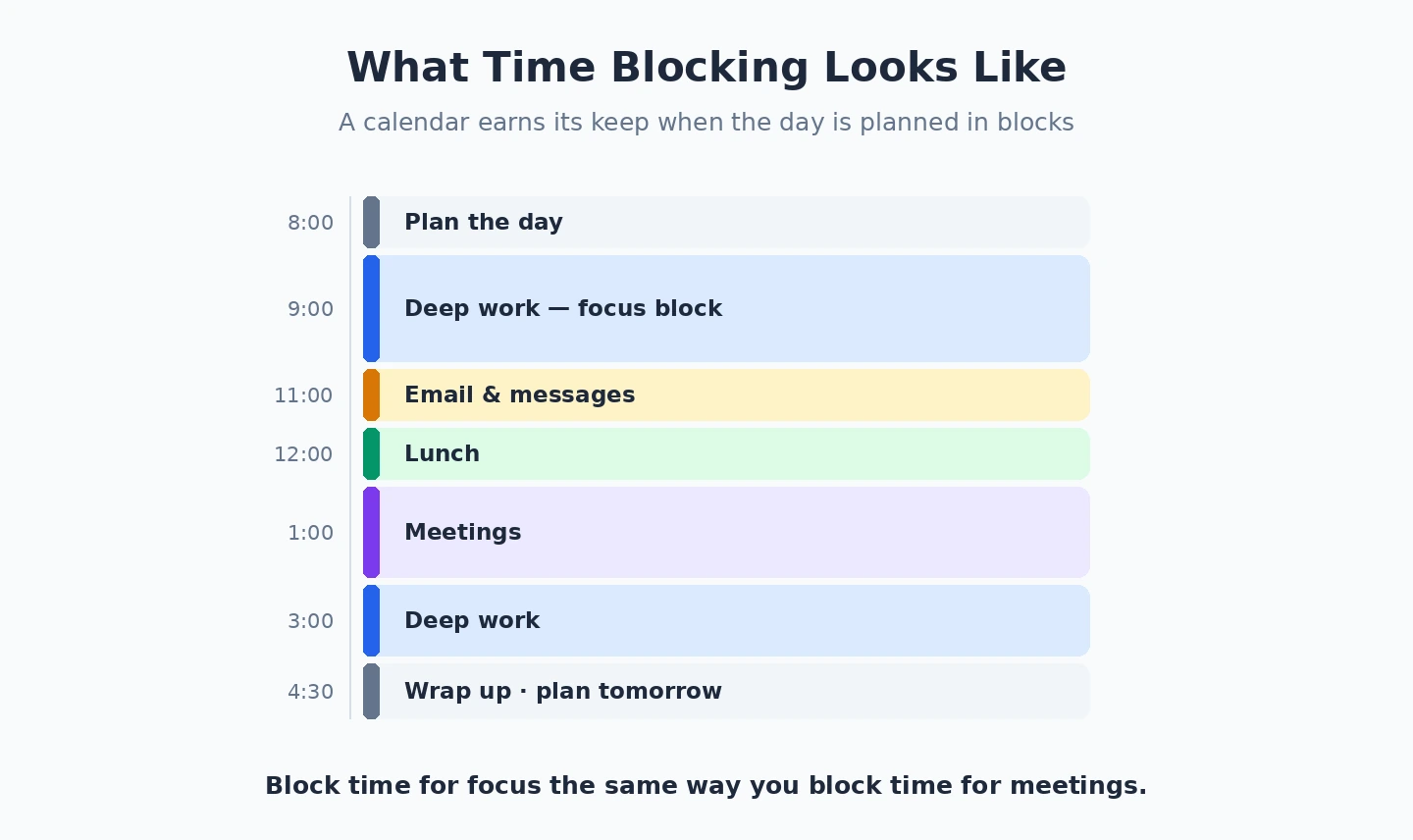
Morgen (free tier with limits, paid plans from $4/month; morgen.so) is the newer calendar app for Windows that has gained an audience in the productivity-focused space. The product distinguishes itself with a few specific features that competitors handle less well — sophisticated time-blocking for focus work, integration with task management tools (Todoist, Things, TickTick) that surfaces tasks alongside calendar events, and meeting templates for repeated event types.
The case for Morgen specifically is when your scheduling style involves deliberate time-blocking, when you want calendar and task data unified rather than separate, or when you find the major options’ integration with task management inadequate. The product targets the productivity-method audience (Getting Things Done, time-blocking, deep work) explicitly.
The case against is that Morgen is meaningfully newer than the alternatives and the product is still evolving in ways that produce occasional rough edges. The integrations with major calendar providers work but with some lag behind native applications. The mobile apps are functional but less polished than the desktop experience. For users willing to live with the rough edges in exchange for the specific feature focus, Morgen is genuinely valuable; for users who want fully refined polish, the more established alternatives serve better.
The pricing is reasonable. The free tier covers basic use; the paid tier at $4-8/month unlocks the more sophisticated time-blocking and integration features. For users who would actually use those features, the cost is justified. Our task management apps comparison covers the related category that Morgen integrates with for users wanting unified task and calendar workflows.
Notion Calendar: The Right Choice for Notion Users
Notion Calendar (formerly Cron before acquisition by Notion; free with Notion accounts; notion.com/calendar) is the calendar app for Windows users who already live in Notion for documents, notes, or project management. The integration value is substantial — calendar events can link directly to Notion pages, meeting notes templates can be associated with event types, and the unified Notion data model makes calendar information available alongside related context.
The core calendar functionality is competent if not yet matching the most refined alternatives. The Notion acquisition produced rapid feature evolution but also some periods of feature regression as the product was integrated into the broader Notion platform. The current state is stable and capable for most workflows.
The case for Notion Calendar specifically is when you already use Notion intensively. For these users, having calendar within the same product family as your notes and tasks produces meaningful workflow benefits over running multiple separate tools. For users not already in Notion, the standalone case is weaker — the alternatives covered above are typically better-fitting choices.
The pricing positioning is “included with Notion,” which for Notion users is functionally free at the point of use. For users currently on the Notion free tier, calendar use is similarly free. For users on Notion paid tiers (Personal Pro, Team, etc.), the calendar capability is included without separate charges.
Specialist Options Worth Knowing About
A few specialist calendar applications serve specific narrower cases worth knowing about.
Vivaldi Mail and Calendar is the calendar built into the Vivaldi web browser. For users who specifically value privacy and want their calendar locally rather than in cloud services, Vivaldi’s calendar handles standard CalDAV connections to various calendar sources without requiring a Vivaldi-specific account.
Thunderbird Calendar (Lightning) is the calendar functionality built into Mozilla Thunderbird. For users who specifically use Thunderbird for email and want calendar in the same application, this is the integrated answer. The capability is genuinely competent for standard calendar workflows.
Mailbird Calendar exists for users who specifically use Mailbird for email and want calendar in the same application. The integration value is similar to Thunderbird’s, with different specific feature emphasis.
For very specific use cases (academic schedule management, complex multi-resource booking, specialised industry-specific calendar needs), specialist calendar applications exist in narrow categories. These are rarely the right answer for general use but matter for users in those specific domains.

Multi-Calendar Synchronisation Realities
One genuine complexity in this category: the practical reality of synchronising calendars across multiple accounts and platforms. Most users have at least two calendar sources (work and personal) and often more (shared family calendar, project-specific calendars, partner’s calendar). The mechanisms for combining these vary in reliability.
Native multi-account support in the calendar app is the smoothest approach. Outlook, Google Calendar (via the app’s account aggregation), Fantastical, and Morgen all handle multiple accounts natively, with each account’s events displayed in a unified view but stored separately at the source.
Synchronisation between calendar services is more complex. Tools like Calendly, Reclaim.ai, and various direct integrations can sync events between Outlook and Google Calendar accounts, which matters when your work calendar needs to show personal busy time but you do not want to expose personal event details. These tools work but introduce a dependency that can break or behave unexpectedly during updates.
Subscribing to read-only calendars (sports schedules, holiday calendars, school events) is supported by all the major calendar applications through the iCalendar (ICS) URL subscription mechanism. The discipline of subscribing to relevant external calendars rather than manually entering events from them prevents both data entry effort and accuracy problems. Our email client comparison covers the related category that often integrates with calendar applications, particularly for the email-to-meeting workflow that dominates professional scheduling.
The Practical Recommendation
For most Windows users in 2026, the answer is determined by your broader productivity ecosystem. If you are on Microsoft 365 at work, Outlook Calendar is the default; supplement with mobile Outlook for personal accounts. If you are on Google Workspace at work, Google Calendar via web or PWA is the default. For users who want a more polished native Windows experience and have budget for it, Fantastical is the credible upgrade. For users specifically interested in time-blocking and task-calendar integration, Morgen is worth evaluating. For Notion users, Notion Calendar consolidates calendar into the broader workspace. The wrong move is using multiple calendar apps for different accounts without unifying them somehow — the scattered calendar information that results defeats the entire purpose of calendar software. Pick one app, add all your calendars to it, commit to using it as the single source of truth for time-based information, and the category produces real ongoing value rather than ongoing friction. Our note-taking apps comparison covers the related capture-and-organise category that complements calendar work for users serious about productivity systems, and our time tracking software comparison covers the retrospective side of how your calendar time actually got spent.