

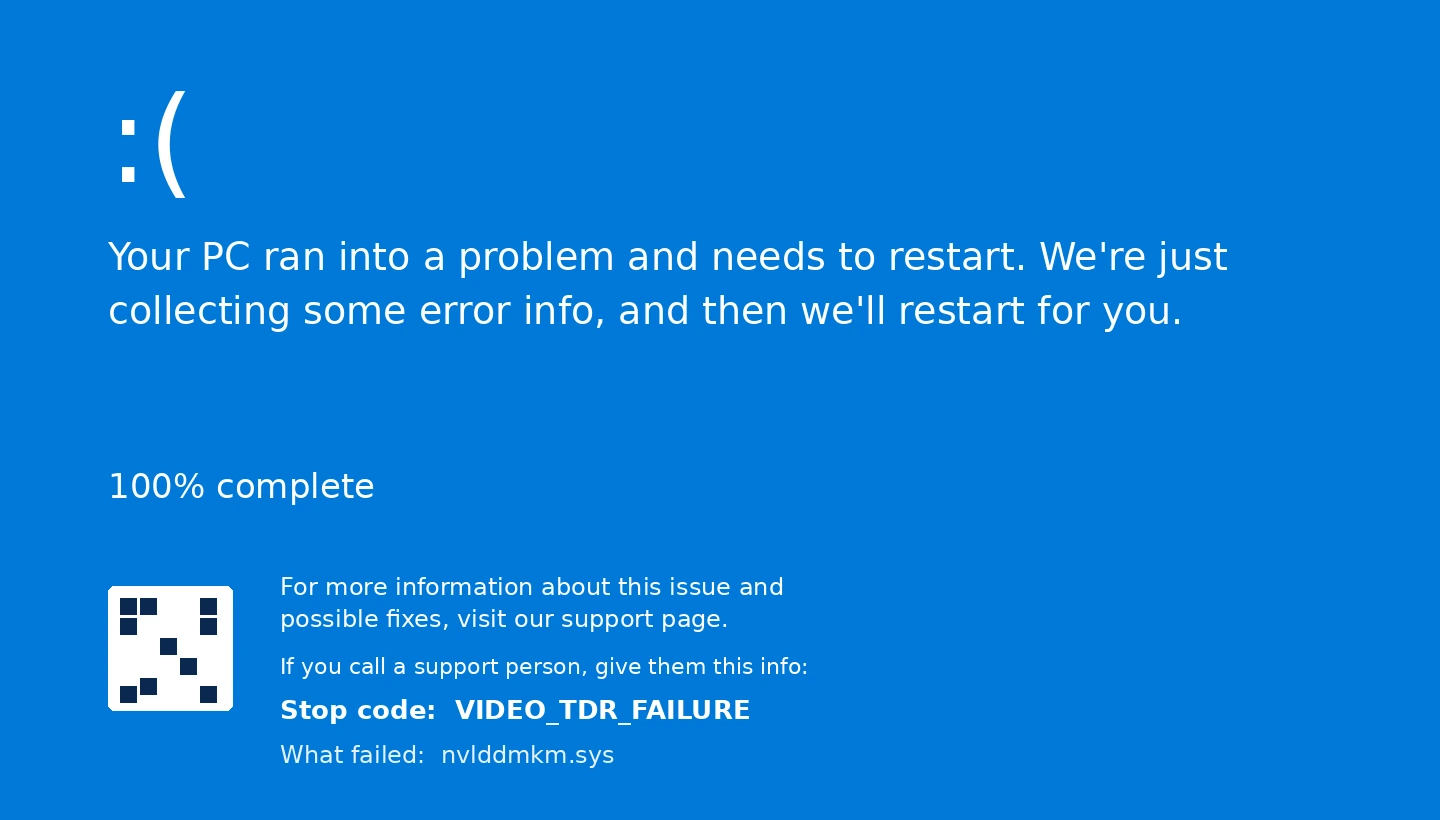
If your screen has just gone black, frozen for a second, and then crashed into a blue screen reading VIDEO_TDR_FAILURE — often with a file name like nvlddmkm.sys, atikmdag.sys, or igdkmd64.sys in brackets — you have run into one of the most common graphics-related crashes on Windows 11. The good news is that, in the large majority of cases I have dealt with over the years, a Video TDR Failure is a software or driver problem rather than a dead graphics card, and it can be fixed at home without any special tools.
In this guide I will walk you through what the Video TDR Failure error actually is, what tends to cause it, and the exact sequence of fixes I use — starting with the one that resolves it most often and working down to the rarer hardware causes. You do not need to try everything; work through it in order and stop when the crashes stop.
What the Video TDR Failure error actually means
TDR stands for Timeout Detection and Recovery. It is a safety feature built into Windows: if your graphics card stops responding to the system for roughly two seconds, Windows assumes something has gone wrong, resets the graphics driver, and tries to recover the display on its own. Most of the time you only notice this as a brief black flash, sometimes accompanied by a message that the display driver stopped responding and has recovered. When that automatic recovery fails, Windows protects the system by stopping with the Video TDR Failure bug check — internally logged as stop code 0x00000116.
The file name shown in brackets on the blue screen is your single biggest clue, because it tells you which graphics driver timed out. nvlddmkm.sys points to an NVIDIA card, atikmdag.sys or amdkmdag.sys points to an AMD Radeon card, and igdkmd64.sys points to Intel integrated graphics. A Video TDR Failure that names your dedicated GPU driver is the typical pattern on a gaming or workstation PC, while the Intel file name usually shows up on laptops and office machines relying on integrated graphics.
It is worth understanding this because it reframes the whole problem. A Video TDR Failure is not Windows telling you the hardware is broken — it is Windows telling you the graphics driver became unresponsive and could not be revived in time. That is why the fixes below focus first on the driver and the conditions around it (heat, power, stability) rather than on replacing parts. If you see a different stop code on other crashes, you can always paste it into our Windows error code lookup tool to see what it means before assuming everything is related.
What’s actually causing these crashes
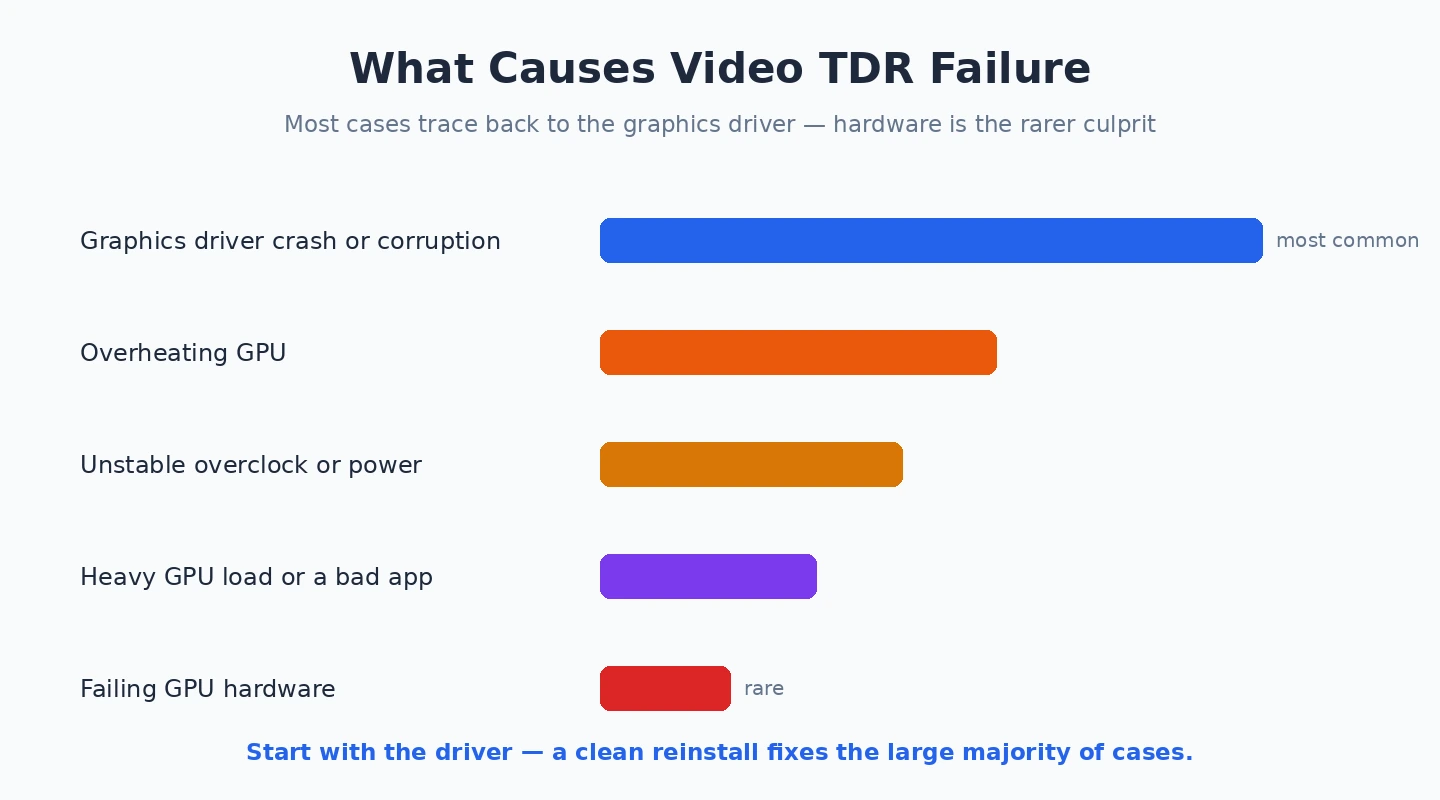
A Video TDR Failure can be triggered by anything that makes the graphics card stall for those critical couple of seconds. In my experience the cause is almost always one of a short list of culprits, and identifying which one applies to you saves a lot of wasted effort. The most frequent trigger by a wide margin is a graphics driver that is corrupted, buggy, or mismatched with your current version of Windows — often after a Windows update or a half-finished driver install left old and new files mixed together.
Beyond the driver itself, the other common causes of a Video TDR Failure are heat and power related. An overheating GPU will throttle hard and can stall long enough to trip the timeout, which is why this crash often appears only during demanding games or rendering rather than on the desktop. An unstable overclock — on the card or the memory — is another classic source, as is a power supply that can no longer deliver clean, steady power to a hungry modern graphics card under load.
The remaining causes are less common but still worth knowing. A loose or faulty display cable or PCIe riser, a single misbehaving application or in-game overlay, conflicting GPU utilities running at once, and genuinely failing graphics hardware can all produce a Video TDR Failure. Here is a quick way to map symptoms to likely causes:
- Crashes during games or 3D work only: usually driver, overheating, or overclock instability.
- Crashes randomly on the desktop too: more often a corrupt driver, a bad Windows update, or hardware.
- Started right after a Windows or driver update: point the finger at the driver first.
- Accompanied by visual artifacts, strange colours, or lines: raises the odds of a hardware or overheating fault.
Fix 1: Do a clean graphics driver reinstall with DDU
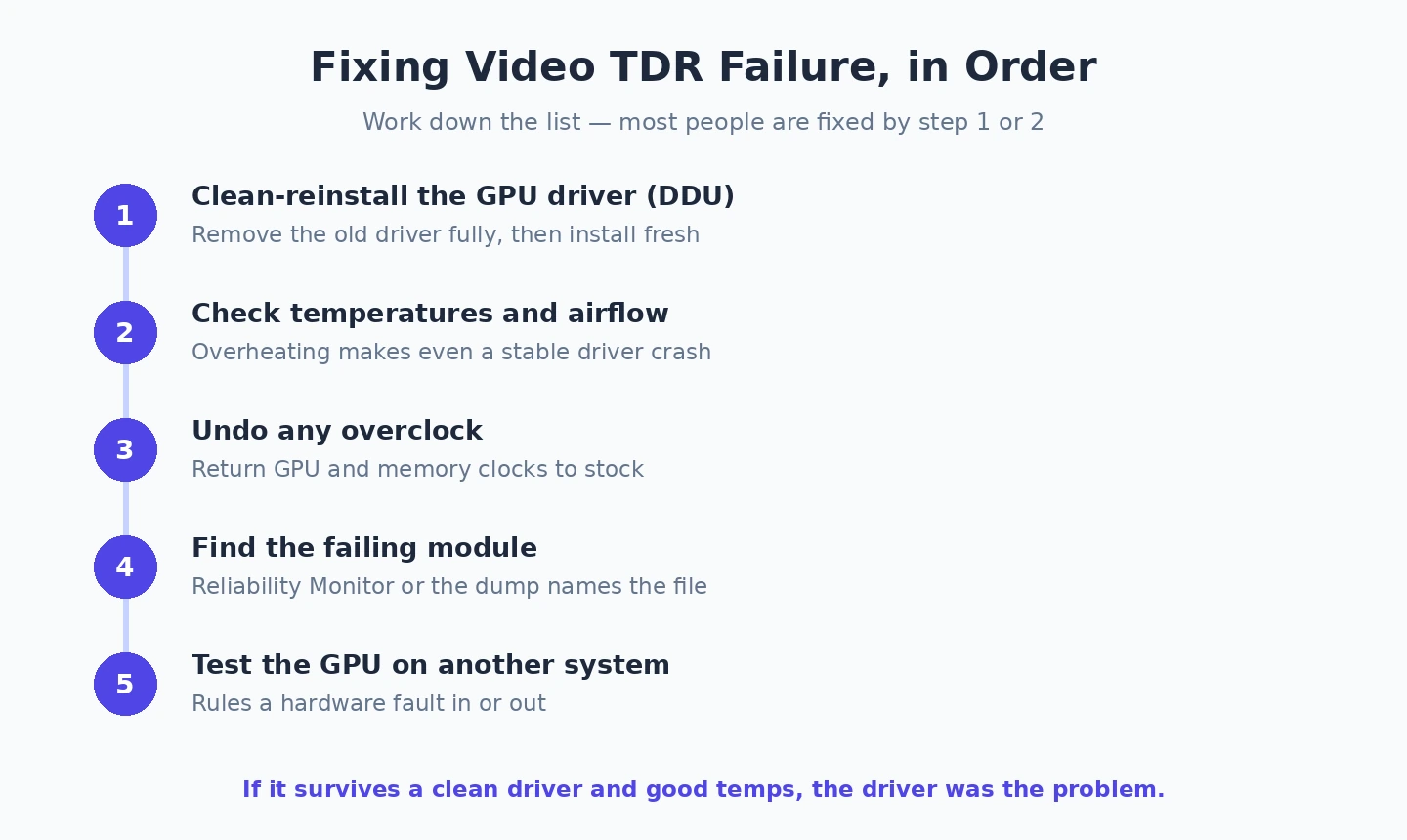
Because a faulty driver is the leading cause of Video TDR Failure, a clean reinstall is the fix I reach for first, and it resolves the problem more often than anything else on this list. A normal driver update installs over the top of the old files; a clean reinstall strips everything out first, which is exactly what you want when corrupted or leftover driver files are causing the crash. The standard tool for this is Display Driver Uninstaller (DDU), a free utility that removes every trace of the old graphics driver.
Before you start, download the latest driver for your card so it is ready to install offline, then run the removal. Here is the sequence I follow:
- Download the newest driver for your exact card directly from your GPU maker. NVIDIA, AMD, and Intel all publish current drivers — the NVIDIA website and the AMD website both have resources and downloads you may find useful for this.
- Download Display Driver Uninstaller and boot Windows 11 into Safe Mode so no graphics processes are running.
- Run DDU, choose your GPU brand, and select “Clean and restart.”
- When Windows comes back, install the fresh driver you downloaded in step one, then reboot once more.
If you would rather not handle drivers manually, a maintained driver tool can keep them current for you; we compare several in our roundup of the best driver updater software for Windows. Whichever route you take, a genuinely clean driver reinstall clears the most common form of Video TDR Failure, and for many people the crashes simply stop here. If they continue, the problem is something around the driver rather than the driver alone, so move on.
More fixes when a clean reinstall is not enough
If a Video TDR Failure survives a clean driver reinstall, the next step is to address the conditions that make a healthy driver stall. Start with heat, because it is both common and easy to check. A graphics card choked with dust or starved of airflow will run hot under load and stall long enough to trip the timeout. Clean the fans and heatsinks, make sure your case has decent airflow, and watch your temperatures during a game — if the card is hitting its thermal limit, that is very likely your trigger. Our guides on GPU overheating in Windows and general overheating on Windows 11 walk through cooling in detail.
Next, undo any tuning and check power. If you have overclocked the GPU or its memory, set everything back to stock speeds — an overclock that seemed stable can become the source of a Video TDR Failure as a card ages or a new driver changes behaviour. On the power side, a tired or underpowered power supply can fail to feed a modern card under load; if your crashes line up with peak power draw, an ageing PSU is a realistic suspect. While you are at it, reseat the graphics card in its slot and check that the display cable is firmly connected at both ends, since a marginal connection can mimic a driver fault.
A few software-side steps round this out. Make sure Windows 11 itself is fully updated, as Microsoft regularly ships graphics-related fixes — the Microsoft website has support resources you may find useful here. Run sfc /scannow and then DISM /Online /Cleanup-Image /RestoreHealth from an elevated command prompt to repair any damaged system files. Finally, if the Video TDR Failure began immediately after a recent driver update rather than before it, roll the driver back to the previous version in Device Manager — newer is not always more stable, and a regression in a fresh driver is a genuine cause.
There is one registry tweak you will see suggested everywhere: increasing the TdrDelay value under HKEY_LOCAL_MACHINE\SYSTEM\CurrentControlSet\Control\GraphicsDrivers to give the GPU more than two seconds to recover. I mention it for completeness, but treat it with caution — it does not fix a Video TDR Failure, it only raises the threshold before Windows reacts, which can hide a real problem rather than solve it. Use it as a last resort and only if you understand you may be masking a hardware or thermal fault.
How to find the exact driver or component to blame
If the fixes above have not pinned it down, it is worth identifying precisely what is failing rather than guessing. The blue screen itself is the first place to look: note the file named in brackets, because as covered above it tells you whether the Video TDR Failure is tied to NVIDIA, AMD, or Intel graphics. That alone often resolves any confusion on a laptop that has both integrated and dedicated graphics.
For more detail, open Event Viewer and look under Windows Logs for errors logged at the moment of the crash, or check Reliability Monitor for a timeline of recent failures — both can show whether the Video TDR Failure coincides with a specific driver, update, or application. If you want to read the crash dump directly, a free minidump reader can open the small .dmp file Windows saves after a blue screen and name the module that caused the stop, which removes the guesswork entirely.
This step matters because a Video TDR Failure that always strikes inside one particular game or program is a very different problem from one that hits at random. If you can tie the crash to a single app, updating or reinstalling that app — or disabling its overlay — may be all you need. If the logs instead point repeatedly at the core graphics driver no matter what you are doing, you are back to the driver and hardware causes, and the next section is where to look. If you are not sure whether the fault is even the GPU, our interactive PC troubleshooter can help you narrow down a crash from the symptoms.
When the blue screen points to failing hardware
If you have cleanly reinstalled the driver, controlled temperatures, removed any overclock, ruled out power and cabling, and the Video TDR Failure still keeps coming back, you have to start considering the graphics card itself. Hardware faults are the least common cause, but they are real — especially on older cards or units that have run hot for a long time. The tell-tale signs are visual artifacts before the crash (strange textures, coloured dots or lines, flickering) and crashes that happen even at the desktop with no load at all.
The cleanest way to confirm a hardware fault is to swap parts. If you can borrow a known-good graphics card and the Video TDR Failure disappears, your original card is the problem. Alternatively, testing your card in a different computer that is otherwise stable will show whether the fault travels with the card. It is also worth checking whether Windows even sees the card correctly; if it intermittently vanishes, our guide on a GPU not detected in Windows covers the overlap between connection faults and a failing card.
Do not forget memory, either. Faulty system RAM can produce a surprising range of blue screens, and a Video TDR Failure is sometimes among them, so run the built-in Windows Memory Diagnostic to rule it out. If hardware testing confirms the card is failing, no amount of software tweaking will give you a lasting fix — but it is genuinely the last thing to suspect, not the first, which is exactly why I keep it at the end of the list. For a broader view of blue screens in general, our overview of the Windows 11 blue screen covers the wider family of stop codes.
Video TDR Failure: quick answers to common questions
Is Video TDR Failure dangerous or will it damage my PC?
On its own, a Video TDR Failure will not damage your hardware — it is actually a protective response, since Windows resets the graphics driver and stops the system specifically to prevent harm. The crash is a symptom, not the damage. That said, if the underlying cause is sustained overheating, the heat itself is what you want to address before it shortens the life of the card. Repeated crashes can also cost you unsaved work, so it is worth fixing rather than tolerating.
Will I lose my files because of a Video TDR Failure?
A Video TDR Failure does not delete files or wipe storage; it only forces a restart. The realistic risk is losing whatever you had open and unsaved at the moment of the crash. Once you have worked through the fixes above and the Video TDR Failure has stopped, your data is no more at risk than on any other healthy PC. Keeping regular backups is sensible regardless of this particular error.
Why does Video TDR Failure only happen when I play games?
If your Video TDR Failure appears only under load, it strongly points to heat, an unstable overclock, or a power-delivery limit, because those problems only surface when the card is working hard. A driver fault can be load-dependent too. Start with temperatures and any overclock, since a crash tied to demanding games rather than the desktop is rarely a sign of a dead card.
Does a Video TDR Failure mean I need a new graphics card?
Usually not. As covered above, the majority of Video TDR Failure cases are driver, thermal, or power related and are fixable without new hardware. A failing graphics card is the least common cause and should only be suspected after a clean driver reinstall, good temperatures, and stock clocks have all failed to stop the crashes. Replacing the card first is almost always premature.
How to stop the crashes from coming back
Once the crashes have stopped, a few habits keep a Video TDR Failure from returning. The most important is sensible driver hygiene: keep your graphics driver reasonably current, but do not chase every single release the day it lands, and when you do update, prefer a clean install if you have had trouble before. Letting a maintained tool track driver versions for you takes the guesswork out, and the occasional clean reinstall once or twice a year clears out the accumulated cruft that eventually causes these crashes.
The second habit is thermal awareness. Most repeat cases of Video TDR Failure I see come back because the underlying heat problem was never solved — the driver reinstall bought a few weeks until the card cooked itself again. Clean dust out of the case periodically, keep airflow unobstructed, and if your card consistently runs near its thermal limit, treat that as a problem to fix rather than ignore. A cool, well-powered card with a clean driver is remarkably stable.
Finally, build a little resilience into how you run the machine: leave overclocks modest or off if stability matters more than a few extra frames, keep Windows updated, and make a note of what you changed so that if a Video TDR Failure ever does return you can retrace your steps quickly. If you would like a structured way to work through this or any other Windows fault, our full guide to fixing Windows errors ties these tools together, and the error code lookup is always there for the next unfamiliar stop code. Worked through methodically, the Video TDR Failure is one of the more fixable blue screens you will meet on Windows 11.