
Uninstalling a program in Windows feels like it should be a solved problem, yet anyone who has cleaned up an old PC knows the truth: the built-in tool removes the obvious part and quietly leaves the rest behind. Orphaned folders, forgotten settings, and registry entries pile up over the years, and some stubborn programs refuse to leave at all. That is exactly why the best uninstaller software for Windows exists — to strip programs out completely rather than just mostly.
A good third-party uninstaller does two things Windows will not. It hunts down and removes the leftover files and registry keys a normal removal misses, and it can force out broken or resistant programs that the standard uninstaller simply gives up on. The result is a genuinely cleaner system, more free space, and fewer of the odd glitches that leftover clutter can cause.
In this guide I will explain why a dedicated uninstaller is worth having, how these tools actually work, what to look for when choosing one, and my picks for the best uninstaller software for Windows — including a strong free option for nearly everyone. Whether you are clearing bloatware off a new laptop or tidying up years of accumulated software, there is a right tool here for the job.
Why You Need a Dedicated Uninstaller
Windows does include a built-in way to remove programs, through Settings or the old Control Panel, and for a clean, well-behaved application it works fine. The problem is what it leaves behind. When you uninstall through Windows, the program’s own uninstaller runs, but it commonly abandons configuration folders, files buried in your user profile, and entries scattered through the registry. Individually these are small; across years and hundreds of installs, they add up to real clutter.
Beyond leftovers, the built-in tool has three practical blind spots. It struggles with stubborn or broken programs whose own uninstaller has become corrupted, leaving you unable to remove them at all. It offers no way to uninstall several programs in one go, so clearing a machine means tediously removing items one at a time. And it does nothing to tackle the pre-installed bloatware that clogs so many new PCs. A dedicated uninstaller addresses every one of these gaps.
The payoff is a tidier, leaner system. Removing programs completely reclaims disk space that leftovers would otherwise hold hostage, which matters more than ever given today’s storage prices, and it reduces the background cruft that can slow a machine over time. It pairs naturally with other cleanup habits, like using the best PC optimisation software and knowing how to manage your startup programs, to keep a computer running the way it did when it was new.
How a Good Uninstaller Works
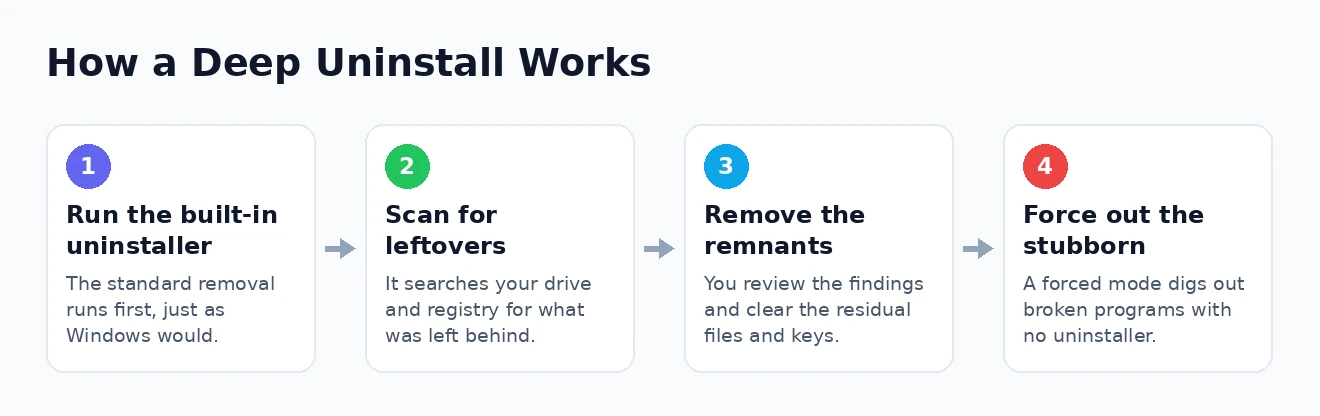
Understanding what these tools do under the hood makes it much easier to trust them and to pick the right one. Although the interfaces vary, the best uninstaller software for Windows generally follows the same sensible sequence when you remove a program.
- It runs the program’s own uninstaller first. This performs the standard removal exactly as Windows would, taking out the main body of the application in the way its developer intended.
- It scans for what is left behind. Once the standard removal finishes, the tool searches your drive and the registry for the folders, files, and keys the program left in place, and presents them to you.
- It removes the leftovers you approve. After you review the findings, it deletes the residual items, completing the removal that the built-in uninstaller only started.
- It offers a forced option for the difficult cases. When a program is broken or already partly gone, a forced or deep removal mode digs the remnants out directly, even without a working uninstaller.
That leftover scan is the heart of what you are paying for, and the better tools sort their findings into safe and bold categories so you know what is definitely fine to remove. Many also let you select a batch of programs and run them through this process in sequence, turning an afternoon of manual clean-up into a few clicks. It is a genuinely satisfying thing to watch a cluttered machine shed years of accumulated software in one sitting.
What to Look For in Uninstaller Software
Not every uninstaller is worth installing, and a few features separate the genuinely useful from the merely adequate. When weighing your options, these are the qualities that matter most in day-to-day use.
- Thorough leftover cleanup. The whole point is removing residual files and registry entries, so a deep, reliable scan is the single most important feature.
- Forced removal. The ability to rip out stubborn, broken, or partially removed programs is what you will be grateful for on your worst software day.
- Batch uninstalling. Removing many programs at once is a huge time-saver when clearing bloatware or cleaning up an old machine.
- Built-in safety. Good tools create a restore point or registry backup before making changes, so a mistake can be undone.
- No unwanted extras. Ironically, some uninstallers try to bundle their own additional software during installation. The best ones are clean, and with the others you simply decline the extras.
Ease of use matters too, particularly if you are not especially technical — a clear interface that plainly labels what is safe to remove will serve you far better than a powerful tool you are afraid to use. Portability, meaning a version that runs without being installed, is a nice bonus for tidying up other people’s computers. Keep these criteria in mind as we look at the specific picks below.
The Best Uninstaller Software for Windows
With those qualities in mind, here are the tools I recommend. I have focused on options with capable free versions, since most people will never need to pay, and noted where a paid upgrade genuinely adds something. Each has a clear strength, so the best choice depends on how you work.
Revo Uninstaller: Best Overall
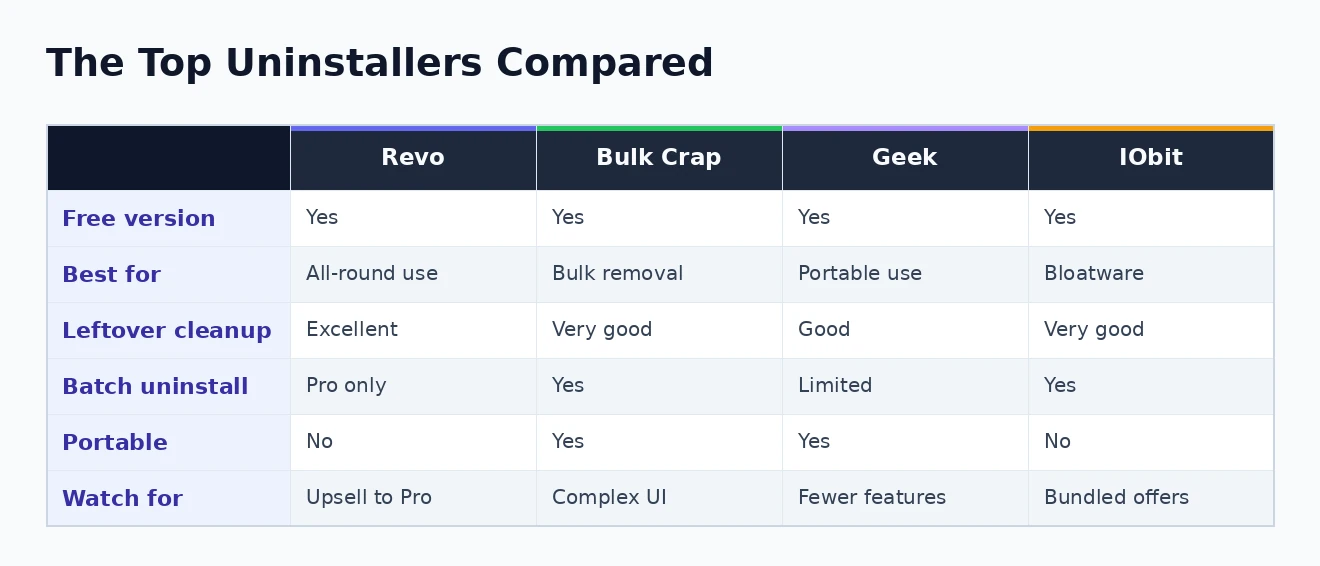
Revo Uninstaller is the tool I recommend to most people, and its free version is more than enough for typical use. After running a program’s standard uninstaller, it performs an excellent leftover scan, sorting the results so you can confidently clear residual files and registry entries. Its Hunter Mode is a neat touch, letting you drag a target onto any window or tray icon to identify and remove the program behind it, and its forced uninstall reliably deals with broken applications. The paid Pro version adds real-time monitoring that logs exactly what an installer changes, along with deeper scans and batch removal, but the free edition covers the essentials well. You can find it on the Revo Uninstaller website.
Bulk Crap Uninstaller: Best for Power Users
Despite the blunt name, Bulk Crap Uninstaller is a superb free and open-source tool, and it shines when you need to remove a lot of programs at once. It excels at batch operations, intelligently working out a sensible removal order and handling many uninstalls in one run with minimal babysitting. It also detects orphaned applications, portable programs, and Store apps that other tools miss, and it surfaces useful details like how large and how old each program is. The interface is denser than Revo’s and can feel intimidating at first, which is why I reserve this recommendation for more confident users — but for clearing a heavily cluttered machine, nothing does it faster.
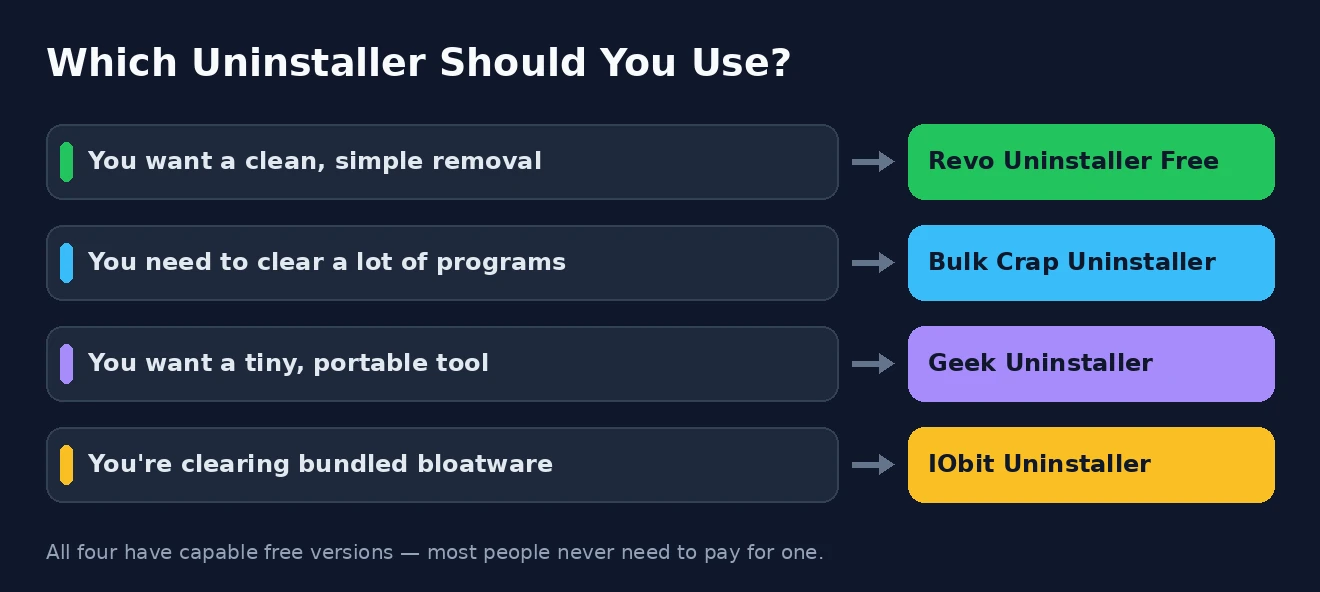
Geek Uninstaller: Best Lightweight Option
If you want something fast, tiny, and fuss-free, Geek Uninstaller is hard to beat. It is portable, running from a single small file with no installation required, which makes it ideal for keeping on a USB stick to clean up other people’s computers. Despite its size, it does the important job well: it runs the standard uninstaller, then scans for and removes leftover traces, and it includes a force-removal option for stubborn entries. It lacks the advanced batch and monitoring features of the larger tools, but for quick, clean, individual removals it is wonderfully efficient.
IObit Uninstaller: Feature-Rich, With a Caveat
IObit Uninstaller is a popular, capable option with a generous free tier, strong at batch removal and particularly good at clearing out bundled software and stubborn browser toolbars and extensions. It scans thoroughly for leftovers and presents everything clearly. My one caution is about the installation itself: IObit’s installer and interface tend to promote its other products and nudge you toward the paid version, so take care to decline any bundled extras during setup and simply ignore the upgrade prompts. Handled that way, the free version is a genuinely useful tool.
Free Versus Paid: What You Actually Need
It is worth being clear about this, because uninstaller makers are keen to sell you an upgrade. For the overwhelming majority of people, a free uninstaller does everything required: it removes programs completely, cleans up the leftovers, and forces out the stubborn ones. If that is your goal, you can stop at the free version and never look back.
Paid editions do add real features, and a few are genuinely useful if you install and remove software constantly. The standout is real-time installation monitoring, which watches exactly what a new program adds to your system so it can be reversed perfectly later. Paid tiers may also offer more aggressive deep scans, unlimited batch operations, and priority support. These are conveniences for enthusiasts and professionals rather than necessities for everyday users.
My honest advice is to start free and only pay if you find yourself repeatedly wishing for a specific feature the free version withholds. There is no need to spend money to keep a home PC clean. If your broader aim is a faster computer, your time is better invested in learning to speed up Windows 11 and reclaiming storage with a good disk space analyser than in a premium uninstaller licence.
Uninstalling Safely: A Few Sensible Precautions
A powerful uninstaller edits your system, so a little caution keeps you out of trouble. None of this is difficult, but it is worth doing, particularly before a big clean-up session where you are removing many programs at once.
Before a major purge, create a system restore point so that any unintended consequence can be rolled back. When reviewing a leftover scan, stick to removing items the tool marks as safe unless you genuinely recognise the rest; being cautious with registry entries in particular avoids the small risk of deleting something another program relies on. And do be thoughtful about what you uninstall in the first place — it is easy to get carried away and remove a component that Windows or another application quietly depends upon.
A simple rule keeps you safe: if you do not recognise a program and cannot quickly find out what it does, look it up before removing it rather than deleting first and asking questions later. A restore point is your safety net, not a substitute for a moment’s thought.
Finally, remember that a dedicated uninstaller is one tool in a wider maintenance kit, not a cure-all. Removing programs you no longer use is a great habit, but pairing it with regular clean-up — clearing temporary files, trimming startup programs, finding space hogs, and clearing out duplicate files — is what keeps a machine genuinely healthy. Microsoft also documents the standard removal process, and the Microsoft website has resources you may find useful for the built-in options.
Best Uninstaller Software for Windows: FAQ
Is the built-in Windows uninstaller good enough?
For cleanly removing a well-made program, it is adequate, but it routinely leaves behind folders, files, and registry entries, and it cannot force out broken programs or remove several at once. A dedicated uninstaller exists precisely to handle everything the built-in tool leaves undone.
Are these uninstallers safe and free to use?
The tools recommended here are safe and reputable, and each has a capable free version. Do pay attention during installation with some of them, as a few try to bundle extra software or nudge you toward a paid upgrade — simply decline those extras and the free tool works perfectly.
What is the best free uninstaller for Windows?
For most people, Revo Uninstaller’s free version is the best all-round choice, thanks to its thorough leftover cleanup and reliable forced removal. If you mainly need to clear many programs at once, the free and open-source Bulk Crap Uninstaller is exceptional, and Geek Uninstaller is ideal when you want something tiny and portable.
Will an uninstaller actually make my PC faster?
Indirectly, yes. Removing programs completely reclaims disk space and clears background clutter, which can help a system that has become sluggish over time. It is not a magic speed boost on its own, though — it works best alongside broader maintenance like managing startup apps and freeing up storage.
The right uninstaller turns a frustrating, incomplete chore into a clean, satisfying one. For nearly everyone, a free tool like Revo Uninstaller will remove programs properly, clear away the leftovers, and force out the stubborn holdouts — leaving your Windows PC genuinely tidier. Pick the one that matches how you work, uninstall safely, and enjoy the reclaimed space.