Search for “best video downloader” and the top results are mostly scams. The pattern is well-documented: aggressive ads for “free” tools that bundle malware, sites that wrap legitimate open-source projects in installers that include adware, and lookalike domains that imitate real products to deliver something else entirely. Before recommending specific software, the most useful thing this guide can do is explain how to evaluate any tool in this category, because the recommendations will keep changing as products come and go but the patterns of safety and risk stay the same.
The second thing worth stating up front: downloading video from most platforms violates their terms of service even when the content itself is technically downloadable. YouTube’s terms prohibit downloading except through their own paid YouTube Premium feature. Twitch, Vimeo (for non-creators), most streaming services, and most social platforms have similar terms. The legal exposure varies by jurisdiction — in the UK and EU, personal-use downloading of freely available content for offline viewing sits in legal grey territory that is rarely enforced against individuals; in the US, the situation is similar though the DMCA creates more risk around circumventing technical protections. None of this is legal advice; the practical reality is that personal downloads of public content rarely cause problems while commercial redistribution of downloaded content reliably does.
With those frames in place, here are the video downloaders that actually deserve consideration in 2026 for Windows. For broader context on Windows software in general, our complete guide to Windows software covers the wider toolkit.
yt-dlp: The Honest Default for Anyone Comfortable With a Terminal
yt-dlp (free, open-source; github.com) is the actual best tool in this category and is the answer most enthusiasts use, but the recommendation comes with a caveat: it is a command-line tool, not a graphical application. You install it, you open a terminal or PowerShell window, and you type `yt-dlp [url]` to download whatever the URL points to. There is no installer wizard, no friendly interface, no marketing.
That said, the trade-off is genuinely worthwhile. yt-dlp supports more video platforms than any commercial tool (over a thousand sites, far beyond YouTube), is actively maintained with frequent updates as platforms change their internal formats, supports almost every output format and quality option you might want, can extract audio only for podcast-style content, handles playlists and channel-wide downloads cleanly, and is genuinely free with no bundled adware or upsells. The codebase is open source and inspected by a large community, which means it does not contain the malware risks that plague the commercial alternatives.
The learning curve is the realistic friction. The first time you use it, you will spend twenty minutes reading the documentation and figuring out the basic command structure. After that, the daily use becomes faster than any GUI tool for repeat tasks because you can paste a URL and hit Enter. For batch downloads from a list of URLs in a text file, scheduled downloads via Windows Task Scheduler, or any scripted workflow, yt-dlp dramatically outperforms graphical alternatives.
The honest recommendation for anyone willing to spend half an hour learning a basic command-line tool: install yt-dlp and stop looking. The time investment pays back permanently and you stop worrying about whether your downloader has bundled adware.
4K Video Downloader+: The Most Trustworthy GUI Option
4K Video Downloader+ (free tier with limits, paid Personal plan around $15/year, Premium around $45/year; 4kdownload.com) is the commercial graphical tool I recommend most consistently because the developer has built a track record over many years of not bundling adware, not breaking the install with deceptive checkboxes, and not engaging in the dark patterns that pollute this category. The interface is genuinely clean, the conversion options are practical (download as MP4, MP3 audio, various resolutions including 4K and 8K where source supports), and the playlist and channel download features work well.
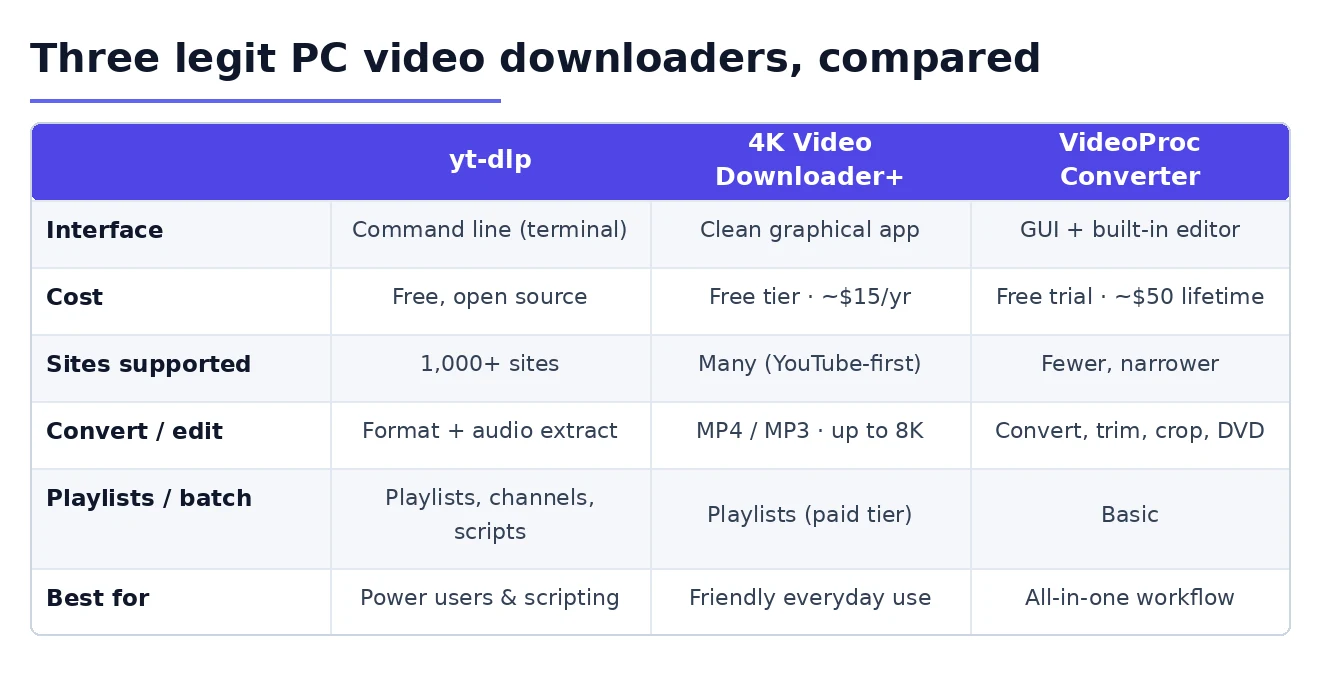
The free tier is functional but constrained: limited to a few downloads per day, single-video at a time, no playlist downloads, and some quality limits. For occasional use, this is fine. For regular use, the Personal plan unlocks playlists, faster downloads, and removes the daily limits — at $15 per year, the cost is trivial for genuinely useful software.
The “+” in the name reflects a 2023 rebrand from the original “4K Video Downloader.” The older product still exists at the original 4kdownload.com domain; the “+” version is the actively developed current product. Always download from the official site rather than search-result downloads, because impostor sites for this product specifically are common.
For users who want a graphical interface with reasonable feature depth and want to support the developer of a trustworthy product, 4K Video Downloader+ is the right pick. The honest comparison with yt-dlp: 4K Video Downloader+ is friendlier; yt-dlp is more powerful and free.
VideoProc Converter: When You Need Conversion and Editing Too
VideoProc Converter (free trial, lifetime license around $50; videoproc.com) is the option for users whose workflow goes beyond just downloading. The video downloader for PC capability is competent if narrower than yt-dlp or 4K Video Downloader+ in platform support, but the integrated video conversion, basic editing (trim, crop, merge, add subtitles), and DVD ripping features are genuinely useful for users who currently bounce between three or four tools to accomplish those tasks.
The tool is published by Digiarty, a long-established Chinese software developer with a generally good reputation but a more aggressive marketing approach than the smaller indie developers behind 4K Video Downloader+. The site uses promotional language and discount tactics that some users find tacky, but the underlying product is competent and does not bundle malware.
The relevant audience for VideoProc Converter is users who already need a video conversion or light editing tool and would consolidate that with download functionality, rather than users who only need to download. For pure download use, the dedicated tools above are simpler. For workflow consolidation, this is a reasonable choice. Our comparison of video editing software covers the dedicated editing alternatives if that becomes your bigger need.
Browser Extensions as a Video Downloader for PC: Why They Mostly Are Not the Answer
The browser-extension approach to video downloading deserves a specific warning because it is the path most beginners try first and the one most likely to cause problems. Several extensions in the Chrome and Edge stores claim to download videos from various sites, but the category is dominated by extensions with poor security records, suspicious update histories, and patterns of bait-and-switch where a legitimate-looking extension is acquired and turned into adware or worse.
The specific risks: extensions with permissions to read all web traffic can collect data on every site you visit, redirect search traffic for monetisation, inject ads, or steal credentials. Even extensions that are clean today may be sold to a different developer tomorrow who pushes a malicious update that auto-installs with the next version. This pattern has happened repeatedly across the extension ecosystem.
The narrow exception: official extensions from established companies (such as the YouTube Premium browser integration for paying subscribers, or extensions published by Mozilla for Firefox-specific download workflows) are reasonably safe. Third-party “free video downloader” extensions almost never are. For the same downloading use case, a dedicated application is meaningfully safer because the security surface is contained, the update process is visible, and the application does not have access to your entire browsing history.

What to Avoid Outright
A few specific patterns to avoid, because they keep catching new users in this category. Online “free download” websites that prompt you to paste a YouTube URL and offer a download link — most of these are functional but inject the page with malicious ads, and a meaningful percentage push fake “your download is ready, click here” buttons that lead to malware. The functional ones serve the purpose for one-off use but the ad density makes them genuinely unpleasant.
Bundled installer “download managers” that promise to download “any video from any site” — these are almost always wrappers around legitimate open-source tools (often yt-dlp itself) packaged with adware and tracking. The functional core is the open-source tool that you could just install directly; the value-add is the malware.
Mobile apps with “downloader” in the name that promise to save videos from various platforms — the iOS and Android app stores have been periodically swept clean of these, but they reappear. The pattern is the same: aggressive ads, in-app purchases for features that should be free, and often actual malicious behaviour.
The pattern recognition that prevents the most problems: if the tool is heavily advertised, free, promises “any site, any quality, any format,” and has a slick marketing site, it is almost certainly either bundleware or a wrapper around free open-source software. The genuinely trustworthy tools in this category are either open-source (yt-dlp) or small commercial products with steady reputations (4K Video Downloader+). The category does not support large marketing budgets without trade-offs.
Audio-Only and Podcast Workflows
One common use case worth mentioning: extracting audio from video for podcast listening, music ripping, or transcription. Both yt-dlp and 4K Video Downloader+ support audio-only extraction natively (`yt-dlp -x` for yt-dlp, the audio extraction option in the GUI for 4K Video Downloader+). The output format defaults to MP3, but FLAC, M4A, and OGG are options if you want lossless or smaller files.
For users whose primary use case is converting video to audio, dedicated audio tools may be a better fit — but for occasional audio extraction alongside video downloading, the dual-purpose tools work fine. Our podcast app comparison for Windows covers the listening side of that workflow.
Quality Settings That Actually Matter
One source of confusion for new users: the quality and format options can look overwhelming, but the practical decisions are simpler than they appear. For most use cases, 1080p MP4 with AAC audio is the right default. It plays everywhere, the file sizes are manageable (typically 100-300 MB for a 10-minute video), and the quality is indistinguishable from higher resolutions on typical viewing screens.
Higher resolutions (1440p, 4K) make sense only when you have specific display requirements — large monitors, TV viewing, or future-proofing for higher-resolution displays. The file size penalty is substantial: 4K files are typically 4 to 8 times larger than 1080p equivalents.
Lower resolutions (720p, 480p) make sense for storage-constrained scenarios or mobile-device viewing. The visual difference on a phone screen between 720p and 1080p is minimal; the file size difference is roughly half.

The format choice between MP4 and WebM is rarely consequential — MP4 has wider device compatibility, WebM is sometimes smaller for equivalent quality. Default to MP4 unless you have a specific reason for WebM.
Performance Considerations
One often-overlooked aspect of choosing a video downloader for PC is download speed and how well the tool handles unreliable connections. yt-dlp and 4K Video Downloader+ both support resuming interrupted downloads and parallel connection threads where the source server allows it, which makes them noticeably faster on slower or less stable connections than online tools or simpler download managers. For users on rural connections, mobile hotspots, or international routes with high latency, this difference matters in practice — a 90-minute video that the right tool downloads in five minutes can take twenty in a lesser one. None of this is dramatic on a stable home broadband connection, but the gap widens as connection quality drops.
Storage and Organisation
One practical detail that experienced users handle well and new users learn the hard way: organise downloads as you save them. A folder structure by source platform (YouTube, Twitch, Vimeo) or by topic (technical, music, educational) is dramatically more useful six months later than a single dump folder containing hundreds of files. Both yt-dlp and 4K Video Downloader+ support output templates that automatically organise saves into subdirectories — investing five minutes in configuring that initially saves hours of cleanup later. For longer-term archival of meaningful downloaded content, our cloud storage comparison covers the storage tier worth using once your collection grows.
The Honest Bottom Line
For 90% of Windows users looking for a video downloader in 2026, the answer is one of two things. If you are comfortable spending thirty minutes learning a command-line tool, install yt-dlp — it is genuinely the best option, costs nothing, is genuinely safe, and you will never need to evaluate this category again. If you want a graphical interface and are happy to pay a small subscription, install 4K Video Downloader+ from the official site — it is the most trustworthy commercial option in a category dominated by scams. Avoid almost everything else, particularly anything that appears in heavy display advertising or promises capabilities that sound too convenient to be safe. Our screen recorder comparison covers the related question of how to capture video content directly when downloading is not an option, and our video converter software comparison covers what to do with files once you have them in the wrong format. The right video downloader for PC is the one you do not regret installing six months later — and that filter excludes most of the marketing-driven results you will find at the top of search.