There is a particular kind of frustration in trying to follow a video tutorial and do the thing it is teaching you at the same time. You watch ten seconds, switch tabs, forget what you saw, switch back, rewind. It is a miserable little loop, and it is entirely avoidable — because Chrome has had a fix built in for years, and hardly anyone uses it.
Chrome picture-in-picture pops any playing video out of its tab and into a small floating window that hovers above everything else on your screen. Your browser, your email, your spreadsheet, a completely different application — the video simply stays on top, exactly where you put it, playing away while you get on with your work. It is one of those features that feels like a small miracle the first time you use it.
The catch is that Google has buried the option behind a slightly strange gesture that almost nobody discovers by accident. So in this guide I will show you how to trigger it in a couple of seconds, how to control the floating window once it appears, what to do on the sites where the option stubbornly refuses to show up, and how the newer document version of the feature goes far beyond video.
What Chrome Picture-in-Picture Actually Does
At its simplest, Chrome picture-in-picture detaches a video from the page it lives on and gives it its own small, always-on-top window. That window is not tied to the browser at all. You can minimise Chrome entirely, open your word processor full screen, and the video will still be sitting there in the corner, playing. It behaves less like part of a web page and more like a tiny, independent video player.
This is genuinely different from simply opening a video in a separate window and resizing it, because an ordinary window disappears the moment you click on something else. The floating picture-in-picture window refuses to go behind anything. It is designed for exactly the situation where you need to watch and do at once: following a recipe, keeping half an eye on a livestream, or working along with a tutorial.
The uses reveal themselves quickly once you have it. I keep a livestream or a long interview floating in a corner while I clear email. I follow build-along tutorials with the video parked beside the thing I am building. I have watched a football match in the corner of a spreadsheet, and I will not pretend otherwise. Anything you would otherwise be pausing and un-pausing every thirty seconds is a candidate.
It also costs you almost nothing. The video keeps playing in its original tab behind the scenes, so there is no re-buffering and no loss of quality, and you can send it back to its tab whenever you want. Once it clicks, Chrome picture-in-picture becomes one of those features you reach for several times a day without thinking about it — a bit like tab groups or pinned tabs, it quietly reshapes how you use the browser.
The Fastest Way to Pop Out a Video
Here is the gesture that almost nobody finds on their own: you have to right-click the video twice. The reason is that most video players — YouTube included — replace Chrome’s normal right-click menu with their own custom one. Right-clicking a second time pushes past that custom menu and reveals the browser’s real context menu underneath, which is where the option is hiding.
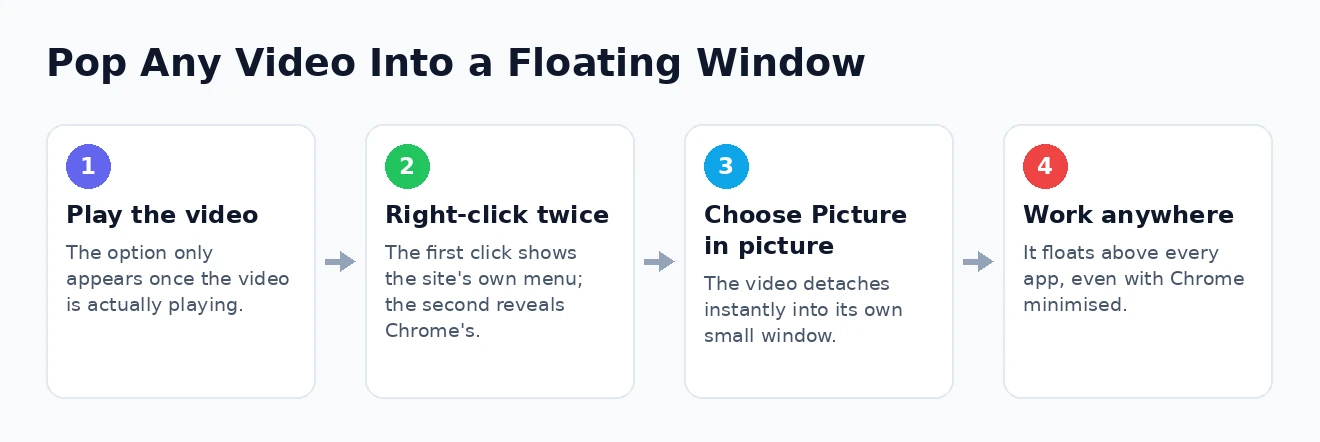
- Start the video playing in its tab. The option generally will not appear for a video that has never been played.
- Right-click once, directly on the video. You will usually get the site’s own menu, with options like “Copy video URL”.
- Right-click a second time, in the same place, without moving the mouse away. Chrome’s own menu now appears.
- Choose Picture in picture from that menu. The video immediately detaches into a floating window.
That is the whole trick. On sites that do not override the right-click menu, a single right-click is enough and the option is right there. It is worth practising the double right-click a few times on a YouTube video until it becomes automatic, because it is by far the quickest route and it works without installing anything at all.
There is a second, more discoverable path as well. When a video is playing, a small media control button appears in Chrome’s toolbar. Clicking it opens a panel showing what is currently playing, along with a picture-in-picture toggle. This is genuinely useful when a player has hidden the right-click menu entirely, and it also lets you control media that is buried in a tab you cannot immediately find.
Taking Control of the Floating Window
Once your video is floating, the window is more capable than it first appears. Hover your cursor over it and a set of controls fades in. You can play and pause, skip forward and back, and on many sites jump between tracks or chapters. There is also a small button that sends the video straight back to the tab it came from, which is much faster than hunting for that tab yourself.
The window itself is fully adjustable. Drag any corner to resize it, from a modest thumbnail up to a fairly generous player, and drag the middle of the window to reposition it anywhere on screen. Chrome remembers roughly where you like it, so after a few uses it tends to reappear in your preferred corner. If you work on a second monitor, you can park the floating video there and keep your main screen completely clear.
The key thing to remember: this window sits above everything, not just Chrome. Minimise the browser, open a full-screen application, switch to a different virtual desktop — the video stays visible. That is the entire point of the feature.
If you find yourself doing this constantly, Google’s own Picture-in-Picture extension adds a toolbar button and a keyboard shortcut, so a single keypress pops the current video out and another puts it back. That is the one genuine advantage it offers over the built-in gesture: speed. For most people the double right-click is enough, but if the feature becomes part of your daily rhythm, a shortcut is a worthwhile upgrade.
A few practical notes. Only one video can be in the floating window at a time; popping out a second video replaces the first. Closing the floating window does not stop the video — it simply returns it to its tab, still playing. And if you close the original tab, the floating window closes with it, since the tab is still doing the actual work of playing the video.
When the Option Simply Is Not There
Sometimes you double right-click, and the option is nowhere to be seen. This is almost always the website’s doing rather than a fault with your browser, and there is usually a way around it. Streaming services are the most common offenders, because content licensing often pushes them to restrict how and where their video can be displayed.
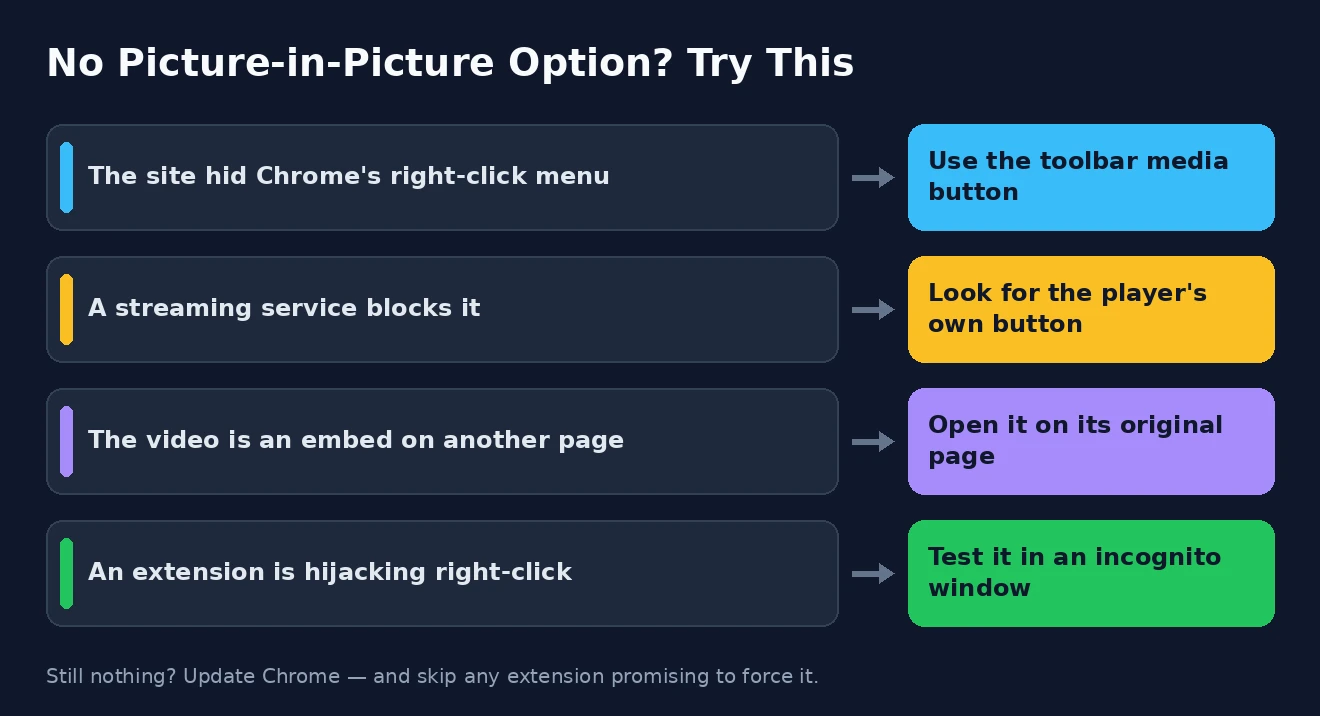
- The site provides its own button instead. Several major players include a picture-in-picture control built into their own player toolbar — look for a small icon of a rectangle with a smaller rectangle inside it, usually near the fullscreen button.
- The video is inside an embed. A video embedded on a third-party page can have the feature switched off by whoever built that page. Open the video on its own original page and it will usually work fine.
- An extension is interfering. Some video, ad-blocking, or player-enhancing extensions replace the right-click menu entirely. Try the page in an incognito window, where most extensions are disabled by default, to see if that is the cause.
- Your Chrome is out of date. The feature has been standard for years, but the newer document version is not, and an old browser will lack it. Keeping Chrome updated solves more problems than people expect.
If a streaming service blocks it outright, there is no clever workaround, and I would not recommend the various shady extensions that claim to force it. It is not worth handing broad permissions over your browsing to a random extension for the sake of one floating window. Google publishes an official Picture-in-Picture extension of its own, which adds a toolbar button and a keyboard shortcut, and that is the only one I would suggest going near — managing your Chrome extensions carefully matters more than any individual feature.
One last check: make sure the video is actually playing and has focus. A surprising number of “it does not work” moments come down to right-clicking a paused video, or clicking a fraction outside the player area onto the page behind it. The Google website has resources you may find useful if a specific site continues to misbehave.
Document Picture-in-Picture: The Bigger Idea
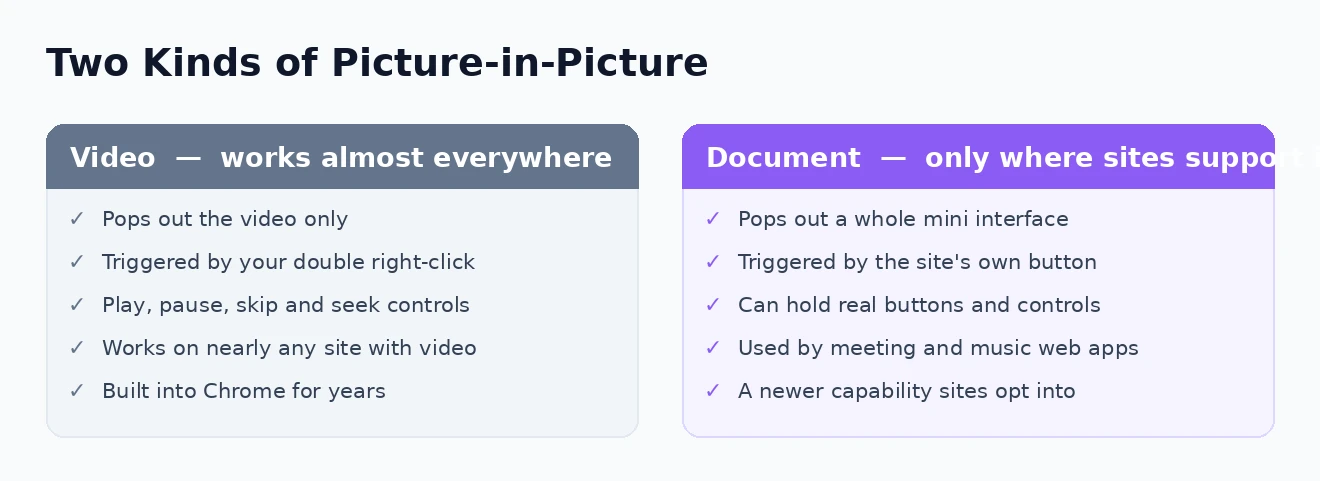
The version of this feature most people know only handles video. But a newer capability, usually called document picture-in-picture, lets a website put an entire miniature interface into that floating window — not just a video frame, but buttons, controls, text, whatever the site chooses to place there.
The clearest example is video calling. In a supported web app, the floating window can carry participant thumbnails plus working mute and camera buttons, so you can take notes in another application while still seeing your colleagues and muting yourself without hunting for the meeting tab. Music players use it for real playback controls, and some web tools use it to keep a checklist or a timer permanently in view.
Using it, where it exists, is refreshingly simple: the site puts its own button somewhere obvious in its interface, and clicking that button opens the floating panel. There is no hidden right-click gesture to learn, because the website is doing the work. If you use a web-based meeting tool and have never noticed a small pop-out icon near its controls, it is worth going to look — there is a decent chance it has been sitting there all along.
The important caveat is that this only works where the site has specifically built support for it, so you will not find a universal shortcut that forces any page into a floating panel. It is a capability websites opt into. Expect to meet it more often as web apps adopt it — and if you are curious about the technical side, the Mozilla developer website has resources you may find useful on how the underlying browser feature works.
On Your Phone and Tablet
Picture-in-picture exists on mobile too, though it works rather differently. On Android, it is handled at the system level: when a supported video is playing full screen in Chrome and you swipe home, the video can shrink into a floating bubble that hovers over your home screen and other apps. Whether it triggers depends on the site and on your system settings, which live under the picture-in-picture permission in Android’s app settings.
On iPhone and iPad, video picture-in-picture is likewise an operating-system feature rather than a Chrome one, and it is generally offered through the player’s own controls. Apple’s implementation tends to be most reliable on the iPad, where a floating video alongside a full-size app is genuinely practical. Support varies from site to site, and some apps deliberately disable it.
The honest summary for mobile is that it is less consistent than on the desktop, and more dependent on the individual app or site. If it matters to you, it is worth testing on the specific service you care about rather than assuming. On a computer, by contrast, the feature is reliable nearly everywhere — and it pairs beautifully with the rest of a well-tuned browser, whether that means a faster Chrome or the memory savings from Chrome’s memory saver.
Chrome Picture-in-Picture: Frequently Asked Questions
Why can I not find the picture in picture option?
Nine times out of ten it is because you right-clicked only once and got the website’s own menu rather than Chrome’s. Right-click a second time in the same spot to reveal the browser menu. If it is still missing, the site has probably disabled it, and you should look for a picture-in-picture button inside the site’s own player instead.
Does Chrome picture-in-picture work with Netflix and other streaming services?
It varies by service, and licensing restrictions mean some block the browser’s built-in option entirely. Several offer their own equivalent button within their player. If a service has clearly disabled it, there is no legitimate way to force it, and I would avoid extensions that promise otherwise.
Can I keep the video on top of other apps, not just Chrome?
Yes — that is precisely what makes it useful. The floating window stays above other applications and even above a minimised browser, so you can watch while working in a completely separate program.
Does picture-in-picture use extra memory or battery?
Barely any beyond what the video was already using, because the original tab is still doing the work of decoding and playing it. The floating window is essentially another view of that same video. If your browser feels heavy, the cause is far more likely to be your open tabs, which the Chrome task manager will show you plainly.
That is the whole feature. Two right-clicks, and any video can follow you around the screen while you actually get things done. For more ways to bend the browser to your will, the complete Chrome how-to collection and a few well-chosen keyboard shortcuts will take you a long way.