Photo organisation is a problem that gets worse the longer you ignore it. A library of 5,000 unsorted photos is manageable; 50,000 starts to feel impossible to fix manually. The right software depends on what your library looks like today — duplicates everywhere, photos scattered across devices, no tagging — and what you want it to look like. For a broader walkthrough, our Best Software and Apps is a good next read.
The shortest path to a useful library: Adobe Lightroom if you want the most capable tool and don’t mind paying, Mylio Photos if you want strong sync across devices without subscriptions, or digiKam if you want a powerful free option and don’t mind a steeper learning curve. Apple Photos or Google Photos are good defaults if you don’t want a dedicated tool but accept being locked into their ecosystems.
Before installing anything: back up your photo library. Organiser software changes metadata, moves files, and can occasionally lose them. Have at least one good backup before you start. The detailed reviews below cover each tool’s strengths and where it falls short.
Best Photo Organizer Software: Google Photos
Google Photos (free up to 15 GB shared with Google account; Google One from £1.59/month for more; photos.google.com) is the photo organiser I recommend most to most people — not because it is the most powerful for a professional photographer, but because the AI-powered search, face recognition, and automatic album creation make a large photo library navigable without any manual organisation effort. Searching “beach” or “Christmas 2022” or “with Sarah” finds the relevant photos across thousands of images without any tagging or album curation from the user. For families accumulating photos from phones without time for systematic organisation, Google Photos provides organisation without effort. The automatic backup from Android phones (and iOS with the Google Photos app installed) means photos are preserved in Google’s cloud regardless of what happens to the phone. The Memories feature surfaces old photos from the same date in previous years. The face grouping — seeing all photos of a specific person together — is more capable than any other consumer photo tool’s equivalent. The privacy trade-off: Google processes your photos to provide these AI features, which is uncomfortable for some users. For users who are comfortable with Google’s data handling, Google Photos is the most capable effort-free organiser available.Best Photo Organizer Software: Adobe Lightroom
Adobe Lightroom (from £9.98/month for Photography Plan; adobe.com) is the photo organiser I recommend for photographers who also edit seriously — it combines a professional catalogue system with full non-destructive editing in a single workflow. The catalogue maintains a database of all photos with their location, keywords, ratings, colour labels, and edit history. The smart collections filter automatically based on criteria — “photos taken in 2024 with 4+ stars” or “photos with ‘landscape’ keyword that have not been exported” — creating dynamic albums without manual sorting. The keyword system, for photographers who use it, allows finding any photo instantly regardless of when or where it was taken. Lightroom’s cloud sync (through Lightroom Classic + cloud) keeps the catalogue accessible across devices, and the Lightroom mobile app allows reviewing and basic editing from a phone while referencing the full catalogue on desktop. For photographers who shoot regularly and want professional organisation alongside editing, Lightroom’s integrated approach is the most efficient workflow available. For casual photographers who do not edit, the complexity and cost are not justified.Best Photo Organizer Software: digiKam
digiKam (completely free, open source; digikam.org) is the photo organisation tool I recommend for Windows users who want comprehensive organisation capability at no cost and without cloud dependency. The face recognition, GPS mapping, duplicate detection, batch renaming, keyword tagging, and colour label system are all comparable to the paid alternatives. The catalogue is stored locally, your photos stay on your own drives, and there is no subscription. The interface is less polished than Lightroom’s but covers the organisation workflow effectively. For photographers who care about data privacy and local control, digiKam provides professional-grade organisation without cloud processing of photos. The learning curve is real — the initial setup and getting comfortable with the tagging and collection workflow takes time — but the ongoing organisation becomes efficient once the system is established.
Best Photo Organizer Software: Apple Photos (Mac and iPhone)
Apple Photos (free, included with Mac and iPhone) is the right starting point for Apple-ecosystem users — the iCloud Photo Library synchronises photos across all Apple devices automatically, the face recognition and object detection improve with use, the Memories feature creates automatic albums, and the integration between iPhone camera and Mac organisation is the most seamless available in the Apple ecosystem. For iPhone users whose photos go primarily to Mac for review and organisation, Apple Photos covers the core need at no additional cost.| Tool | Cost | Best For | Local or Cloud? |
|---|---|---|---|
| Google Photos | Free 15 GB / £1.59+/month | Families; AI search; zero effort organisation | Cloud |
| Adobe Lightroom | £9.98+/month | Photographers; editing + organisation combined | Both (cloud sync optional) |
| digiKam | Free | Privacy-conscious; local control; no subscription | Local |
| Apple Photos | Free (Mac/iPhone) | Apple ecosystem; iPhone to Mac; iCloud sync | Both (iCloud optional) |
Adobe Lightroom Classic / Lightroom CC
Lightroom is the most capable photo organiser available, and the standard among photographers. Two versions exist: Lightroom Classic (desktop-focused, local library) and Lightroom CC (cloud-based, syncs across devices). For pure organisation work, Classic is the more powerful choice.
Strengths: Industry-standard tagging and metadata, powerful keyword and rating systems, excellent face recognition and AI-powered subject identification, robust folder/collection structures, non-destructive editing alongside organisation, large user community and tutorials.
Weaknesses: Subscription-only (Adobe Photography Plan starts at $9.99/month), steep learning curve for people who just want to organise (the interface is built for photographers), heavy memory usage on large libraries.
Best for: People who shoot a lot, want professional-grade organisation, and are open to also editing photos in the same tool. Less appropriate for casual users who just want to find that photo of their dog from 2019.
Mylio Photos
Mylio’s defining feature: it syncs your full photo library across phone, tablet, desktop, and laptop without keeping everything in the cloud. The library lives on your devices; Mylio handles the sync intelligently. The free tier covers 25,000 photos; paid plans remove that limit.
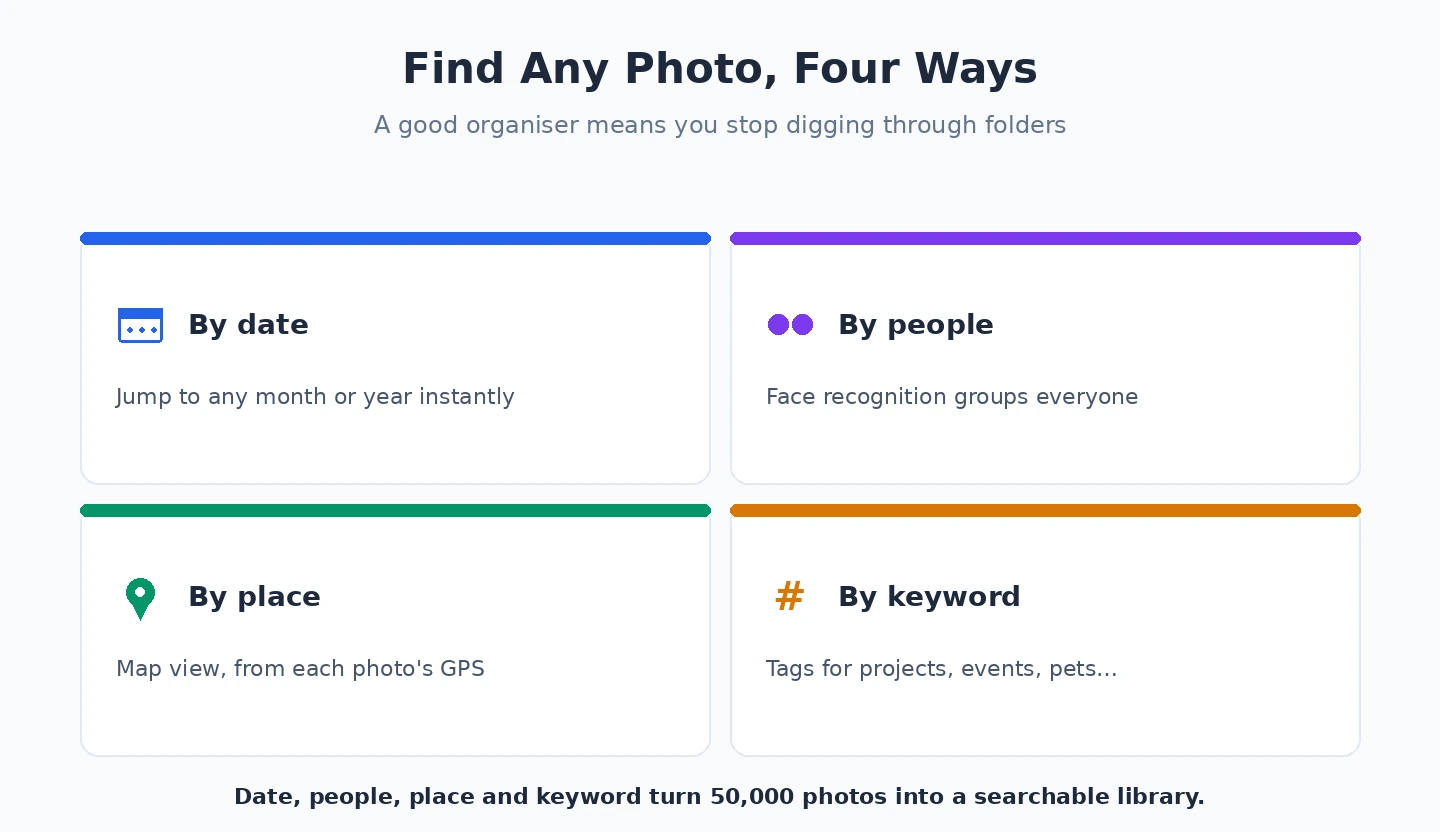
Strengths: No cloud lock-in, the photos live on your devices, multi-device sync that’s faster than Apple Photos for large libraries, face recognition, calendar view, map view based on photo GPS data, automatic duplicate detection.
Weaknesses: Requires devices with enough storage to hold the library (or smart sync only keeping recent photos on small-storage devices), the desktop apps feel less polished than Lightroom, fewer editing features.
Best for: People who want their photos accessible on every device without relying on iCloud Photos or Google Photos. Particularly good for users with mixed device ecosystems (some Apple, some Android, Windows desktop).
digiKam (free, open source)
digiKam is the most capable free photo organiser. It runs on Windows, Mac, and Linux. The interface looks dated compared to commercial tools but the underlying capabilities are extensive — it’s essentially “Lightroom but free if you can handle the learning curve.”
Strengths: Free, comprehensive metadata editing, face recognition (works offline, no cloud upload), excellent batch processing, supports raw files, no subscription, active development community.
Weaknesses: Steepest learning curve of the tools listed here, UI looks like a Linux app from 2015, no official mobile app, initial setup takes time.
Best for: Users committed to free software and willing to invest time learning. Great for permanent local archive organisation where you don’t need mobile access.
ACDSee Photo Studio
ACDSee has been making photo organisation software since the early days of digital photography. The current Photo Studio versions sit between Lightroom and digiKam in capability and price.
Strengths: One-time purchase option (not just subscription), very fast browsing of large libraries, solid batch renaming and metadata editing, integrates organising and editing in one app.
Weaknesses: Less widely used than Lightroom (smaller community for help), the UI hasn’t aged as well as some competitors, Mac version lags behind Windows in features.
Best for: Windows users who want a perpetual licence rather than a subscription, and don’t need bleeding-edge features.
Apple Photos and Google Photos
Both Apple Photos (built into macOS/iOS) and Google Photos (web + Android, iOS app) are free and capable enough for most casual users. They offer face recognition, automatic categorisation, search by content (“beach,” “sunset,” “cat”), and cross-device sync.
Strengths: Free or nearly free, automatic and effortless, AI search that genuinely works, integrated with your phone’s camera roll, mobile-first design.
Weaknesses: Vendor lock-in (moving 50,000 photos out of Google Photos to another service is genuinely painful), limited tagging and rating systems compared to dedicated tools, you don’t really own your library structure.
Best for: Casual users who take photos on phones, don’t shoot raw, and don’t need professional organisation. If your goal is “I want to find that photo of my kid from 2018,” Google Photos’ search is genuinely excellent and free.
What’s the best photo organiser for a 50,000+ photo library?
Adobe Lightroom Classic if you can pay for a subscription — it handles large libraries better than alternatives and the metadata system is the industry standard. Mylio Photos is the strongest non-subscription option for libraries of this size, particularly if you want sync across multiple devices. digiKam works too but requires more upfront time investment to set up properly.
Is Google Photos enough for serious photo organisation?
For casual users: yes — the search is genuinely excellent and free is hard to argue with. For serious users (photographers, archivists, anyone who shoots raw): no. Google Photos has limited tagging, no ratings system, doesn’t preserve metadata reliably, and locks you into Google’s ecosystem. The combination of capability and lock-in makes it inappropriate for serious organisation work.
How do I find duplicate photos in my library?
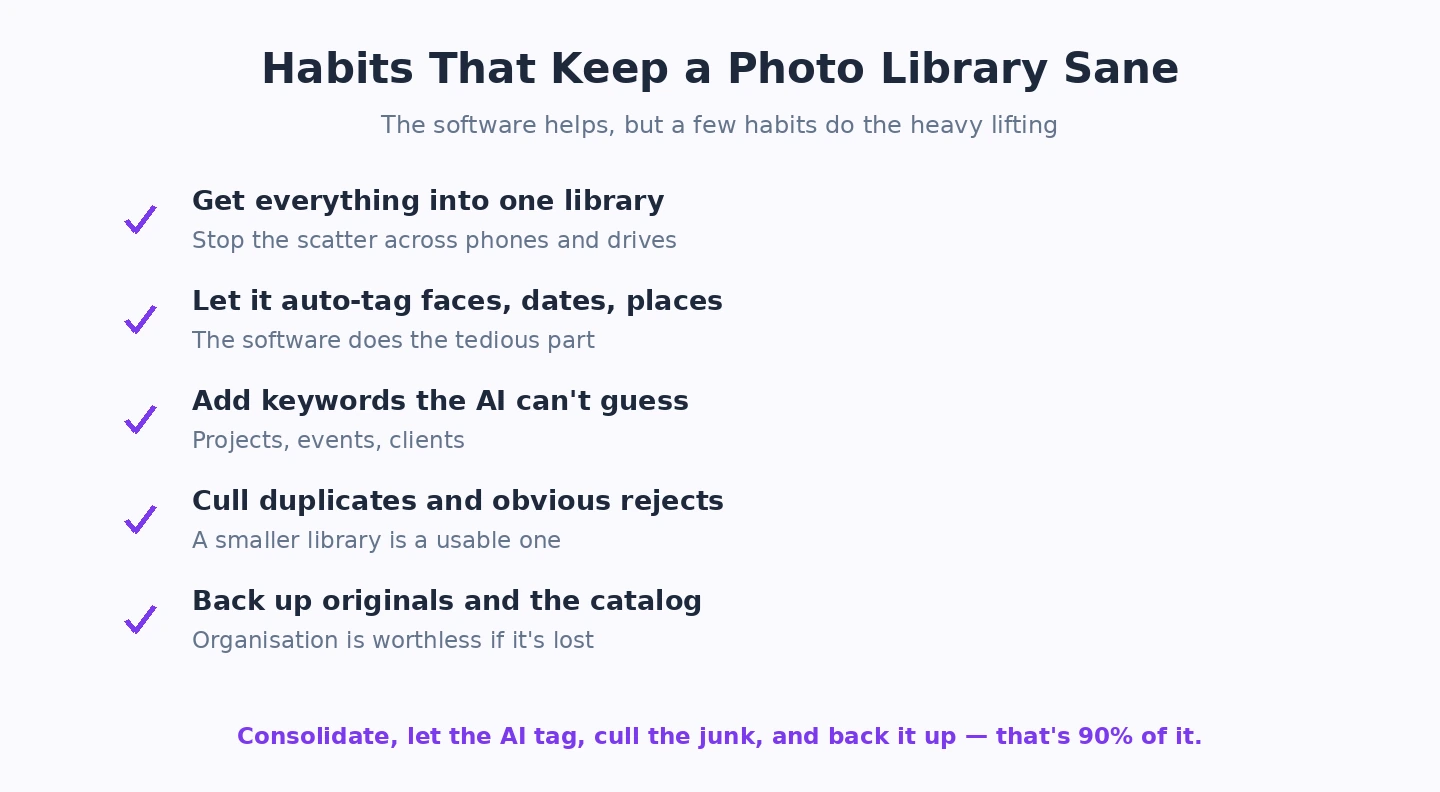
All the major tools handle this. Lightroom has duplicate detection via various plugins. Mylio and digiKam have it built in. Standalone duplicate finders (VisiPics for Windows, Gemini for Mac) work too if you don’t want a full library tool. The best approach: run duplicate detection BEFORE you start adding metadata, because removing duplicates after extensive tagging means losing tags on the duplicates you remove.
Will photo organiser software move my files?
Depends on the tool. Lightroom can either reference files in place or move them into a managed folder structure (your choice). Apple Photos copies everything into its own library. Google Photos uploads to the cloud (and doesn’t touch local files unless you delete from the app). Mylio works in either mode. Always check the setting before importing your library.
Do I need a dedicated photo organiser or is the Windows Photos app enough?
Windows Photos works fine for very small libraries (under 1,000 photos). Beyond that, performance degrades and the organisational features are limited. The free dedicated tools (digiKam, Mylio Free tier) are significantly better. Don’t suffer with the Windows Photos app for a large library — the time saved by using a real tool pays back the install in days.
How do I migrate my photo library between organisers?
This is genuinely difficult and varies by tool combination. The portable parts are the actual photo files and embedded EXIF metadata — these survive any migration. The non-portable parts are tags, ratings, and collections stored in the organiser’s database — these typically don’t transfer. Some tools support writing tags to XMP sidecar files (Lightroom does this) which makes migration easier. Plan for some metadata loss during any migration. Our guide on Best Disk Cloning Software for Windows covers an adjacent issue.