
Disk cloning serves several genuinely different purposes, and the right software depends entirely on which purpose you actually have. Four distinct cloning use cases cover most realistic needs. Upgrading to a larger drive of the same type — typically replacing a smaller SSD with a larger SSD while keeping everything else identical. Migrating from a slower drive to a faster one — typically replacing an HDD with an SSD, which produces dramatic performance improvement. Creating periodic full-disk backup images for disaster recovery — the snapshot use case where you want to be able to restore the entire drive to a previous state. Deploying identical configurations to multiple computers — the IT use case for setting up many workstations identically.
The tools optimised for each purpose are genuinely different in ways that matter. Software excellent for SSD migration may be awkward for ongoing backup imaging. Tools designed for deployment are overkill for individual users. Lumping these together produces recommendations that fit some users well and others poorly, with the realistic outcome being failed clones, hardware-specific issues, or workflows that do not match the actual need.
This guide is structured around purposes because the recommendations differ. For broader context on the Windows maintenance and backup software stack, our guide to the best software and apps covers the adjacent categories.
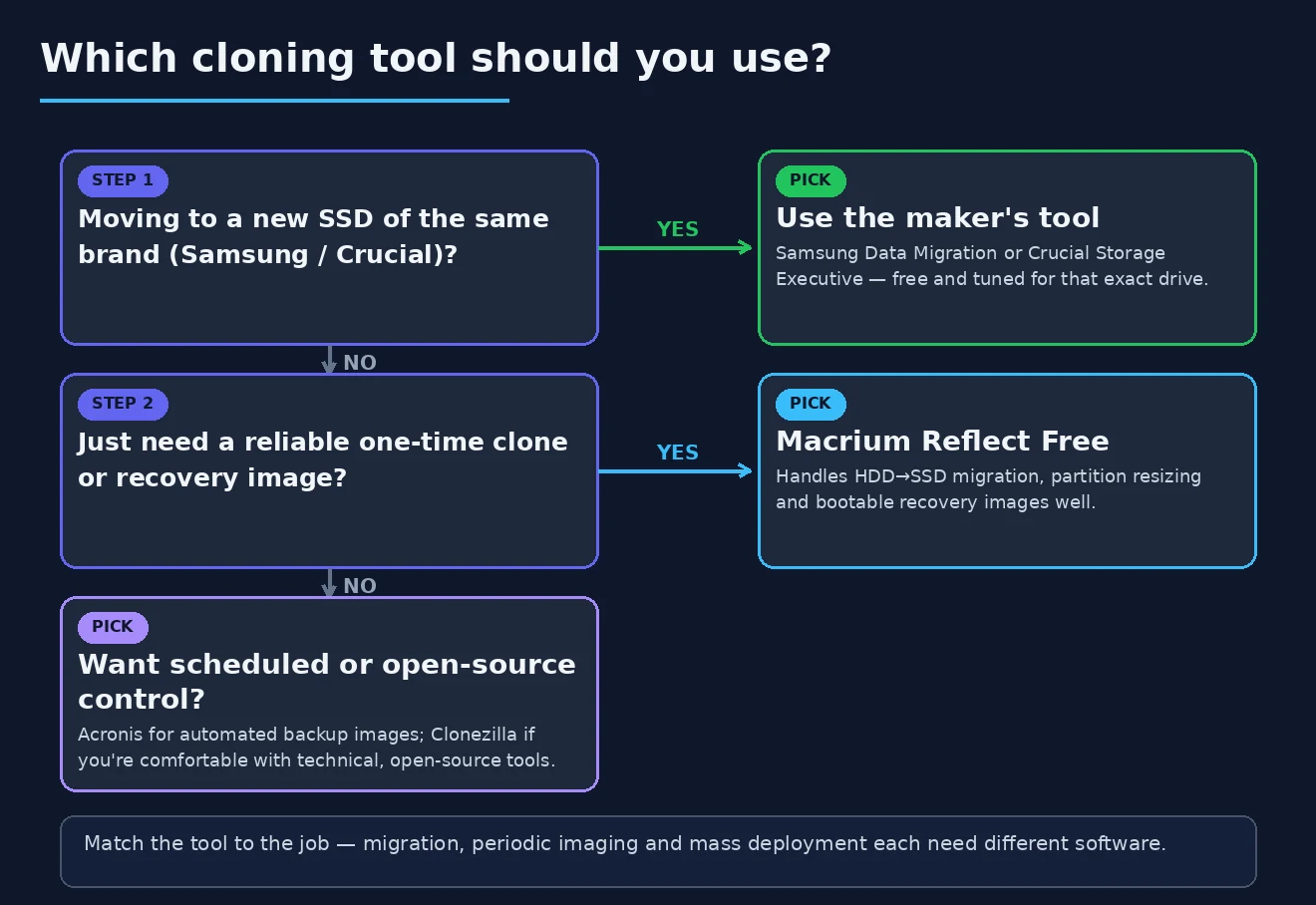
For SSD Migration (Replacing HDD or Smaller SSD): Macrium Reflect Free
For the most common disk cloning use case — replacing your existing drive with an SSD to get dramatic performance improvement, or upgrading to a larger SSD because you have outgrown the current one — Macrium Reflect Free is the right tool with strong reason for its dominance in this space.
Macrium Reflect Free (macrium.com; free for personal use, paid Macrium Reflect from $69.95) handles the realistic SSD migration workflow excellently. The product clones the source drive to the destination drive with proper handling of partition resizing (smaller-to-larger is straightforward), bootable image creation for recovery, and the various edge cases that less polished tools handle poorly. The interface is genuinely accessible for non-technical users without sacrificing capability.
The case for Macrium Reflect Free specifically is the combination of capability and zero cost for the personal SSD migration use case. The product handles essentially everything that the commercial alternatives charge for at this specific task. The free version is genuinely usable rather than being a marketing trap that becomes useless without payment. For the realistic case of “I want to clone my drive to a new SSD,” Macrium Reflect Free does it well.
The strengths beyond the basic cloning workflow are real. The Rapid Delta Clone feature speeds up subsequent clones after the initial one — useful when you are migrating between drives but want to update the destination before final switchover. The differential and incremental imaging options support periodic backup imaging as well as one-time cloning. The viBoot feature lets you boot images as virtual machines without restoring them, which is useful for testing recovery before relying on it.
The honest concerns with Macrium Reflect Free are about the product strategy and Windows version support. Macrium has changed its free product positioning over the years, with the current free version having fewer features than older free versions had. The company appears to be gradually narrowing the free tier capability while pushing users toward paid plans. For users specifically wanting one-time cloning capability now, this matters less; for users planning to use Macrium long-term, the trajectory may matter.
For the SSD migration use case specifically, Macrium Reflect Free remains the right answer in 2026. The alternatives below serve other purposes better but do not match Macrium for this specific task.
For Manufacturer-Specific SSD Migration: Samsung Data Migration or Crucial Storage Executive
For users specifically migrating to drives from major SSD manufacturers (Samsung, Crucial, WD, Kingston, others), the manufacturer-provided migration tools offer a streamlined alternative to general-purpose cloning software. These tools are designed specifically for migration to the manufacturer’s drives and often work more smoothly for that specific case than general tools.
Samsung Data Migration (free; included with Samsung SSDs; samsung.com/semiconductor/minisite/ssd/download/tools) is the right tool when migrating to a Samsung SSD specifically. The product is designed around the Samsung drive ecosystem, handles the cloning workflow with sensible defaults, and works smoothly with Samsung’s hardware specifically. The case for using Samsung Data Migration over Macrium is the streamlined workflow specifically for Samsung drives — no choices to make, just connect the new drive and clone.
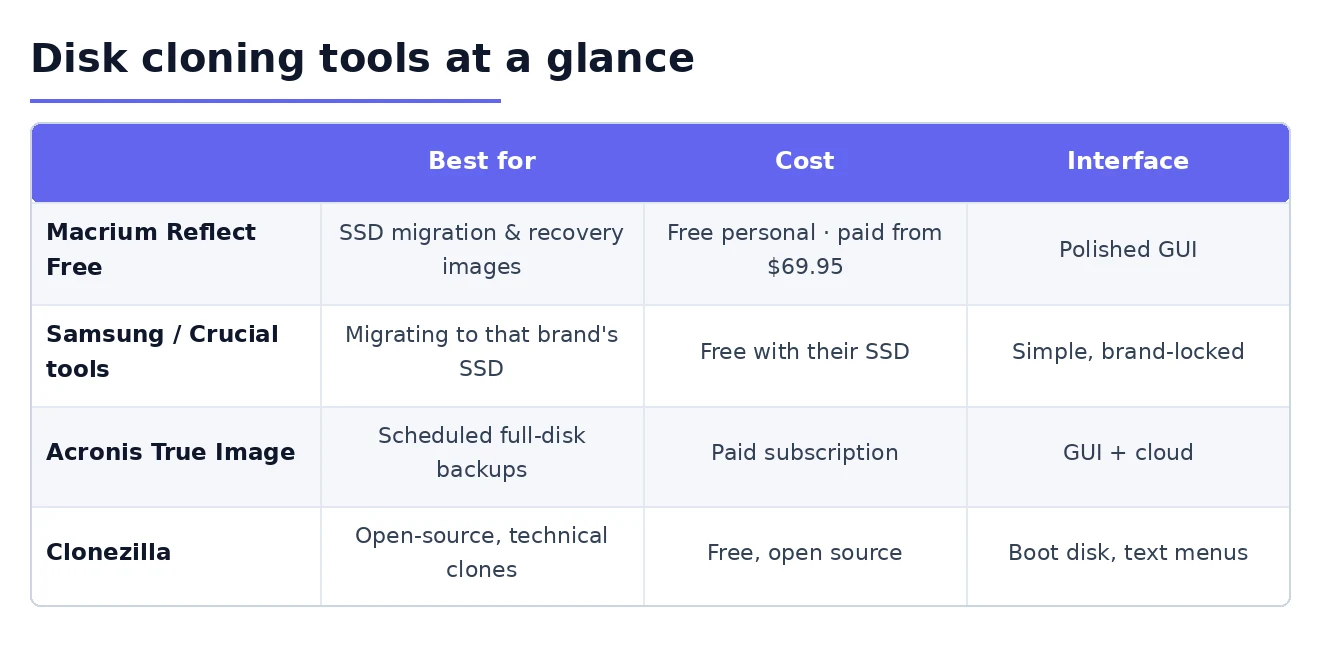
Crucial Storage Executive (free; included with Crucial SSDs; crucial.com/storage-executive) provides similar functionality for Crucial drives, including firmware management and the cloning capability through bundled Acronis software. WD Acronis True Image for WD provides the equivalent for Western Digital drives.
The case for manufacturer tools specifically is operational simplicity when the destination drive is one of these specific brands. The case against is that the tools only work with their specific manufacturer’s drives — Samsung Data Migration will not clone to a Crucial SSD, for example. For users uncertain about future drive purchases or who already own non-manufacturer-matched drives, the general tools (Macrium) provide more flexibility.
The realistic recommendation: if your destination drive matches one of these manufacturers and your only need is one-time migration, the manufacturer tool produces the simplest workflow. If you want capability beyond one-time migration (ongoing imaging, multiple drives, future flexibility), Macrium serves better. Our Windows backup software comparison covers the related category for users whose cloning needs extend into ongoing backup imaging.
For Periodic Full-Disk Backup Images: Macrium Reflect Paid or Acronis
For the disaster recovery use case — creating periodic full-disk images that let you restore your entire system to a previous state in case of catastrophic failure, ransomware, or other major problems — the tools have requirements beyond simple cloning. Scheduled imaging, differential backups (only backing up what changed), encryption, and verification all become important.
Macrium Reflect (paid version from $69.95 for personal use, business pricing for commercial use) extends the free version with the scheduled imaging, differential and incremental backup options, encryption, and the broader feature set that ongoing backup imaging requires. For users whose cloning need is “I want regular full-system snapshots I can restore from” rather than “I am replacing a drive once,” the paid Macrium is the right tier.
The case for Macrium paid specifically over alternatives is the consistency with the free version for users who started there. The workflow concepts and interface conventions transfer directly, so users who learned Macrium Free for an initial migration extend naturally to the paid version for ongoing imaging. The pricing is reasonable for personal use at $69.95 for an annual license.
Acronis Cyber Protect Home Office (formerly Acronis True Image; $49.99/year Essentials, $79.99/year Advanced, $124.99/year Premium; acronis.com) is the alternative for users specifically wanting an integrated backup-and-security product. The product combines disk imaging with ransomware protection, cloud backup, and antivirus in one subscription. For users who want consolidated tooling for disaster recovery, Acronis covers more ground than Macrium does.
The honest concerns with Acronis are about the integrated security features and the pricing model. The bundled antivirus is competent but inferior to dedicated alternatives. The cloud backup storage costs add up substantially at higher tiers. For users specifically wanting backup imaging without the integrated security marketing, Macrium is more focused and often cheaper at equivalent backup capability.
For the periodic full-disk imaging use case, both Macrium paid and Acronis are credible. The choice depends on whether you want focused backup capability (Macrium) or integrated security suite (Acronis). Our cloud backup service comparison covers the related category for users wanting cloud-based protection that complements local imaging.
For Open-Source and Technical Users: Clonezilla
Clonezilla (free, open-source; clonezilla.org) is the disk cloning tool for users who specifically want open-source software, who need to clone Linux systems or unusual filesystems, or who are managing multiple machines where the deployment use case matters. The product is text-mode and assumes technical comfort, but the capability is genuinely substantial.
The case for Clonezilla specifically is the combination of capability and the open-source positioning. The product handles Windows, Linux, and various filesystem types that some commercial tools struggle with. The bootable USB approach means you can clone without installing software on the source system. The free pricing with no functional limitations matters for users with sustained cloning needs or for IT environments where commercial licensing complicates deployment.
The strengths beyond capability are real for technical users. The command-line and scripted operation supports automated deployment workflows that GUI-only tools cannot match. The image format is open and well-documented, which avoids vendor lock-in concerns that proprietary formats produce. The multicast deployment capability lets you clone the same image to many destination computers simultaneously, which matters for IT environments setting up many workstations.
The realistic friction is the interface. Clonezilla’s text-mode workflow assumes familiarity with Linux conventions and is genuinely intimidating for users without that background. For technically comfortable users, the capability justifies the interface; for typical users wanting to clone a single drive, the friction substantially exceeds the benefit.
For typical personal cloning use cases, Macrium serves better than Clonezilla because the workflow is genuinely accessible. For technical users, Linux system cloning, or multi-machine deployment, Clonezilla is the appropriate tool.
For Enterprise and Multi-Machine Deployment: Different Tools Entirely
One framing point worth making: serious enterprise deployment — setting up dozens or hundreds of identical workstations — uses different tools than the personal cloning options above. The relevant tools include Microsoft Deployment Toolkit (MDT) for Microsoft environments, Symantec Ghost Solution Suite for traditional imaging, and similar enterprise tools that handle the operational complexity of multi-machine deployment.
For enterprise environments at this scale, the right approach is often image-based deployment through standard management tools rather than disk cloning per se. Microsoft Endpoint Configuration Manager (formerly SCCM), modern Microsoft Intune deployment, and similar enterprise tools handle the imaging workflow as part of broader endpoint management.
The honest framing is that this category is genuinely beyond the scope of “best disk cloning software” recommendations for most users. Organisations operating at this scale typically have IT staff who manage these decisions through enterprise software procurement, and the right tool depends substantially on the broader management infrastructure already in place.
For most readers of this article — individual users or small business users cloning a drive at a time — the personal tools above (Macrium, manufacturer tools, Acronis, Clonezilla) cover the realistic needs without involving enterprise complexity.
Common Disk Cloning Problems and How to Avoid Them
One specific consideration worth covering: several common problems trip up users attempting disk cloning, and understanding them beforehand prevents the surprises.
Source drive larger than destination drive will not clone directly. If your current drive has 800 GB of data and you are cloning to a 500 GB SSD, the clone will fail regardless of which software you use. The realistic solutions are reducing the data on the source drive (uninstalling applications, removing files) until it fits the destination size, or buying a larger destination drive. Some cloning tools support “shrinking” partitions during the clone, but this requires that the actual data fit.
Different drive types may produce boot problems after cloning. Cloning from MBR-style drives to GPT-style drives, or from BIOS-mode drives to UEFI-mode drives, can produce destination drives that do not boot properly even though the clone completed. Modern cloning software handles many of these cases automatically, but verifying that the destination drive uses the same partition style as the source (or the appropriate type for your firmware) avoids the most common boot problems.
Encrypted drives need special handling. If your source drive uses BitLocker, FileVault, or similar full-disk encryption, the cloning process may produce destination drives that cannot decrypt without specific handling. The realistic approach is typically to suspend or disable encryption before cloning, perform the clone, and re-enable encryption on the destination drive. The exact procedure depends on the encryption tool.
Source drives with bad sectors produce flaky clones. If your source drive is failing, cloning sometimes produces destination drives that have inherited the source’s problems or that simply do not boot. The realistic responses are either professional data recovery (if the source data is irreplaceable) or accepting that some files may be lost during cloning. Our data recovery software comparison covers the related category for situations where cloning is not actually the right response.
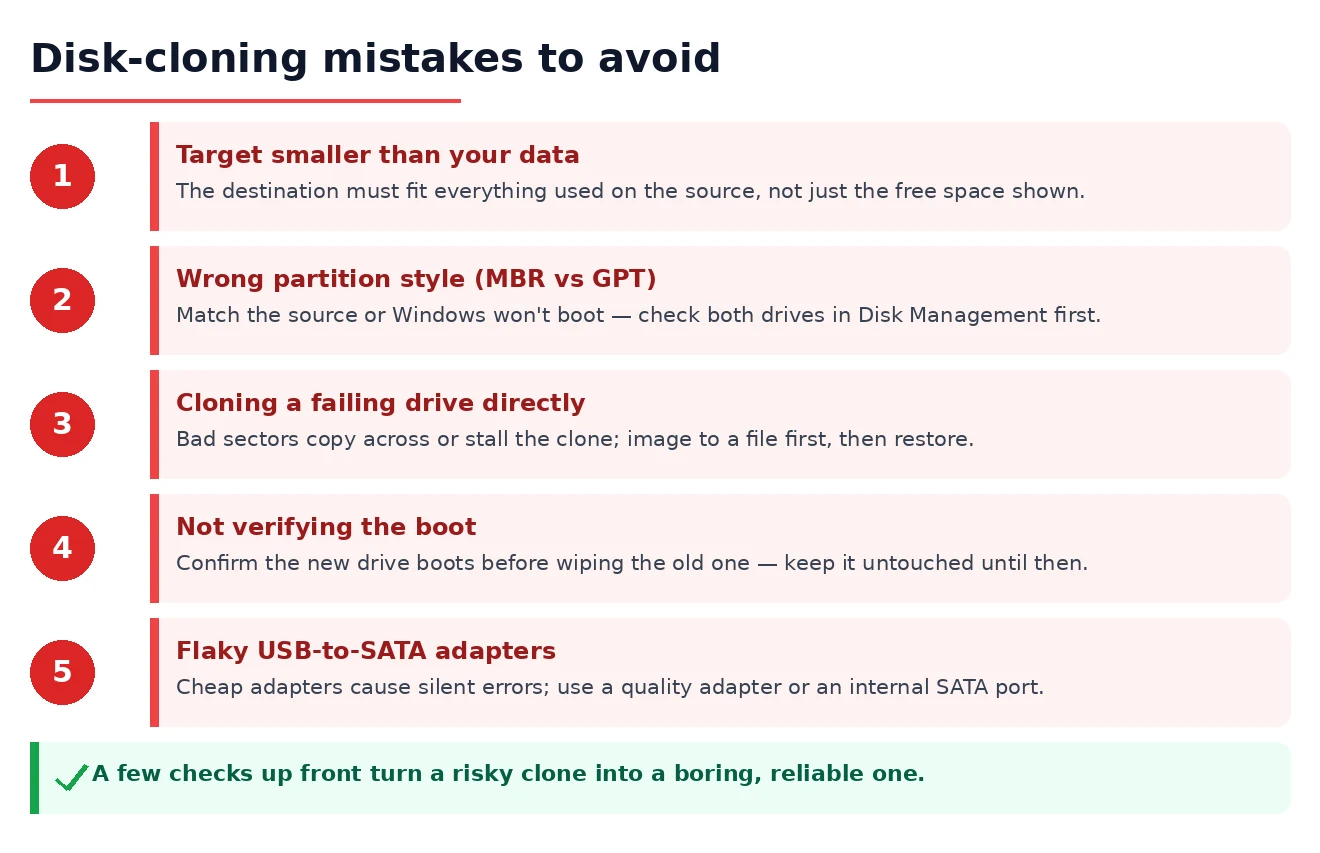
Disk Cloning during active use produces inconsistent images. Cloning a system while it is actively running can produce destination drives where database files, transaction logs, and other actively-modified files are in inconsistent states. The realistic approach is to clone from boot media (Macrium and Clonezilla both support this) so the source system is offline during the clone, which produces consistent images.
The Hardware Considerations That Matter
One framing point worth making about disk cloning broadly: the hardware setup affects whether the clone succeeds and how long it takes. Understanding the realistic hardware options affects which approach fits your situation.
For desktop cloning, the simplest approach is connecting both drives simultaneously inside the desktop case. SATA drives connect through standard SATA cables; NVMe drives need M.2 slots or PCIe adapter cards. Once both drives are connected, the clone happens directly between them at full hardware speed.
For laptop cloning, the challenge is that laptops typically have only one drive bay. The realistic approaches are using an external USB adapter to connect the destination drive externally during cloning, or removing the source drive and connecting both externally to a different computer for the clone. USB-to-NVMe adapters are now affordable ($20-40) and handle the realistic case adequately.
The cloning speed depends substantially on the slowest component in the chain. Cloning between two NVMe drives connected internally is dramatically faster than cloning to a destination drive connected via USB 2.0 (which can be hours for large drives). For users wanting fast cloning, ensuring the destination is connected through the fastest available interface matters substantially.
For users planning SSD migration specifically, buying both the SSD and a USB adapter together (some retailers sell SSDs with adapters bundled) is often more convenient than handling them separately. After the clone is complete, the adapter is useful for future drives or as an external storage option.
The Practical Recommendation
For most users in 2026, the answer follows from the specific cloning purpose. SSD migration replacing HDD or smaller SSD for personal use: Macrium Reflect Free as the strong default. SSD migration where destination is Samsung, Crucial, or another major manufacturer: their manufacturer tools for the streamlined workflow if you want one-time simplicity. Periodic full-disk backup imaging for disaster recovery: Macrium Reflect paid version, or Acronis Cyber Protect for users wanting integrated security suite. Open-source preference or Linux system cloning: Clonezilla for technical users comfortable with the text-mode interface. Multi-machine enterprise deployment: enterprise management tools rather than personal cloning software. The wrong move is picking by general feature comparison without identifying the specific purpose, because the tools optimised for one cloning purpose produce friction for others. Match the tool to your actual purpose, prepare for the common problems (size constraints, encryption, drive type differences), ensure adequate hardware connections for the clone speed you need, and the category becomes a working solution rather than ongoing troubleshooting. Our disk space analyzer comparison covers the related category for users investigating drive contents before deciding whether cloning or other approaches are the right response.