
The single most important fact about data recovery from a Windows drive is what you do in the first five minutes after data loss, not which software you eventually pick. Before discussing data recovery software at all, the critical first response: stop using the drive that lost data. Stop writing to it, stop installing software to it, stop browsing the web from it if it is your only drive. Every write operation to the drive after data loss is a chance for the operating system to allocate the space your deleted or lost files occupied to new data, at which point the original data becomes unrecoverable regardless of how good your recovery software is.
This matters because the recovery success rate depends primarily on whether the data has been overwritten in the time between loss and recovery attempt. Software that could recover your file perfectly on the day of loss may produce only fragments or nothing usable after a week of normal computer use. The hours and days after data loss matter substantially, and users who do not understand this often unintentionally destroy the recoverable data while looking for tools to recover it.
This guide leads with the critical first-response rules and then covers the tools that can actually help. For broader context on the data protection software stack that should be in place before data loss happens, our guide to the best software and apps covers the adjacent categories.
The Critical First Response (Read Before Anything Else)
The actions to take immediately after realising you have lost data — and specifically the actions to NOT take — determine whether recovery is possible.
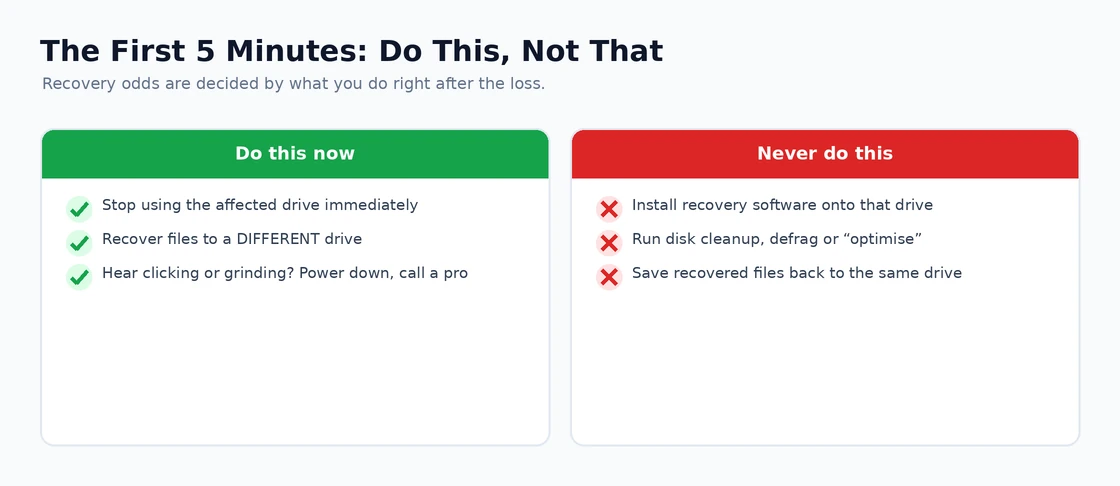
Stop using the drive that lost data immediately. If the lost data was on your main drive (C:), shut down your computer rather than continuing to use it. Every minute of continued use is a chance for your operating system to write new data over the space where your lost files were stored, which destroys the recoverable data. If the lost data was on a secondary drive (external drive, USB stick, secondary internal drive), disconnect that drive from the computer until you are ready to attempt recovery.
Do not install recovery software to the affected drive. If your main drive lost data, installing recovery software on it specifically writes to the drive areas you are trying to recover from. Recovery software should be installed on a different drive — a USB stick, an external drive, or a separate internal drive — and used to scan the affected drive.
Do not run “disk cleanup” tools, defragmentation, or system optimisation utilities on the affected drive. These tools deliberately move data around, optimise storage, and overwrite “free” space — exactly the space where your recoverable data lives.
Do not save recovery results back to the same drive. When recovery software finds your files, save them to a different drive (external, USB, another internal drive). Saving recovered files back to the drive they came from can overwrite other recoverable data that you have not yet identified.
If the data loss happened on a drive that is making unusual noises (clicking, grinding) or that has stopped being recognised by the computer, the problem is likely hardware failure rather than software-level deletion. Continuing to use the failing drive can cause additional physical damage. Professional data recovery services (which open the drive in cleanroom environments) are the appropriate response rather than software-based recovery, and continued use of the failing drive between symptoms and recovery may make professional recovery harder or impossible.
These rules apply regardless of which recovery software you eventually use. Following them dramatically improves recovery odds; ignoring them often makes recovery impossible regardless of how good your software is. Our Windows backup software comparison covers the prevention category that makes recovery less critical.
For the Common Case of Recently Deleted Files: Recuva
Recuva (free, with paid Recuva Professional at $19.95; piriform.com/recuva, now owned by CCleaner and recommended cautiously due to that ownership) handles the most common data recovery scenario well — recently deleted files that have not yet been overwritten by new data.
The case for Recuva specifically is the combination of simplicity and effectiveness for typical “I deleted a file I should not have” scenarios. The interface walks users through the recovery process accessibly, the scan options handle the common cases (specific file types, deep scan for thorough searches), and the success rate for recently deleted files on healthy drives is genuinely good. The free version handles most realistic recovery needs without payment.
The strengths for typical recovery use are real. The “Deep Scan” option searches the drive sector-by-sector for recoverable file fragments, which finds files that quick scan misses. The file type filtering lets you focus the search on what you are looking for (documents, photos, videos) rather than wading through everything that exists in unallocated space. The condition rating for each found file (Excellent, Good, Poor, Unrecoverable) helps prioritise what to attempt recovering.
The honest concerns with Recuva are about the CCleaner ownership and the broader Piriform product line trajectory. Piriform’s products had a malware incident in their installer in 2017, and the company’s product strategy since the Avast acquisition has been less consistently user-focused. The Recuva product itself remains genuinely useful, but users should be careful about installer-bundled additional software and should download specifically from official sources.
For users in the recently-deleted-file scenario, Recuva is a credible default that handles the realistic case well. For more complex recovery scenarios (formatted drives, partition damage, severe file system corruption), the more powerful tools below are better-fitting choices.
For Serious Recovery: TestDisk and PhotoRec
TestDisk and PhotoRec (free, open-source; cgsecurity.org) are the data recovery tools for cases more complex than Recuva handles well — formatted partitions, partition table damage, deeply corrupted file systems, recovery from drives that mostly work but have specific damaged areas. The tools are command-line-driven rather than graphical, which produces a steeper learning curve but enables capability the graphical tools cannot match.
TestDisk specifically handles partition table recovery and repair. If a drive’s partition table is damaged (the structure that tells the operating system how the drive is organised), TestDisk can often rebuild it without affecting the actual file data. For users whose problem is “my external drive used to work and now Windows says it needs to be formatted,” TestDisk often recovers access to the drive without needing to actually recover individual files.
PhotoRec handles file-level recovery based on file content signatures rather than file system metadata. For drives where the file system is too damaged for normal recovery tools, PhotoRec scans the drive sector-by-sector looking for file content patterns (the distinctive byte sequences that start JPEGs, MP4s, PDFs, and other common formats) and recovers files based on the content rather than the file system metadata. Despite the name, PhotoRec recovers many file types beyond photos.
The case for TestDisk and PhotoRec specifically is when the simpler tools have failed or when the damage to the drive is more severe than they handle. The capability is genuine — these tools recover data that Recuva cannot find. The free open-source positioning means there is no commercial pressure or licensing concerns.
The realistic friction is the interface. Both tools are command-line driven through a text-mode interface that follows older Unix conventions. The capability is excellent; the user experience is unmistakably technical. For users comfortable with this style of tool, TestDisk and PhotoRec are genuinely the most powerful free data recovery tools available. For users uncomfortable with command-line interfaces, the friction may exceed the capability benefit.
For technical users facing serious data loss, TestDisk and PhotoRec are the right pick with essentially no competition at the free tier. For less technical users, the commercial alternatives below provide friendlier interfaces at meaningful cost.
For Polished Commercial Recovery: Disk Drill
Disk Drill (free trial recovering up to 500 MB, paid plans from $89 Pro or $499 Enterprise; cleverfiles.com) is the data recovery software for Windows that handles serious recovery cases through a polished commercial interface rather than the command-line approach of TestDisk and PhotoRec.
The case for Disk Drill specifically is for users who need serious recovery capability but want a more accessible interface than the open-source alternatives. The product handles the same use cases as TestDisk and PhotoRec (deeper recovery, file system corruption, formatted drive recovery) with a graphical interface that walks through the process accessibly. The success rates on healthy drives with recoverable data are competitive with the more technical alternatives.
The strengths beyond the interface are real. The preview functionality lets you see what files are recoverable before committing to the recovery process, which helps prioritise effort. The byte-by-byte backup feature lets you create an image of a damaged drive before attempting recovery, which preserves the original drive state in case the recovery process needs to be retried. The handling of various file systems (NTFS, exFAT, FAT32, HFS+, APFS) covers cross-platform recovery scenarios.
The honest concerns with Disk Drill are about the pricing and the trial limitations. The free trial recovers only up to 500 MB total, which is meaningfully restrictive for serious recovery needs. The paid pricing at $89 for the Pro tier is in the same range as competitors but is genuinely substantial for what is often a one-time use. For users who only need recovery occasionally, paying for Disk Drill once is hard to justify; for users with sustained recovery needs (IT professionals, technicians), the cost is justified by the workflow.
The case for Disk Drill specifically over TestDisk/PhotoRec is the interface accessibility. For users who would not actually use command-line tools effectively, paying for the friendlier alternative may produce better recovery outcomes than struggling with the free options. For users comfortable with the command-line tools, the free alternatives produce equivalent or better recovery at no cost.
For Professional and Forensic Recovery: R-Studio
R-Studio (paid plans from $79.99 Personal to $899 Technician; r-studio.com) is the data recovery software for users with the most demanding recovery requirements — RAID array recovery, recovery from encrypted drives where the encryption keys are available, forensic recovery for legal contexts, and other specialist scenarios.
The case for R-Studio specifically is the breadth of supported scenarios. The product handles RAID array reconstruction without requiring the original controller, network-accessible recovery for centralised use across multiple machines, support for many file systems including some specialist ones, and the technical depth that professional forensic work requires.
The realistic positioning is that R-Studio is overkill for typical user data loss and appropriately matched for professional recovery contexts. IT professionals, forensic investigators, and businesses with serious data recovery needs benefit from R-Studio’s depth; home users with deleted file scenarios are paying for capability they will not use.
For most readers of this article, R-Studio is not the right pick because the use case does not justify the cost and complexity. For users who specifically work in professional data recovery contexts or who have RAID array failures or other specialist scenarios, R-Studio is genuinely the right tool with limited competition at its capability level.
Professional Recovery Services: When Software Cannot Help
One specific case worth covering explicitly: physical drive failures that software-based recovery cannot address. When drives have mechanical problems (clicking sounds, head crashes, motor failures), software running on the connected computer cannot access the data because the drive itself cannot read its own contents reliably.
The specific signs of physical drive failure: unusual mechanical noises (clicking, grinding, beeping), the drive becoming intermittently unrecognised by the computer, the drive being recognised but showing 0 bytes capacity, the drive becoming dramatically slower than usual without other explanation, or the drive working briefly and then becoming unresponsive.
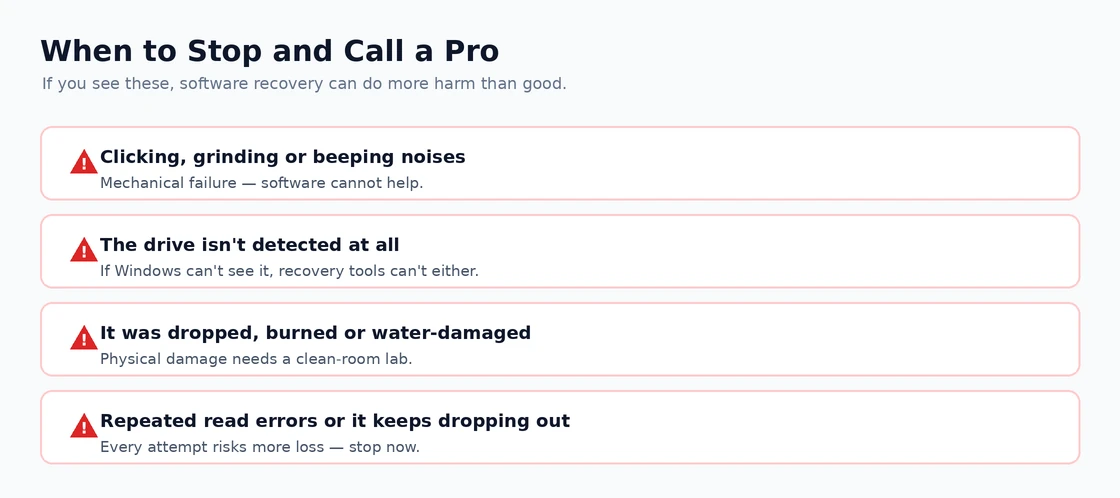
For drives with these symptoms, software-based recovery makes the problem worse rather than better. Continued attempts to read the drive can cause additional mechanical damage. The appropriate response is to disconnect the drive and consult professional data recovery services.
Professional data recovery services (DriveSavers, Ontrack, smaller regional specialists) open damaged drives in cleanroom environments, replace failed components with matching parts, and read the data sector-by-sector with specialised equipment. The cost is substantial (typically several hundred to several thousand dollars depending on the scenario), and success rates vary based on the damage type.
The honest framing for professional recovery: if your data is valuable enough to justify paying hundreds or thousands of dollars to recover it, professional services are the appropriate response. If it is not, accept the loss and improve your backup posture for the future.
The Specific Scenarios Software Recovery Handles Well
Beyond the categorical framing, the specific data loss scenarios where software recovery actually works.
Recovery usually succeeds when: files were recently emptied from the Recycle Bin and the space has not been overwritten, drives were quick-formatted (the default for most format operations) rather than fully overwritten, SD cards and USB drives have file system corruption preventing normal access but the data is physically intact, or partitions have been deleted and the space remains unallocated.
Recovery usually fails when: drives were full-formatted with active overwriting of data, SSDs have TRIM enabled (most modern SSDs do) which actively erases deleted data for performance reasons, encrypted drives lack the encryption keys (mathematically unrecoverable), or drives have physical hardware failure that prevents reading at the mechanical level.
The Prevention That Makes Recovery Unnecessary
One framing point worth making explicitly: data recovery is the response to a problem that should have been prevented through backup. Users who maintain proper backups face data loss as inconvenience rather than disaster; users without backups face data loss as potential permanent loss.
The realistic backup approach that prevents most data loss scenarios: automatic backup running in the background continuously, an offsite copy that protects against site-specific disasters (fire, theft, ransomware that affects local backups), and periodic verification that the backups actually contain what you need them to contain. None of these are difficult to set up; many users simply have not done so.
For users currently facing data loss, the appropriate response is the recovery tools above combined with substantially improving the backup posture afterwards so the next loss event is recoverable from backup rather than requiring tool-based recovery. The “I will set up backup later” pattern is exactly what produces recurring data loss disasters.
For users not currently facing data loss but reading this article preemptively, the most valuable action is implementing backup before the loss event happens. The hours invested in proper backup setup are worth substantially more than the equivalent hours invested in evaluating data recovery software you may never need. Our cloud backup service comparison covers the cloud-based protection that addresses the most common loss scenarios.
Avoiding the Scams and Bad Actors
The data recovery category attracts substantial fraud and adware because the underlying user motivation (panic about lost data) is exploitable. Patterns worth specifically avoiding.
Free recovery products from unfamiliar publishers that demand payment after they have “found” your files often produce fake results or hold genuine results hostage. Cloud-based “recovery” services that ask you to upload drive images are rarely legitimate. Tools that require payment before scanning operate under deceptive models — legitimate tools show recoverable files before requesting payment. Aggressive panic-inducing advertising indicates marketing focused on exploiting emotional decision-making rather than describing real capability.
The Practical Recommendation
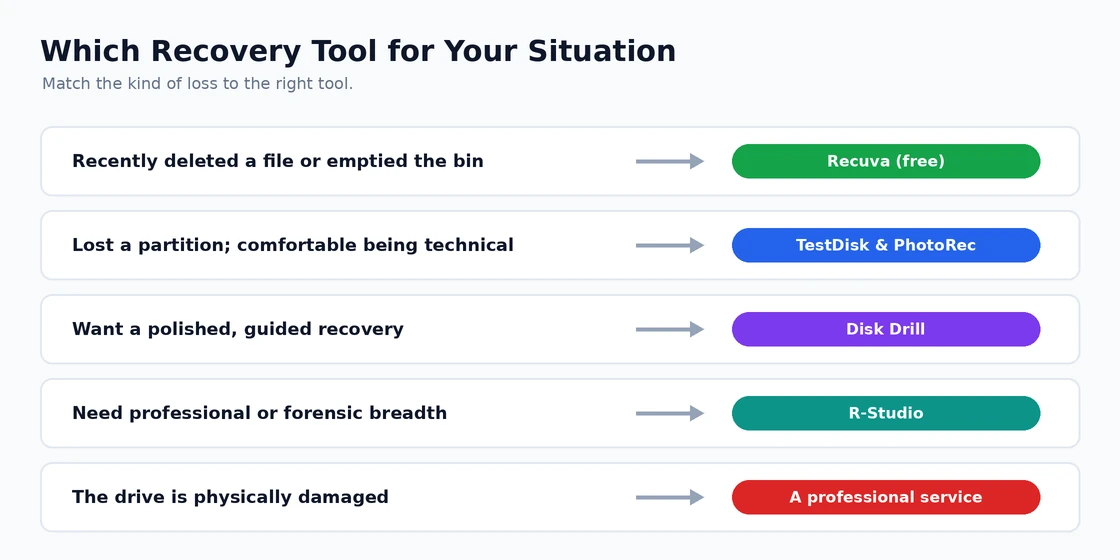
For most users in 2026 facing data loss, the answer follows from the severity of the loss and your technical comfort. For the common case of recently deleted files: Recuva free version handles the realistic scenario, with caution about the CCleaner ownership. For serious recovery with file system damage or partition issues: TestDisk and PhotoRec for users comfortable with technical tools, Disk Drill for users wanting a polished commercial interface. For professional and specialist scenarios: R-Studio for the breadth of capability. For drives with physical failure symptoms: professional recovery services rather than software-based recovery. The most important guidance is upstream of tool choice — stop using the affected drive immediately, do not install recovery software to the affected drive, do not save recovery results back to the affected drive, and accept that software recovery may not work for SSDs with TRIM enabled or for physically failing drives. After dealing with the current crisis, invest in backup posture so the next data loss event is an inconvenience recovered from backup rather than a recovery crisis. Our duplicate file finder comparison and disk space analyzer comparison cover related categories where careful tool use prevents the kind of accidental data loss that recovery exists to address.