
Backup software is the category of software that people wish they had taken more seriously exactly once — after losing data. I have been there. A failing hard drive on a laptop containing two years of project files that were not backed up adequately is an education that sticks. Since then I have maintained a proper backup strategy and tested most of the major Windows backup tools, and the conclusion I have reached is that the best backup software is the one you will actually run consistently, because a backup plan that is too complicated to maintain is just as useless as no backup at all when the moment comes. This guide covers the best backup software for Windows in 2026, including the built-in Windows options that most people underuse and the third-party tools that genuinely add value beyond what Windows provides. This fits into the wider topic we cover in our Complete Guide to Windows Software.
Before any tool recommendation: the backup strategy matters as much as the tool. The 3-2-1 rule — three copies of your data, on two different types of media, with one copy offsite — is the standard that protects against every common failure scenario. One copy on your main drive, one on an external drive, and one in cloud storage covers drive failure, home theft or fire, and accidental deletion respectively. Any backup tool recommendation needs to be evaluated against this framework rather than in isolation.
Best Backup Software for Windows: Windows Backup (Built-in)
Windows 11 includes backup functionality that most users ignore because it is not marketed or presented prominently. File History (older but still available) backs up copies of files in specified libraries and folders at regular intervals, which provides versioned recovery — you can restore a file to any previous version, not just the most recent backup. The newer Windows Backup app in Windows 11 backs up files, apps, settings, and credentials to OneDrive. For users who are already paying for Microsoft 365 with 1 TB of OneDrive storage, Windows Backup provides automated cloud backup at no additional software cost.
The limitations of Windows’ built-in backup: it does not create a bootable system image by default (the older Backup and Restore tool does, but it is less maintained). For recovering from a catastrophic failure where Windows itself will not boot, a system image created by a third-party tool or the older Backup and Restore (Windows 7) tool is more reliable. For file-level backup and cloud sync, the built-in tools cover most users adequately.
Best Backup Software for Windows: Macrium Reflect Free
Macrium Reflect Free (free for personal use) is my primary recommendation for users who want a reliable system image backup — a complete snapshot of the entire drive including Windows, applications, and all files — that can restore a PC to its exact state at the time of the backup. The differential and incremental backup options keep subsequent backups fast by only capturing changes since the previous backup. The bootable rescue media (a USB drive you create with Macrium) allows restoring from the image even if Windows will not start.
In practice, I use Macrium Reflect to create a full system image before any major Windows update, before installing new software I am uncertain about, and monthly as general protection. Restoring from a Macrium image has saved me real time twice — once after a Windows update that broke a driver, and once after a software installation went wrong in a way I could not easily reverse. The peace of mind of knowing I can roll back to a known good state in under an hour is worth the modest setup time.
Best Backup Software for Windows: Veeam Agent for Windows
Veeam Agent for Windows (free for personal use; veeam.com) is the enterprise-grade backup tool that offers a free personal edition with capabilities that rival paid tools. The full backup, incremental backup, and bare metal recovery functionality is the same underlying technology used by large enterprises for critical infrastructure backup. The scheduling is flexible, the compression and deduplication are efficient on large backups, and the recovery media creation produces a reliable bootable environment for bare metal restore.

Veeam’s interface is more technical than Macrium Reflect’s but more capable in some respects — particularly for users who want to back up to network shares, NAS devices, or cloud repositories. For home users with a NAS or network storage on their home network, Veeam’s network backup destination support is particularly useful. If Macrium Reflect’s free tier limitations are a constraint, Veeam is the best alternative free option.
Best Backup Software for Windows: Backblaze
Backblaze Personal Backup (£7/month or £70/year) is the cloud backup service I recommend most confidently for the offsite component of a complete backup strategy. For a flat monthly fee, it backs up unlimited data from one computer — every file, every folder, every drive attached to the computer — to Backblaze’s cloud storage continuously in the background. There is no storage limit, no per-GB charge, and no complexity in the setup. You install the app, select what to exclude (or accept the defaults), and it runs.
The value proposition: £7/month for unlimited cloud backup is cheaper than any per-GB cloud storage alternative once you have more than a modest amount of data. For the offsite copy in a 3-2-1 strategy, Backblaze provides it at a fixed, predictable cost without managing storage quotas. I have used Backblaze for three years and the one time I needed to restore files (accidental deletion of a large folder), the restore interface was clear and the download completed without issues.
Best Backup Software for Windows: Acronis Cyber Protect Home Office
Acronis Cyber Protect Home Office (from £49.99/year) is the all-in-one option that combines local disk imaging, cloud backup, ransomware protection, and antivirus in a single package. For users who want to manage their entire data protection stack from one tool and are willing to pay an annual subscription, Acronis covers everything. The cloud backup is included (50 GB in the base tier) rather than requiring a separate subscription, and the ransomware protection specifically targets the attack vector most likely to compromise backups alongside the primary data.

The honest trade-off: Acronis costs more than using Macrium Reflect free plus Backblaze separately, and the combination of separate tools is more flexible. The premium for Acronis is the convenience of a single tool and interface.
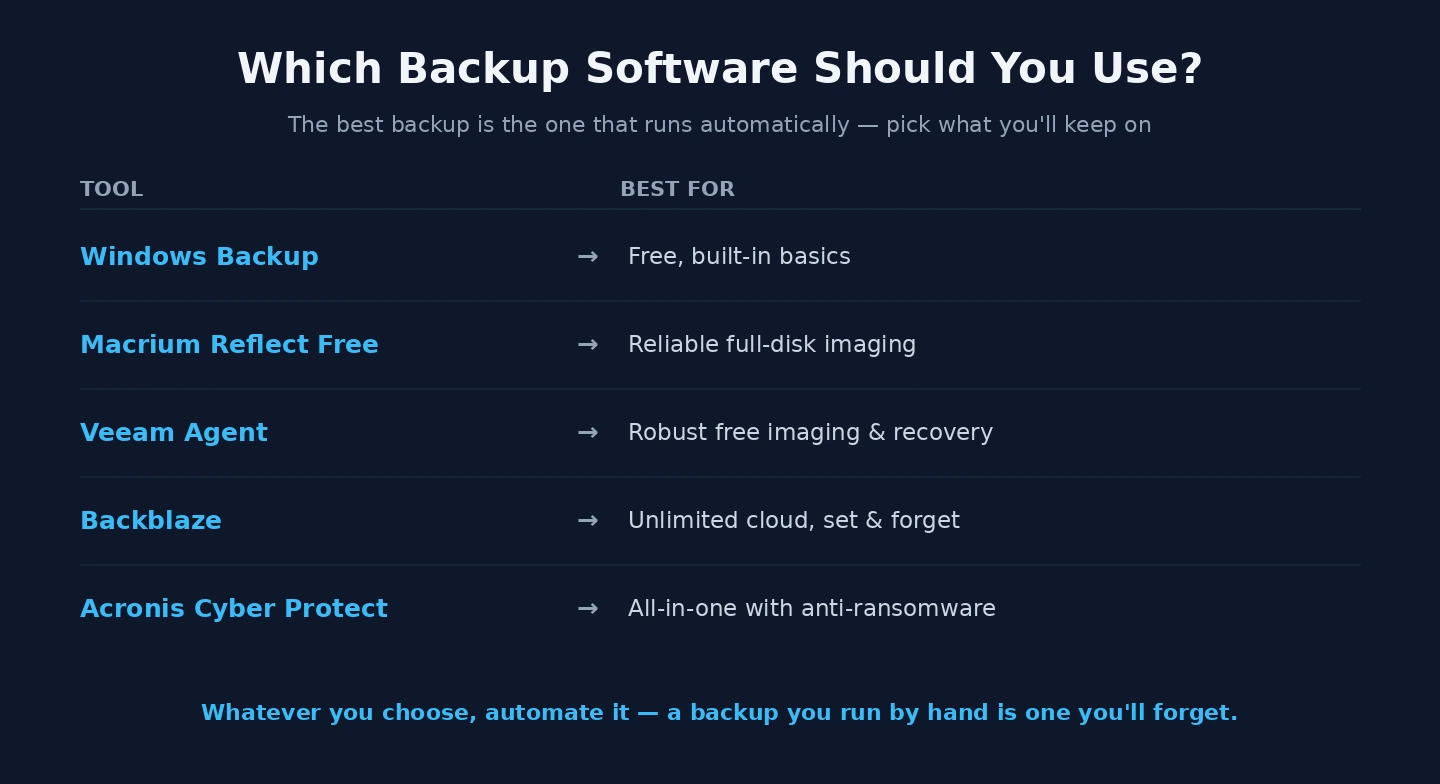
| Tool | Cost | Best For | Backup Type |
|---|---|---|---|
| Windows Backup (built-in) | Free | Simple file backup; Microsoft 365 users | File + OneDrive cloud |
| Macrium Reflect Free | Free | System image; bootable recovery | Local disk image |
| Veeam Agent for Windows | Free | Network/NAS backup; enterprise features | Local + network image |
| Backblaze | £7/month | Unlimited offsite cloud backup | Cloud (continuous) |
| Acronis Cyber Protect | £49.99/year | All-in-one local + cloud + security | Local image + cloud |
Our guide on how to back up Windows 11 covers the full backup strategy including the built-in Windows tools and how to use Macrium Reflect step by step. Our guide on best cloud backup service covers Backblaze alongside the other cloud backup options — iDrive, Carbonite, and the cloud storage services — for the offsite component of your backup strategy. The Macrium website has documentation on creating rescue media and restoring from an image — the restore process is worth reading before you need it, not after.