You have a page that took hours to lay out — the right blocks, the right spacing, a hero section you finally got looking correct — and now you need a second page just like it with different words. Every other piece of software on earth would let you hit copy. WordPress, maddeningly, offers you nothing. There is no Duplicate button anywhere in the editor, and there never has been.
So people do the tragic thing: they rebuild the page from scratch, block by block, trying to remember what padding they used. It is a waste of an afternoon, and it is completely unnecessary, because there are at least four solid ways to duplicate a page in WordPress. Some take ten seconds and no plugins at all; others give you a permanent Duplicate link right in your Pages list.
Below I will go through each method, explain which one suits which situation, and — the part most guides skip entirely — show you exactly what does not come along for the ride when you copy a page. That last part is where people get caught out, because a duplicate that silently loses its featured image or its template is worse than no duplicate at all.
Why There Is No Duplicate Button in WordPress
It is a fair question, and the answer is mostly historical. WordPress began as a blogging platform, where you write a new post each time rather than cloning an old one, and a duplicate function was never part of the core idea. As the software grew into a full site builder, the feature stayed absent from core, largely because the developers left it to plugins — and because copying a page cleanly is genuinely more complicated than it looks.
Think about what a page really is. It is not just the content you see. Underneath sit the featured image, the page template, the parent page, custom fields, SEO settings from your SEO plugin, the menu order, and whatever data any active plugin has attached to it. A proper duplicate has to decide what to bring and what to leave, and reasonable people disagree about the answer. That ambiguity is precisely why it never made it into core.
The practical upshot is that when you want to duplicate a page in WordPress, you are choosing between approaches with different trade-offs rather than pressing one official button. The good news is that the choice is easy once you know what each method actually copies, which is what the rest of this guide sets out. If you are new to the platform generally, our complete WordPress how-to guide is a good place to get your bearings first.
Method One: Copy Every Block in the Editor
This is the fastest route, it needs no plugin, and most people have never been shown it. The block editor lets you select every block on a page at once and copy the lot to your clipboard, then paste them into a brand-new page in a single stroke. For a straightforward content page, you will be done in well under a minute.
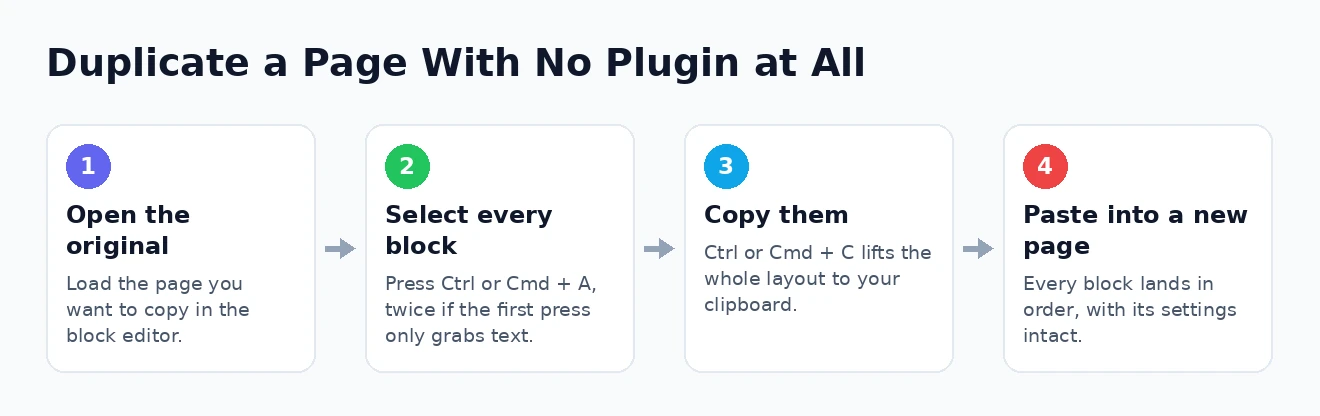
- Open the page you want to copy in the block editor.
- Click once inside the content area, then press Ctrl + A on Windows or Cmd + A on a Mac. Press it twice if the first press only selects the text inside one block — the second press selects every block on the page.
- Press Ctrl + C or Cmd + C to copy them.
- Create a new page, click into the empty content area, and press Ctrl + V or Cmd + V. Every block arrives, in order, with its settings intact.
There is an equally good menu-driven version of the same trick: open the options menu at the top right of the editor, choose Copy all blocks, and paste into your new page. Either way, what you get is a faithful copy of the visible content — the layout, the columns, the images inside the content, the spacing, all of it.
What you do not get is everything that lives outside the content area. The title, the featured image, the page template, the parent, and your SEO plugin’s settings all stay behind, and you will have to set them again by hand. For a simple page that is a trivial amount of work. For a complex landing page with a custom template and carefully written meta description, it is a real annoyance — which is exactly where the next method earns its keep.
Method Two: Let a Plugin Do the Work
If you duplicate pages even occasionally, install a duplication plugin and stop thinking about it. This is the approach I use and recommend for most people. Once it is active, a Duplicate link appears beneath every entry in your Pages and Posts lists, and one click creates a complete copy as a draft — featured image, template, custom fields, categories, SEO settings and all.
The best-known option is Yoast’s Duplicate Post, which is free, actively maintained, and used on millions of sites. It offers two distinct actions that are worth understanding. Clone makes a straight copy as a new draft, which is what you want when creating a new page based on an old one. Rewrite & Republish is cleverer: it creates a hidden working copy of a live page, lets you revise it at your leisure, and then swaps your edits back into the original page in place, keeping the same URL. That is invaluable for overhauling an important published page without visitors ever seeing it half-finished.
Installing it is the usual routine: search for it under Plugins, add it, activate it, then look in its settings for which elements to copy and which post types to enable. Do keep an eye on plugin bloat, though — every plugin is code running on your site. If you only ever need to copy a page once, the block-copying method above is the lighter choice, and knowing how to deactivate plugins safely is worth having in your back pocket regardless. The Yoast website has resources you may find useful on how their tools handle this.
Method Three: Add a Duplicate Link Yourself
If you would rather not add another plugin, you can build the same Duplicate link into your own site with a snippet of code. This is the route for people who like a lean plugin list and are comfortable editing theme files. It gives you an identical one-click experience, without a plugin’s settings screens or update notices.
Add the following to your theme’s functions.php file — and please, put it in a child theme, or it will be wiped out the next time your theme updates. Take a backup before you touch any theme file, and ideally test it on a staging site first.
// Add a "Duplicate" link to the Pages and Posts lists
add_filter( 'page_row_actions', 'stt_add_duplicate_link', 10, 2 );
add_filter( 'post_row_actions', 'stt_add_duplicate_link', 10, 2 );

function stt_add_duplicate_link( $actions, $post ) {
    if ( ! current_user_can( 'edit_posts' ) ) {
        return $actions;
    }
    $url = wp_nonce_url(
        admin_url( 'admin.php?action=stt_duplicate&post=' . $post->ID ),
        'stt_duplicate_' . $post->ID
    );
    $actions['duplicate'] = '<a href="' . esc_url( $url ) . '">Duplicate</a>';
    return $actions;
}

// Handle the click and create the copy
add_action( 'admin_action_stt_duplicate', 'stt_duplicate_post' );

function stt_duplicate_post() {
    $post_id = isset( $_GET['post'] ) ? absint( $_GET['post'] ) : 0;
    check_admin_referer( 'stt_duplicate_' . $post_id );

    $post = get_post( $post_id );
    if ( ! $post || ! current_user_can( 'edit_posts' ) ) {
        wp_die( 'Sorry, you are not allowed to duplicate that.' );
    }

    $new_id = wp_insert_post( array(
        'post_title'   => $post->post_title . ' copy',
        'post_content' => $post->post_content,
        'post_excerpt' => $post->post_excerpt,
        'post_type'    => $post->post_type,
        'post_status'  => 'draft',
        'post_parent'  => $post->post_parent,
        'post_author'  => get_current_user_id(),
    ) );

    // Bring the taxonomies and the custom fields along too
    foreach ( get_object_taxonomies( $post->post_type ) as $taxonomy ) {
        $terms = wp_get_object_terms( $post_id, $taxonomy, array( 'fields' => 'slugs' ) );
        wp_set_object_terms( $new_id, $terms, $taxonomy );
    }
    foreach ( get_post_meta( $post_id ) as $key => $values ) {
        foreach ( $values as $value ) {
            add_post_meta( $new_id, $key, maybe_unserialize( $value ) );
        }
    }

    wp_safe_redirect( admin_url( 'edit.php?post_type=' . $post->post_type ) );
    exit;
}
Two details in there matter more than they look. The loop over post meta is what carries across your featured image, page template, and SEO fields, since all of those are stored as custom fields — and it is also why this snippet copies far more than the block-copying method does. Meanwhile the nonce check and the capability check are not optional decoration; they stop someone crafting a link that makes your site duplicate things it should not. If you work with custom post types, note that the same filters cover them as well.
Method Four: Export and Import Between Sites
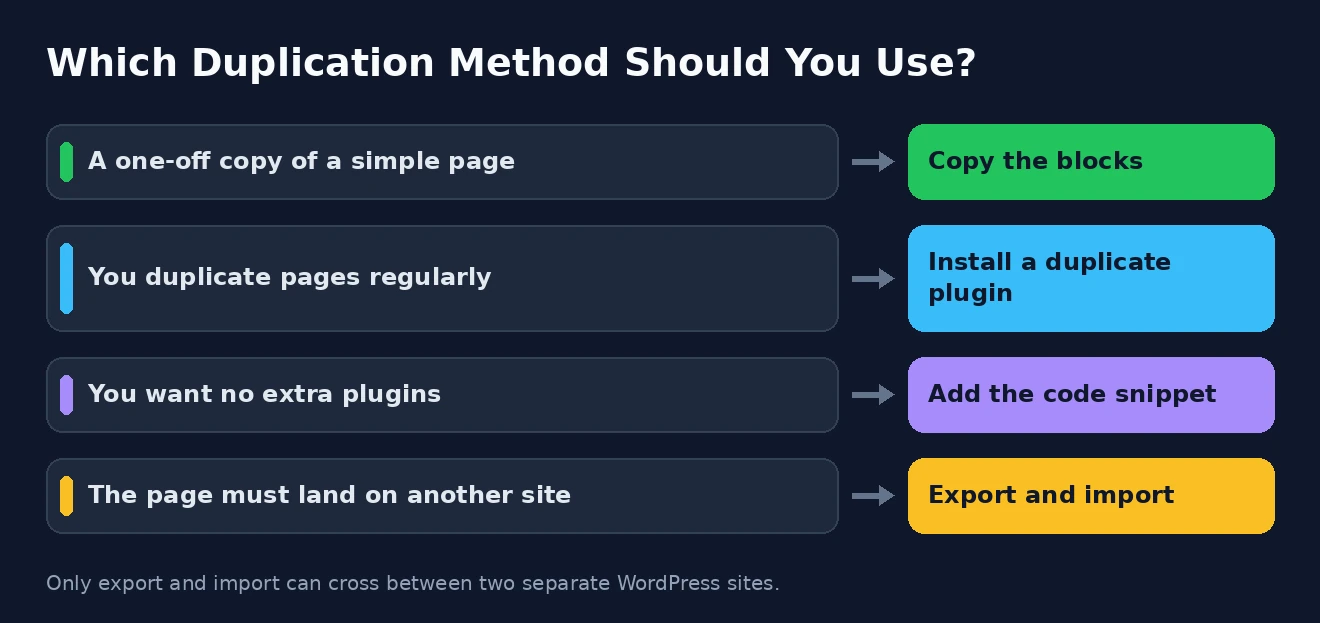
The three methods above all assume you are copying a page within one site. When you need the same page on a different WordPress site — moving a template between client sites, say, or lifting a page from staging to production — the built-in export and import tools are the right instrument.
Under Tools you will find Export, which lets you download selected pages or posts as an XML file, and Import, which takes that file into another site and recreates the content there. It is deliberate and a little clunky, but it is native, free, and it handles bulk work that no amount of copy-and-paste would survive. Our guide to WordPress import and export walks through the full process.
Two warnings. Images are not embedded in the export file; the importer tries to fetch them from the original site, so that site must still be reachable when you run the import, and you should check your media afterwards. And any content produced by a plugin or a page builder will only render correctly if the same plugin is installed and active on the destination site. Import first, then clear your caches — our note on clearing the WordPress cache explains why stale caches make a successful import look broken.
What Each Method Actually Copies
This is the table I wish someone had shown me years ago. The differences between these methods are almost entirely about what comes along besides the visible content, and choosing the wrong one means quietly losing settings you assumed were copied.
| What is copied | Copy blocks | Plugin | Code snippet | Export & import |
|---|---|---|---|---|
| Page content and layout | Yes | Yes | Yes | Yes |
| Page title | No | Yes | Yes | Yes |
| Featured image | No | Yes | Yes | Yes |
| Page template and parent | No | Yes | Yes | Yes |
| Custom fields | No | Yes | Yes | Yes |
| SEO title and description | No | Usually | Yes | Yes |
| Categories and tags | No | Yes | Yes | Yes |
| Works across two sites | No | No | No | Yes |
Read it as a decision guide rather than a scorecard. Copying blocks is perfect for a quick, simple page where you were going to rewrite the title and pick a new image anyway. A plugin or the code snippet is the right call whenever the page has a custom template, a featured image, or SEO settings you would hate to lose. Export and import is the only option that crosses between sites, and it is overkill for anything else.
One row deserves a note: the SEO fields. Most SEO plugins store their data as custom fields, so any method that copies custom fields carries them over — which is convenient, but it also means your duplicate arrives with the original page’s meta description and focus keyword still attached. That is a footgun, and it leads directly to the cleanup below.
Clean Up the Copy Before Anyone Sees It
A duplicate is a starting point, not a finished page, and a few minutes of cleanup prevents a real mess later. The first job is the obvious one: change the title, and check the URL slug. WordPress will generate a slug from the new title only if the field is empty, so a copied page can easily end up with a slug like your-page-copy stuck to it permanently. Set it deliberately.
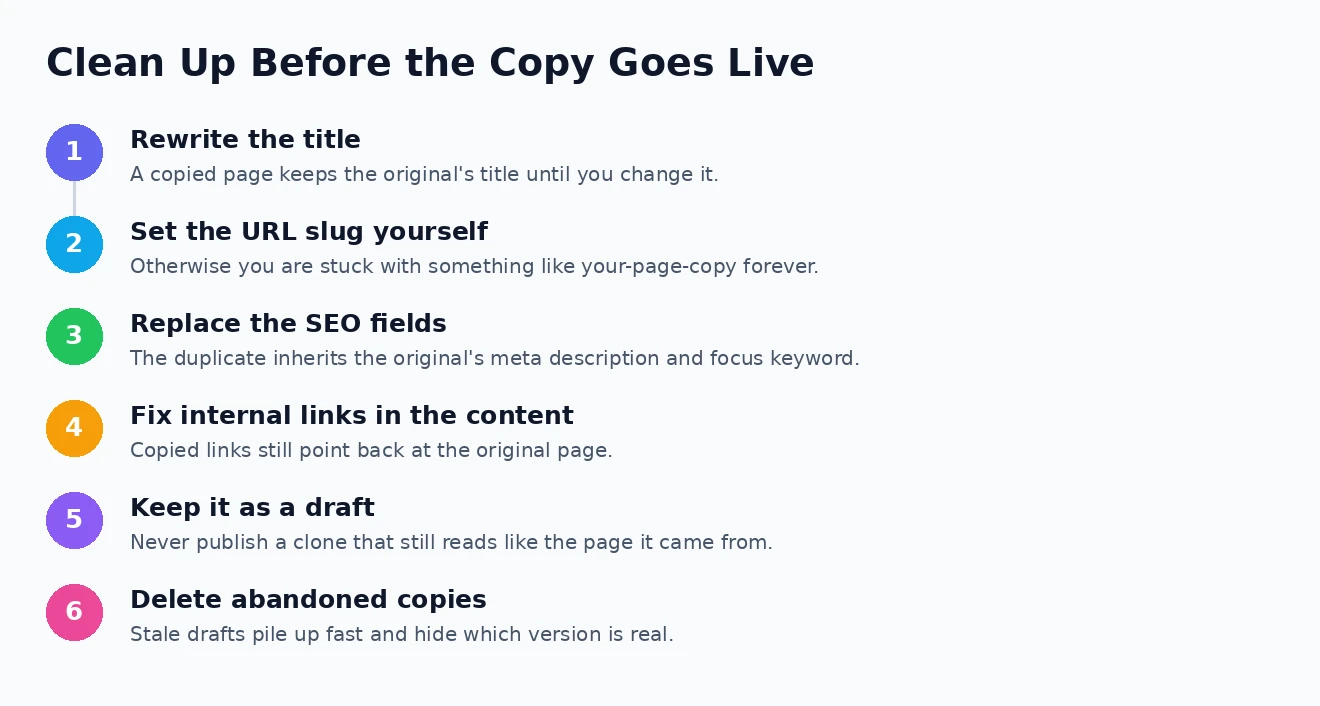
Then deal with the search engine side, because this is where duplication genuinely can hurt you. Two pages carrying near-identical content and the same meta description are competing with each other in search results, and neither wins. Rewrite the SEO title and description, change the focus keyword, and update any internal links inside the copied content that still point back at the original. Keep the duplicate as a draft until it has been properly rewritten — a half-finished clone published by accident is the worst outcome of all.
The rule of thumb I use: a duplicate should stop being a duplicate before it goes live. If the copy would still be recognisably the same page to a reader, it is not ready, and search engines will treat it accordingly.
Finally, tidy up the leftovers. Delete abandoned copies rather than leaving them as stale drafts cluttering your Pages list, since they accumulate faster than you think and it becomes impossible to tell which version is real. And if you have been copying pages to experiment with layouts, a staging site is a far cleaner place to do it. The official WordPress website has resources you may find useful on managing content properly.
How to Duplicate a Page in WordPress: Common Questions
Can I duplicate a page in WordPress without a plugin?
Yes, easily. Open the page, select all the blocks with Ctrl or Cmd + A, copy them, and paste into a new page. That copies the entire layout with no plugin at all — you simply have to set the title, featured image, and template yourself afterwards.
Does duplicating a page hurt my SEO?
Only if you publish the copy while it is still a copy. Two live pages with near-identical content and the same meta description compete with each other, which helps neither. Rewrite the content and the SEO fields before publishing, and keep the duplicate as a draft in the meantime, and there is no problem.
Will the duplicate have the same URL?
No, and it cannot — two pages can never share a URL. WordPress gives the copy a distinct slug, often by appending something like copy or a number. Always set the slug yourself before publishing rather than accepting whatever was generated.
Can I copy a page from one WordPress site to another?
Yes, using Tools then Export on the source site and Tools then Import on the destination. Keep the source site online while you import so images can be fetched, and make sure any plugins the page depends on are active on the destination too.
Whichever route you take, the principle is the same: copy the work, not the identity. Bring the layout across, then make the new page genuinely its own — new title, new slug, new SEO fields, new words. Do that and duplicating pages becomes one of the biggest time-savers in WordPress rather than a quiet liability.