WordPress is the platform that powers over 40% of the web — a capability that emerges not from its content storage (many platforms can store content) but from its remarkable how-to ecosystem. This guide is the complete reference for how to accomplish virtually every WordPress task, from initial setup through advanced customisation, organised into categories that match how WordPress administrators, developers, and content creators actually work. If you are new to working through guides like these, our short primer on using WordPress how-to guides effectively explains how to get the most from them.
How to Set Up WordPress for the First Time
Getting WordPress running correctly from the start eliminates hours of later troubleshooting. The first setup decisions — hosting environment, domain configuration, PHP version, database setup — create the foundation everything else builds on.
Choose the right hosting: Managed WordPress hosting (Kinsta, WP Engine, Cloudways) provides optimised PHP configurations, built-in caching, and automatic updates — appropriate for business sites where performance and reliability matter. Shared hosting (SiteGround, Bluehost, DreamHost) is cost-effective for starting out. VPS hosting provides maximum control for developers who need custom server configurations. For any hosting type, ensure PHP 8.1 or higher and MySQL 8.0 are available.
Configure WordPress after installation: Settings → General → set the site title, tagline, and timezone. Settings → Reading → configure the homepage (static page or blog roll) and posts per page. Settings → Discussion → configure comment moderation. Settings → Permalinks → select a clean permalink structure (Post name: /%postname%/) and save to generate .htaccess rewrite rules. Settings → Media → set default image sizes. Install an SEO plugin (Rank Math or Yoast) and a caching plugin (WP Super Cache, W3 Total Cache, or LiteSpeed Cache) from the first day — retrofitting these onto an established site is more complex than configuring them at setup.
How to Manage WordPress Content Effectively
Content management in WordPress covers the full lifecycle from creation through optimisation — writing in the block editor, organising with taxonomies, managing revisions, and surfacing the right content to the right readers.
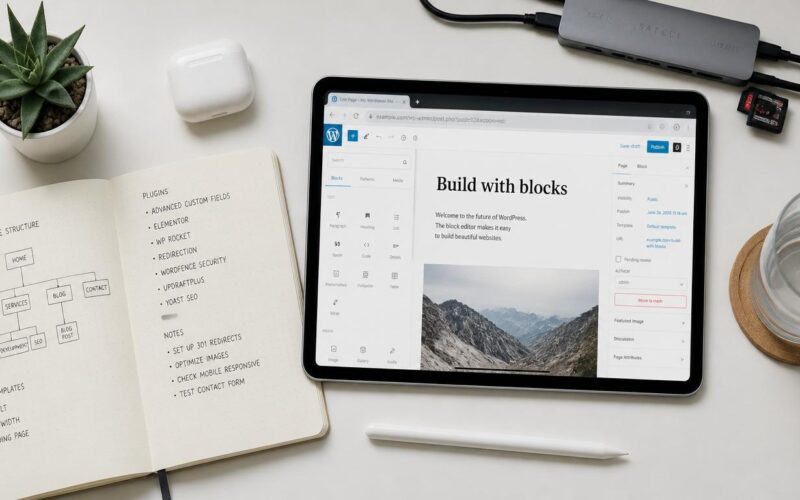
Block editor essentials: The WordPress block editor (Gutenberg) uses blocks for every content element. Learn the keyboard shortcuts (/ to open the block inserter, Ctrl+Alt+T for a new block above, Ctrl+Alt+Y for below). Use the Document Overview (View → Document Overview or Outline icon in the toolbar) to see the post’s heading structure. Save a frequently-used block layout as a Reusable Block (three-dot block menu → Create Reusable Block) to insert it into any post or page with one click. Our guide on using the WordPress block editor covers the complete block editor workflow.
Category and tag strategy: Use categories for primary content organisation (broad topics a reader might browse), tags for secondary organisation (specific subjects within multiple categories). Keep the category list short (5–15 categories) and consistent — adding a new category for every post dilutes the taxonomy’s organisational value. Tags can be more numerous and specific. Assign every post to exactly one category (or the specific category the content fits best) and add 3–7 relevant tags. A disciplined taxonomy makes the site’s category archives genuinely useful collections rather than unsorted content dumps. Our guide on creating WordPress custom post types covers extending this taxonomy system for content types beyond standard posts and pages.
Media management: Use descriptive filenames before uploading (wordpress-admin-dashboard-screenshot.png rather than IMG_0042.png). Set alt text for every image at upload time using the Media Library alt text field — this propagates to all uses of that image automatically. Organise media by using plugins like Media Library Folders Pro that add folder structure to the flat WordPress media library. Run image optimisation on upload with Imagify, ShortPixel, or Smush to automatically compress and convert images to WebP, reducing page load times without manual processing. Our guide on WordPress image alt text covers the complete alt text and accessibility approach.
How to Customise the WordPress Appearance
WordPress appearance customisation ranges from simple colour and font changes available in every theme’s settings, to deep custom CSS and block editor template editing in full site editing themes.
Child themes: Always customise via a child theme rather than editing the parent theme directly. A child theme inherits all parent theme files but allows overriding specific files without losing customisations when the parent updates. Create a child theme directory in /wp-content/themes/parent-theme-name-child/, add a style.css file with the required Template header, and a functions.php that enqueues the parent theme’s stylesheet. The WordPress admin → Appearance → Themes recognises and activates the child theme. Our guide on creating a WordPress child theme covers the complete setup.
Custom CSS: Appearance → Customizer → Additional CSS adds custom CSS that applies to the front-end without editing any files. For more complex CSS, enqueue a custom stylesheet from the child theme’s functions.php using wp_enqueue_style(). Use browser DevTools to identify the specific CSS selectors to target — right-click any element → Inspect → the Styles panel shows all applied CSS rules with their source stylesheets. Our guide on adding custom CSS to WordPress covers both the Customizer approach and the functions.php enqueue method.
Navigation menus: Appearance → Menus → create a menu, add items, drag to reorder and nest, assign to theme locations. The primary menu location shows in the theme’s header. For custom menu styling: adding CSS classes to menu items (Screen Options → enable CSS Classes on the menu screen) allows targeting specific items with custom CSS. Font Awesome icons can be added to menu items via CSS pseudo-elements targeting the custom class. Our guide on configuring WordPress navigation menus covers the complete menu management workflow.
How to Manage WordPress Plugins and Performance
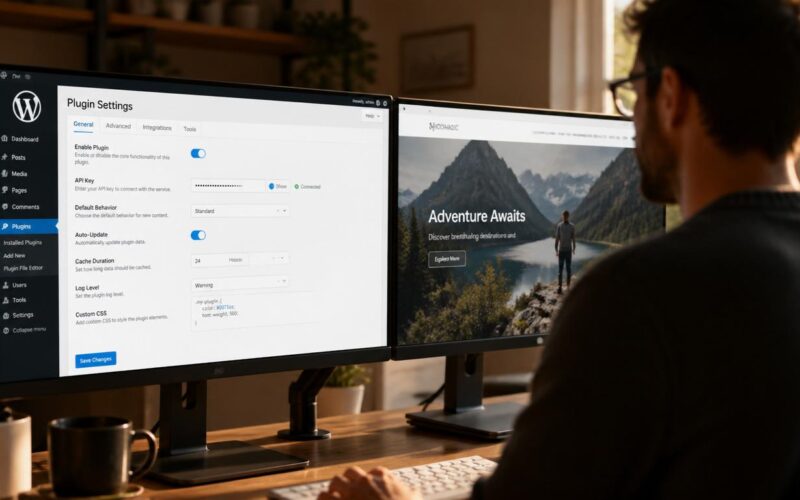
Plugin management is both the most powerful and the riskiest aspect of WordPress administration — every plugin adds functionality and also adds code that runs on every page load.
Plugin evaluation before installation: Check the plugin’s active install count (higher = more tested), last update date (updated within the last 6 months = actively maintained), WordPress version compatibility (tested with a current WordPress version), and user rating. Read the 1-star reviews specifically — they often describe real breaking bugs that the 5-star enthusiasts do not mention. Test any new plugin on a staging environment before installing on production.
Performance optimisation: Install Query Monitor to measure the baseline performance impact of installed plugins — the Queries tab shows which plugins generate the most database queries per page load, and the HTTP API calls tab shows any plugins making external requests on page load. Plugins that generate 10+ database queries on every page load or make external HTTP requests synchronously on page load are candidates for replacement with better-optimised alternatives or for targeted caching with transients. Our guide on fixing WordPress admin performance covers the database and caching optimisation that addresses the most common performance bottlenecks.
Caching implementation: Implement page caching (LiteSpeed Cache, WP Rocket, or WP Super Cache depending on the hosting environment), object caching (Redis via the hosting provider or the Redis Object Cache plugin), and browser caching (configured by the caching plugin via cache-control headers). The combination of all three caching layers reduces database queries, server processing time, and bandwidth simultaneously. Our guide on WordPress caching covers the complete caching stack.
How to Secure a WordPress Site
WordPress security is not a one-time setup but an ongoing practice — keeping software updated, monitoring for attacks, maintaining access control, and having recovery plans in place for when security measures are bypassed.
Core security practices: Keep WordPress core, plugins, and themes updated — the majority of WordPress compromises exploit known vulnerabilities in outdated software. Enable auto-updates for security-critical plugins. Use strong unique passwords for all WordPress admin accounts and the database user. Enable two-factor authentication for all administrator accounts. Limit login attempts to block brute force attacks. Change the wp-admin login URL from the default (via the WPS Hide Login plugin) to reduce automated attack exposure. Our guide on WordPress two factor authentication covers the complete 2FA setup.
Backups as security: Maintain daily automated backups stored off-site (UpdraftPlus to Google Drive or Amazon S3). A recent backup is the most effective recovery tool for any security incident — a compromised site can be restored to a pre-compromise clean state within minutes when a current backup is available. Test backup restoration quarterly to confirm the backup process is working and the restoration procedure is practiced before it is needed in an emergency. Our guide on setting up WordPress backups covers the complete backup and restoration workflow.
Security monitoring: Install Wordfence or Sucuri Security for ongoing file change detection, malware scanning, and login attack monitoring. Review the security plugin’s weekly email reports to stay informed of attack patterns targeting the site. Set up UptimeRobot (free) for external site availability monitoring that alerts within 1 minute of downtime — malware often causes site downtime that external monitoring catches faster than any internal monitoring.
How to Use WordPress for SEO
WordPress’s clean URL structure, customisable meta data, and extensive SEO plugin ecosystem make it one of the strongest platforms for organic search performance — when configured correctly.
Technical SEO foundations: Use the /postname/ permalink structure (not the default ?p=123 format). Install and configure Rank Math or Yoast SEO for per-page meta title and description management, XML sitemap generation, and schema markup. Submit the sitemap (yoursite.com/sitemap_index.xml for Rank Math) to Google Search Console. Ensure the robots.txt does not accidentally block crawling (Settings → Reading → “Discourage search engines” must be unchecked on production). Our guides on XML sitemaps and robots.txt configuration cover these technical foundations in detail.
Content SEO: Each post or page should target a specific keyword phrase and contain that phrase in the title, the first paragraph, at least one H2, and the image alt text. Use the SEO plugin’s content analysis to verify keyword usage and readability score before publishing. Build internal links between related content using descriptive anchor text — internal linking improves both user navigation and search engine understanding of the site’s topical structure. Our guides on image alt text and ping services and IndexNow cover complementary on-page and indexation SEO practices.
How to Troubleshoot Any WordPress Problem
A systematic troubleshooting approach resolves any WordPress problem efficiently — isolating variables, checking logs, and applying targeted fixes rather than trying solutions at random.
The standard troubleshooting sequence: (1) Enable debug logging (add WP_DEBUG and WP_DEBUG_LOG to wp-config.php) to capture PHP errors. (2) Check Site Health (Tools → Site Health) for configuration warnings. (3) Deactivate all plugins and switch to a default theme — if the problem resolves, reactivate items one at a time to isolate the cause. (4) Check the server error log via the hosting control panel. (5) Search the specific error message in WordPress support forums and the plugin/theme’s issue tracker. Most WordPress problems have been encountered and documented by other users — the combination of a specific error message and the search term “WordPress” surfaces relevant solutions in most cases.
Recovery tools: WordPress admin → Tools → Site Health provides the most accessible diagnostic overview. The Health Check & Troubleshooting plugin adds a safe mode that deactivates plugins for the administrator only, allowing testing on live production without affecting visitors. WP-CLI on the command line handles all WordPress operations without requiring the admin interface — invaluable when the admin is broken or inaccessible. phpMyAdmin provides direct database access for the database-level operations (password reset, option repair) that cannot be done through the WordPress admin. Our complete WordPress errors guide at fixing WordPress errors covers every major error category with the specific diagnostic and fix workflow for each.
Every WordPress how-to topic on this site — from creating child themes to setting up multisite networks, from using hooks and filters to migrating content between sites — is covered in dedicated detailed guides linked throughout this reference. According to the official WordPress documentation, WordPress’s open source architecture and extensive hook system make virtually every aspect of its behaviour customisable — this guide’s how-to topics represent the most common customisation and management needs, while the linked individual guides provide the complete implementation detail for each task. Whether the goal is a simple blog, a complex WooCommerce store, a membership site, or a high-traffic media publication, WordPress how-to knowledge is the key to building and maintaining it effectively.
The WordPress ecosystem’s strength is its community documentation — millions of solved problems, plugin-specific guides, hosting-specific tutorials, and developer references accumulated over 20+ years. When an individual how-to guide on this site does not cover a specific edge case or advanced configuration need, the WordPress.org support forums, the WordPress developer documentation at developer.wordpress.org, and the plugin-specific documentation at each plugin’s WordPress.org listing page provide additional depth. The combination of this site’s practical how-to guides with the broader WordPress documentation ecosystem means any WordPress task — however specialised — has accessible guidance available for implementation without starting from first principles. This complete guide to WordPress how-to knowledge is the starting point for that documentation journey, organised around how WordPress is actually used in practice rather than how its technical architecture is organised.
More Guides in This Series
These additional guides in the same cluster cover specific scenarios and complementary topics:
WordPress How-To
Google Analytics WordPress · How to Add SSL to WordPress Safely With a Proven Secure Method · How to Backup a WordPress Site Properly · How to Change WordPress Admin Email Safely With a Proven Secure Method · How to Change WordPress URL Safely With a Proven Step by Step Method · How to Clear WordPress Cache Safely With Effective Step by Step Methods · How to Create a Staging Site in WordPress · How to Disable WordPress Plugins Safely Fast With Reliable Methods · How to Enable WordPress Debug Mode Safely · How to Fix WordPress 403 Forbidden Error Safely With Effective Steps · How to Fix WordPress Cron Not Running Safely With a Proven Reliable Method · How to Fix WordPress Errors Fast With Proven Steps · How to Fix WordPress Errors Without FTP · How to Fix WordPress File Permissions Safely With Proven Secure Steps · How to Fix WordPress Redirect Loop Safely With Proven Recovery Steps · How to Fix WordPress Stuck in Maintenance Mode Safely With Proven Steps · How to Increase WordPress Memory Limit Safely With Reliable Methods · How to Migrate WordPress Safely With a Proven Step by Step Method · How to Optimize WordPress Database Safely With Proven Performance Steps · How to Optimize WordPress Performance Fast With Powerful Techniques · How to Reset WordPress Safely With a Proven Recovery Method · How to Restore WordPress Website From Backup Step by Step · How to Safely Update WordPress Without Breaking Your Site · How to Secure WordPress Admin Fast With Powerful Protection Steps · How to Secure a WordPress Website Step by Step · How to Set WordPress Permalinks Safely With a Proven Stable Method · How to Speed up WordPress Website Fast With Proven Techniques · How to Speed up WordPress Website Step by Step · How to Troubleshoot WordPress Errors Step by Step · How to Update WordPress Safely Ultimate Step by Step Guide · WordPress Accessibility · WordPress Admin Menu Order · WordPress Affiliate Links · WordPress Author Archive · WordPress Auto Updates · WordPress Breadcrumbs · WordPress Cloudflare · WordPress Color Scheme · WordPress Comment Moderation · WordPress Contact Form · WordPress Custom Login Page · WordPress Date Format · WordPress Enqueue Scripts · WordPress Favicon · WordPress Font Awesome · WordPress GDPR Compliance · WordPress Htaccess · WordPress Jetpack · WordPress Lazy Load · WordPress Revisions · WordPress Shortcodes Guide · WordPress Sidebar · WordPress Site Health · WordPress Table of Contents · WordPress Template Tags · WordPress Transients · WordPress Translation · WordPress User Roles · WordPress Widget Visibility