Few things spike a site owner’s blood pressure like loading your website and seeing a blank page with the words “502 Bad Gateway” staring back. One moment everything is fine; the next, visitors, your dashboard, and sometimes the whole site are unreachable. The good news is that a WordPress 502 Bad Gateway error is almost always fixable, and it is rarely caused by anything you did wrong on the page itself.
This error lives on the server side, which is exactly why it can feel so opaque — it is not a broken link or a bad plugin setting you can spot at a glance. Instead, it is your web server telling you it could not get a sensible answer from the part of the stack that runs PHP. Once you understand that, the fix becomes a logical process of working out where that breakdown is happening.
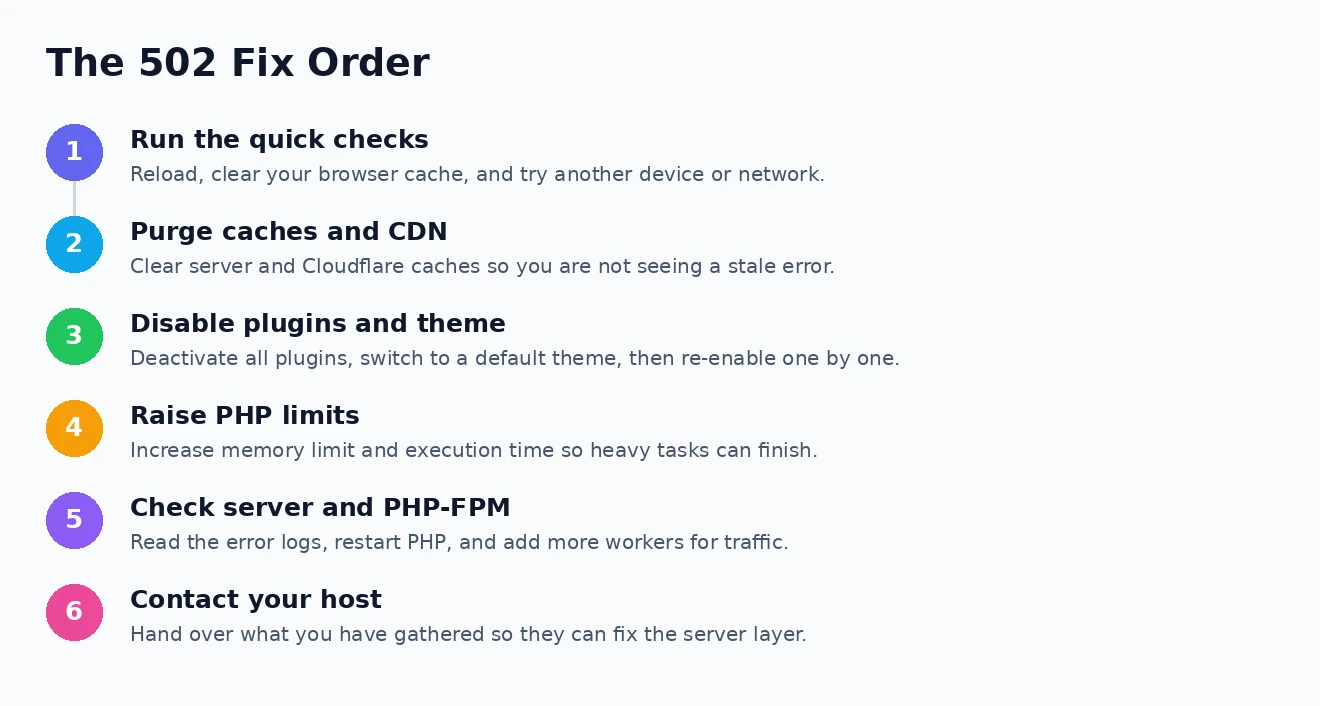
In this guide I will explain what a WordPress 502 Bad Gateway error actually means, then walk through the fixes in order — from thirty-second checks anyone can do, through plugins, PHP limits, and server settings, to the point where it is time to call your host. Work through it top to bottom and stop as soon as your site returns.
What a WordPress 502 Bad Gateway Error Means
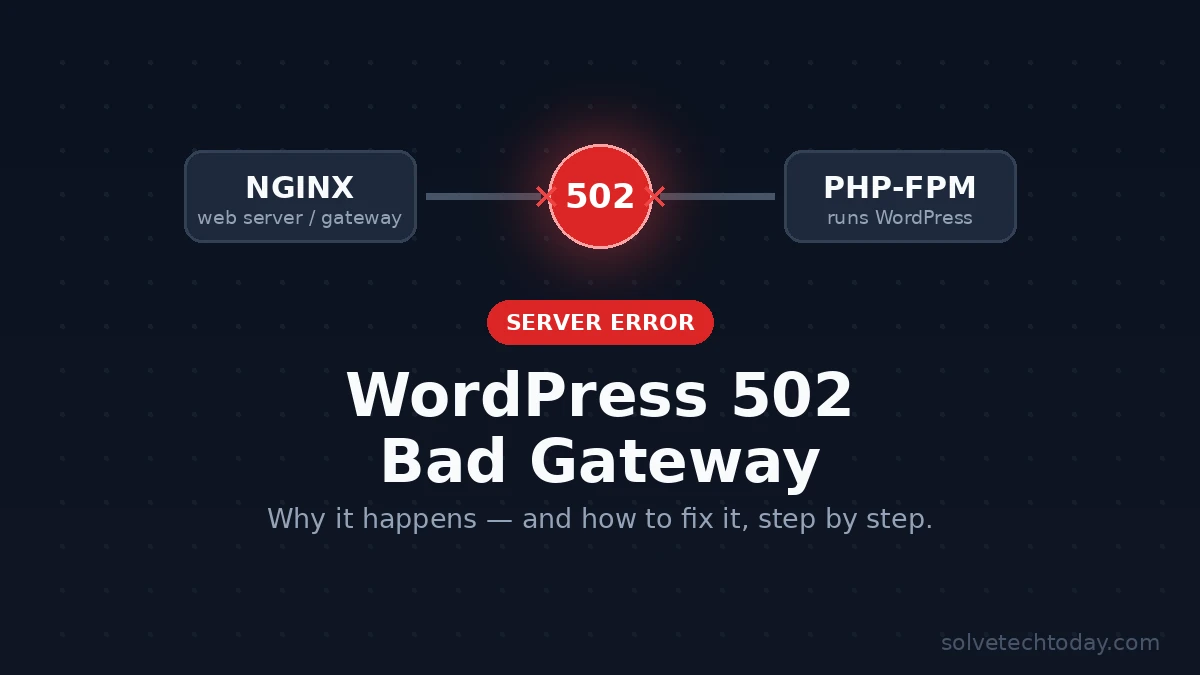
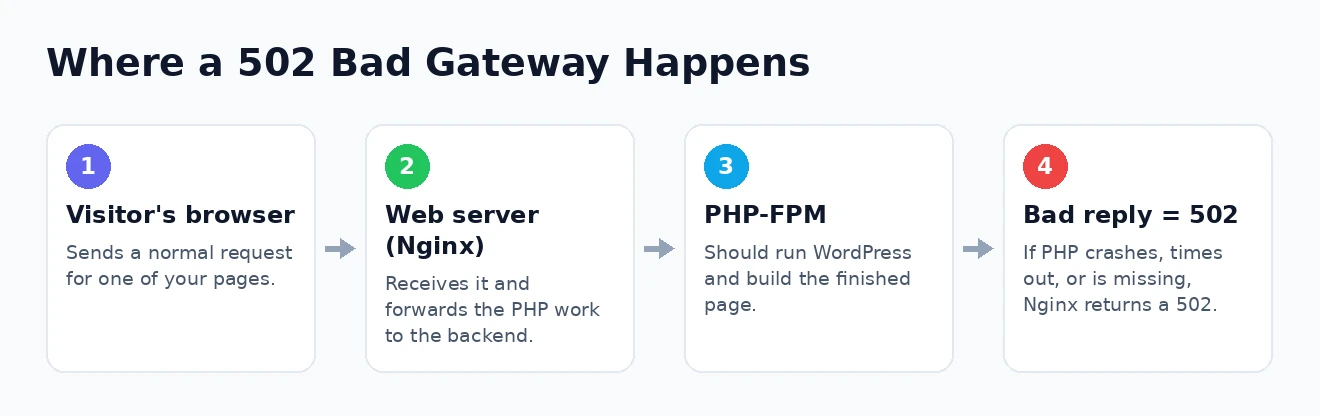
To fix it, it helps to picture how a modern WordPress site is served. When someone visits your site, a web server such as Nginx receives the request and hands the PHP work to a separate process, usually PHP-FPM, which runs WordPress and hands back a finished page. Nginx is effectively acting as a gateway between the visitor and PHP. A WordPress 502 Bad Gateway error appears when that gateway asks PHP for a response and gets back something invalid — or nothing at all.
In plain terms, the front door of your server is working, but the room behind it went quiet. PHP might have crashed, run out of memory, timed out on a slow task, or simply had no free workers left to answer. Because the failure is between two server processes, the 502 has nothing to do with the visitor’s browser or internet connection, which is why refreshing sometimes helps and sometimes does not.
It is worth distinguishing a 502 from its neighbours, because the wording is easy to confuse. A 500 Internal Server Error is a broader “something went wrong” message, often a PHP fatal error or a bad rule in your configuration, and our guide to the WordPress 500 internal server error covers that case. A 504 Gateway Timeout means PHP took too long to reply, which our article on a WordPress connection timing out addresses. A WordPress 502 Bad Gateway specifically means the reply came back broken.
Start Here: Quick Checks First
Before touching any settings, run these fast checks. A surprising share of 502 errors are momentary hiccups — a brief server restart, a passing traffic spike — that clear on their own, and it would be a shame to start editing configuration files chasing a problem that has already gone.
- Reload the page after waiting thirty seconds or so. Transient 502s often vanish once a restarting service finishes coming back up.
- Clear your browser cache or open the site in a private window, to be sure you are not looking at a cached copy of the error.
- Try another device or network, ideally your phone on mobile data, to confirm whether the 502 affects everyone or just you.
- Check whether your host has a reported outage or ongoing maintenance on its status page.
If the error clears after a short wait and does not return, it was almost certainly a temporary server blip and needs no further action. If it persists across devices and networks, though, the problem is genuinely on your site or server, and it is time to work through the causes methodically. Keep note of whether the 502 hits every page or only certain ones, and whether it started right after a specific change — those details point straight at the culprit.
One more quick clue: if you can still reach your WordPress dashboard while the front end shows the 502, the problem is more likely tied to a specific page, plugin, or heavy request. If the entire site including the dashboard is down, the issue is broader and points toward PHP or the server itself.
Clear Caches and Check Your CDN
Caching layers are a common and easily overlooked source of a lingering 502. If you use a content delivery network or a caching service in front of your site, it may be serving or generating the error even after the underlying problem has passed. Clearing those caches ensures you are seeing the true current state of your site rather than a stored snapshot.
If your site runs through Cloudflare, it is worth working out whether the 502 is coming from Cloudflare or from your own server — a Cloudflare-branded 502 usually points to your origin server being unreachable, while a plain 502 points to your server’s own gateway. Temporarily pausing Cloudflare, or purging its cache, helps you tell the two apart. The Cloudflare website has resources you may find useful for interpreting which side an error is coming from.
Also clear any server-level or plugin caching you have in place, then reload. If clearing caches resolves the error, the root cause was likely a brief backend failure that has since recovered, and the stale cache was all that remained. If the 502 survives a full cache purge, the problem is live and ongoing, and the next steps focus on what is actually breaking PHP.
Deactivate Plugins and Switch Your Theme
A faulty, poorly coded, or resource-hungry plugin is one of the most frequent triggers for a WordPress 502 Bad Gateway error, because it can push PHP into crashing or hanging. The standard test is to deactivate all of your plugins at once and see whether the error disappears. If it does, you reactivate them one by one, reloading after each, until the 502 returns and reveals the offender.
If the 502 has locked you out of the dashboard, you can still do this over FTP or your host’s file manager: rename the wp-content/plugins folder to something like plugins-off, which deactivates every plugin at once, then reload your site. Renaming it back and disabling plugins individually from the restored dashboard lets you narrow down the specific one. The same logic applies to your theme — switch temporarily to a default theme such as Twenty Twenty-Four to rule it out.
This step matters because a single misbehaving extension can quietly consume all of PHP’s memory or time on every request. If you recently installed or updated a plugin or theme just before the errors began, start there. For a broader look at isolating this kind of failure, our guide to WordPress fatal errors walks through the same detective work, and the complete WordPress errors reference collects the related fixes in one place.
Increase PHP Limits and Timeouts
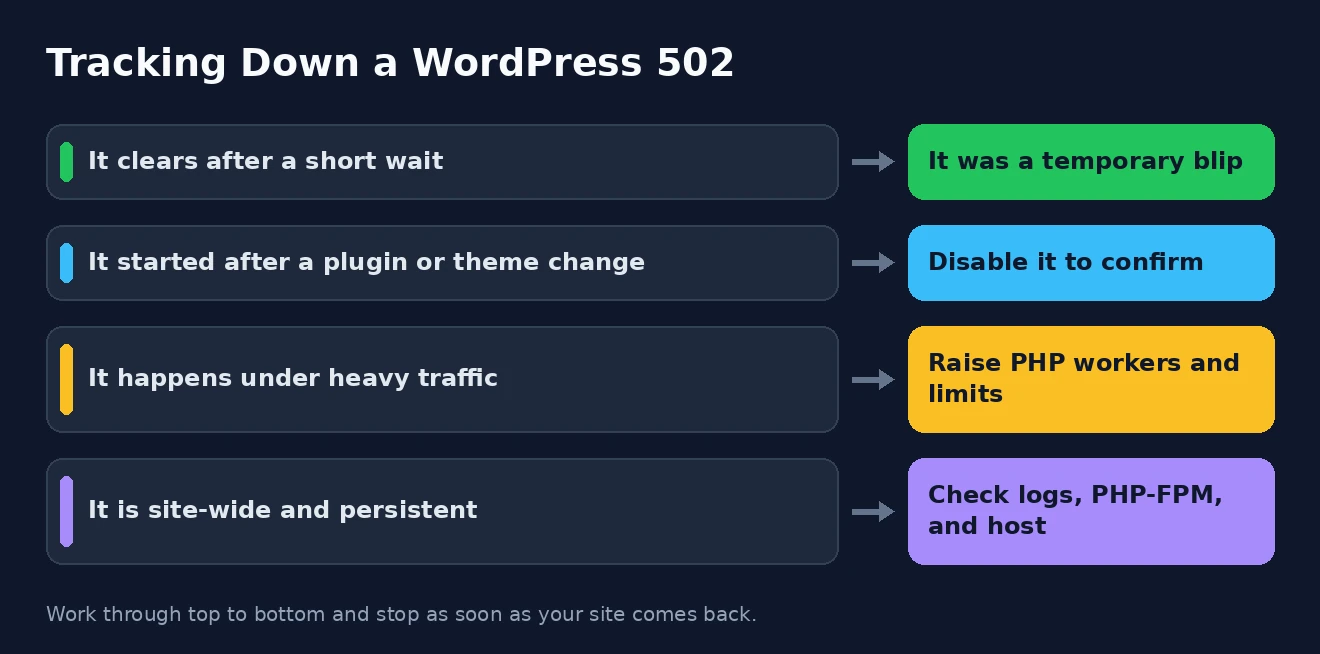
When a 502 is caused by PHP running out of resources or taking too long, raising a few limits often resolves it. Underpowered memory limits and short execution windows cause PHP to be cut off mid-task, and the broken response that Nginx receives becomes your 502. If you have access to your configuration, increasing these values gives heavy operations room to finish.
The exact method depends on your host, but the common settings look like the following in a php.ini or user.ini file, and there are matching directives on the server side for the gateway timeout:
memory_limit = 256M
max_execution_time = 120
max_input_time = 120

; Nginx / PHP-FPM side (set by your host):
; fastcgi_read_timeout 120;
; request_terminate_timeout = 120
On managed or shared hosting you often cannot edit these directly, but most good hosts expose PHP settings in their control panel, or will raise them for you on request. Our guide on a WordPress memory exhausted error goes deeper on the memory side specifically. Raising limits is not a licence to ignore an inefficient plugin, but it frequently clears a 502 caused by legitimately demanding tasks such as imports, backups, or bulk operations.
Look at the Server, PHP-FPM, and Your Host
If plugins, themes, and limits are not the answer, the trouble sits deeper in the server, where a WordPress 502 Bad Gateway error most often originates in the first place. The classic cause is PHP-FPM itself — the process that runs your PHP — having crashed, been restarted, or run out of available workers to handle incoming requests. Under a traffic surge, too few workers means new requests get no reply, and Nginx returns a 502.
The definitive way to diagnose this is your server’s error logs, which usually record exactly why PHP-FPM failed — whether it hit a memory ceiling, was killed by the system, or exhausted its worker pool. If you have server access, restarting the PHP-FPM service often restores things immediately, and increasing the number of workers prevents a repeat under load. If your whole site is unreachable rather than just slow, our guide to diagnosing WordPress downtime is a useful companion here.
This is also the point where many site owners should simply contact their hosting provider, and that is not a defeat — on shared and managed plans, the server layer is genuinely their responsibility. Give them the details you have gathered: when it started, whether it is site-wide, and what you have already tried. A good host can read the logs, restart services, and adjust worker limits far faster than you can from the outside. The official WordPress website has resources you may find useful on server requirements to share with them.
Prevent the Next 502
Once your site is back, a little maintenance makes a repeat far less likely. Most recurring 502 errors trace back to a server that is under-resourced for its traffic, or to a plugin that behaves badly under load, so addressing those two areas is where prevention pays off. If your site has grown, your hosting plan may simply need to grow with it.
- Keep WordPress, your theme, and your plugins updated, since fixes for memory leaks and crashes arrive in updates.
- Remove plugins you no longer use rather than leaving them deactivated, to shrink your attack surface and overhead.
- Use a caching plugin and a CDN to reduce how much work PHP has to do on every visit.
- Watch your traffic and resource usage, and upgrade your plan or move to managed hosting before you regularly hit the ceiling.
If your host keeps blaming spikes you cannot control, or 502s become a weekly event, that is a strong signal your current plan has been outgrown. Moving to a plan with more PHP workers and memory, or to a managed WordPress host that tunes the server for you, is often the real long-term fix. For the wider context on running a healthy site, our complete WordPress how-to guide pulls the maintenance habits together.
How to Fix WordPress 502 Bad Gateway: FAQ
What causes a WordPress 502 Bad Gateway error?
It is caused by your web server receiving an invalid or empty response from PHP. Common triggers include a crashed or overloaded PHP-FPM process, PHP running out of memory or time, too few server workers during a traffic spike, or a faulty plugin or theme pushing PHP over the edge.
Is a 502 error my fault or my host’s?
It can be either. A plugin, theme, or heavy task on your side can trigger it, but so can server problems that are entirely your host’s domain. Work through your own site first — plugins, themes, limits — and if the error persists, it is reasonable and often necessary to hand it to your hosting provider.
How is a 502 different from a 500 or 504 error?
A 500 is a general internal server error, often a PHP fatal error; a 504 means PHP was too slow to respond at all; and a 502 specifically means the response came back but was invalid. They overlap in causes, but the wording tells you where in the chain things broke.
Will a 502 error fix itself?
Sometimes. If it was caused by a brief server restart or a momentary traffic spike, a WordPress 502 Bad Gateway error can clear on its own within a minute or two. If it persists after a short wait, though, it needs active troubleshooting rather than patience.
Work through these steps in order and the overwhelming majority of 502 errors resolve without drama. Start with the quick checks, rule out plugins and themes, give PHP more headroom, and lean on your host for the server layer — and your site will be back before most visitors even notice.