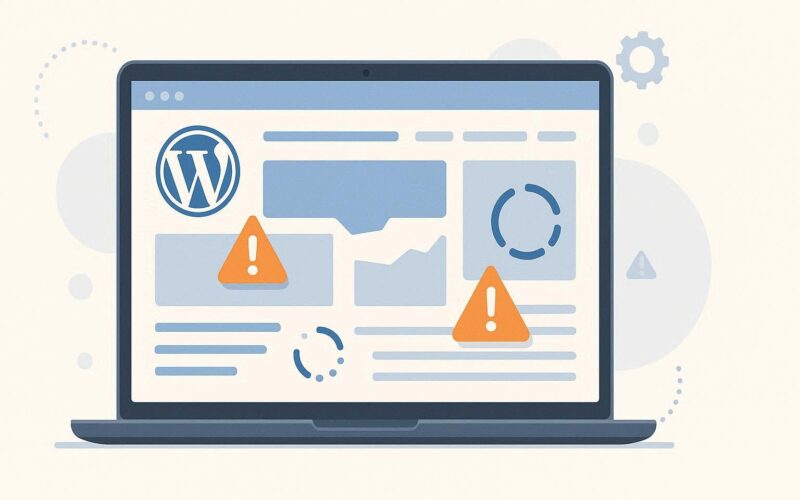
WordPress has a built-in diagnostic tool that most site owners never use — a comprehensive health check that examines PHP configuration, server settings, database status, active plugins, and security configuration, then flags anything that could affect site performance, security, or reliability. The WordPress site health check is available at any time in the admin and provides actionable recommendations rather than just error messages. Understanding how to use it effectively and what each recommendation means transforms it from an ignored admin page into a genuine maintenance tool. We go deeper on the whole subject in our Complete Guide to WordPress How.
WordPress Site Health — What the Status Page Shows
The WordPress site health check is located at Tools → Site Health. It has two tabs: Status (automated checks with results and recommendations) and Info (a comprehensive overview of the site’s technical configuration). The Status tab runs a series of automated tests and categorises results into three states: Good (no action needed), Recommended (improvements available but not urgent), and Critical (issues that need immediate attention).
The Status tab tests cover these categories: performance (PHP version, memory limit, scheduled events status, background updates), security (HTTPS status, file editing, REST API, user session tokens), and server configuration (PHP extensions required by WordPress, database server version, object cache availability). Each item listed under Recommended or Critical includes an explanation of why the item matters and specific guidance on how to fix it — the WordPress site health check is designed to be actionable, not just diagnostic. Critical items should be addressed immediately; Recommended items improve the site’s long-term reliability and security but do not require emergency intervention.
Run the Status check after any significant change to the site — after a WordPress core update, after installing or deactivating plugins, after changing hosting configurations, or after moving the site to a new server. The WordPress site health check catches configuration regressions that changes sometimes introduce: a plugin deactivation that disables a required PHP extension, a hosting migration that dropped the PHP version, or a security hardening step that inadvertently broke the REST API. Running it proactively after every maintenance window provides immediate confirmation that the site’s configuration remains correct. According to the WordPress developer documentation, the Site Health system was introduced in WordPress 5.1 and expanded significantly in 5.2 and 5.3 — sites running older WordPress versions have partial Site Health functionality and should update to access the complete diagnostic suite.
Reading and Acting on Site Health Recommendations
The WordPress site health Status page frequently shows recommendations that are either genuinely important to address or expected and harmless on a specific site’s configuration. Understanding each recommendation prevents unnecessary changes while ensuring real issues are not ignored.
Common recommendations and their correct responses:
- “Your PHP version is outdated” — Upgrade PHP to 8.2 in the hosting control panel. This is always worth doing — PHP 8.2 is faster, more secure, and better supported by current plugins and themes than any older version. Test on staging first.
- “An active PHP session was started” — A plugin is starting a PHP session on every page load. This is often harmless but can cause caching issues. The recommendation identifies which plugin; check whether the plugin needs sessions for its functionality or whether this is an inadvertent side effect.
- “Your site is running an insecure version of WordPress” — Update WordPress immediately. Security updates should never be deferred.
- “The REST API encountered an error” — The WordPress site health test makes a request to the REST API and reports if it fails. This is critical — the block editor, Gutenberg, and many plugins require the REST API. Follow the troubleshooting steps in the recommendation.
- “Background updates are not working as expected” — WordPress cannot run automatic updates, often because the wp-content directory is not writable. Fix file permissions or manually configure updates.
Some recommendations are safe to dismiss for specific site configurations: “Persistent object cache is not enabled” is Recommended but not Critical — it is beneficial for high-traffic sites but not necessary for small sites. “Your site does not have a page caching plugin” is similarly context-dependent — managed WordPress hosts with server-level caching do not need a caching plugin. The WordPress site health check cannot detect server-level caching that is transparent to WordPress, so this recommendation may appear even on correctly configured managed hosting. Our guide on the complete WordPress caching guide covers the distinction between server-level and plugin-level caching that affects how this recommendation should be interpreted for each hosting environment.
The Site Health Info Tab
The Info tab of WordPress site health provides a complete technical reference for the site’s configuration — not recommendations, just facts. This is the first place to look when providing technical information to a developer, hosting provider, or WordPress support forum.
The WordPress site health Info tab covers: WordPress version and configuration, active plugins list with versions, active theme, server environment (PHP version, PHP memory limit, max upload size, server software), database configuration (MySQL version, database prefix, table sizes), filesystem permissions, and media settings. Each section can be expanded to show detailed values. A “Copy site info to clipboard” button at the bottom of the Info tab copies all sections in a formatted text block suitable for pasting into a support ticket — including all the configuration details a support team needs to diagnose issues without asking multiple follow-up questions.
Use the WordPress site health Info tab plugin list to identify outdated plugins: the list shows the version of each active plugin. Compare against the plugin’s current version at WordPress.org — a plugin that is multiple versions behind the current release or has not been updated in over a year is a potential compatibility or security risk. The WordPress site health Info tab provides a faster plugin audit than navigating to the Plugins list because all version information is visible in a single scrollable view rather than requiring navigation through multiple admin pages. For agencies auditing client sites before performing work, the Info tab clipboard copy provides a complete site inventory in seconds that would otherwise require manual documentation across multiple admin sections.
Extending Site Health With Custom Checks
The WordPress site health system is extensible — developers can add custom tests that appear alongside WordPress’s built-in tests in the Status tab. Plugins and themes use the site_status_tests filter to register custom health checks relevant to their functionality. WooCommerce adds custom site health tests for database table integrity, payment gateway connectivity, and WooCommerce version compatibility. Security plugins add checks for known vulnerabilities. Performance plugins check whether their recommended server configurations are in place.
For custom development, adding a WordPress site health check for a server requirement is straightforward: register a test function via the site_status_tests filter → the function returns an array with label, description, badge colour (green/orange/red), status (good/recommended/critical), and actions (links to resolve the issue). This creates a check that appears in the Status tab exactly like WordPress’s built-in checks, providing a professional monitoring integration for custom code requirements. Example WordPress site health use cases: checking a required API key, verifying that a custom database table exists and has the expected structure, confirming that a third-party service the site depends on is reachable. These custom checks turn the WordPress site health Status page into a site-specific monitoring dashboard that catches configuration regressions specific to the site’s custom requirements, not just the generic WordPress requirements the built-in checks cover. Our guide on fixing WordPress admin dashboard performance covers the query and database monitoring context that custom Site Health checks can formalise for production sites where admin performance is a monitored metric.
Site Health for Troubleshooting and Support
The WordPress site health system includes a dedicated troubleshooting mode (via the Health Check & Troubleshooting plugin) that allows testing the site in a temporary environment with specific plugins and themes disabled, without affecting visitor experience. This troubleshooting mode is the safest and most efficient way to diagnose plugin and theme conflicts on production sites.
Enable troubleshooting mode: install Health Check & Troubleshooting plugin → Tools → Site Health → Troubleshooting tab → Enable Troubleshooting Mode. In troubleshooting mode, the admin session sees the site with all plugins disabled and a default theme active, while regular visitors continue seeing the site normally. Test the issue in troubleshooting mode — if it disappears, the issue is plugin or theme-related. Re-enable plugins one by one in the troubleshooting interface until the issue returns, identifying the specific cause without any visitor disruption. Exit troubleshooting mode to restore full functionality. This is the correct diagnostic procedure for all WordPress site health investigations involving plugin or theme conflicts before any production changes are made.
The Site Health Status score — WordPress displays a summary of the health check results — is not a numerical score but a qualitative assessment. Sites with zero Critical issues and few Recommended items are in good health. Periodically reviewing the Status tab (monthly is sufficient for most sites) catches configuration drift — the gradual accumulation of minor issues that individually are not urgent but collectively reduce the site’s reliability. Setting a calendar reminder for a monthly WordPress site health review, combined with the regular backup and update verification process, provides a lightweight but comprehensive maintenance routine that keeps WordPress sites performing and secure without requiring constant active monitoring. Reviews from the WordPress developer community confirm that the Site Health Status page is the single most underused tool in the WordPress admin for site owners who want to proactively maintain their sites without becoming full-time WordPress administrators.
The WordPress site health check integrates with the broader WordPress monitoring ecosystem when combined with uptime monitoring and error tracking. While Site Health is a point-in-time diagnostic run manually in the admin, uptime monitors (UptimeRobot, Pingdom) run continuously and alert on downtime. Error tracking (Sentry for WordPress via the official WordPress plugin) logs PHP errors and JavaScript exceptions in real-time. Together, these three systems provide comprehensive site observability: Site Health catches configuration issues proactively, uptime monitoring catches availability failures immediately, and error tracking catches code-level errors continuously. Running all three on a production WordPress site provides the monitoring coverage that professional WordPress developers and agencies use to maintain site reliability without requiring manual checks or relying on users to report problems.
The WordPress site health Debug log access is another valuable but often overlooked feature: Tools → Site Health → Info → WordPress Constants → WP_DEBUG and WP_DEBUG_LOG values show whether debug logging is enabled. If WP_DEBUG is true on a production site (a security and performance issue), the Site Health check flags it under Recommended. Disabling WP_DEBUG on production and enabling WP_DEBUG_LOG selectively when investigating specific issues is the recommended configuration — debug output visible to visitors reveals PHP error details that could assist attackers in identifying vulnerabilities. The Site Health Info tab’s constant visibility makes it easy to confirm the debug configuration is correct without requiring FTP access to read wp-config.php directly.
Scheduled automated WordPress site health checks using Action Scheduler (a job queue library included with WooCommerce and available as a standalone plugin) can run the health check programmatically on a regular schedule and store the results, enabling trend tracking over time. A custom plugin that runs health checks daily, stores the results in a custom database table, and emails a summary to the site administrator provides automated health monitoring without any third-party service dependency. The WordPress core WP_Site_Health class and its run_tests() method are publicly accessible — a scheduled action can instantiate the class, run all tests, and process the results programmatically. For WordPress developers managing multiple client sites, automating site health reporting across all sites from a central dashboard (using ManageWP, MainWP, or a custom multi-site management tool) provides continuous health visibility without requiring individual manual checks on each site.
Privacy and data protection considerations for the WordPress site health Info tab: the “Copy site info to clipboard” feature copies detailed technical information including the complete list of active plugins, server software versions, and database configuration. When sharing this data with support teams or posting in public forums, review the copied content first — the info does not include passwords or private keys, but it does reveal plugin names and versions that could help an attacker target known vulnerabilities in specific plugin versions. Share site health info via private support channels (hosting provider tickets, premium plugin support portals) rather than public forums when the site runs plugins or configurations that could be targeted. The technical benefit of complete info sharing in support contexts outweighs the minimal risk, but awareness of what is being shared prevents inadvertent public disclosure of the site’s complete technical stack.
The WordPress site health scheduled events test specifically checks whether WP-Cron is running correctly — it verifies that scheduled tasks are not overdue by more than an acceptable threshold. If the scheduled events test fails (showing as Critical or Recommended), it means WP-Cron has not run recently. This test directly identifies the cron execution problem described in the scheduled posts guide, providing the first alert when cron breaks without requiring the site owner to notice that scheduled content has stopped publishing. Combined with the plugin and server environment checks in the same Status tab, the scheduled events test makes the Site Health check the correct starting point for any mysterious site behaviour that could be cron-related — from missed scheduled posts to expired transients accumulating because the transient cleanup cron is not firing. See also WordPress Translation for a related case.