Firefox’s “Secure Connection Failed” looks like Chrome’s SSL errors but isn’t the same thing. Firefox uses its own certificate store rather than the Windows certificate store that Chrome and Edge use. This means a certificate that works fine in Chrome can fail in Firefox — and the fix is in a different place. If you want the full context, see our Google Chrome Errors.
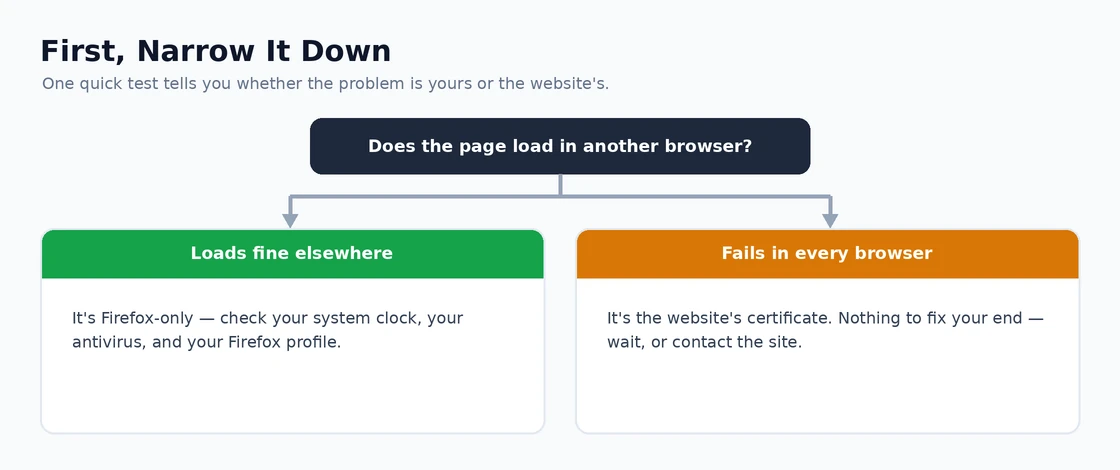
The fastest check that resolves most cases: open the same URL in Chrome or Edge. If it loads there but not Firefox, the certificate is fine — the issue is Firefox’s certificate store missing a root certificate that Windows trusts. The fix below explains how to enable Firefox to use the Windows certificate store, which resolves the error permanently.
If the URL fails in all browsers, the problem is the website’s certificate itself (expired, misconfigured, or self-signed) — not Firefox. That requires a different approach, covered later in the article.
Fix 1: Check Your System Clock
SEC_ERROR_EXPIRED_CERTIFICATE when the actual certificate hasn’t expired: the system clock is wrong. Firefox uses the clock to validate certificate validity periods. Right-click the taskbar clock → Adjust date and time → Sync now → reload the page. If the error code changes or disappears after syncing, the clock was the issue.
Fix 2: Antivirus HTTPS Inspection — The MITM Error
MOZILLA_PKIX_ERROR_MITM_DETECTED is Firefox telling you it detected certificate substitution — a “man in the middle.” This sounds alarming but it’s almost always your own antivirus intercepting the connection, not a real attack. Firefox is stricter than Chrome about accepting substituted certificates, which is why this error appears in Firefox when the same antivirus doesn’t cause errors in Chrome.
The fix depends on the antivirus:
- Kaspersky: Settings → Network settings → Encrypted connections scanning → “Add certificate to Mozilla Firefox” or inject certificate into Firefox’s store
- Avast: Settings → Protection → Core Shields → Web Shield → Configure → Untick “Enable HTTPS Scanning” or add the certificate to Firefox
- ESET: Setup → Internet Protection → Web and Email Protection → SSL/TLS → Enable SSL/TLS protocol filtering → Add Kaspersky’s root cert to Firefox
- BitDefender: Protection → Online Threat Prevention → Encrypted web scan → turn off, or manage certificate in Firefox
The cleaner fix for all: open the antivirus software → find its root certificate (usually in its own certificate store or settings) → export it → import it into Firefox. Firefox Settings → Privacy and Security → Security → View Certificates → Authorities tab → Import. After importing, Firefox trusts the antivirus certificate and shows the MITM error only for genuine attacks.
Fix 3: SSL_ERROR_NO_CYPHER_OVERLAP — Legacy TLS
This error means Firefox and the server can’t agree on a TLS version or cipher suite. Firefox dropped support for TLS 1.0 and 1.1 — which many older servers still use — in Firefox 74. When visiting a server that only supports these old protocols, this error appears.
There’s no good client-side fix that maintains security. The temporary workaround (re-enabling TLS 1.0 through about:config → security.tls.version.min → changing from 3 to 1) re-introduces known vulnerabilities. The proper solution is the server administrator updating the server’s TLS configuration to support 1.2 or 1.3. For sites you control: update the server SSL configuration. For sites you don’t control: report the issue to the site owner or use an older browser for that specific site with awareness of the security implications.
Fix 4: SEC_ERROR_UNKNOWN_ISSUER — Custom Certificate Authorities
Firefox uses its own certificate root store rather than Windows’. This means certificates trusted by Windows (corporate root CAs, some private CAs) aren’t automatically trusted by Firefox. Corporate networks, development environments, and some internal tools use certificates signed by private CAs that Firefox hasn’t been told to trust.
Import the custom root CA into Firefox: obtain the .cer or .pem file for the root CA (IT can provide this for corporate CAs; development tools often include it) → Firefox Settings → Privacy and Security → Security → View Certificates → Authorities tab → Import → select the certificate file → check “Trust this CA to identify websites” → OK. After importing, Firefox trusts all certificates signed by that CA.

Fix 5: Firefox Profile and Certificate Database
Firefox stores certificate exceptions and custom trusted CAs in the profile’s cert9.db file. When this file becomes corrupted, Firefox may reject certificates it previously accepted or behave inconsistently across sites.
Close Firefox → navigate to the Firefox profile folder (type about:profiles in the address bar when Firefox is accessible, and click “Open Directory” for the root directory). Find the file cert9.db → rename it to cert9.db.old. Restart Firefox — it creates a fresh cert9.db file. After restarting, re-import any custom CAs you had previously added, and test the site that was failing. Firefox will also re-prompt for any certificate exceptions you had granted, which is an opportunity to review whether those exceptions are still appropriate.
Fix 6: Firefox Refresh for Persistent Issues
When Secure Connection Failed errors affect many sites and the above fixes haven’t resolved it: Firefox Refresh rebuilds the profile’s configuration while keeping bookmarks, passwords, and history. Firefox menu → Help → More Troubleshooting Information → Refresh Firefox → confirm. After refreshing, test whether connections succeed. Extensions are removed during the refresh — reinstall only the ones you actively use, as some privacy extensions interfere with HTTPS certificate validation in ways that cause connection failures on specific sites.
Corporate Environments and Firefox Policy
In managed corporate environments, Firefox may be deployed with enterprise policies that configure certificate handling, proxy settings, and TLS requirements. When these policies conflict with a site’s certificate configuration, connection failures appear in Firefox but not necessarily in other browsers that are managed differently.
Check Firefox’s active policies: type about:policies in Firefox’s address bar. Any policy that affects certificate handling or TLS appears here. If enterprise policies are causing connection failures on legitimate work sites, IT needs to adjust the certificate policy or add exceptions for the affected domains.
Our guide on Chrome SSL certificate errors covers the equivalent Chrome diagnostic approach — the antivirus HTTPS inspection and root certificate import processes are similar between both browsers, just implemented in different certificate stores. For general Firefox stability and extension conflicts, our Firefox troubleshooting guide covers the profile refresh and extension audit in detail. Mozilla’s Firefox connection error documentation covers the complete SEC_ERROR and SSL_ERROR code list with specific explanations for each code and the recommended resolution at the server and client level.
Firefox’s Certificate Transparency Enforcement
Mozilla enforces Certificate Transparency requirements for publicly trusted certificates — certificates must be logged in public CT logs for Firefox to accept them. When a certificate was issued without proper CT logging (or when the CT logs aren’t accessible to Firefox’s verification system), the connection fails with MOZILLA_PKIX_ERROR_KEY_PINNING_FAILURE or similar errors even though the certificate itself is otherwise valid.
Users can’t fix CT errors from their end — the certificate needs to be reissued by the site’s certificate authority with proper CT logging. For site administrators: ensure your CA is submitting certificates to CT logs and that SCTs (Signed Certificate Timestamps) are embedded in the certificate. DigiCert, Let’s Encrypt, and most major CAs include CT logging automatically in issued certificates — this issue typically appears with smaller or private CAs that haven’t fully implemented CT compliance.
Firefox about:config TLS Settings
Advanced Firefox users sometimes modify TLS settings in about:config for testing or compatibility. If these settings were changed previously and are now causing connection failures: navigate to about:config → search for “security.tls” → look for any values that have been modified from defaults (shown in bold). Right-clicking modified values → Reset returns them to their default state.
Key settings to check:
security.tls.version.min— should be 3 (TLS 1.2) for security; changing to 1 or 2 re-enables vulnerable protocolssecurity.tls.version.max— should be 4 (TLS 1.3); lowering this prevents modern secure connectionssecurity.ssl.enable_ocsp_stapling— should be true; disabling breaks OCSP certificate validationnetwork.stricttransportsecurity.preloadlist— should be true; disabling removes HSTS enforcement
Resetting any modified settings to defaults restores Firefox’s standard security posture and resolves connection failures caused by non-standard TLS configurations.
Self-Signed Certificates in Development
Development environments, home servers (NAS devices, router admin panels), and internal tools frequently use self-signed certificates. Firefox shows SEC_ERROR_UNKNOWN_ISSUER for these because no trusted CA signed them. Unlike Chrome’s one-click bypass (click “Advanced” → “Proceed anyway”), Firefox is somewhat more insistent about self-signed certificate warnings.
Add a permanent exception for a known self-signed certificate: Firefox certificate error page → Advanced → View Certificate → Confirm Security Exception → Permanently store this exception. After confirming, Firefox remembers the exception for that specific certificate. Note: the exception is tied to the specific certificate — if the self-signed certificate is regenerated (which many tools do automatically on restart), the exception needs to be added again for the new certificate.
For development environments where a self-signed certificate causes repeated exceptions: use mkcert (free, open source) to create a locally-trusted development certificate that Firefox accepts without exceptions. mkcert installs a local CA that Firefox trusts, and certificates issued by it don’t produce errors — a significantly better developer experience than repeatedly adding exceptions for self-signed certificates.
DNS Resolution and HTTPS Failures
DNS-over-HTTPS (DoH) in Firefox can cause connection failures that look like SSL errors when the DoH provider returns incorrect or blocked DNS responses. When Firefox’s DoH resolver returns different results than the operating system DNS — pointing to a different server’s IP than the certificate expects — SSL validation fails because the certificate doesn’t match the actual server being connected to.
Test: Firefox Settings → General → Network Settings → Settings → scroll to DNS over HTTPS → temporarily disable “Enable DNS over HTTPS” → test the failing site. If the secure connection succeeds with DoH disabled, Firefox’s DoH resolver was returning incorrect DNS results causing certificate mismatch errors. Switch to a different DoH provider or use the “Use your current service provider” option which relies on Windows’ DNS configuration rather than a Firefox-specific resolver.
HSTS and Certificate Changes
Sites that have previously used HTTPS and are listed in Firefox’s HSTS preload list or have sent HSTS headers cannot be accessed over HTTP. If a site’s certificate changes and the new certificate has a different domain or CA issue, Firefox may show a secure connection error that can’t be bypassed using the normal “Add Exception” method — because HSTS prohibits any non-HTTPS access including the exception workaround.
Clear the HSTS record for a specific domain: type about:preferences#privacy → scroll to “Cookies and Site Data” → “Manage Data” → search for the domain → remove it. Or type about:config → search for the domain’s cached data. After clearing the HSTS record, Firefox allows adding a security exception for sites where the certificate has a resolvable issue. For legitimate sites with genuine HSTS and a newly broken certificate: the site owner needs to fix their certificate — no client-side bypass is appropriate for actual HSTS failures.
Proxy and VPN Interference
Proxy servers and VPN clients that intercept HTTPS traffic can cause Secure Connection Failed errors when they present certificates that Firefox doesn’t recognise or trust. This is similar to the antivirus MITM detection but comes from the network layer rather than local security software.
VPN extensions in Firefox are particularly prone to this. A VPN extension routes traffic through its own servers, which may present certificates from CAs Firefox doesn’t trust, or may interfere with the TLS handshake in ways that cause protocol errors. Test: disable all Firefox extensions (especially any VPN or proxy extensions) and test the failing site. If it succeeds without extensions, the VPN or proxy extension was causing the certificate failure. For VPN extensions: ensure the VPN provider’s certificate is in Firefox’s trusted authorities if you need to use the VPN extension.

One aspect of Firefox’s security handling that distinguishes it from Chrome: Firefox’s stricter approach to certificate validation means it catches real problems that Chrome silently accepts. When Firefox shows a Secure Connection Failed and Chrome doesn’t, it doesn’t automatically mean Firefox is wrong — Firefox may be detecting a genuine issue that Chrome’s less strict validation misses. Before bypassing or dismissing Firefox’s certificate errors, the site’s SSL certificate is worth inspecting (click the error page’s certificate information if available, or use ssllabs.com/ssltest to scan the domain) to confirm whether there’s a real issue that should be addressed rather than worked around.
A final practical tip for diagnosing Firefox-specific secure connection failures: open Firefox’s browser console (Ctrl+Shift+J) → navigate to the failing site → look at the console output. Security-related errors appear in red with the specific TLS/SSL error code. This is often more informative than the error page itself because it shows the raw error that Firefox received from the TLS negotiation, which maps directly to the specific fix needed from the error code list at the beginning of this guide.
Why does Firefox show ‘Secure Connection Failed’ on a site that works in Chrome?
Firefox maintains its own certificate store separately from Windows. Chrome and Edge use Windows’ certificate store, so they trust any certificate Windows trusts. Firefox only trusts what’s in its own store. The fix: enable Firefox to use the Windows certificate store via about:config → set security.enterprise_roots.enabled to true. This resolves most ‘works in Chrome’ cases instantly.
What does SEC_ERROR_UNKNOWN_ISSUER mean?
Firefox can’t verify the website’s certificate authority. Two common causes: the website uses a self-signed certificate (rare for legitimate sites), or — much more commonly — the website uses a corporate or VPN-installed certificate that’s in Windows’ store but not in Firefox’s. Enable security.enterprise_roots.enabled to fix the second case.
Is it safe to bypass ‘Secure Connection Failed’ with Add Exception?
On websites you absolutely trust and own, yes — for example, your own router admin page or a development server. For any other website, no. The error exists because Firefox cannot verify you’re connecting to the legitimate site, and bypassing it makes you vulnerable to man-in-the-middle attacks. Never add a security exception for banking, email, or shopping sites.
Why does Firefox suddenly start showing this error after a Windows update?
Some Windows updates change the system’s TLS configuration or update certificates. If Firefox isn’t configured to use the Windows certificate store, it can fall behind after these updates. The permanent fix is enabling security.enterprise_roots.enabled — then Firefox automatically follows Windows’ trusted certificate list going forward. Related: How to Fix Firefox Sync Not Working.
Does updating Firefox fix Secure Connection Failed?
Sometimes — if the error was caused by an outdated TLS implementation in old Firefox versions. Firefox 100+ has solid TLS support, so updating from an older version may help. But for the standard ‘works in Chrome but not Firefox’ situation, updating won’t change anything; the certificate store difference is the actual cause. If this sounds familiar, Chrome PDF Not Opening is worth a look.
Will antivirus or VPN software cause Secure Connection Failed?
Yes — particularly products that do ‘SSL inspection’ or ‘HTTPS scanning’ (ESET, Kaspersky, BitDefender, corporate Zscaler). These install their own certificate in Windows to intercept HTTPS traffic. Chrome trusts it automatically; Firefox doesn’t unless security.enterprise_roots.enabled is true. Enabling that setting resolves both this AND general corporate environment issues. Our guide on Chrome Downloads Not Working covers an adjacent issue.