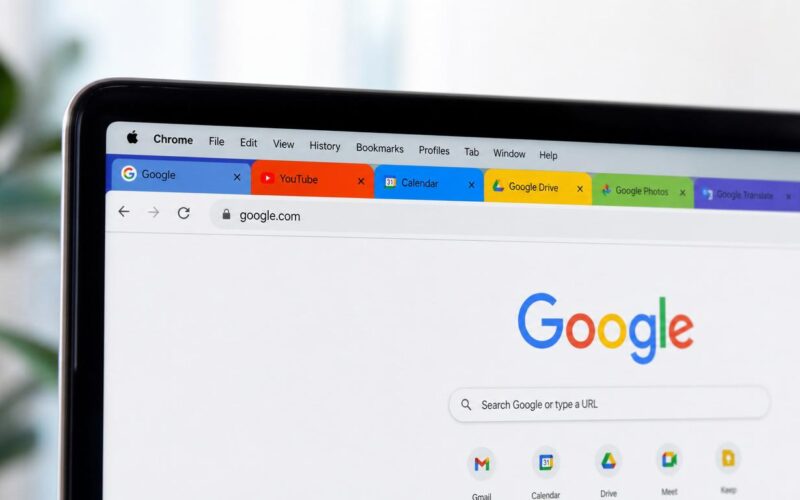
Some browser tabs exist as permanent fixtures of a working session rather than temporary destinations to be closed when their purpose is served. The email client stays open all day. The project management tool is checked constantly. The calendar is consulted before every meeting. For these tabs — the ones that are always there, always needed, never voluntarily closed — Chrome’s pinned tabs feature provides a dedicated space at the far left of the tab bar where they live permanently, protected from accidental closure, visually distinct from the transient navigation happening on the right. If you want the full context, see our Chrome How-To Guides.
The practical change is immediate: a browser window with six pinned tabs on the left and a dozen transient research tabs on the right looks and feels fundamentally different from one maintaining those same six in regular positions. The permanent fixtures are visually stable and immediately identifiable. The transient tabs fill the right portion without competing visually with the constants.
How pinned tabs work — the visual and behavioural differences
When a tab is pinned, it moves to the leftmost available position in the tab bar and compresses to show only the site’s favicon — no text label, roughly one-sixth the horizontal space of a regular tab. Six pinned tabs together use no more space than a single regular tab, effectively expanding the navigable tab bar for temporary browsing without requiring a wider display.
The most practically significant difference is protection from accidental closure. The standard close button doesn’t appear on pinned tabs, and Ctrl+W doesn’t close a pinned tab when it’s active. This single behaviour is the primary reason to pin any tab that should be treated as a persistent fixture — it prevents the specific frustration of reflexively closing a tab with Ctrl+W and then realising immediately it was something that should have stayed open.
Link-opening behaviour is different too. When a link is clicked inside a pinned tab and the link points to a different domain from the pinned tab’s site, Chrome automatically opens the linked page in a new regular tab rather than navigating the pinned tab away. The email client stays on the email client; the project management tool stays on the project management tool. Links within the same domain do update the pinned tab’s content directly, since that navigation stays within the tab’s intended context.
What to pin — the best candidates
The pinned section works best when its contents are genuinely stable across the entire working day rather than merely visited often. The distinction: sites consulted as tools throughout the day (benefit from always being one click away) versus sites visited frequently as destinations (better served by bookmarks bar shortcuts). The best candidates share three characteristics: they’re open for the majority of the working day, they need to be accessed repeatedly from any other context in Chrome without navigation overhead, and their absence would be noticed immediately.
- Email clients: Gmail, Outlook Web, Fastmail, or any web-based email checked constantly throughout the day. This is the prototypical pinned tab — always open, always needed, never voluntarily closed during a working session.
- Calendar applications: Google Calendar, Outlook Calendar — needed frequently but in brief bursts. A pinned tab makes it available instantly without any navigation.
- Project management tools: Trello, Asana, Jira, Linear, ClickUp — typically open all day as a constant reference for priority and progress.
- Communication platforms: Slack, Teams (web version) — often checked every few minutes, making a pinned tab significantly more convenient than navigating to the site each time.
- Analytics and monitoring dashboards: tools that need to be glanced at frequently and benefit from one-click accessibility.
- Company intranet or internal documentation: wikis and portals consulted throughout the day for reference.
Sites that don’t belong in the pinned section: news sites, social media platforms, and reference sites visited frequently but ephemerally — opened for a specific purpose and then closed. These are better served by bookmarks bar shortcuts or address bar suggestions. If the contents of your pinned section are changing frequently, it’s being used as a temporary navigation shortcut rather than as a persistent workspace anchor, which diminishes the value compared to alternatives.
Pinning, unpinning, and rearranging
Pinning a tab: right-click any regular tab → “Pin tab.” The tab moves immediately to the leftmost available position in the pinned section. There’s no keyboard shortcut for pinning in Chrome’s standard shortcut set — the right-click context menu is the universal access method.
Unpinning restores a tab to the regular tab section: right-click the pinned tab → “Unpin tab.” The tab moves to the leftmost position in the regular section and expands to show its full title text. Unpinning is the prerequisite for closing a pinned tab with Ctrl+W or the standard close button — the close gesture doesn’t work while a tab is pinned.
Reordering within the pinned section: click-and-drag pinned tabs left and right within the pinned section. They can’t be dragged past the boundary into the regular tab section without unpinning. Most users arrange pinned tabs in usage-frequency order, with the most frequently clicked sites on the far left.
One thing worth noting about favicon recognisability: since pinned tabs display only their favicon without text, identification depends entirely on the favicon’s distinctiveness. Sites with distinctive coloured favicons (Gmail’s red M, Google Calendar’s blue-and-white grid, Slack’s S mark) are more immediately identifiable than sites with generic or similar favicons. This is worth considering when choosing what to pin — if you can’t identify a site’s tab by its favicon alone, it may not be a good candidate for pinning.
Pinned tabs across sessions and new windows
Pinned tabs persist across browser restarts when Chrome’s startup setting is “Continue where you left off.” When the startup setting is “Open the New Tab page” or “Open a specific page or set of pages,” pinned tabs are not preserved across restarts — they’re treated as regular session state. Users who rely on pinned tabs as a stable workspace foundation should use “Continue where you left off” as their startup mode, or manually re-pin the relevant tabs at the start of each new session. Our guide on Chrome startup settings covers this interaction in detail.
When a new Chrome window is opened (Ctrl+N) while pinned tabs exist in the current window: the new window opens with those pinned tabs already present. The same set of pinned tabs appears in every new window opened in the same Chrome session, regardless of which window opened it. This replication is automatic — no configuration needed — and makes the permanent work tools available in the main work window immediately available in any additional window opened for a specific task.
Pinned tabs pair naturally with Chrome tab groups for users who want both stable pinned anchors on the left and organised groups of related temporary tabs on the right. The two systems coexist without conflict — pinned tabs can’t be added to groups, and group tabs can’t enter the pinned section. The result is a three-tier organisation: permanent pinned tools on the far left, colour-coded project groups in the middle, ungrouped transient tabs on the right. This scales well for complex multi-project working days.
Handling pinned tab errors and session expiry
When a pinned tab’s page encounters an error — server downtime, a login session expiry that redirects to a login page, or a connection failure — Chrome handles this identically to any other tab error rather than attempting to reload the pinned tab automatically. The tab retains its pinned position but shows the error or redirect state. Refreshing with Ctrl+R (or clicking the pinned tab to activate it, then the reload button) loads the current page state, which usually resolves temporary errors or prompts re-authentication.
For services that frequently expire login sessions — banking and enterprise tools often time out after short inactivity periods — expecting the pinned tab to always be in a usable state without occasional refresh is unrealistic. Building a habit of refreshing pinned tabs at the start of each session avoids the surprise of a pinned tab showing a login page rather than the expected interface. A quick Ctrl+Tab through the pinned tabs and Ctrl+R on any that need refreshing takes under 30 seconds and starts the session with all permanent tools in their correct state.
| Action | How to do it |
| Pin a tab | Right-click tab → “Pin tab” |
| Unpin a tab | Right-click pinned tab → “Unpin tab” |
| Close a pinned tab | Right-click → “Unpin tab” → then close, or right-click → “Close tab” (if available) |
| Reorder pinned tabs | Click and drag within the pinned section |
| Open link without leaving pinned tab | Automatic for links to different domains; manual for same-domain links |
| Preserve pinned tabs across restarts | Use “Continue where you left off” startup setting |
Pinned tabs are a small feature with a disproportionate impact on daily browser organisation. The specific combination of favicon-only display, close-button protection, and cross-window replication addresses exactly the problem of permanent-fixture tabs cluttering the tab bar and being accidentally closed. For anyone who maintains the same six or eight tabs every working day: pinning them takes 30 seconds and permanently changes the visual organisation of the browser in a way that’s hard to give up once established.
Pinned tabs and multi-profile Chrome use
Pinned tabs are profile-specific — each Chrome profile maintains its own independent pinned tab configuration. The work profile’s pinned tabs (email, project management, Jira) don’t appear when the personal profile is active, and vice versa. This separation is appropriate for users who actively manage separate work and personal Chrome profiles: the permanent fixtures of each context stay in that context without cross-contamination.
When switching between Chrome profiles, the switch opens a new window for the activated profile with that profile’s own pinned tabs in place. The visual difference between profiles’ pinned sections — work profiles typically having productivity tool favicons, personal profiles having different sites — can reinforce the visual cue that a profile switch has occurred, similar to how distinct themes create an immediate visual context signal.
The difference between pinning and bookmarking the same sites
A reasonable question: why not just bookmark frequently-used sites and access them from the bookmarks bar rather than pinning tabs? The practical difference is about active session presence versus navigational reference. A bookmarked site requires clicking the bookmark, waiting for the page to load, and logging in if the session has expired. A pinned tab with an active, authenticated session requires only clicking the tab — the site is already loaded, already logged in, already at the last position you left it.
For sites where the loading time, authentication overhead, and state restoration matter — email clients, project management tools, work dashboards — the active session presence of a pinned tab is genuinely faster than navigating from a bookmark. For sites visited occasionally where current state doesn’t matter: a bookmark is the right tool. The choice between the two is a question of whether the site benefit more from being already there or from being accessible when needed.
Pinned tabs represent Chrome’s acknowledgement that the web browser isn’t just a navigation tool — for many users, it’s the workspace where most of the working day happens. Features that help that workspace stay organised, protect its permanent elements from accidental disruption, and maintain its state across different working contexts aren’t small conveniences; they’re the difference between a browser that supports productive work and one that gets in its way.
Practical setup for a new Chrome installation or profile
When setting up Chrome fresh — whether on a new device or in a new profile — establishing the pinned tab configuration before starting work produces better outcomes than building it reactively over time. A suggested first-session routine:
- Identify the four to six sites you access every working day and would be frustrated to navigate to fresh each time
- Open each of those sites in a regular tab
- Log in to each and reach the specific view you want pinned (the Inbox view, the main project board, the calendar month view)
- Right-click each tab → Pin tab
- Drag the pinned tabs left to right in order of importance or frequency of access
- Set Chrome’s startup setting to “Continue where you left off” if you want these pinned tabs to persist across restarts
The total time for this setup is under five minutes. The benefit is a consistent, organised left side of the tab bar from the first working session, rather than a gradual accumulation that often leads to too many pinned tabs, inconsistent ordering, and tabs pinned for historical reasons that no longer apply. Reviewing the pinned tabs every few months and unpinning anything that no longer belongs in the permanent section keeps the configuration aligned with the actual working context.
One final note for users who use Chrome across multiple machines with the same Google account: pinned tabs don’t sync through Chrome sync — they’re local to each device. If you work across a desktop and a laptop, the pinned tab configuration needs to be set separately on each device. This is a limitation worth knowing upfront to avoid wondering why pinned tabs from one machine don’t appear on another. You might also run into Fix Chrome Tabs Crashing.