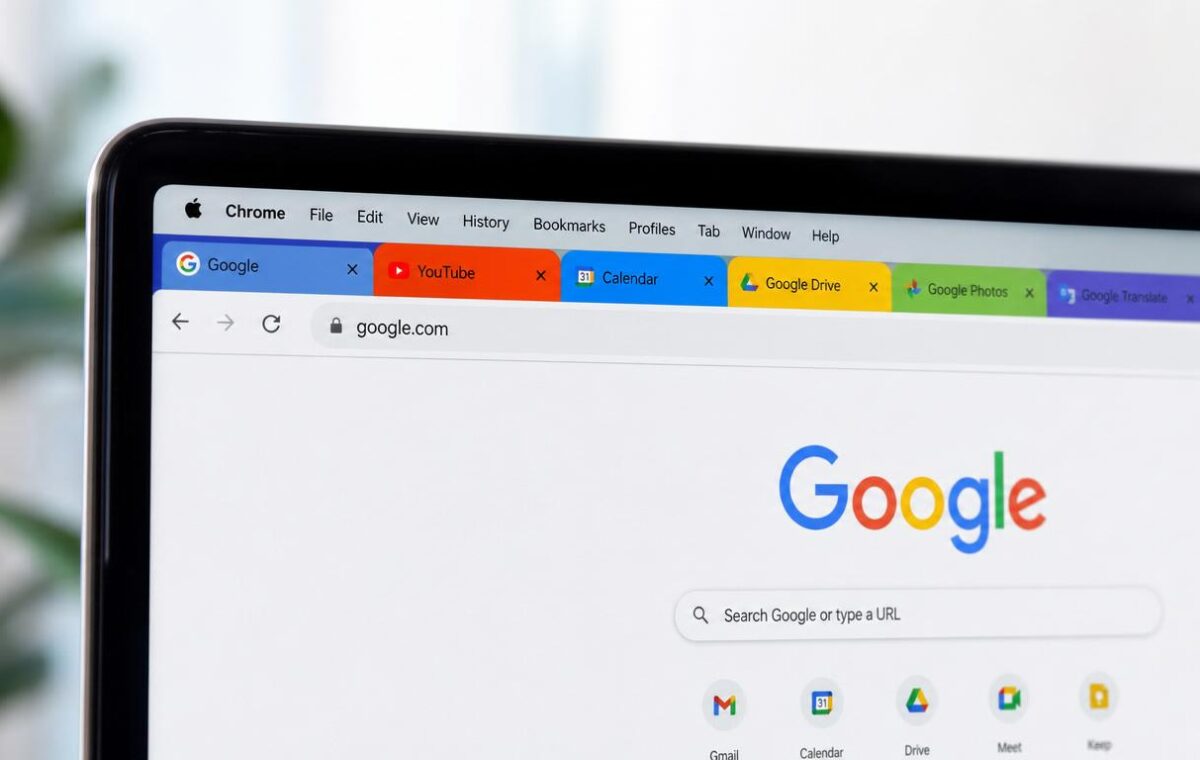
Setting Chrome as the default browser determines which browser opens every time you click a link in an email, a document, a messaging app, or any other application outside a web browser. If Chrome isn’t the default, clicking a link in Outlook, Teams, or Slack opens that link in Microsoft Edge on Windows or Safari on Mac — regardless of whether Chrome is installed and preferred. We go deeper on the whole subject in our Chrome How-To Guides.
The practical consequence: browsing sessions in Chrome are interrupted by unexpected Edge or Safari windows appearing for external link clicks. Setting Chrome as default resolves this fragmentation and keeps the browsing experience unified — the same tabs, history, saved passwords, and extensions cover everything.
Setting Chrome as default browser on Windows 11
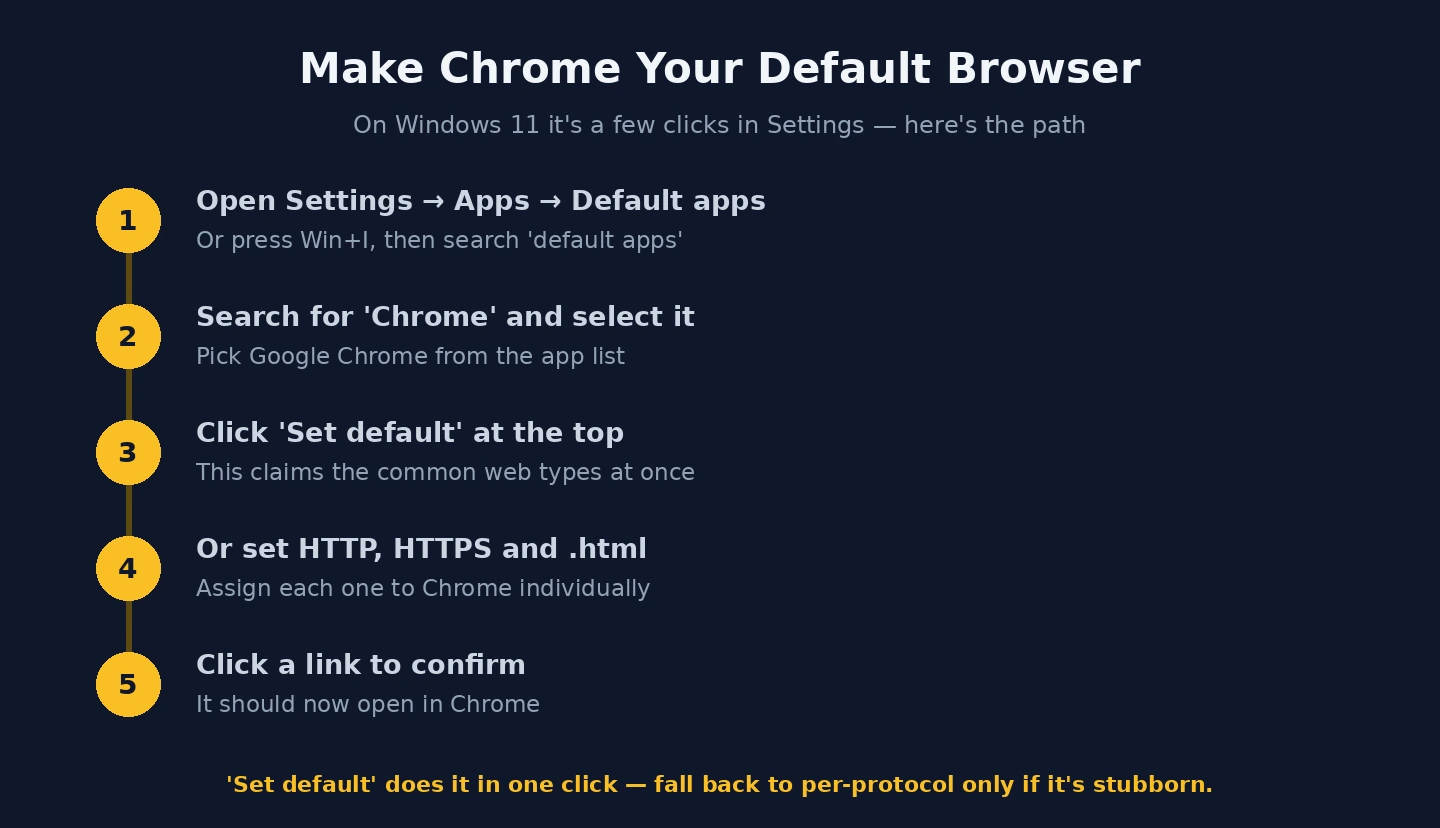
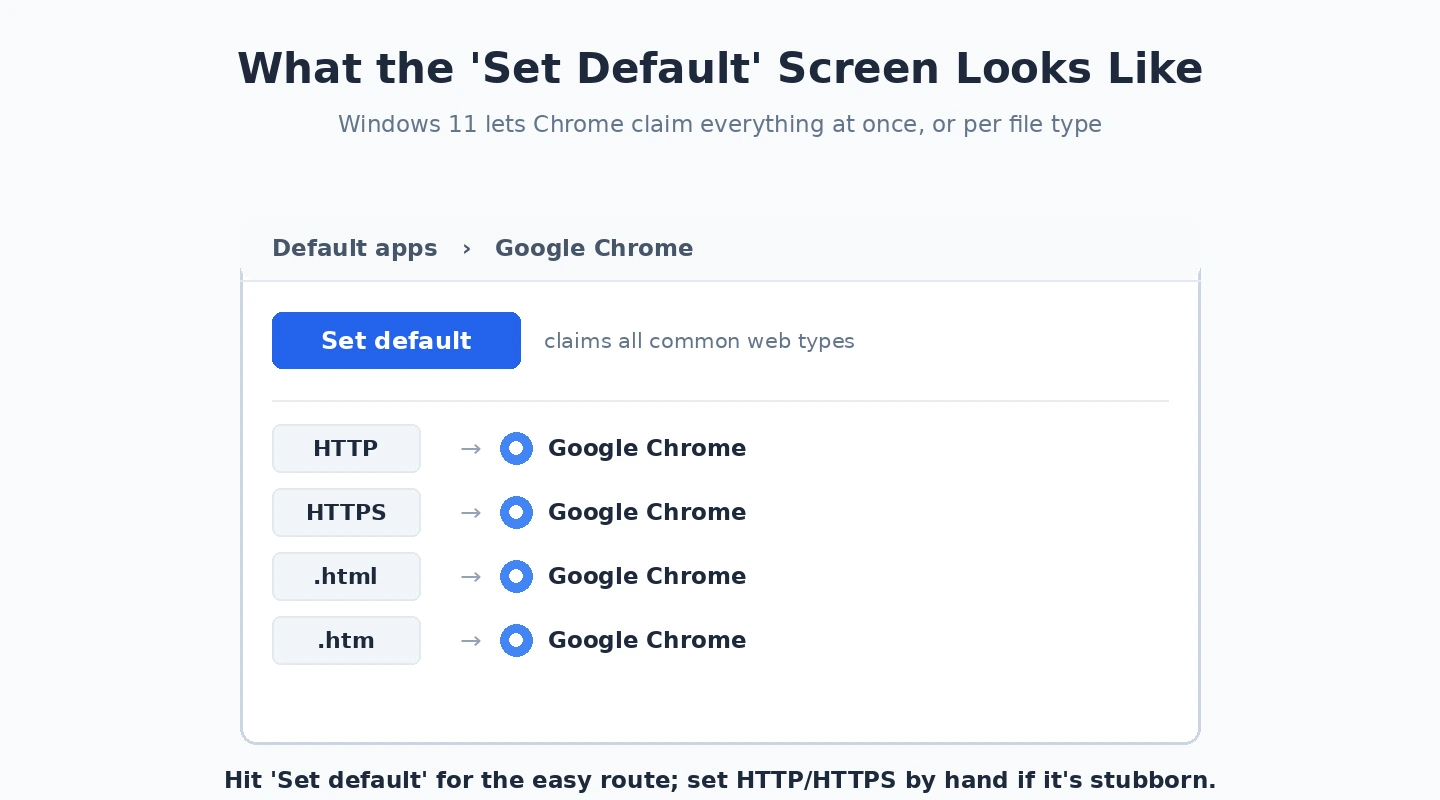
Windows 11 requires a per-protocol, per-file-type approach — unlike earlier Windows versions, there’s no single “Set as default” button that handles all associations simultaneously. Microsoft Edge gets a one-click convenience that isn’t extended to third-party browsers. Here’s the complete process:
- Open Windows Settings: Win+I → Apps → Default apps
- In the search bar at the top of Default apps, type “Chrome” — this filters to show Google Chrome’s entry
- Click the Google Chrome entry to open its default associations page
- Click the entry for HTTP → select Google Chrome → OK
- Click the entry for HTTPS → select Google Chrome → OK
- Also click .htm, .html, .shtml, .xhtml, and .svg file types and set each to Google Chrome
The HTTP and HTTPS protocol associations are the core of the default browser setting — these cover all standard web links. The file type associations ensure that HTML files opened from File Explorer also open in Chrome. Without all of them set, link opening may be inconsistent.
If Chrome still doesn’t open links from other applications after completing this: open the Windows Default apps page again and verify that HTTP, HTTPS, .htm, and .html entries all show “Google Chrome” rather than “Microsoft Edge.” Some Windows 11 updates have been observed to reset default browser associations — rechecking after any significant Windows update is worthwhile if link-opening behaviour changes.
Setting Chrome as default on Windows 10 and macOS
Windows 10 is simpler: Settings → Apps → Default apps → Web browser → click the current default → select Google Chrome. Windows 10 handles the web browser default as a single unified setting — one click operation, no per-protocol complexity.
macOS Ventura and later: Apple menu → System Settings → Desktop & Dock (or General in some versions) → Default web browser → select Google Chrome. On older macOS using System Preferences: System Preferences → General → Default web browser → Google Chrome. The macOS change takes effect immediately and applies to all link clicks from Mail, Messages, Calendar, Slack, and every other application — no additional association steps required.
Via Chrome directly on any platform: Chrome menu (three dots) → Settings → Default browser → “Make default.” On Windows 11 this opens the Default apps page as described above; on macOS and Windows 10 it opens the relevant system setting and may apply the change automatically.
Setting Chrome as default on Android and iOS
Android: Settings → Apps → Default apps → Browser app → select Chrome. On Samsung Galaxy phones running One UI: Settings → Apps → Choose default apps → Browser app. Once set, all links clicked from Gmail, messaging apps, social media apps, and any other application open in Chrome rather than Samsung Internet or any other installed browser.
iPhone (iOS 14 and later): Apple introduced the ability to change the default browser from Safari in iOS 14. Open Settings app → scroll down to Chrome in the app list → tap it → Default Browser App → select Chrome. There’s no combined “Default apps” section on iOS — each app’s default-handling settings are found within that app’s own entry in Settings.
One recurring iOS frustration: major iOS version upgrades have historically reset the default browser back to Safari, requiring the setting to be re-applied. Apple has improved this in later iOS versions, but it’s worth checking the Chrome entry in iOS Settings after any major iOS update if links begin opening in Safari again.
The Chrome prompt — when to click and when to dismiss
Chrome displays a prompt when it detects another browser is handling web link clicks, offering a “Make default” button. Whether to act on it depends on the use case:
- Click “Make default” if Chrome should be the default for all browsing universally
- Dismiss it if you intentionally use Chrome for some browsing and Edge or Safari for others (using Chrome for personal browsing and keeping Edge as the corporate default on a work machine, for example)
To suppress the prompt from appearing every time Chrome opens when it’s not the default: Chrome Settings → Default browser → “Do not warn when Google Chrome is not my default browser.” This silences the notification without changing the default browser setting — useful for shared machines where Chrome is installed for occasional use but should not take over as the default from the primary browser used by all users.
Our guide on Chrome profiles covers the profile setup that keeps default browser settings appropriate for each use context on shared machines, and our guide on Chrome privacy settings covers privacy-preserving configurations for when Chrome is the primary default. For enterprise management of the default browser setting across managed Windows devices, Google’s Chrome Enterprise deployment guide covers the Group Policy templates that control default browser behaviour at scale.
Why this matters more than it seems
The most tangible benefit is session continuity — all browsing that originates from link clicks outside the browser lands in Chrome alongside browsing initiated directly in Chrome. Without Chrome set as default, clicking a link in an email creates a new browser session in a different browser: isolated from Chrome’s history, unable to access Chrome’s saved passwords without manual entry, and generating a separate browsing environment to manage alongside the Chrome session. For users who rely on Chrome’s password manager, sync, or tab organisation: the fragmented experience of links opening elsewhere is a genuine workflow disruption.
The second benefit: Chrome’s extension ecosystem — ad blockers, privacy tools, productivity extensions — applies only to tabs opened in Chrome. External links that open in a non-default browser bypass these extensions entirely, creating an unprotected browsing environment for those specific sessions. If your reason for using Chrome includes specific extensions that improve your experience: those extensions only work when Chrome is the browser handling the link.
| Platform | Where to change | Complexity |
| Windows 11 | Settings → Apps → Default apps → Google Chrome → HTTP, HTTPS, .html, .htm | Multiple steps (per-protocol) |
| Windows 10 | Settings → Apps → Default apps → Web browser | Single click |
| macOS | System Settings → Desktop & Dock → Default web browser | Single dropdown |
| Android | Settings → Apps → Default apps → Browser app | Single selection |
| iPhone (iOS 14+) | Settings → Chrome → Default Browser App | Single selection; recheck after iOS updates |
The only meaningful case for not setting Chrome as default
If privacy is the primary browser criterion and a more privacy-preserving browser is preferred — Firefox with uBlock Origin, Brave, or another privacy-focused browser — that may be a more appropriate default than Chrome. For those users: setting the privacy-focused browser as default while keeping Chrome installed for specific sites that require Chromium compatibility gives the best of both approaches without the friction of all links opening in the less-preferred browser.
Enterprise and educational environments
In managed Windows environments, Group Policy or Microsoft Intune can configure the default browser across all managed devices simultaneously, preventing individual users from changing the default or having it reset by OS updates. When an organisation wants to standardise on Chrome, the Group Policy approach is more reliable than instructing each user to complete the per-protocol association steps manually — and ensures the setting persists through Windows updates that otherwise reset the associations for non-Microsoft browsers.
On ChromeOS (Chromebooks), the question doesn’t arise in the same way — Chrome is the only native browser and handles all link clicks from all applications automatically. The default browser question becomes relevant in mixed-device educational environments where some students use Windows or Mac machines alongside Chromebooks. Deploying Chrome as the standard browser and setting it as default on non-Chromebook devices through policy management ensures a consistent browsing experience regardless of device — the same bookmarks, history, and Chrome extensions available through the Chrome account on any device where Chrome is installed and set as default.
Setting Chrome as the default browser is a one-time setup action with permanent workflow benefits. Whether the motivation is keeping browsing history unified, ensuring extensions cover all web activity, or maintaining consistent password autofill across external link clicks: the configuration is straightforward on most platforms and the benefit applies immediately to every subsequent link click from any application.
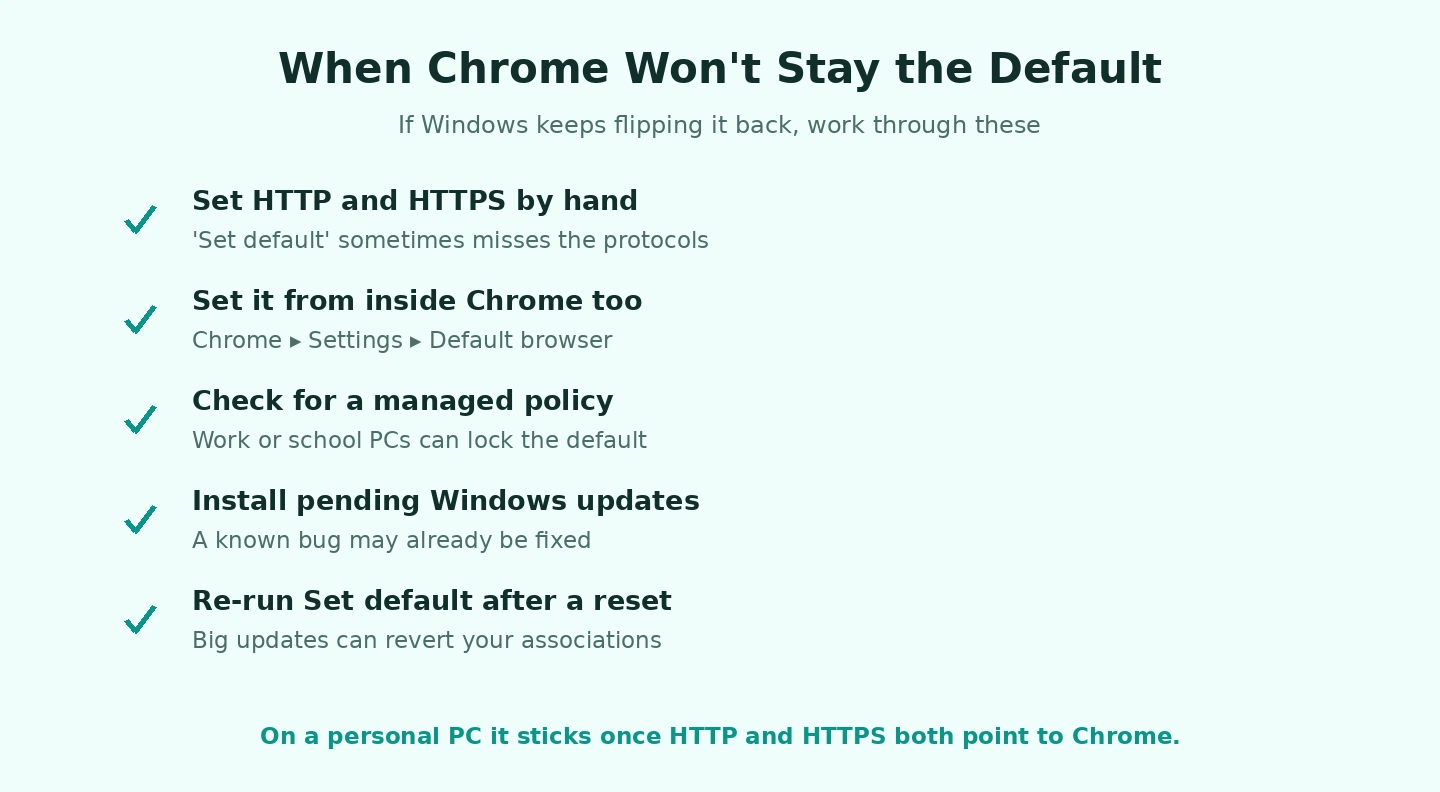
When Chrome doesn’t stay as default
The most frustrating scenario: you set Chrome as default, confirm the change, and then a few days later links are opening in Edge or Safari again. Platform-specific causes:
- Windows 11: Windows updates periodically reset default browser associations for non-Microsoft browsers. After any significant Windows update, open Settings → Apps → Default apps → Google Chrome and verify HTTP and HTTPS still show “Google Chrome.” If they’ve reverted: redo the per-protocol association steps. This is a known Microsoft behaviour that has been the subject of regulatory scrutiny in multiple jurisdictions.
- Windows 11 (alternative cause): another application’s installation may have reset browser defaults. Some software installers set themselves or a bundled browser as the default without clearly asking. After installing any software that installs a browser component: recheck the default associations.
- iOS: major iOS updates historically reset the default browser to Safari. Check Chrome in iOS Settings after any iOS version upgrade.
- Android: if a new browser app is installed and the OS asks which app to use for link opening, selecting the new browser and choosing “Always” makes it the new default. If defaults change unexpectedly: check Settings → Apps → Default apps → Browser app and reselect Chrome.
Protocol-specific defaults on Windows 11
Windows 11’s per-protocol approach to default browser associations is worth understanding at a slightly deeper level because it affects some edge cases that don’t occur on other platforms. Beyond HTTP and HTTPS: some applications use custom URL protocols (like mailto: for email links, or webcal: for calendar links) that are separate from web browser protocols. Setting Chrome as the web browser default doesn’t automatically make Chrome handle mailto: links (that would redirect to Chrome’s built-in Gmail integration rather than a local email client, which is rarely desired). The HTTP and HTTPS protocol assignments are the ones that matter for web browsing; the other protocol defaults control which apps handle specialised link types and are generally best left to their respective applications.
If a specific application sends links with an unusual protocol and those links aren’t opening correctly after setting Chrome as default: check Settings → Apps → Default apps → search for the specific protocol (like “mailto” or “webcal”) and verify it’s pointed to the right application rather than to Chrome or an unintended browser.
Setting Chrome as the default browser is ultimately about eliminating a consistent friction point in daily computer use. The fragmentation of having one browser for intentional web use and another for external link clicks creates small but persistent interruptions across the working day. Eliminating it is a 5-minute setup on most platforms — less on macOS and Android — that pays off on every subsequent external link click. If this sounds familiar, Update Chrome is worth a look.
Checking your current default browser status
Quick checks to confirm Chrome is actually your default:
- From Chrome: Chrome menu → Settings → Default browser — shows whether Chrome is currently the default, with a “Make default” button if it isn’t
- From Windows 11: Settings → Apps → Default apps → Google Chrome → verify HTTP and HTTPS both show “Google Chrome” in the right column
- Practical test: send yourself an email with a link, open it in your email client, click the link — which browser opens? That’s your current default browser regardless of what settings say.
The practical test is the most reliable check because it replicates the actual workflow. Settings can sometimes show one state while the actual OS behaviour reflects a different state due to update resets or conflicting application defaults. If the practical test and the settings don’t agree: the practical test reflects reality, and the settings need to be updated to match. Our guide on Chrome Autofill covers an adjacent issue.