
Every household has that moment. A neighbour mentions in passing that they still know your old WiFi password from a visit two years ago. A contractor leaves and you realise their phone may still autoconnect every time they drive past. A child shares the password with friends, and those friends with their friends, until you have lost track of who can reach your network. The instinct in all of those moments is the same and it is the right one — change the WiFi password and start fresh. If you want the full context, see our Home Networking.
The encouraging news is that this is one of the easiest things you can do to harden your network in 2026. It takes about five minutes on any modern router, costs nothing, and immediately disconnects every device that does not have the new credentials. The bad news is that very few households do it on any kind of schedule, and most only think about it when something has already gone wrong. A bit of routine here goes a long way.
This guide walks through everything I check when changing a WiFi password — how to actually do it on any router, how to choose a strong one, how to get every device reconnected painlessly, and when rotation is genuinely worth the small effort. By the end you will have a clean, trustworthy network and a clear sense of how often to repeat the exercise.
Why Changing Your WiFi Password Is Worth Doing Regularly
Most people set the WiFi password once during initial router setup and then never touch it again until something forces the issue. That works fine until it doesn’t. Networks accumulate trusted-then-untrusted relationships over the years: a flatmate moves out, a babysitter stops coming, a visiting relative goes home, an old phone gets sold without being wiped. Each of those events leaves a credential floating somewhere outside your control. None of it is dramatic. All of it is normal. And over enough time, the cumulative drift means your network is effectively shared with a long list of people you do not actually trust.
A regular WiFi password change resets all of that drift in one stroke. The new password only goes to the devices you choose, and the next time the contractor pulls up outside, their phone does not silently leech your bandwidth. The teenager’s friends who memorised it from a screenshot two summers ago are politely locked out without a confrontation. The relationship between the people you trust and the network they can reach gets cleanly re-aligned, and it stays that way until the next time you decide to refresh it.
There is also the matter of breaches. Even though your WiFi password is local to your home and rarely appears in remote databases, the broader pattern of password hygiene matters. If you reuse passwords across services, and one of those services is breached, attackers test the leaked credential against everything they can find. According to national standards body guidance, the single most effective countermeasure is a unique credential per system, refreshed on a sensible cadence. Your WiFi password fits squarely into that pattern. Rotating it keeps you ahead of credential drift even when nothing visibly bad has happened.
How to Change a WiFi Password on Any Modern Router
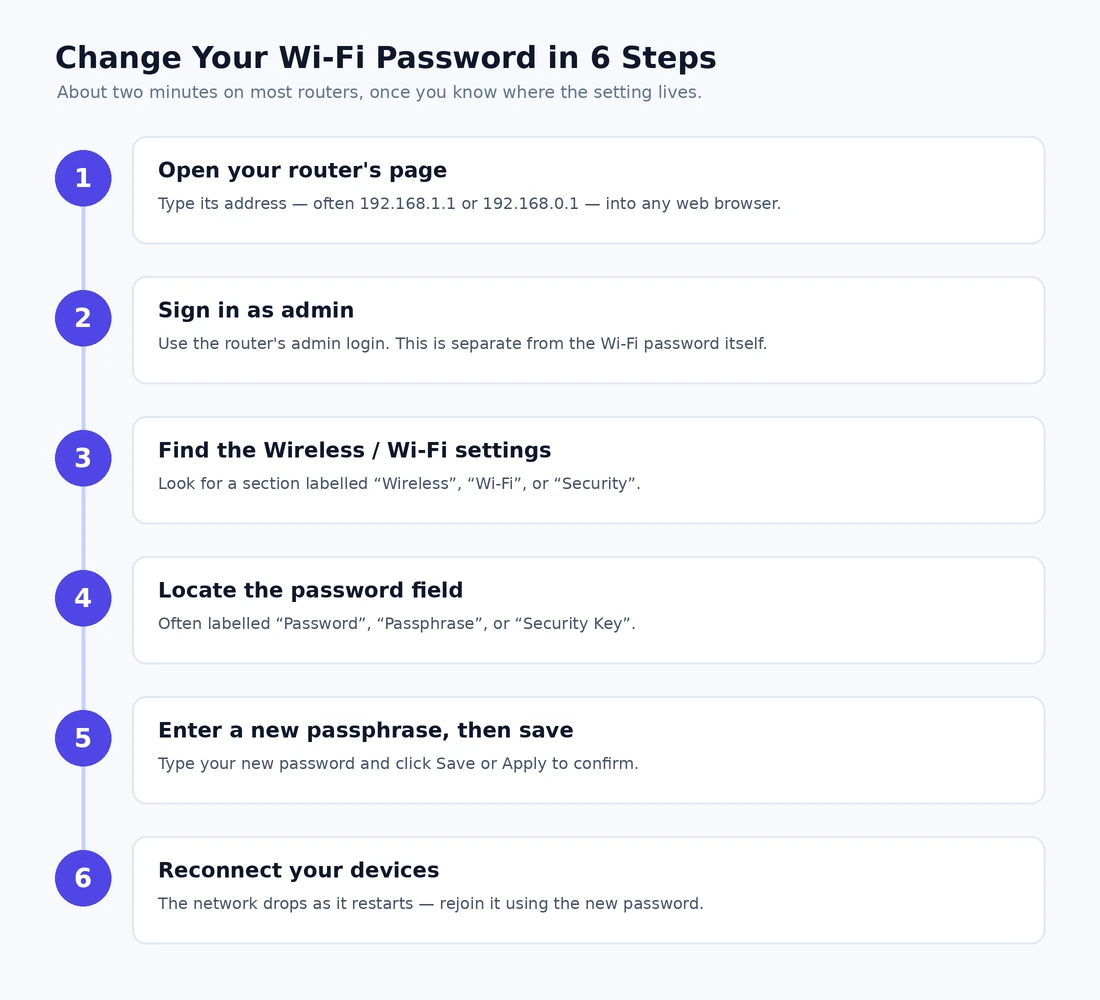
The mechanics of changing a WiFi password are nearly identical across every consumer router in 2026, which is convenient because it means you only really have to learn the process once. The labels move around, but the underlying flow is consistent. Connect to the router, log into the admin panel, find the wireless section, change the password, save, reconnect your devices.
The login path itself is covered in detail in our walkthrough on accessing your router settings, but the short version is: open a browser on a device connected to the network, type the router’s local IP address (often 192.168.1.1 or 192.168.0.1), and sign in with the admin credentials. From there, look for the section labelled Wireless, WiFi, or Wireless Settings. Inside that section there will be a field for the network password — sometimes called Pre-Shared Key, WPA Key, or simply Password. Replace the existing value with your new one, save the change, and the router will broadcast the updated WiFi password to any device that already had the old one configured.
The whole process usually takes under two minutes once you know where to look. Two notes are worth flagging:
- If your router has separate 2.4 GHz and 5 GHz network names, you will usually need to update both fields, otherwise one band will keep the old WiFi password and confuse you later.
- Your router will likely reboot or briefly drop the wireless after saving. Expect a thirty-to-sixty-second outage while it applies the new configuration.
For mesh systems and routers that use a mobile app instead of a web admin, the same process happens in the app. Look for the network’s WiFi section, tap into the password field, replace it, and confirm. The app pushes the change to every mesh node simultaneously, so there is no need to update each node individually.
Choosing a Strong WiFi Password That You Will Actually Remember
A WiFi password lives in a strange middle ground. It needs to be strong enough that nobody can guess it, but memorable enough that you can share it with a guest without reading from a sheet of paper. Treating it the same way you would a banking password — sixteen random characters of nonsense — is overkill and impractical. Treating it the same way you would treat a sticky note — your first name plus your birth year — is dangerous. There is a comfortable middle that is both secure and usable.
The current best practice in 2026 is the passphrase approach. Pick three or four unrelated words, separate them with hyphens or numbers, and add a single special character somewhere. Something like orange-velvet-piano-94! is long enough to resist any brute-force attack you would realistically face on a home network, and easy enough to read aloud to a visitor. The strength comes from length and unpredictability, not from punctuation tricks that nobody can remember.
Quick tip — avoid using your address, family names, pet names, or anything that anyone watching your daily life could guess. WiFi passwords are surprisingly often guessed correctly by visiting friends-of-friends who notice your dog’s name on a tag and the year your house was built on the cornerstone. Strangers cannot guess your dog. Visitors sometimes can.
Avoid a few classic mistakes. Do not reuse a WiFi password from another service or from a previous network. Do not use the same password on your primary and guest networks. Do not write it on a sticky note attached to the router itself, where any visitor can read it. Storing it in a reputable password manager — our roundup of the best password manager options covers the current 2026 picks — gives you a clean way to share it with new devices without ever exposing it to people who do not need it.
One more useful habit: keep two distinct WiFi passwords in mind. The primary network gets a long, strong, rarely-changed credential. The guest network gets a simpler, rotates-more-often credential. The primary one almost never gets typed once your trusted devices are connected, so it can afford to be long and gnarly. The guest one gets read aloud regularly, so it should be readable. Different audiences, different requirements.
It is worth saying out loud that length matters more than complexity. A sixteen-character passphrase made of normal English words is dramatically harder to crack than an eight-character mess of symbols. The math on this is not really debatable in 2026; modern attackers use rainbow tables and dictionary attacks that chew through short complex strings far faster than they handle long readable ones. Aim for length first, character variety second. A passphrase that you can comfortably read aloud to a guest standing in your kitchen is also exactly the kind of passphrase that resists offline cracking attempts for years rather than hours.
The other thing worth saying is that there is no benefit to a credential that you cannot share when you need to. A perfect cryptographic string that nobody in the household can remember will end up taped to the back of the router within a week. Be honest about how the credential will live in the real world of your home, and design something that survives that reality without being weak.
Getting Every Device Reconnected After a WiFi Password Change
The most common reason people put off changing the WiFi password is the chore of reconnecting every device afterward. In a modern home that might mean a dozen phones and laptops, plus another fifteen or twenty smart-home items that need their passwords updated through whatever apps own them. The chore is real, but it is much smaller than people imagine if you approach it in the right order.
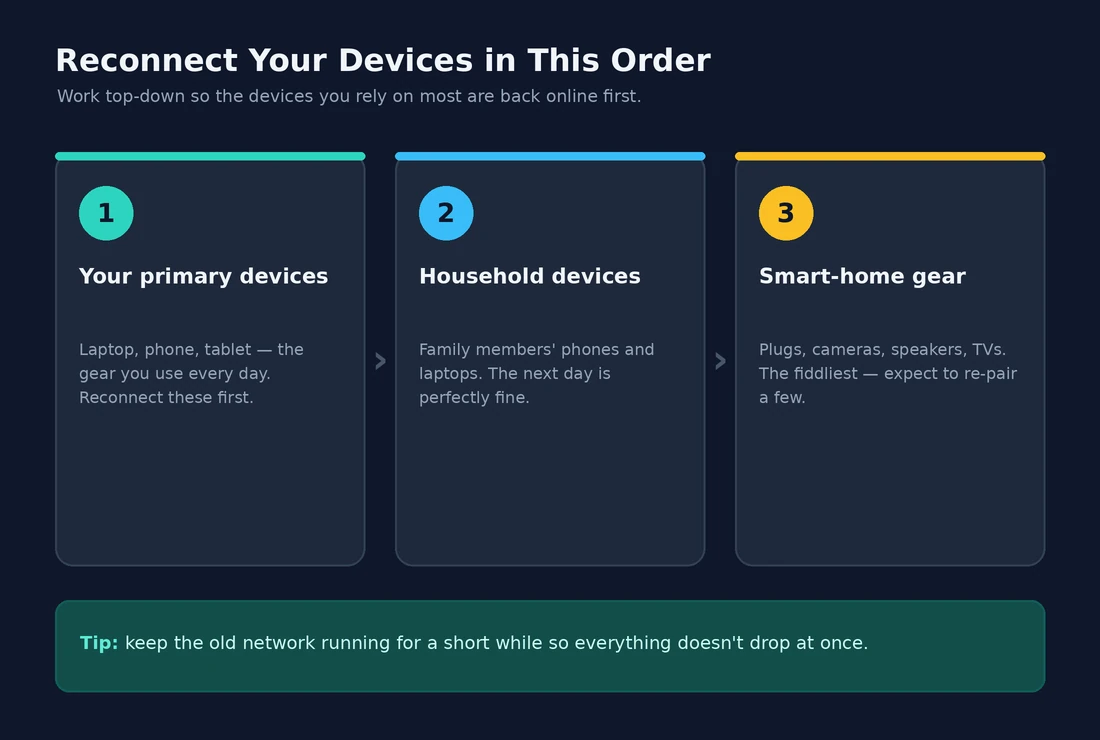
Start with your own primary devices first — your laptop, your phone, your work machine. Get those online before you do anything else, because they will be the devices you use to diagnose problems with everything else. Once your primary devices are connected, you can use them to update the rest at your own pace.
Next, work through household members’ devices the next time each person is around. There is no need to do this in a single evening unless you actively want to. The old WiFi password simply does not work anymore; each device will fail to connect and prompt for new credentials. As long as you have the new password in your manager, the update on each device takes about ten seconds.
Smart-home devices are the trickiest category, and the order matters. Hub devices first — anything that other devices talk through, such as a smart-speaker hub, a smart-home controller, or a video-doorbell base station. Once the hub is online, the devices that depend on it usually come back on their own without separate intervention. Cameras, smart plugs, smart bulbs, and other peripheral gear come last. If a particular device refuses to accept the new credentials, a power cycle followed by a fresh app-side setup almost always resolves it.
A useful trick with stubborn smart-home devices is to keep the old network briefly available alongside the new one. Some routers let you stand up a temporary secondary SSID using the previous credentials, which gives you time to migrate IoT gear at a comfortable pace rather than racing to reconnect everything in one evening. Once everything has moved over, you simply disable the legacy SSID. The whole thing converts a stressful single-day chore into a gentle weekend project.
For Windows machines specifically, occasional issues with cached profiles can stop a fresh password from being accepted. Our guide on WiFi password incorrect on Windows walks through the steps to clear the old profile and start clean. If a particular Windows machine keeps refusing the new credential while every other device accepts it cleanly, that is almost always the cause.
When and How Often to Change Your WiFi Password
The right cadence for rotating a WiFi password depends on your household, your risk profile, and your tolerance for the reconnection chore. There is no single universally correct interval. The schedule below is what I recommend to most households as a sensible baseline, balancing real security against the cost of doing it more often than necessary.
| Trigger | Action | Why It Matters |
|---|---|---|
| Someone leaves the household | Change immediately | Their devices still have the credential and remain trusted on the network |
| Suspicious devices appear in router log | Change immediately | An unknown client is already inside the perimeter |
| Contractor or short-term visitor | Use guest network only | Avoids the rotation entirely; primary stays untouched |
| Annual security review | Rotate as policy | Resets credential drift even when nothing visibly went wrong |
| After a known nearby breach | Change within 24 hours | Pre-empts attackers testing leaked credentials against nearby networks |
| Move to a new router | Set a fresh, unrelated WiFi password | Avoids carrying old credentials onto new hardware |
The annual rotation is the one most people skip and the one most worth keeping. Pick a memorable date — a birthday, a season change, the start of a new school year — and tie the WiFi password change to that anchor every year. Even if nothing dramatic prompts the change, the act of doing it forces you to audit which devices are still on the network, which credentials still exist in shared password managers, and which old gear can finally be retired. The rotation becomes a small annual checkpoint for the health of the whole home network.
Resist the urge to change the WiFi password constantly out of paranoia. A well-chosen long passphrase is strong enough that you do not need to rotate it monthly. Excessive rotation just creates fatigue and prompts people to write the latest version on a sticky note next to the router, which defeats the purpose entirely. According to national cybersecurity guidance, forced frequent rotation generally produces worse password hygiene than a strong static credential rotated on a sensible cadence.
What Else to Update When You Change the WiFi Password
Changing the WiFi password is a good moment to do a broader sweep, because you are already in the router admin panel and you are already thinking about the security of the network. A few minutes of additional housekeeping during the same visit pays much higher dividends than a separate trip later.
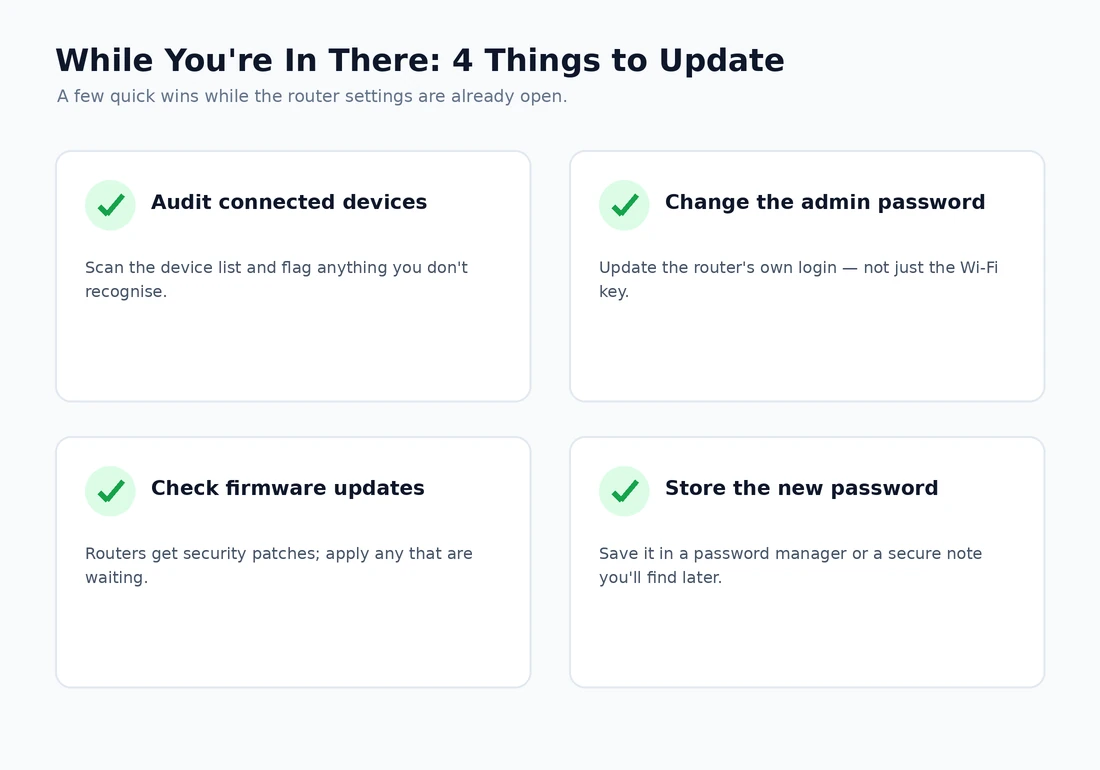
Take a look at the connected-devices list. The act of typing a new WiFi password is also the moment when every device on the network is about to disconnect and reconnect — which is to say, the moment you have the cleanest view of who is actually using the network. Anything that does not come back after the change is either offline, retired, or unknown. Anything unknown is worth investigating. This single observation often surfaces forgotten devices that have been silently consuming bandwidth for years.
Rotate the router admin password while you are there. This is a separate credential from the WiFi password and controls access to the router configuration itself. Many households change the WiFi password regularly and never touch the admin password, leaving the router itself vulnerable to anyone who briefly knows or guesses those admin credentials. The two passwords serve different purposes and should both stay current.
Check firmware. Routers are software-based devices and rely on their manufacturers for security updates. While the admin panel is open, click whatever button updates the firmware — or enable automatic updates if available. Combining the WiFi password rotation with a firmware refresh makes the whole exercise feel like a coordinated maintenance moment rather than a series of one-off fixes. Pair this with the broader hardening checklist in our walkthrough on securing your home WiFi network and the visit becomes the most productive five minutes you will spend on home security all year.
Finally, write down the new WiFi password somewhere safe — preferably in the password manager you already use, never on a sticky note on the router itself. Note the date you changed it, too, so a year from now you remember when the rotation is due again. A documented network is a forgiving one, and forgiveness is exactly what you want six months later when the connection on a rarely-used device unexpectedly stops working and you cannot remember which password it actually needs. Our guide on How to Set Up a Guest WiFi Network the Smart, Secure Way covers an adjacent issue.