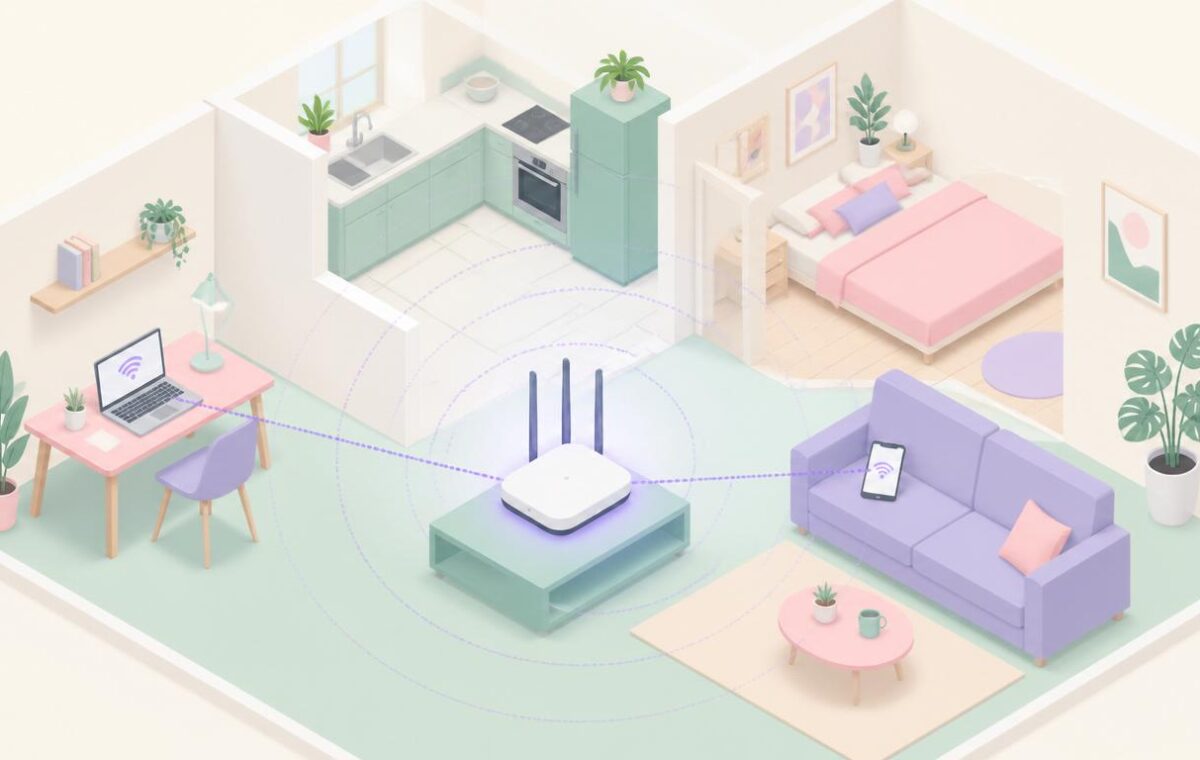
Take a slow look around the average household in 2026. There is the laptop in the kitchen running a video call. The tablet in the bedroom streaming a show. The phone in someone’s pocket pulling notifications constantly. The smart speakers in three rooms. The cameras at the doors. The thermostat. The vacuum. The lights. The TV that quietly auto-updates while you sleep. The work laptop that demands a stable upload connection for half the day. None of this existed in this shape a decade ago, and all of it now depends on the same quiet piece of infrastructure: your home networking setup.
The encouraging news is that thoughtful home networking in 2026 is genuinely within reach for any household willing to spend a focused weekend on the foundations. The hardware is cheap by historical standards, the software is friendlier than ever, and the principles that distinguish a setup that ages well from one that gradually deteriorates have become well understood. The harder part is knowing which pieces matter, which order to tackle them in, and what to leave alone when more elaborate alternatives would not actually help your specific household.
This guide is the consolidated home networking reference I wish I had been able to hand a friend a few years ago. It walks through every major area — the foundations, WiFi, diagnostics, sharing, remote access, security, smart-home design, advanced patterns, and long-term maintenance — and links to the detailed walkthroughs that go deeper on each topic. By the end you will have a clear map of what good home networking looks like and where to dig in further for your specific situation.
What Modern Home Networking Actually Means in 2026
The phrase home networking has shifted meaning over the past decade. In 2016 it mostly meant getting WiFi to reach the back bedroom. In 2026 it covers a much wider set of decisions: how the household’s devices connect, segment, communicate, and protect themselves; how the household’s data moves between local storage, cloud services, and family members; how remote access works; and how the whole picture stays healthy as devices come and go. None of these were genuine concerns for a typical household even five years ago; all of them are now.
The shift is driven by three concurrent trends. First, the number of connected devices per household has roughly tripled, from around ten in 2016 to thirty or more today. Second, more household activities now depend on real-time network performance — video calls for work, gaming for entertainment, smart-home automation for everyday convenience. Third, the security stakes have risen because the same network that connects the smart bulbs also handles banking, work, and family communications. Modern home networking has to balance all three of these realities in a single architecture.
The good news is that the underlying technology has kept pace. WiFi 6 and 6E handle device density far better than older standards. Modern routers ship with sensible security defaults. Mesh systems handle large homes gracefully. Free DNS-filtering services protect entire networks. According to industry standards organisations, the consumer networking category has compressed several decades of enterprise progress into the past few years, with the result that a thoughtfully configured residential network in 2026 looks remarkably like a small business network from not many years before. The leverage available to a careful household has never been greater.
The Foundation: Setting Up Your Home Network the Right Way
Every other piece of home networking sits on top of the basic foundation: the router, the modem, and the way devices first join the network. Getting these foundations right at the start pays back across every subsequent decision. A poorly placed router undermines mesh extensions; a weakly secured network undermines smart-home segmentation; an ill-chosen DNS resolver undermines content filtering. Foundations first, refinements after — the rule that underpins almost every successful home networking project I have ever helped with.
The first foundational choice is how to set up the network from scratch. Our home WiFi network setup walkthrough covers the ground-up configuration that every other decision builds on. The WiFi network security guide covers the security side of the same foundation, including the WPA3 transition and password discipline that newer households should follow from the start. For households that need to access the router admin panel routinely, the router settings walkthrough covers the basic flow that every brand handles slightly differently. And when changes are needed, our walkthroughs on changing your WiFi password, updating router firmware, and resetting your router cover the routine maintenance tasks that come up repeatedly.
The second foundational area covers device-level networking choices that interact with the router. Our walkthroughs on finding your IP address, changing your DNS server, and setting a static IP address cover the small per-device choices that contribute to a healthier overall home networking posture. The DNS cache flush walkthrough handles the related troubleshooting case when something at the DNS layer has gone stale.
WiFi That Reaches Every Room of the House
Wireless coverage is the home networking topic that probably generates the most household friction across every kind of home networking situation. The router in the corner of the living room delivers excellent speed to devices nearby and disappointing speed to devices on the other side of the house. Closing this gap is rarely about a faster internet plan; it is about thoughtful wireless design.
The first lever is placement and tuning. Our improving WiFi speed walkthrough covers the placement, channel selection, and band configuration choices that often deliver meaningful improvements without spending money. The companion WiFi range extension walkthrough covers the cases where placement alone is not enough and additional coverage is needed. For larger homes, our mesh WiFi network walkthrough covers the structural approach that handles whole-home coverage more gracefully than extender hops can.
The second lever is segmentation. Our guest WiFi network walkthrough covers the configuration that keeps visitors and untrusted devices on their own segment, which is foundational to both security and household-network manageability. When WiFi misbehaves, the related troubleshooting walkthroughs on WiFi not working on Windows 11 and WiFi disconnect issues on Windows 11 cover the device-side flow that complements the network-side fixes.
The third home networking lever is being honest about when WiFi is the wrong tool. For devices that sit in one place and benefit from absolute reliability — desktops, game consoles, smart TVs, NAS units — wired ethernet through a small network switch delivers consistently better results than any wireless setup. Our walkthrough on sharing a printer across the network covers a related case where the right wiring decision dramatically simplifies what would otherwise be a recurring frustration.
Network Diagnostics and Speed: The Tools Every Household Needs
Good home networking includes the diagnostic ability to know what is happening when something feels off in your home networking setup. Without good home networking diagnostic tools, every issue becomes guesswork. With them, even non-technical household members can identify what is wrong in a few minutes and either fix it directly or escalate with useful evidence.
The fundamental diagnostic is the speed test. Our internet speed checking walkthrough covers the right methodology — wired versus wireless tests, baseline comparisons, peak-hour patterns — that turns the basic speed-test number into useful information. The companion network latency testing walkthrough covers the metric that often matters more than raw download speed for everyday user experience, particularly for video calls, gaming, and real-time activities. For the path-aware analysis that helps identify exactly where a problem lives between your home and the internet, our walkthrough on using traceroute covers a foundational tool that every household member should be aware of.
When something is slow, the structured troubleshooting flow in our slow network fix walkthrough covers the diagnostic order that quickly isolates which layer is responsible — internet, modem, router, WiFi, device, or application. Skipping the structured approach and trying random fixes wastes time; the right diagnostic order resolves most issues in a few minutes.
For households that want richer ongoing visibility, our walkthrough on monitoring network traffic at home covers the tools that surface continuous per-device usage information. The visibility is genuinely useful for capacity planning, security awareness, and answering the “who is using all the bandwidth” question that comes up in every household sooner or later. Our walkthrough on prioritising bandwidth with QoS covers the configuration that turns this visibility into actionable improvement when contention is the root cause.
Sharing, Storage, and Remote Access on Your Home Network
One of the largest shifts in home networking over the past few years is that households now genuinely need infrastructure they used to rely on cloud services for. Storage, sharing, remote access, and presence have become things that benefit from local-first design rather than purely cloud-first.
The starting point is shared storage and file flow within the household. Our file sharing walkthrough covers the local-network approach to moving files between devices without involving cloud services. For more ambitious setups, our walkthroughs on setting up network attached storage and setting up a home server cover the dedicated-hardware approaches that turn one device into shared infrastructure for the whole household. The companion walkthrough on backing up files over the network covers the data-protection layer that should sit on top of any local storage setup.
Remote access — reaching your home from outside — is the other major area where home networking has grown into something more substantial. Our walkthroughs on setting up remote access and setting up screen sharing at home cover the everyday cases of reaching your own machines or helping someone else with theirs. For the underlying network plumbing, our walkthrough on setting up port forwarding covers the configuration that exposes specific services to the internet, and our walkthrough on setting up dynamic DNS covers the hostname stability that makes remote-access setups practical despite changing home IP addresses.
The mobile-connectivity adjacent capability — sharing your phone’s connection with other devices — has its own role in modern home networking. Our walkthrough on setting up a mobile hotspot covers the everyday cases when the home internet is out and the household needs a backup connection. The combination of always-on home infrastructure and mobile fallback produces a household network that feels resilient rather than fragile.
Security and Privacy for Modern Home Networking
The security stakes for modern home networking in 2026 are real but the home networking practices that handle them are not complicated. Most security improvements come from a handful of structural choices made deliberately rather than from constant vigilance.
The foundation is WiFi-level security covered in our WiFi network security guide. Strong unique passwords, WPA3 where supported, current firmware, and disabled WPS together close most of the everyday attack surface that consumer networks present to opportunistic threats. The discipline of routinely updating router firmware is among the highest-leverage security practices in personal infrastructure.
The second layer is VPN-based privacy and protection. Our walkthroughs on setting up a VPN on your router, using a VPN on public WiFi, setting up a VPN on iPhone, and setting up a VPN on Android cover the choices that protect household traffic across every device. The router-level option offers comprehensive coverage; the per-device options offer flexibility and travel compatibility. Most households eventually use a combination.
The third layer is content filtering and tracker blocking. Our walkthrough on blocking ads with Pi-hole covers the network-wide DNS filtering that protects every connected device without per-device configuration. For households with children, our walkthrough on setting up parental controls on your network covers the related layer that handles age-appropriate browsing across every screen in the house. According to official cybersecurity guidance, the combination of router-level security, network-wide filtering, and per-device VPN coverage represents a coherent contemporary residential security posture in 2026.
Smart Homes, IoT, and Family-Friendly Configurations
The growth in connected devices is the single most-discussed change in home networking over the past decade. The household with thirty connected devices today is normal rather than unusual, and the design choices that handle this gracefully are different from those that suit a simpler past.
The starting point is the segmentation approach covered in our smart home network walkthrough. Putting smart-home devices on a separate network from primary computing prevents a compromise of any one IoT device from reaching the laptops and phones that handle sensitive activity. The guest-network approach mentioned earlier is the simplest path to this segmentation; full VLAN setups are the more elaborate version for households whose routers support them.
The protocol-choice question becomes increasingly important as device counts grow. WiFi-only devices contend with everything else on the same network; Zigbee, Z-Wave, and Thread devices form their own mesh networks that do not load the WiFi at all. Choosing devices based on protocol thoughtfully — not just on price or feature checkboxes — produces a home networking environment that scales gracefully past fifty devices, while protocol-blind device selection produces one that struggles even at twenty.
The family-friendly side of the design deserves its own consideration. Households with shared screens, children of varied ages, and multiple adult-managed accounts benefit from configurations that reflect actual family dynamics. The parental controls walkthrough mentioned earlier covers the technical layer; the family conversations that surround it determine whether the technical layer actually works in practice. Modern home networking is as much about the household conversation as it is about the configuration files.
Advanced Patterns: Servers, Hubs, and Beyond
For households whose home networking ambitions stretch beyond the typical home networking setup, a few more advanced patterns become relevant. None of these advanced home networking patterns are necessary; all of them are accessible to households willing to spend the time learning.
The first is the self-hosted services pattern. Our walkthrough on setting up a home server covers the foundation; from there, services like Nextcloud for file sync, Jellyfin for media, Immich for photos, and Home Assistant for smart-home control can all live on the same household-controlled hardware. The result is a household digital life that depends less on cloud subscriptions and more on infrastructure the household actually owns.
The second is network documentation and architecture awareness. Our walkthrough on building a network diagram covers the practice that elevates household networking from “implicit knowledge in one person’s head” to “explicit reference that the whole household can read.” For ambitious households, network diagrams become living documents that capture both the current state and the rationale behind the structure.
The third is the wired backbone for performance-critical work. Our walkthrough on setting up a network switch covers the cheap, reliable approach to expanding wired connectivity beyond the router’s built-in ports. Combined with structured ethernet runs through the house — sometimes possible during renovations, sometimes retrofittable with creativity — the wired backbone unlocks performance and reliability that pure wireless setups cannot match.
Maintaining Your Home Network Over Time
The final piece of the home networking picture is the maintenance routine that keeps home networking healthy over the months and years that follow setup. A home network is not a one-time configuration but a living system, and the small home networking practices that prevent slow decay matter as much as the original setup decisions.
Firmware updates across every device on the network — routers, switches, NAS units, smart-home hubs — are the highest-leverage maintenance activity. Most modern devices support some form of automatic updates; enabling that feature where available, and setting a quarterly reminder to check the rest manually, closes the largest single attack surface that residential networks present to opportunistic threats.
Periodic device audits matter almost as much. Households accumulate connected devices invisibly, and a quarterly walk through the router’s connected-device list — identifying anything unfamiliar, removing anything no longer used, renaming anything cryptically labelled — keeps the network coherent. Pair this with the network diagram practice mentioned earlier, and the household network stays understandable rather than gradually drifting into an unreadable mess.
Performance baselines complete the maintenance picture. A monthly speed test from the same location, a monthly latency check to a familiar destination, and an occasional review of the network monitoring dashboard together produce a sense of “this is what normal looks like” that makes the abnormal easier to spot. The same logic applies at the security level: an occasional review of the device list, the firmware versions, and the connected-account dashboards on each home-server platform catches drift before it becomes a problem. Reviews from outlets like major technology publications regularly cover the maintenance practices that distinguish a household network that ages gracefully from one that does not, and the consistent finding is that the practices are modest in time investment and significant in long-term value.
Bringing It All Together
Modern home networking covers more ground than it used to. The phone in your pocket, the laptop on the desk, the smart speakers around the house, the work-from-home setup, the kids’ tablets, the streaming TVs, the cameras at the doors — all of them depend on the same quiet infrastructure that you only really notice when something stops working. The household that takes a focused weekend to set the foundation thoughtfully, and then practices the small ongoing maintenance habits, ends up with infrastructure that supports a connected life without becoming a daily concern.
The thirty-plus walkthroughs linked from this guide cover the specific implementation details for each major area of home networking. None of them is required reading; pick the ones that match what your household actually needs and ignore the rest. The structure is designed so that the foundations apply to nearly everyone, the refinements apply to households that have specific needs, and the advanced patterns are there for households whose ambitions go beyond the typical.
The closing thought is the one I find myself returning to whenever helping a friend think about their home networking from scratch: the goal is invisible infrastructure. The good network is the one nobody talks about because it just works. Everything in this guide and the linked walkthroughs is in service of that invisible quality, and the household that achieves it discovers something genuinely valuable — a calm, reliable, secure base that lets every other technology in the home work the way it was meant to.
More Guides in This Series
These additional guides in the same cluster cover specific scenarios and complementary topics: