Setting up a home WiFi network in 2026 looks deceptively simple — plug in a router, pick a password, done — but I have spent enough weekends rescuing friends from dropped video calls and unreachable smart bulbs to know the shortcut version rarely holds up. A well-built home WiFi network is the quiet backbone of everything you do online, from streaming the next series to working remotely without your boss watching you freeze mid-sentence. Getting it right the first time saves months of frustration. This fits into the wider topic we cover in our Home Networking. Once it is running, it is worth knowing how to see who is connected to your WiFi so you can spot any device that should not be there.
The encouraging news is that the gear has caught up with the demands we put on it. Modern routers handle dozens of connected devices, Wi-Fi 6 and 6E are no longer luxury features, and the configuration tools have finally stopped looking like 1998 BIOS screens. Even so, the way you place your equipment, configure your network, and plan for security will determine whether your setup feels effortless or feels like a daily fight against geometry and concrete.
This guide walks through everything I personally check when building or rebuilding a home WiFi network from scratch — the prep, the install, the optimization tweaks that most people skip, and the troubleshooting habits that keep the connection humming long after launch day. By the end you will have a confident, reliable home WiFi network that handles whatever 2026 throws at it without making you reach for the reset button.
Why a Properly Configured Home WiFi Network Matters More Than Ever
The average household now has somewhere between fifteen and thirty connected devices, and that figure climbs steadily every year. Laptops, phones, smart TVs, video doorbells, thermostats, light bulbs, robot vacuums, gaming consoles, watches — they all queue up against the same home WiFi network. If your router was bought five years ago and shoved into a closet, that closet is now bottlenecking your entire digital life. The hardware capacity of older routers simply does not match the device-density of a modern household.
A home WiFi network that performs well is the difference between productivity and quiet chaos. Remote workers depend on stable video, students rely on consistent uploads, families lean on streaming, and smart-home devices need always-on connectivity to function the way the marketing promised. When the wireless falters, every one of those experiences degrades at once. The frustration compounds because everything in the house seems broken at the same time, even though the root cause is one tired box on a shelf.
There is also a security dimension that often gets overlooked. A neglected setup is an open door for opportunistic attackers and curious neighbors, and the consequences range from a slower connection to a full account compromise. According to official cybersecurity resources, weak home network defenses remain one of the most common vectors for residential cybercrime in 2026. Building your home WiFi network correctly from day one is therefore both a quality-of-life and a safety decision, not a luxury upgrade you can quietly skip.
One more thing worth saying out loud: the equipment your internet provider ships you is rarely the best option. ISP gateways tend to be cheap, locked down, and slow to receive firmware updates. Investing in your own router is almost always a better long-term decision, and it is the single change that delivers the most noticeable performance lift for the lowest cost.
What You Need Before You Set Up Your Home WiFi Network
Before you unbox a single cable, take ten minutes to inventory what you actually have and what you actually need. The fastest home WiFi network installation I ever did took twenty minutes from box to last device connected, and the reason was simple preparation. The slowest, by contrast, dragged across an entire weekend because someone discovered halfway through that their internet provider needed an account reset call that took forty minutes on hold.
You will need an active internet connection from a provider (fiber, cable, or fixed wireless are the common 2026 options), a router that matches the speed you pay for, the credentials your provider supplied, and an ethernet cable to perform the initial setup. If your home is larger than roughly two thousand square feet, plan for additional access points or a mesh system before you start so you do not have to redo the whole layout later.
Quick equipment sanity check — these are the items I lay out on the desk before I touch the install:
- A modern router capable of Wi-Fi 6 or Wi-Fi 6E at minimum. Anything older will throttle your home WiFi network from day one.
- One ethernet cable for the initial connection between the modem and the router.
- Your ISP account credentials, including any PPPoE username and password if you use DSL or fiber.
- A laptop or phone to access the router admin interface during the wizard.
- A pen and paper for noting your new home WiFi network name and password before you forget them.
If you are migrating from an older setup, also note any static IP assignments, port forwards, or device reservations you currently rely on. Those settings rarely transfer automatically, and recreating them from memory at 11pm on a Sunday is nobody’s idea of fun. A two-minute screenshot session inside your current router admin panel will save you an hour later.
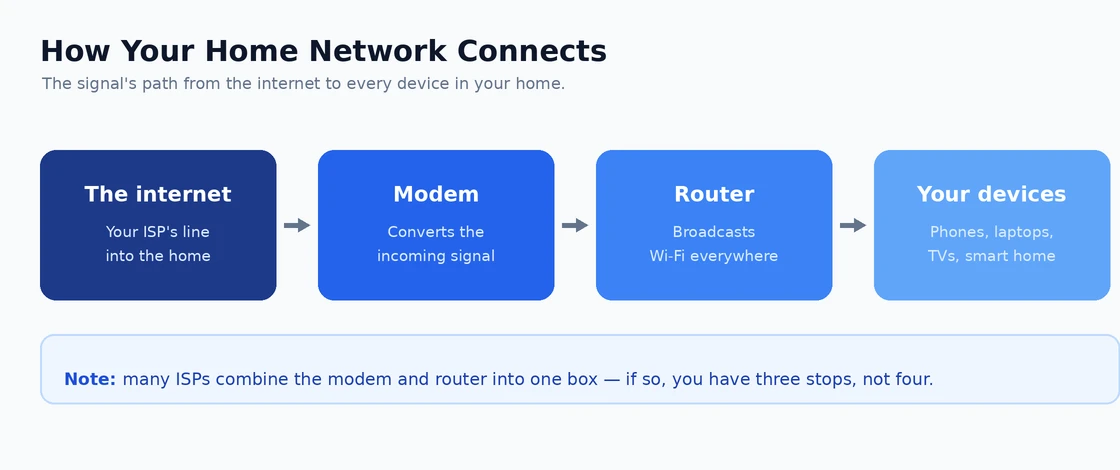
It is also worth thinking about where your modem actually lives. The router needs to sit next to the modem during initial setup, but its long-term position can be different. Plan a path: a longer ethernet cable can let you place the router in a central spot even if the modem has to stay near the wall socket where the ISP line enters the house. That single physical decision shapes the performance of the entire network for years.
Step-by-Step Installation of Your Home WiFi Network
Once everything is laid out, the actual install of a home WiFi network is straightforward. The order matters more than the speed — rushing past one step almost always creates a problem at step three. I follow the same sequence every time, even on installs I have done dozens of times, because consistency catches mistakes early and saves time overall.
Here is the working sequence I use for nearly every home WiFi network setup in 2026:
- Power down the existing modem. Pull the plug for at least sixty seconds before anything else. This forces a clean re-handshake with your provider and clears stale state.
- Connect the new router to the modem. Use the ethernet cable from the modem’s LAN port to the router’s WAN or internet port. The ports are usually color coded for clarity.
- Power up the modem first, then the router. Give each device two full minutes to boot before moving on. Rushing this is the number one cause of failed first connections.
- Connect to the router’s default WiFi. The name and temporary password are printed on a sticker on the bottom of the unit.
- Open the manufacturer’s setup app or visit the router admin page (often 192.168.1.1 or 192.168.0.1) in your browser.
- Run the setup wizard. It will walk you through naming your network, choosing a password, and selecting your security mode.
- Update firmware immediately if a new version is available. Out-of-the-box firmware is rarely current, and updates patch real vulnerabilities.
- Reboot once more. A clean restart after first configuration locks in your settings and makes the home WiFi network ready for daily use.
The wizard will usually ask whether you want separate 2.4 GHz and 5 GHz network names or a single unified network. I almost always recommend the unified option because the router intelligently steers each device to the band it handles best. Power users with very specific needs can split them, but for most households it adds complexity without benefit.
Once the wizard finishes, do not start connecting every device immediately. Pause, log into the admin panel, and walk through the advanced settings. Many of the most useful options — guest network toggle, parental controls, schedule-based access, device naming — are buried two menus deep, and most people never look. Spending an extra ten minutes here turns a generic install into a tailored home WiFi network that actually fits your household.
Optimizing Your Home WiFi Network for Speed and Reliability
Installation is only the start. The biggest wins come from placement, channel selection, and a few minutes of router-level tweaks that hardly anyone bothers with. I have seen identical hardware produce wildly different performance based purely on these factors, with no extra spending required.
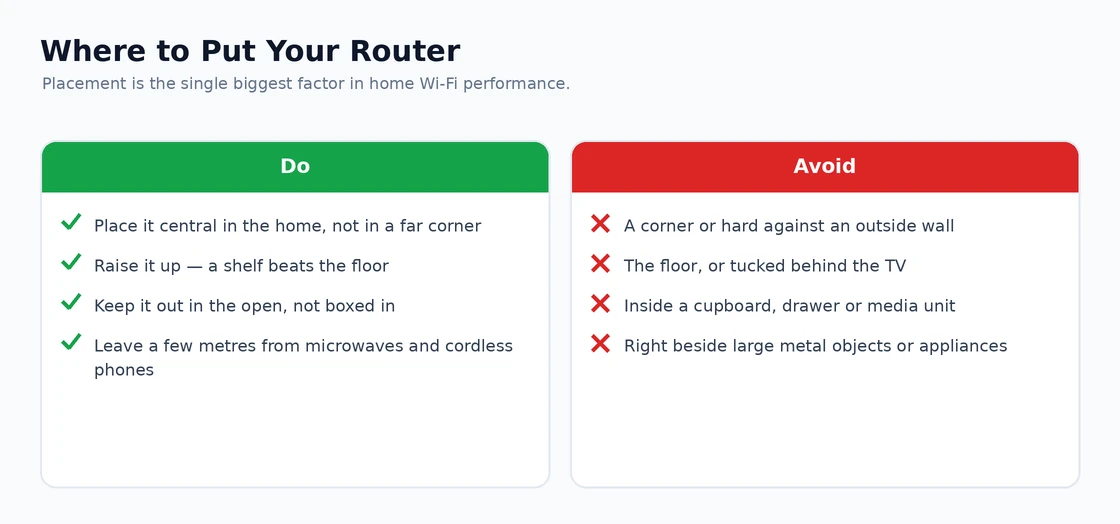
Router placement is the single most influential variable. The router should sit roughly in the center of your home, elevated off the floor, away from large metal objects, microwaves, and thick masonry walls. A home WiFi network with the router parked in a basement corner will always perform worse than the same router placed on a shelf in a central hallway. If you cannot move the router for cable reasons, consider a long ethernet run to a better location — the cable cost is far less than the cumulative cost of slow connections every day for a year.
Quick tip — open a free WiFi analyzer app on your phone and walk through every room you actually use. If signal drops below -65 dBm in any working area, that room needs help, either from repositioning or from an additional access point. Treating the entire floorplan rather than just the room with the router is what turns an okay home WiFi network into a great one.
Channel selection also matters in dense areas like apartments. Most consumer routers default to auto, but I usually find better results from manually picking a less crowded channel after scanning your environment. On 2.4 GHz, the only truly non-overlapping channels are 1, 6, and 11. On 5 GHz you have much more room. A network running on a clean channel will feel noticeably faster even though the underlying speed has not changed at all.
Finally, enable QoS (Quality of Service) features if your router supports them. QoS prioritizes time-sensitive traffic like video calls and gaming over background downloads. On a busy home WiFi network with multiple users, this single setting eliminates most of the everyday slowdowns that make people swear at their internet provider. Pair QoS with band steering and you will rarely think about congestion again.
Securing and Maintaining Your Home WiFi Network
A fast home WiFi network is wonderful, but a fast and insecure one is a liability. The defaults that ship from the factory are decent in 2026, but they were tuned for the broadest possible compatibility, not for your specific risk profile. Spending fifteen minutes on security after install will protect you for years and costs nothing.
Start with the basics. Change the router admin password from the factory default immediately — this is separate from your WiFi password and controls access to the router itself. Enable WPA3 if every device on your network supports it; otherwise use WPA2 with AES, never the older TKIP or open modes. Disable WPS, which has a long history of vulnerabilities. Turn on automatic firmware updates if your router offers them, because manual updates almost never happen on schedule.
| Security Setting | Recommended Value | Why It Matters |
|---|---|---|
| Encryption | WPA3 (or WPA2-AES) | Strongest available protection for traffic on your home WiFi network |
| WiFi Password | 16+ characters, mixed | Resistant to brute-force attacks against your home WiFi network |
| Router Admin Password | Unique and strong | Prevents settings tampering even if WiFi is compromised |
| WPS | Disabled | Removes a well-known attack vector |
| Firmware Auto-Update | Enabled | Closes known vulnerabilities without you noticing |
| Guest Network | Enabled (separate) | Keeps visitors off your primary devices |
Once a month, glance at the connected-devices list in your router admin panel. If you see a device you do not recognize, kick it off and rotate the password. According to national cybersecurity guidance, regular review of connected hardware is one of the most underused defenses in domestic networking, and the whole process takes less than five minutes a month.
Maintenance is the part nobody enjoys but everybody needs. Set a calendar reminder every three months to update firmware manually if auto-update is not available, change the WiFi password annually, and revisit your security settings whenever you replace any major device on the network. A home WiFi network is not a set-and-forget appliance; it is closer to a car that needs an occasional oil change to keep running smoothly.
Common Home WiFi Network Problems and Their Fixes
Even a well-built network occasionally misbehaves. Most issues fall into a handful of buckets, and recognizing the pattern saves enormous amounts of troubleshooting time. The trick is to stop randomly rebooting things and instead ask a single diagnostic question — what changed?
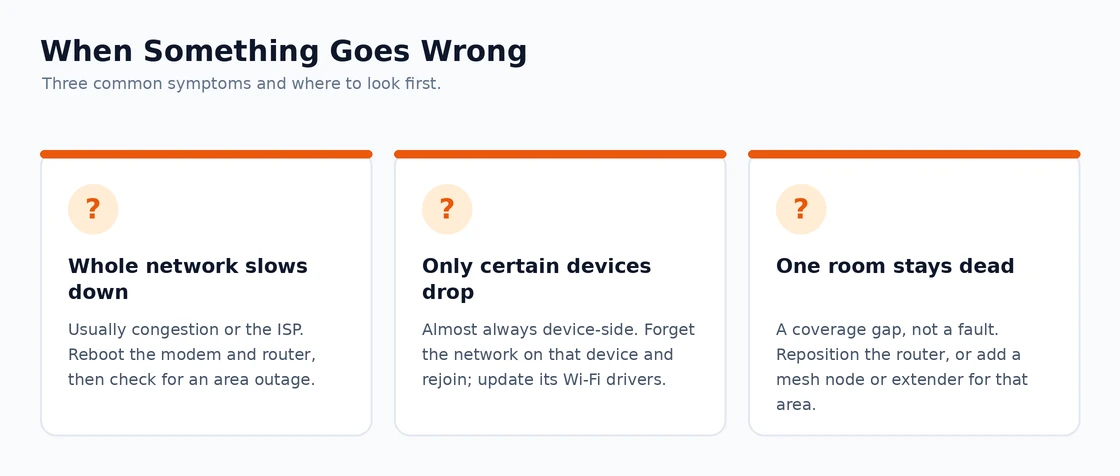
If your home WiFi network suddenly slows down for everyone, the answer is usually congestion, interference, or an ISP-side issue. Reboot the modem first, then the router, then test from a wired ethernet connection to isolate the variable. If the wired connection is fine, the bottleneck is in your wireless layer. If both are slow, it is upstream at the provider. This single diagnostic step resolves about 80 percent of the confused calls I get from friends.
If only certain devices drop, the issue is almost always device-side or band-related. Older smart-home accessories that only support 2.4 GHz sometimes choke on unified network names; in that case, temporarily split the bands or create a separate IoT network. For Windows-specific drops, our guide on WiFi keeps disconnecting on Windows 11 walks through driver-level fixes. For broader connectivity loss, WiFi not working on Windows 11 is the right starting point.
If a single room is dead, you have a coverage problem rather than a network problem. Either move the router, add a wired access point, or upgrade to a mesh system. For Windows users who want to fine-tune adapter behaviour while you are diagnosing, our walkthrough on Windows 11 network settings is a good companion to this article. And if you ever want layered protection over your home WiFi network, a personal VPN like the options reviewed in the best VPN for Windows adds privacy on top of the encryption your router provides.
Future-Proofing Your Home WiFi Network for 2026 and Beyond
The pace of WiFi standards has accelerated in the last few years. Wi-Fi 6 is now the baseline, Wi-Fi 6E unlocks the cleaner 6 GHz band, and Wi-Fi 7 hardware is becoming reasonably priced through 2026. None of this means your home WiFi network has to change every year, but it does mean buying with one eye on tomorrow whenever you do upgrade.
If you are buying new hardware in 2026, get at least Wi-Fi 6E. The 6 GHz band is largely empty of legacy interference, which translates directly into faster real-world speeds in dense environments. Wi-Fi 7 brings improvements in multi-link operation and latency that gamers and serious remote workers will appreciate, but for many households the price premium does not yet justify the jump. A solid Wi-Fi 6E setup will comfortably serve a typical home through 2027 and likely beyond.
Think about modularity too. The most upgradable home WiFi network is one where the modem, router, and access points are separate units rather than one combined ISP gateway. When a new standard arrives, you swap a single component instead of the entire stack. Mesh ecosystems often allow node-by-node upgrades too, which spreads cost over time and reduces e-waste.
The last piece of future-proofing is documentation. Write down your network name, password, router admin credentials, and the IP ranges you use for static devices. Keep that note somewhere safe but findable — a password manager like the options in our best password manager roundup works perfectly. Future-you, in the middle of a setup at midnight after a power outage, will thank present-you for ten minutes of typing today. A documented home WiFi network is a forgiving one, and forgiveness is exactly what you want at midnight in a dark utility closet.