

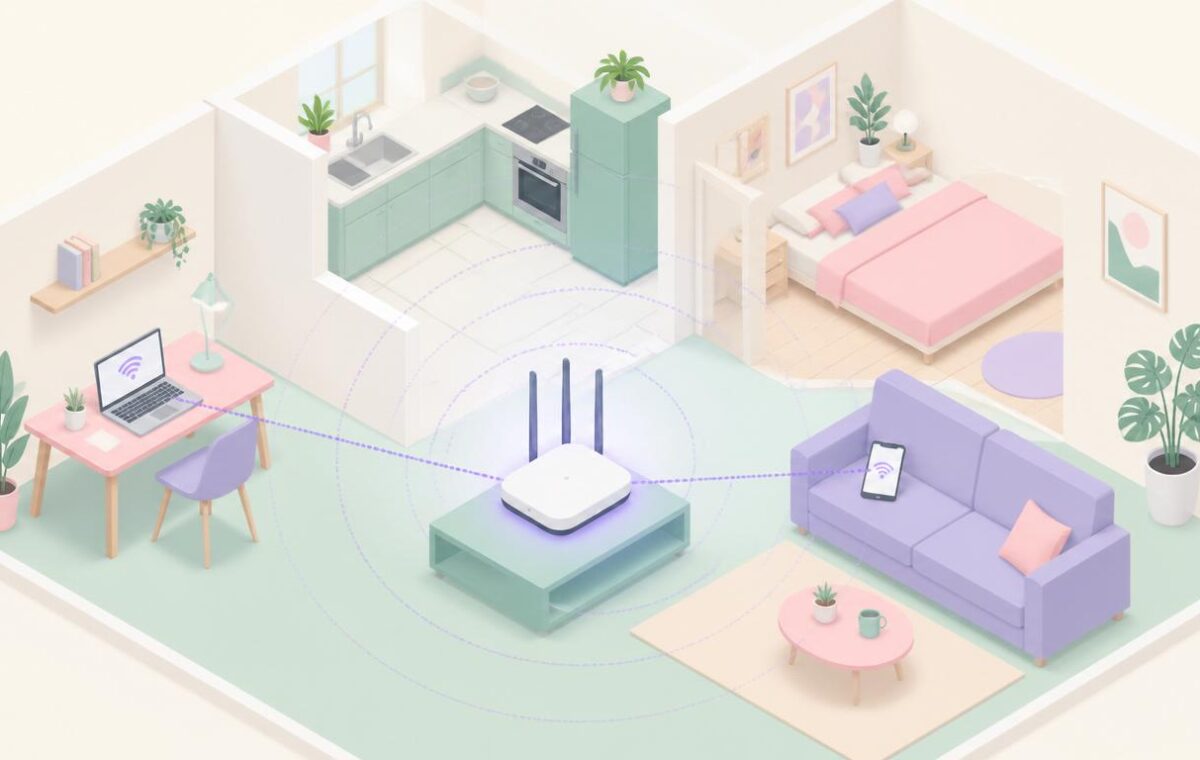
If your internet feels slower than it should, or you simply want to know exactly what is using your home network, the question is the same: who is actually connected to your WiFi? Maybe you suspect a neighbour guessed your password, maybe you just want an inventory of your own devices, or maybe a slowdown has you wondering whether something unfamiliar is hogging the bandwidth. Whatever the reason, finding out is straightforward, and it leads naturally into tightening things up if you find something you do not recognise.
This guide covers how to see every device connected to your WiFi, how to tell your own gadgets apart from anything that should not be there, and what to do if you find an uninvited guest. None of it requires special equipment — your router already keeps a list, and there are simple apps that present it more clearly.
192.168.1.1 or 192.168.0.1 — log in, and look for a section called “Attached Devices,” “Connected Devices,” “Device List,” or “DHCP Clients.” That list is the authoritative record of everything currently on your network, straight from the device that manages it.Checking the list on your router
Your router is the single source of truth for who is connected to your WiFi, because every device on the network has to go through it. Getting to its device list takes a minute:
- Find your router’s address. On Windows, open Command Prompt and type
ipconfig; the “Default Gateway” line is your router’s address. It is commonly192.168.1.1or192.168.0.1. - Type that address into a web browser and press Enter to reach the router’s login page.
- Sign in. The credentials are often printed on a sticker on the router itself if you never changed them — though if they are still the defaults, that is something to fix, covered below.
- Look for a menu item named something like Attached Devices, Connected Devices, Device List, My Network, or DHCP Clients. The exact wording depends on your router’s brand.
The list shows every device currently connected, usually with a name, an IP address, and a MAC address — a unique hardware identifier. Some routers also distinguish between wired and wireless connections and show how long each device has been connected. This is the most complete and trustworthy view available, because it comes from the network’s own gatekeeper rather than from a third-party scan.
Using an app to see connected devices
Router interfaces vary enormously in how readable they are, and some present the device list in a cramped or cryptic way. A network-scanning app can give you a friendlier picture. Tools in this category scan your local network and list the devices they find, often making a better attempt at identifying what each one is.
On a phone, free apps such as Fing are popular for exactly this — they scan the network you are connected to and present a clean list of devices, frequently guessing the manufacturer and type of each one. On a computer, similar scanners exist for both Windows and Mac. The advantage of these tools is readability and identification: where your router might list a device only by an unhelpful MAC address, a good scanner often labels it as, say, a particular brand of phone or smart speaker, which makes the next step — telling your devices apart — much easier.
One thing to keep in mind: a network scanner sees what is connected at the moment you scan, just like the router list. A device that is currently switched off will not appear in either until it reconnects.
Telling your own devices apart from strangers
The hard part of reading a device list is not finding it — it is working out which entries are yours. A typical home now has far more connected devices than people realise: phones, laptops, tablets, a smart TV, streaming sticks, a games console, smart speakers, a video doorbell, smart plugs, perhaps a printer. Each one occupies a slot on the list, and many show up with unhelpful names.
To build a clear picture:
- Account for the obvious ones first. Go through your household’s phones, computers, and tablets and match them to entries. Many devices report a recognisable name like “Living-Room-TV” or include the brand.
- Identify by manufacturer. The first portion of a MAC address identifies the company that made the device’s network hardware. Scanner apps translate this automatically; if you are reading the raw router list, an unfamiliar entry whose manufacturer matches a gadget you own is probably that gadget.
- Switch things off to confirm. If one entry is a mystery, temporarily power off a device you suspect it might be and refresh the list. If the mystery entry disappears, you have identified it.
- Count against your inventory. Once you have named everything you can, any leftover entries that you genuinely cannot account for are the ones worth investigating.
It is worth doing this calmly — the most common outcome is discovering that the “unknown” device is simply a smart-home gadget or an old tablet you had forgotten was still connected, not an intruder.
Why device names look so cryptic
The most confusing part of any connected-device list is that half the entries seem to have nonsense names — strings of letters and numbers, or generic labels like “android-a1b2c3” or “ESP_8266.” Understanding why helps you read the list with less anxiety:
- Hostnames are set by the device, not the router. Each gadget tells the network what it wants to be called. Phones and computers usually report something readable; cheap smart-home devices often report a generic or factory-default string because their makers never set a friendly name.
- MAC addresses are hardware IDs. The long string of pairs like
a4:83:e7:2b:11:90is a permanent identifier burned into the device’s network chip. The first half identifies the manufacturer, which is how scanner apps guess what a device is. - Privacy features muddy the picture. Modern phones deliberately randomise their MAC address for privacy, which can make the same phone appear under different identifiers over time. This is normal and is your own device protecting itself, not a sign of an intruder.
The practical takeaway: a cryptic name is not itself suspicious. What matters is whether you can ultimately account for the device, by manufacturer, by switching it off to confirm, or by matching it to something you own.
Doing this quickly from your phone
You do not need a computer for any of this — a phone is often the faster route. Connect the phone to your home WiFi, then either open the browser and go to the router address exactly as you would on a computer, or install a network-scanner app and let it list the devices it finds. The app route is usually easier on a small screen, because it presents the list in a clean, scrollable format and labels devices by likely type rather than leaving you to interpret raw addresses.
A phone also makes the “switch it off to confirm” trick easier, since you can walk around the house powering devices on and off while watching the list refresh in your hand. For a quick periodic check — say, once in a while to confirm nothing unexpected has appeared — the phone-and-app combination takes only a minute and needs no technical setup. If you would rather keep an eye on the network’s overall health and connection quality too, the broader practices in our complete guide to home networking cover the wider picture beyond just the device list.
What to do if you find a device you do not recognise
If, after accounting for everything you own, a device remains that you cannot explain, the safe assumption is that someone has access to your WiFi they should not have. The response is the same regardless of who it is, and it is quick:
- Change your WiFi password immediately. This is the single most effective step. A new password instantly disconnects every device that does not know it, including any intruder. Our walkthrough on changing your WiFi password covers the process for any router.
- Use strong encryption. In your router settings, make sure the security is set to WPA3, or WPA2 if WPA3 is not available. Older standards such as WEP are trivially broken and should never be used.
- Update the router’s own login. If you still sign in to the router with the default credentials from the sticker, change them. An intruder who can reach the router’s admin page can undo everything else.
- Reconnect your own devices. After the password change, you will need to re-enter the new password on each of your legitimate devices. A minor inconvenience for a clean network.
Changing the WiFi password is more effective than trying to block a single device by its MAC address, because a determined intruder can change their device’s MAC, whereas they cannot get back on at all without the new password.
Locking things down so it does not happen again
Once you know who is on your network and have removed anyone who should not be there, a few habits keep it that way. The foundation is a strong, unique WiFi password and modern encryption, but there is more you can do. A guest network is one of the most useful tools — it lets visitors and less-trusted smart devices connect to a separate network that cannot see your main devices, which both improves security and keeps your main device list cleaner. Our guide on setting up a guest WiFi network walks through it.
Keeping your router’s firmware updated matters too, because updates close security holes that could let someone in regardless of your password. And for the broader picture — encryption choices, router placement, and the settings that most affect both safety and performance — our WiFi network security guide ties the practices together. According to official cybersecurity guidance, a strong passphrase combined with current encryption and up-to-date router firmware remains the most effective baseline defence for a home network, and it is enough for the vast majority of households.
A note on bandwidth versus intruders
It is worth separating two different worries that often get tangled together. If your concern is a slow connection, an unfamiliar device is rarely the actual cause — far more often the slowdown comes from your own devices doing heavy work, a streaming service, a backup running, or an issue with the connection itself rather than a freeloader. Checking who is connected to your WiFi is a reasonable first step, but if the list turns out to be all your own devices, the slowness lies elsewhere. The official consumer broadband resources cover the more common causes of home-network slowdowns, most of which have nothing to do with unauthorised access.
If your concern is genuinely security — keeping strangers off your network and your data private — then the device list is exactly the right place to look, and the locking-down steps above are what keep it secure. Knowing which of the two you are actually dealing with points you at the right fix and saves you chasing an intruder who was never there.