The honest opening point about PC optimization software is that most products in this category do not actually fix the problems they claim to fix, because the real causes of slow Windows performance rarely respond to the operations these tools perform. Most “best PC optimization software” articles produce ranked lists of products that compete on marketing rather than on actual effectiveness. The realistic guidance for slow Windows performance is to diagnose the actual cause first, because the right response depends on what is genuinely wrong rather than on installing a generic optimisation tool that may help marginally or not at all.
Four causes account for most slow Windows performance in 2026. Insufficient RAM for the workload — the computer is using disk-based virtual memory because actual memory is full, which is genuinely slow. Hard drive nearing capacity or failing — the storage is the bottleneck, often visibly during specific operations. Malware running in the background — actual malicious software consuming resources, which optimisation tools cannot fix. Bloated software with too many startup applications — what optimisation tools can actually address, but only marginally. Each cause has a different appropriate response, and using generic optimisation tools without diagnosis often produces no improvement.
This guide is structured around honest diagnosis first, then covers the tools that can actually help and the ones that primarily sell against problems they cannot solve. For broader context on the Windows maintenance software stack, our guide to the best software and apps covers the adjacent categories.
The Honest Diagnostic Questions to Ask First
Before considering any PC optimization software, the diagnostic questions that identify the actual problem.
How much RAM do you have, and how much is in use during normal operation? Windows Task Manager (Ctrl+Shift+Esc) shows current RAM usage. If you regularly see usage near or above 90% of total RAM, you have a RAM bottleneck that no software optimisation can fix. The realistic response is either using less memory-intensive software, closing applications you are not actively using, or adding more RAM if your hardware supports it.
How full is your storage drive? Settings → Storage shows what percentage of your drive is used. Drives over 85% full produce noticeable performance degradation regardless of what else is happening on the computer. The realistic response is freeing space (removing unused applications, deleting unnecessary files, moving content to external storage) or upgrading to a larger drive if the data is genuinely all needed.
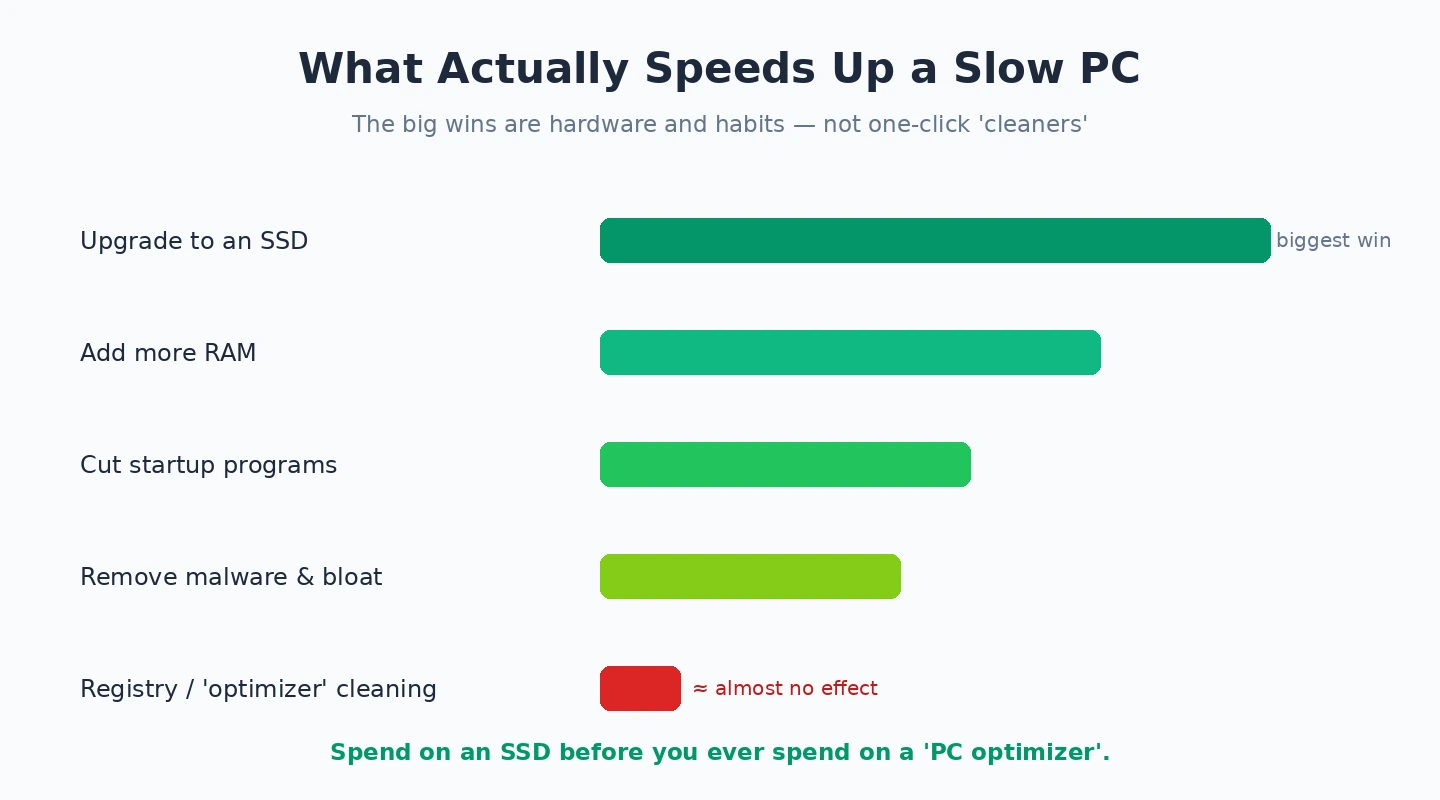
Is your drive a traditional HDD or an SSD? Modern Windows 11 was designed with SSD-equipped computers in mind, and Windows on traditional spinning hard drives is genuinely slow regardless of optimisation effort. If you are still on an HDD, the most cost-effective performance improvement is replacing it with an SSD — typically $50-100 hardware investment with dramatic performance gains that no software can match.
Has performance changed recently or has it always been like this? Recently degraded performance suggests something specific happened — a malware infection, an application installation, a Windows update issue, or hardware deterioration. Long-standing slow performance suggests the computer’s hardware specifications are inadequate for current Windows usage rather than something that can be fixed by tools.
Is the slowness consistent or specific to particular activities? Slowness during web browsing suggests browser-related issues (tabs consuming memory, extensions causing problems, network issues). Slowness during file operations suggests storage issues. Slowness across all applications suggests system-level problems. Each category has different appropriate responses.
For users whose answers reveal RAM limits, storage capacity issues, HDD-versus-SSD positioning, or recent malware infections, optimisation software is the wrong tool. For users whose answers do not reveal any of these, the limited situations where optimisation software actually helps are covered below.
The Built-In Tools That Actually Work: Disk Cleanup and Storage Sense
Windows 11 includes Disk Cleanup (legacy) and Storage Sense (newer) that handle the legitimate optimisation work that does produce real benefits. These tools cost nothing, work without third-party software, and address the genuine optimisation use cases.
Storage Sense (Settings → Storage → Storage Sense) automatically manages temporary files, files in the Recycle Bin, and Downloads folder content based on configurable rules. For users who do not clean up these locations manually, Storage Sense recovers disk space automatically over time. The default configuration is reasonable; users can customise behaviour through the settings.
Disk Cleanup (search for “Disk Cleanup” in the Start menu) provides more detailed control over what gets cleaned. The tool identifies categories of files that can be safely deleted — Windows Update cleanup files (which can be tens of gigabytes after major updates), system error memory dumps, temporary internet files, and various other categories. For users who specifically want to recover disk space, Disk Cleanup is more thorough than Storage Sense’s automatic behaviour.
The Settings → Apps → Installed apps view, sorted by size, identifies large applications that you may no longer need. Removing unused applications recovers disk space directly and removes their startup contributions to overall system load.

Task Manager → Startup tab shows what applications launch when Windows starts. Disabling applications you do not actively use (chat apps, syncing utilities, hardware utilities for hardware you no longer have) reduces boot time and ongoing memory usage. The “Startup impact” rating shows which applications affect boot time most substantially.
For the realistic optimisation use cases, these built-in tools handle what needs to be done. The third-party alternatives below address specific cases where the built-in tools are inadequate or provide visibility that the built-in tools do not.
For Removing Specific Bloat: Malwarebytes
Malwarebytes (free for on-demand scanning, paid Premium at around $44.99/year; malwarebytes.com) addresses one specific category of PC optimisation that the built-in tools handle poorly — removing potentially unwanted programs (PUPs), browser hijackers, adware, and similar bloat that traditional antivirus sometimes does not flag aggressively enough.
The case for Malwarebytes specifically as an optimisation tool is real for users whose slow performance is caused by accumulated PUPs rather than genuine malware or hardware limits. Free software that “happened to install” alongside other downloads, browser extensions added through deceptive prompts, system “utilities” installed through bundled installers — all of these contribute to performance degradation in ways that Disk Cleanup and Storage Sense do not address.
The free version handles on-demand scanning adequately. Running Malwarebytes monthly to identify and remove PUPs is a reasonable practice for users who occasionally install software from various sources. For users whose computer use is concentrated in well-established applications from reputable sources, the PUP accumulation may be minimal and even occasional scans may be unnecessary.
The realistic positioning of Malwarebytes in the optimisation context is as a specific tool for the specific PUP problem, not as a general performance optimisation tool. Users whose performance issues are PUP-related see real improvement from Malwarebytes; users whose performance issues are different see no improvement and have wasted effort.
For PC optimisation, Malwarebytes is genuinely useful when the actual problem is what it addresses, and useless when the problem is something else. Our malware removal tool comparison covers Malwarebytes in more depth as well as alternatives for the related malware-specific scenarios.
For Windows Privacy and Telemetry: O&O ShutUp10++
O&O ShutUp10++ (free; oo-software.com) addresses a specific PC optimisation concern that is more about privacy than performance — controlling the various telemetry, advertising, and tracking features that Windows enables by default. While the performance impact of these features is typically small, the privacy and resource implications matter to some users.
The case for ShutUp10++ specifically is when you want fine-grained control over Windows’ privacy and telemetry settings without manually configuring dozens of individual options. The tool presents the relevant settings in one interface, with recommended configurations that disable the most invasive defaults while warning about settings that could break functionality if changed.
The realistic benefit for performance is modest. The telemetry and advertising features consume some background resources, but not enough that disabling them produces dramatic performance improvement. The real value is privacy-focused rather than performance-focused. For users who specifically want both privacy and the modest performance benefit, ShutUp10++ produces both.
The honest concerns are about over-restriction. Some settings the tool can disable produce broken behaviour in specific Windows features. The “recommended” configuration is reasonable for most users, but users who disable additional settings should be prepared for some features to stop working in unexpected ways. The tool warns about this, but the warnings require user judgement to apply.
For users with specific privacy concerns about Windows defaults, ShutUp10++ produces real value. For users whose performance concerns are not actually telemetry-related, the tool addresses a different problem than they think.
For Hardware Diagnostics: HWiNFO and CrystalDiskInfo
For users whose PC performance issues may be hardware-related, diagnostic tools that show what your hardware is actually doing provide information that optimisation tools cannot. These tools do not optimise — they diagnose, which is often what the situation actually needs.
HWiNFO (free; hwinfo.com) provides comprehensive system information including real-time monitoring of CPU temperatures, fan speeds, memory usage, and various hardware sensors. For users investigating whether thermal throttling, hardware faults, or specific component issues are causing performance problems, HWiNFO produces information that no optimisation tool provides.
The specific use cases where HWiNFO matters: CPU running at high temperatures during normal use (suggesting cooling problems), GPU memory errors appearing in monitoring (suggesting hardware issues), specific sensor readings outside normal ranges that indicate component problems. For users whose performance issues stem from these specific causes, hardware-aware diagnosis is the appropriate response rather than software optimisation.
CrystalDiskInfo (free; crystalmark.info) provides specifically storage drive health information. The tool reads SMART data from drives that reveals impending hardware failures, bad sector counts, drive operating temperature, and various health metrics. For users whose slow performance might be caused by a failing drive, CrystalDiskInfo identifies the problem clearly enough to motivate appropriate response (data backup and drive replacement).
The case for both tools is for users whose performance issues warrant diagnostic investigation rather than generic optimisation attempts. For users whose problems are clearly hardware-related (specific to certain operations, accompanied by hardware noises or symptoms, occurring on older hardware), diagnostic tools serve better than optimisation tools.
What CCleaner Has Been (And Where It Sits Now)
One specific product that historically dominated PC optimisation discussions deserves separate treatment. CCleaner (ccleaner.com; free with paid Pro tier) was the established PC optimisation tool for many years and remains widely recommended in older articles.
The honest current positioning of CCleaner is more complicated than its history suggests. The 2017 malware incident in CCleaner installer files damaged the product’s reputation among security-aware users. The Avast acquisition produced product direction changes that some users disliked. The current product is genuinely functional but the case for CCleaner specifically over the alternatives above has weakened substantially.
For users specifically wanting CCleaner-style cleanup, the realistic alternatives are using Disk Cleanup and Storage Sense (built-in, free, equivalent results) and Malwarebytes (better for PUP removal). The remaining unique CCleaner features (registry cleaning) are arguably counterproductive — Windows registry cleaning rarely produces meaningful performance benefits and occasionally produces stability problems. For new users in 2026, the built-in Windows tools and targeted alternatives like Malwarebytes produce equivalent or better results without the complications.
What Iobit and Similar Products Sell That Often Does Not Help
Some PC optimisation products specifically deserve cautious evaluation because their marketing implies benefits that the actual products do not reliably produce.
Iobit Advanced SystemCare (iobit.com) and similar comprehensive optimisation suites bundle many features (registry cleaning, browser optimisation, privacy cleanup, system tweaks, real-time protection) with aggressive marketing claims about performance improvement.
The honest assessment of these products is mixed. The cleanup operations they perform are technically real — deleting temporary files, removing unused registry entries, optimising specific Windows settings. The performance impact of these operations is typically negligible because the underlying problems (RAM limits, storage capacity, hardware specifications) are not what the cleanup addresses. The marketing implies dramatic performance gains that the actual product cannot reliably produce.
The realistic concerns extend beyond marketing exaggeration. Some products in this category have included aggressive upsell prompts, scareware-style warnings about “critical issues” that are routine cleanup items, and bundled software installations that some users find inappropriate. The cleanup operations themselves are usually safe, but the overall product experience often produces buyer regret.
The honest framing is that comprehensive PC optimisation suites are mostly marketing rather than substantive performance tools. For users whose problems are addressable by the operations these tools perform, the built-in Windows tools handle the work equivalently without the marketing or bundled additional features. For users whose problems are not what these tools address, the suites produce no improvement regardless of how much you pay. Our driver updater software comparison covers a related category that has similar marketing patterns and similar limitations.
The Hardware Upgrade Path That Often Works Better
One framing point worth making explicitly: when PC optimisation software does not produce the performance improvement you want, the realistic alternative is usually hardware upgrades rather than different software. The hardware improvements that consistently produce meaningful performance gains.
RAM upgrades produce dramatic improvement for users running out of memory. If your Task Manager regularly shows RAM usage above 80%, adding more RAM (from 8 GB to 16 GB, or 16 GB to 32 GB) produces performance improvement that no software optimisation can match. For laptops where RAM is upgradable (verify before purchasing), this is often the most cost-effective performance upgrade.

SSD upgrades produce dramatic improvement for users still on traditional spinning hard drives. The performance difference between HDD and SSD is genuinely transformative for Windows. For users on older computers with HDD storage, $50-100 SSD investment plus the migration effort produces performance that feels like a different computer.
Storage capacity upgrades remove the “drive nearly full” performance bottleneck. Drives at 90%+ capacity are genuinely slow regardless of optimisation effort. Adding storage (replacing the drive with a larger one, or adding a secondary drive for media files) addresses this bottleneck.
For users on truly old hardware (more than 7-8 years), the realistic path is often complete replacement rather than upgrades. Modern Windows runs poorly on hardware from the early 2010s regardless of what you do to optimise it, and the cost of upgrades sometimes approaches the cost of a new computer that performs dramatically better. Our disk space analyzer comparison covers the related category for identifying what is actually consuming storage before deciding whether upgrades are needed.
What PC Optimization Software Cannot Do
The honest summary of what optimisation tools cannot fix, regardless of which tool you pick.
Inadequate hardware for current workload. RAM, storage type, and processor capability dominate performance. Software optimisation does not change hardware specifications.
Genuine malware infection. Real malware running on the computer requires malware removal rather than optimisation. The distinction between malware removal and PC optimisation is important even though some products bundle both.
Failing hardware. Drives near end-of-life, RAM with intermittent errors, and similar hardware problems require hardware replacement rather than software fixes.
Operating system corruption. Windows installations with deep corruption sometimes need clean reinstallation rather than optimisation. Tools that promise to “fix Windows” through optimisation rarely address actual corruption.
Driver problems. Specific hardware not working correctly requires driver-specific responses rather than generic optimisation tools.
Inadequate backup posture. Performance optimisation does not prevent data loss. The most important optimisation for most users is having proper backups that protect against the failure modes optimisation cannot prevent. Our Windows backup software comparison covers the actually-critical category that most users underweight.
The Practical Recommendation
For most users in 2026 experiencing slow PC performance, the answer is to diagnose first rather than installing optimisation software. Check RAM usage in Task Manager, check storage utilisation in Settings, identify whether you have an SSD or HDD, run a scan with Microsoft Defender or Malwarebytes to rule out malware, and use the built-in Windows tools (Disk Cleanup, Storage Sense, Task Manager startup management) to handle the legitimate optimisation work. For users whose diagnosis reveals specific causes — RAM limits, HDD storage, hardware failures — the appropriate response is hardware upgrades rather than software optimisation. For users whose diagnosis does not reveal these specific causes and who specifically want third-party optimisation tools: Malwarebytes for PUP removal, O&O ShutUp10++ for Windows privacy and telemetry control, HWiNFO and CrystalDiskInfo for hardware diagnostics. Avoid the comprehensive optimisation suites whose marketing promises performance gains the actual products rarely produce, including IObit Advanced SystemCare and similar products that prioritise marketing over substance. The wrong move is treating PC optimisation software as a generic solution to slow performance, because the realistic causes of slow performance rarely respond to what these tools actually do. Diagnose honestly, address the actual cause, and the category becomes a non-issue rather than ongoing subscription drain.