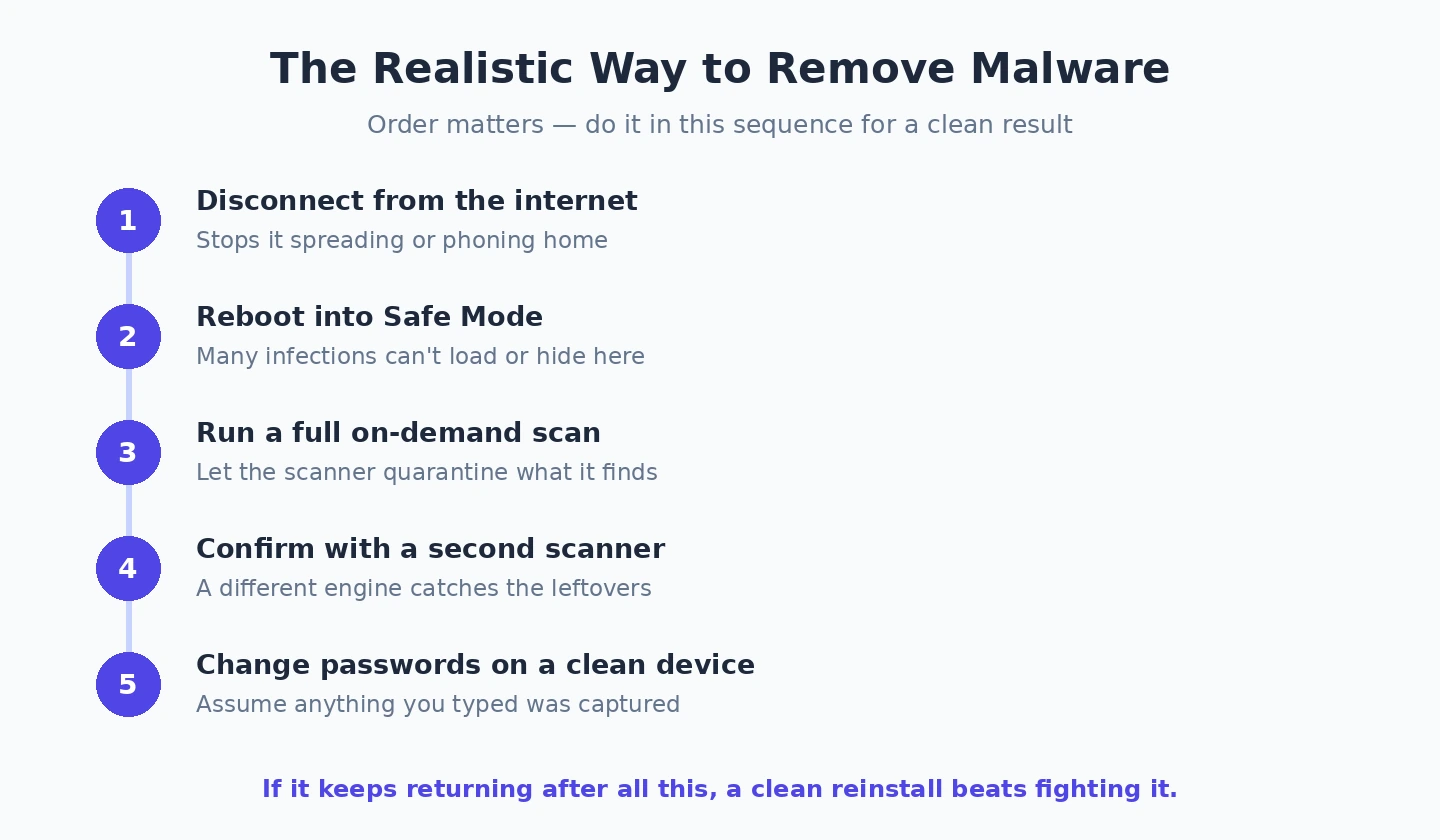
The honest opening point about malware removal tools is that there are two genuinely different categories sharing this name, and confusing them produces tool choices that fit neither situation well. Removal tools serve users whose computers are already infected and need cleanup — these are reactive, on-demand tools that scan for and remove specific malware. Prevention tools (antivirus) serve users wanting to avoid infection in the first place — these are proactive, real-time tools that intercept malware before it executes. Articles that lump these together as “best antivirus and malware removal” produce confused recommendations because the tools optimised for each are genuinely different.
The realistic decision tree starts with the question: do you currently have an infection you need to remove, or are you looking for protection against future infections? Users with active infections need on-demand removal tools that excel at cleaning up after the fact, ideally tools that detect threats their current antivirus missed. Users looking for prevention need antivirus that blocks threats before execution, where Microsoft Defender or alternatives handle the role described in our Windows antivirus comparison. The tools are complementary rather than competitive — users with established infections often need removal tools even when they have antivirus, because the antivirus failed to prevent the infection.
This guide focuses specifically on removal-oriented tools for the infection-already-present case. For broader context on the Windows security software stack, our guide to the best software and apps covers the adjacent categories.
The Diagnostic Questions Before Picking a Removal Tool
Before recommending specific malware removal tools, the realistic questions that determine whether removal tools are even the right response.
What symptoms suggest infection? Specific symptoms point to specific malware categories. Browser hijacks (different search engine, unwanted homepage, redirected searches) suggest browser-based malware. Unusual popups or ads in unexpected places suggest adware. System slowness combined with high background CPU usage suggests cryptominers or other resource-consuming malware. Specific ransom demands or encrypted files indicate ransomware. Each category responds best to slightly different removal approaches.
Have you actually identified malware, or is something else producing the symptoms? Many slow-computer complaints are actually hardware limits (insufficient RAM, full drives, HDD storage) rather than malware. Many popup complaints are actually browser settings or aggressive websites rather than installed malware. Before running malware removal tools, the realistic first step is checking whether the symptoms might have non-malware causes.
Has your antivirus already attempted removal and failed? If Microsoft Defender or another antivirus has already scanned and either found nothing or claimed to have removed everything but symptoms continue, the case for second-opinion removal tools is real. The antivirus that missed the original infection may not catch the leftover components.
Is the infection currently active and serious, or are you trying to clean up after an incident that has been contained? Active infections (ongoing data exfiltration, active cryptominers, working ransomware) need immediate attention and possibly professional help. Contained infections (you have already disconnected from the internet, you have already prevented the malware from doing more harm) allow more methodical cleanup approaches.
How important is the data on the affected computer? For computers containing irreplaceable data, the realistic approach may not be removal but rather backup-then-clean-reinstall. Removal tools may miss components and leave the system compromised; clean Windows reinstallation guarantees clean state. For computers where reinstallation is the eventual response anyway, time spent on removal may not be worth it.
For users whose answers identify genuine malware needing removal, the tools below apply. For users whose answers reveal different problems, addressing the actual issue matters more than running removal tools.
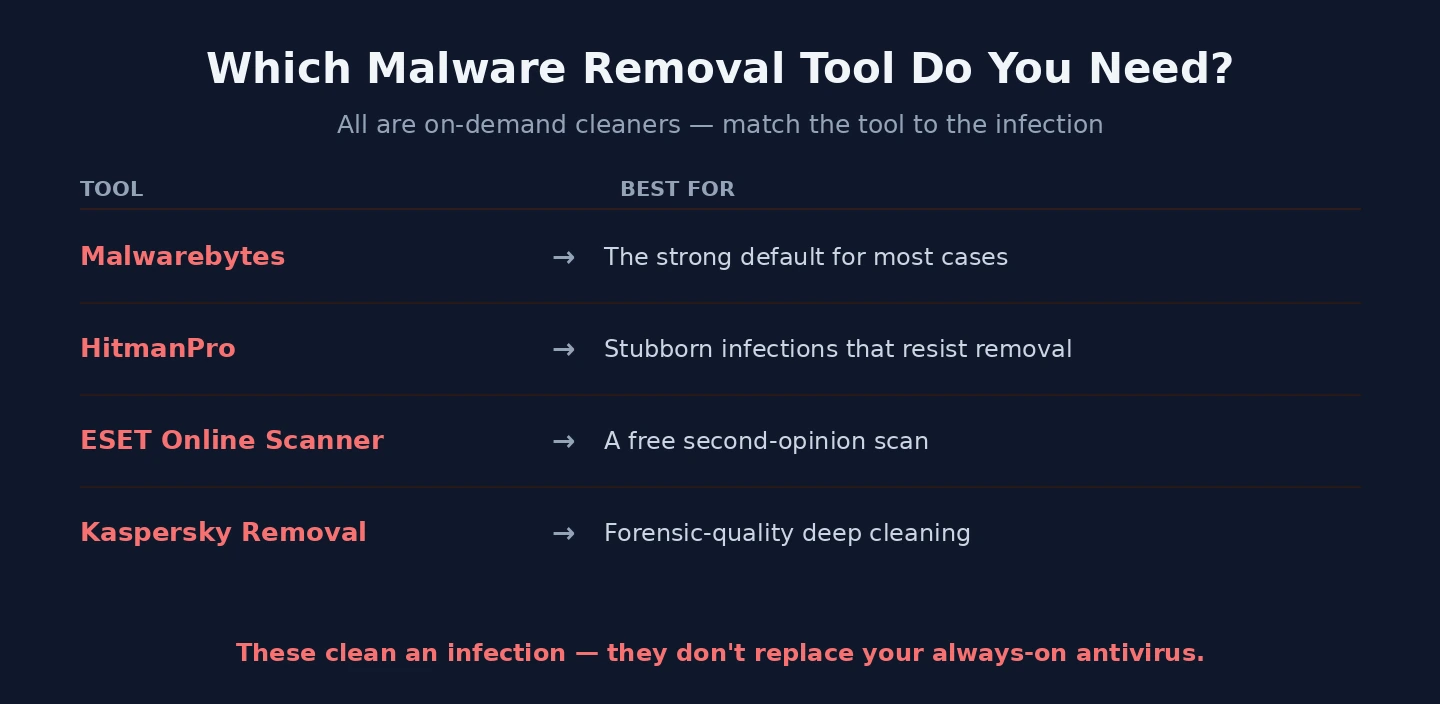
The Strong Default for Most Cases: Malwarebytes
Malwarebytes (free for on-demand scanning, paid Premium at around $44.99/year; malwarebytes.com) is the right default for most malware removal situations. The product has been refined over many years specifically for the on-demand removal use case, and its detection of categories that traditional antivirus underweights makes it genuinely valuable as a second-opinion tool.
The case for Malwarebytes specifically is the combination of detection focus and operational simplicity. The product targets adware, potentially unwanted programs (PUPs), browser hijackers, and similar threats that traditional antivirus sometimes does not flag aggressively. For the realistic infection patterns affecting most users — browser hijacks, advertising malware, accumulated PUPs — Malwarebytes catches what antivirus may have missed.
The free version is genuinely useful and handles the realistic case of “I think I have something nasty, let me scan and clean it up.” The on-demand scanning workflow is straightforward — install, scan, review findings, remove. The free version’s limitation is that it does not provide real-time protection; it only finds malware when you specifically run scans. For one-off removal use, this is exactly right; for ongoing protection, the paid Premium tier adds real-time scanning.
The strengths beyond the focused detection are real. The interface is genuinely accessible for non-technical users who are dealing with infection scenarios. The scanning speed is reasonable, and the results clearly identify what was found and what action to take. The cleanup is effective for the threat categories the product targets.
The honest concerns with Malwarebytes are about positioning shifts and the paid tier pressure. The product has expanded into broader security suite territory in recent years, with the paid Premium positioning approaching what general antivirus products provide. The free tier remains genuinely useful, but the upgrade prompts have become more aggressive than they used to be.
For users with active malware infections that need cleanup, Malwarebytes free is the right starting tool. For users who specifically want second-opinion scanning alongside their primary antivirus, Malwarebytes Premium provides this as ongoing capability. For most malware removal needs, Malwarebytes is the strong default with reason for its category dominance.
For Stubborn Infections That Resist Removal: HitmanPro
HitmanPro (30-day free trial, paid license at $24.95/year for one PC; hitmanpro.com) is the malware removal tool for cases where Malwarebytes and traditional antivirus have not fully resolved the infection. The product uses cloud-based scanning that identifies threats by querying multiple antivirus engines, which sometimes catches malware that single-engine scanners miss.
The case for HitmanPro specifically is for second-opinion scanning when first-line tools have not produced complete cleanup. The product’s portable nature (no installation required for scanning) means you can run it from a USB stick on infected computers where installing software is risky. The cloud-based detection produces broader coverage than any single antivirus engine.
The strengths for stubborn infection cases are real. The detection often catches rootkits and persistence mechanisms that other tools miss because they operate at deeper system levels. The removal handling for difficult threats includes specific techniques for malware that resists standard removal approaches.
The realistic concerns with HitmanPro are about pricing and the trial limitations. The 30-day trial provides full functionality but expires; users wanting ongoing access need to pay $24.95/year. For one-time removal needs, the trial covers the realistic scenario; for users wanting periodic second-opinion scanning, the cost adds up over time.
The case for HitmanPro specifically is concentrated in stubborn cases where the default removal tools have failed. For typical malware removal where Malwarebytes handles the situation, HitmanPro is unnecessary additional complexity. For specifically the cases where standard removal does not produce full cleanup, HitmanPro often resolves the remaining issues.
For Free Second-Opinion Scanning: ESET Online Scanner
ESET Online Scanner (free; eset.com/us/home/online-scanner) is the free alternative for users who want a second opinion from a different antivirus vendor than their primary one without paid commitment. The product runs as a portable scanner without installing alongside your existing antivirus.
The case for ESET Online Scanner specifically is the combination of free pricing and the different detection engine than mainstream alternatives. ESET’s detection technology is genuinely strong — the company’s products consistently rate well in independent testing — and the online scanner makes this capability accessible for one-off scanning at no cost.
The realistic positioning is as a complementary scanning option rather than a primary removal tool. For users wanting to verify that Malwarebytes and their primary antivirus have not missed anything, running ESET Online Scanner as a third check provides additional confidence at zero cost. For specifically the use case of “I want to be sure I am clean,” multiple scanners with different detection engines produce better confidence than relying on any single tool.
The honest concerns are about the limited scope. ESET Online Scanner is specifically for scanning, not for ongoing protection or advanced removal scenarios. For users wanting ongoing ESET protection or advanced features, ESET’s paid products (ESET NOD32, ESET Smart Security Premium) are the appropriate purchase. For free occasional second-opinion scanning, the Online Scanner is genuinely useful.
For Specifically Russian-Origin and Forensic Quality: Kaspersky Virus Removal Tool
Kaspersky Virus Removal Tool (free; kaspersky.com/downloads/free-virus-removal-tool) is the on-demand scanner from Kaspersky, separate from the broader Kaspersky antivirus product line. The product handles the on-demand scanning use case with the company’s well-regarded detection technology.
The case for Kaspersky Virus Removal Tool specifically is the detection quality. Kaspersky’s antivirus engines have consistently been among the strongest in independent testing for many years. For specifically the malware removal use case, this detection quality matters.
The case against is the same geopolitical consideration affecting all Kaspersky products. The US government has banned Kaspersky software for federal use citing concerns about Russian government influence, and various other governments have implemented similar restrictions. For users in regulatory contexts where these restrictions apply, Kaspersky tools are not appropriate. For users with elevated threat models, the concerns may matter even without specific regulatory requirements.
The honest framing matches the broader Kaspersky discussion — the technical product is competitive but the geopolitical considerations affect whether the tool is appropriate for specific users. For users without specific concerns who want the strongest possible detection for a one-time scan, Kaspersky Virus Removal Tool provides this. For users with concerns or in restricted contexts, the alternatives above produce similar results without the geopolitical complications.
The Realistic Malware Removal Process
One framing point worth making explicitly: malware removal is a process rather than a single scan, and following the process produces better outcomes than just running a tool.
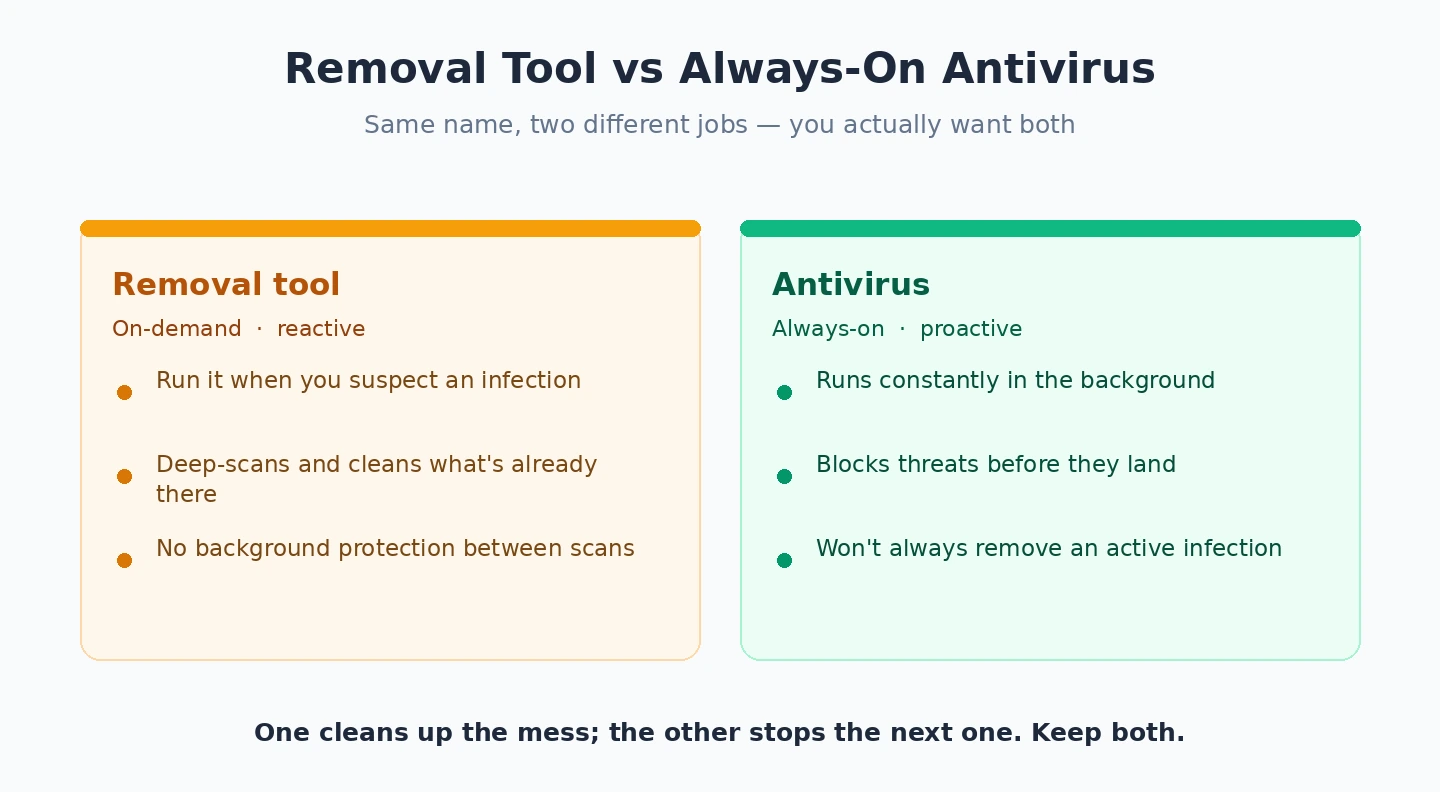
The realistic removal process starts with isolation. If you suspect active malware, disconnect the affected computer from the internet (unplug ethernet, disable wifi) before doing anything else. This prevents the malware from communicating with command-and-control servers, exfiltrating additional data, or spreading to other devices on your network.
Boot to Safe Mode for the scanning. Windows Safe Mode loads minimal drivers and services, which often prevents malware from running during the scan. This makes detection and removal more reliable than scanning while the malware is actively running.
Run the primary removal tool. Malwarebytes is usually the right first scan because of its specific focus on the threats most likely to be present. Allow the scan to complete fully rather than stopping it partway through, and remove everything the scanner flags rather than picking through findings selectively.
Run a second scanner from a different vendor. After the primary removal, scanning with a different engine (ESET Online Scanner, HitmanPro, or Kaspersky Virus Removal Tool) catches threats the first scanner may have missed. Different scanners have different detection patterns, and multi-engine scanning is more thorough than single-engine.
Check for persistence mechanisms. After standard malware removal, checking for unexpected scheduled tasks, startup programs, browser extensions, and registry modifications catches malware components that survive the scanning process. The Task Scheduler, Startup tab in Task Manager, browser extension lists, and Autoruns from Microsoft’s Sysinternals all reveal these persistence mechanisms.
Verify the cleanup. After completing removal, monitor the computer for signs that the original symptoms continue. Persistent symptoms after cleanup attempts indicate either incomplete removal or that the original symptoms were not actually malware-caused. Either case warrants further investigation rather than declaring the cleanup complete.
Consider whether reinstallation makes more sense. For computers with serious infections, particularly those that may have included rootkits or boot-sector malware, complete Windows reinstallation produces guaranteed clean state that no removal tool can match. The time invested in thorough removal sometimes exceeds the time for clean reinstallation, and reinstallation is the only response that produces certainty about cleanliness.
When Reinstallation Beats Removal
One framing point worth making about the broader malware response: for serious infections, clean Windows reinstallation is often the right response even when removal tools might eventually work. Understanding when each approach makes sense affects your strategic response to infection.
The cases where reinstallation is genuinely the right response: ransomware infections where files have been encrypted, infections that have established kernel-level persistence (rootkits), infections that have been on the system for an unknown long time, infections that have included keyloggers or credential theft components, and infections that have affected business-critical systems where complete cleanliness assurance matters.
The cases where removal makes more sense: clearly defined adware or browser hijack infections, recent infections that you caught quickly before they could establish deep persistence, infections on systems where reinstallation would lose substantial setup work and the infection severity does not justify it, and infections where backup-then-reinstall would be more time than the situation warrants.
The realistic decision factors: how confident you can be that removal achieved full cleanup, what data on the system you cannot afford to lose, how much setup time reinstallation would require, and what the consequences of continued partial infection would be. For computers containing irreplaceable data with serious infections, the realistic approach is backup the data to external storage, verify the backup is clean (scan it from a different computer), reinstall Windows, restore the verified-clean data.
For business and professional systems where compromise has significant consequences, the recommendation often defaults to reinstallation regardless of how confident the removal seems, because the risk of incomplete cleanup outweighs the inconvenience of reinstallation. For personal systems where the consequences are lower, removal followed by careful monitoring is often acceptable. Our encryption software comparison covers the related category for protecting data before infections happen.
The Prevention That Makes Removal Less Necessary
One framing point worth making explicitly: malware removal is a response to a problem that better practices would have reduced. Users who maintain proper security posture face malware incidents less frequently and less seriously than users who do not.
The practices that genuinely reduce malware incidents: keeping Windows and applications updated promptly (most successful attacks exploit known vulnerabilities), running with non-administrator accounts for daily use rather than as administrator, using a reputable browser with appropriate security settings, being careful about download sources and email attachments, and using strong unique passwords through a password manager.
The practices that produce false security but rarely help: stacking multiple antivirus products simultaneously (which produces conflicts more than protection), elaborate registry tweaks marketed as security improvements, and the various aftermarket “security” products that promise comprehensive protection through unclear means.
For users who recently had infections that motivated reading this article, the realistic improvement opportunity is honest assessment of how the infection happened and what practices would have prevented it. Was it a specific download? Was it an email attachment? Was it a vulnerable application that should have been updated? The answer identifies what specific practice to improve going forward. Our firewall software comparison and Mac antivirus comparison cover related security categories that contribute to comprehensive protection.
The Practical Recommendation
For most users in 2026 dealing with malware removal, the answer follows from the specific situation. Active infection that needs cleanup: Malwarebytes free as the strong default first tool, supplemented by ESET Online Scanner for free second-opinion verification. Stubborn infections that resist initial removal: HitmanPro for the cloud-based detection that catches what single-engine tools miss. Highest detection quality for one-time cleanup without geopolitical concerns: Kaspersky Virus Removal Tool for the strong detection, considering the geopolitical context for whether this is appropriate for your situation. Serious infections that have established deep persistence: clean Windows reinstallation rather than attempted removal, because the certainty of clean state beats the speculation of complete cleanup. The wrong move is treating malware removal as equivalent to antivirus, because the tools optimised for each are different and the situations they address are different. Address active infections with appropriate removal tools, follow the realistic removal process rather than just running scans, recognise when reinstallation produces better outcomes than removal attempts, and improve the practices that reduce future incidents. The removal category produces real value for the situations it actually addresses; the prevention category (antivirus, security practices) addresses the upstream problem that makes removal less necessary.
Building those prevention habits is what keeps removal tools on the shelf. Our full security and privacy guide lays out the practices that reduce infections in the first place.