


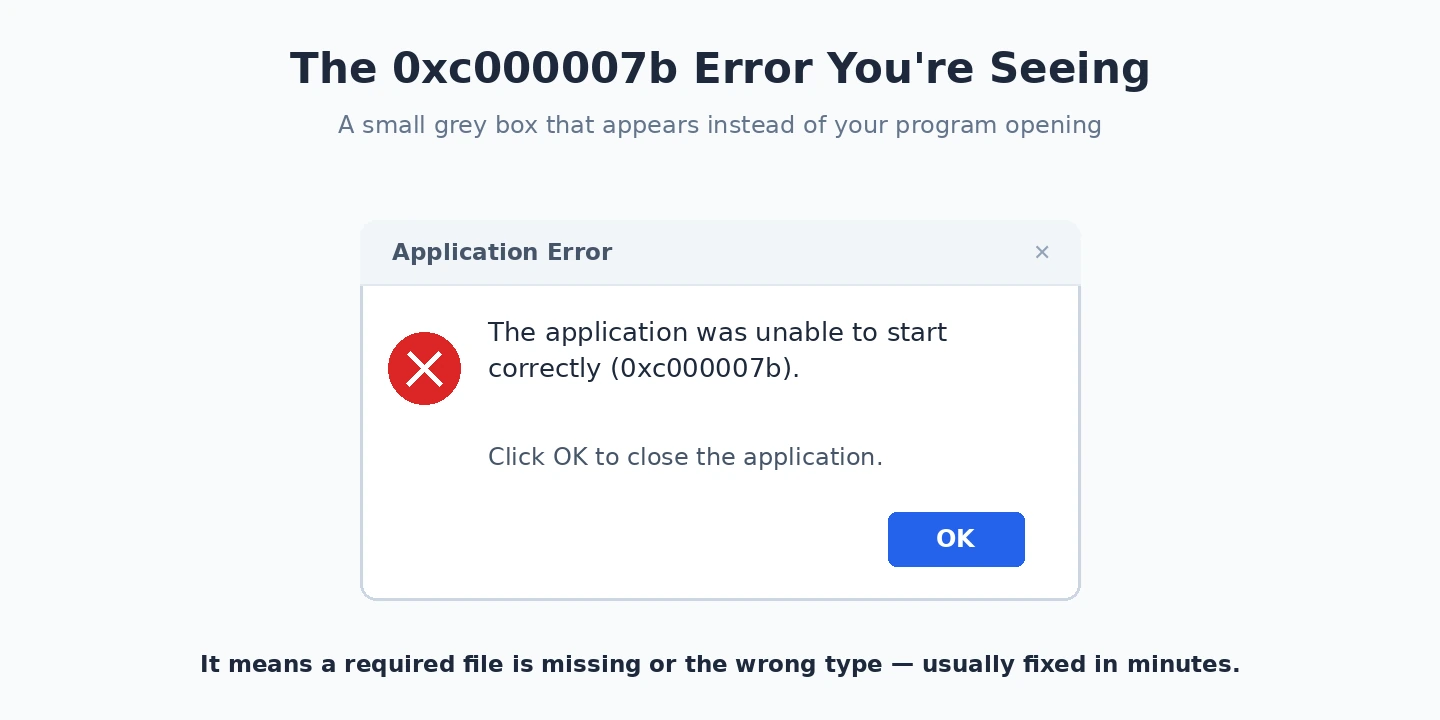
You double-click a program or launch a game, and instead of opening you get a small grey box: “The application was unable to start correctly (0xc000007b). Click OK to close the application.” It is one of the most common application errors on Windows 11, and it is also one of the more misunderstood — people assume the program itself is broken, when in reality the 0xc000007b error is almost always about the supporting libraries that program needs to run.
The encouraging part is that this is a software problem with well-understood fixes, and you can almost always clear it yourself in a few minutes. In this guide I will explain what 0xc000007b actually means, then give you the fixes in the order that resolves it most often, so you can stop as soon as the program opens again.
What the 0xc000007b error is telling you
At its core, the 0xc000007b error means a program tried to load a component it depends on, but the version it found did not match what it expected. The single most common reason is a mismatch in the runtime libraries that thousands of Windows applications rely on — chiefly the Microsoft Visual C++ Redistributables, the .NET Framework, and DirectX. When one of these is missing, outdated, or corrupted, an app that needs it cannot start and Windows reports 0xc000007b.
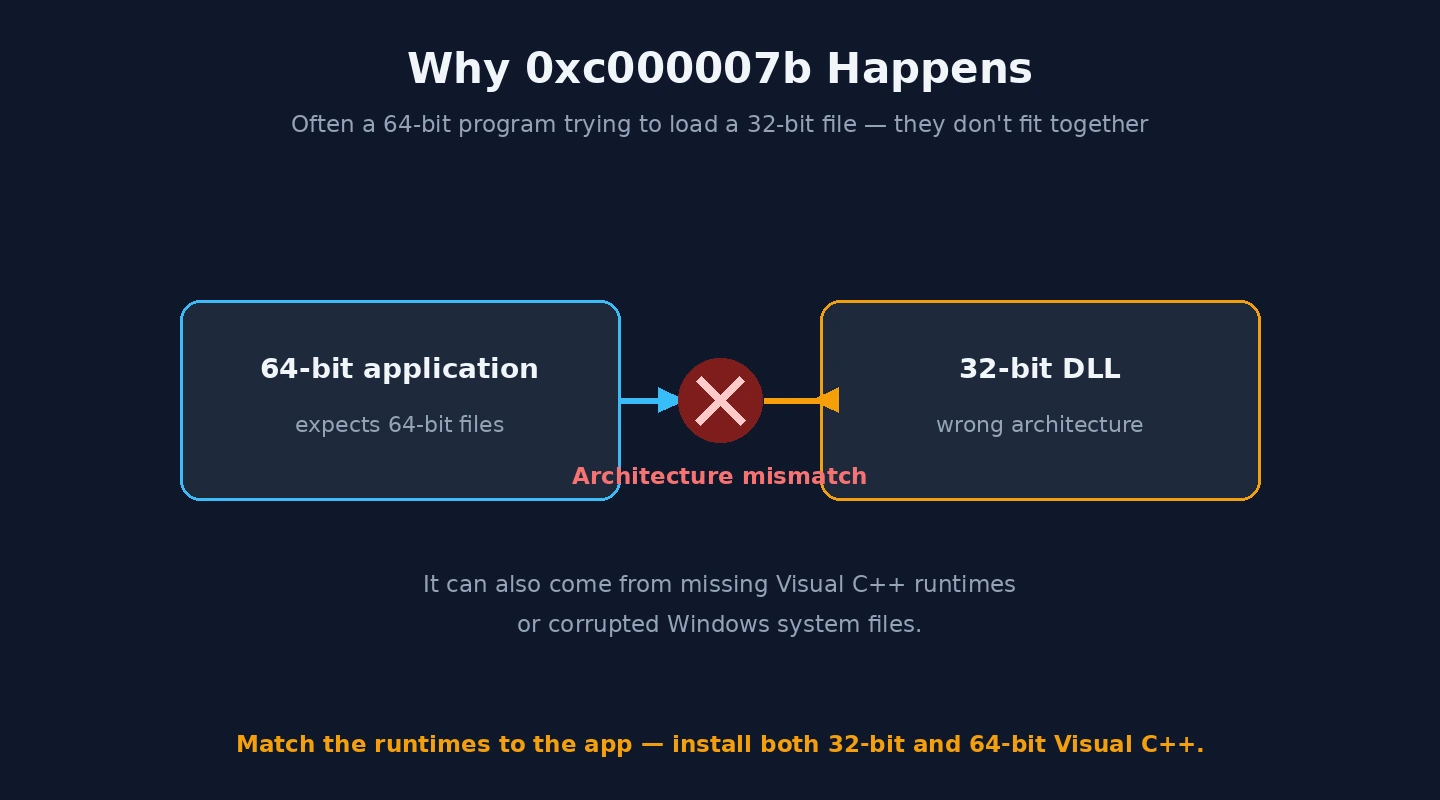
There is a more specific flavour of this too: a 32-bit and 64-bit conflict. Programs are built as either 32-bit or 64-bit, and they must load matching 32-bit or 64-bit support files. If a 32-bit application ends up trying to load a 64-bit library (or the reverse), the result is the 0xc000007b error. This is why the problem sometimes appears after someone copies a DLL file from one place to another in an attempt to “fix” a different issue — they have unknowingly introduced the wrong architecture.
Understanding this shapes the whole approach. Because 0xc000007b is rarely about the application’s own files and almost always about its dependencies, the fixes that work are the ones that repair or refresh those shared runtimes rather than anything exotic. If you are seeing other application failures alongside this one, our guide on apps not opening in Windows 11 covers the wider picture, and you can decode any other error codes you encounter with our Windows error code lookup tool.
Start here: the fixes that work most often
Because the leading cause of 0xc000007b is a problem with the Visual C++ Redistributables, repairing or reinstalling them is where I always begin, and it resolves the error for a large share of people on its own. Many machines have several versions of these runtimes installed over the years, and if any one of them is damaged it can break an app, so the most reliable move is to refresh the whole set rather than guess which one is at fault.
Work through these in order and test the program after each step:
- Repair or reinstall the Visual C++ Redistributables. The current redistributable packages are published by Microsoft — the Microsoft website has the downloads and support resources you may find useful here. Install both the x86 (32-bit) and x64 (64-bit) packages so the matching libraries are present whatever the app needs.
- Update the .NET Framework / .NET runtimes. Many apps need a current .NET; installing or repairing it removes another common source of 0xc000007b.
- Update DirectX. Games and graphics-heavy apps in particular depend on it, and an out-of-date DirectX is a frequent trigger.
- Reboot and retry. A restart lets the freshly installed runtimes register properly before you launch the program again.
For a great many people, refreshing those three runtime families is the entire fix — the 0xc000007b error simply stops once the libraries match what the application expects. If the program still will not open after this, the cause is more specific, so move on to the architecture and repair steps below rather than reinstalling the runtimes a second time.
When it’s a 32-bit / 64-bit mismatch
If refreshing the runtimes did not help, the next most likely explanation for 0xc000007b is an architecture mismatch between the application and the files it is loading. This often shows up when a 32-bit program is installed on 64-bit Windows 11 and somehow pulls in a 64-bit library, or when files have been manually moved around. The fix is to make sure the application is loading the correct version of whatever it depends on, rather than a mismatched one.
The cleanest way to resolve a mismatch-driven 0xc000007b is to fully uninstall the affected program and reinstall it from a fresh, official download. A clean reinstall lays down the correct files for that application’s architecture and undoes any earlier tampering. If you previously copied a DLL into the program’s folder or into a Windows system folder to fix something else, remove it — that manual copy is a very common cause of this exact error, because the copied file is frequently the wrong bitness.
It also helps to install both the 32-bit and 64-bit Visual C++ Redistributables, as mentioned above, so that whichever architecture the app needs is available. The goal throughout is consistency: a 32-bit app loading 32-bit libraries, a 64-bit app loading 64-bit libraries. Once that alignment is restored, the 0xc000007b error clears. If a single program keeps failing while everything else runs fine, treat that program as the suspect and reinstall it cleanly rather than chasing system-wide changes.
Repairing the app and Windows system files
If 0xc000007b persists across more than one application, the problem may sit a little deeper — in damaged Windows system files rather than in any one program’s dependencies. Corrupted system files can stop runtimes from registering correctly, which produces the same error for multiple apps at once. This is where Windows’ built-in repair tools earn their keep.
Open an elevated command prompt or terminal and run the System File Checker with sfc /scannow. When that finishes, run the Deployment Image Servicing and Management tool with DISM /Online /Cleanup-Image /RestoreHealth to repair the underlying component store that SFC draws from. Between them, these two commands fix a wide range of system-file corruption, and a 0xc000007b error caused by damaged system files will often disappear once they complete and you reboot.
While you are at it, make sure Windows 11 itself is fully up to date, since cumulative updates include fixes to the very runtime and framework components involved here. If a specific program rather than the whole system is throwing 0xc000007b, also reinstall that program after the repairs — combining a clean app install with repaired system files covers both the application-level and system-level causes. Our broader walkthrough on apps crashing in Windows 11 goes further into general application stability if several programs are misbehaving.
When it only happens with one game or program
A 0xc000007b error that only affects one game or one application has a slightly different shortlist of fixes, because the issue is usually that program’s own installation or its specific dependencies. Games are especially prone to it, since they lean heavily on DirectX and the Visual C++ Redistributables, and a partial or interrupted install can leave those pieces broken for that title.
Start by running the program as an administrator, which resolves a surprising number of single-app cases. If that does not work and it is a game, use your game launcher’s built-in file verification to repair the installation — for titles on Steam, the Steam website has resources you may find useful on verifying local files, and most other launchers offer an equivalent option. Verification replaces any missing or damaged files, including the bundled runtimes many games install, which frequently clears a stubborn 0xc000007b.
If it is a regular application rather than a game, a clean reinstall from the official source is the equivalent step, and temporarily checking whether your antivirus is quarantining one of the program’s files is worth doing too, since an over-eager scanner can remove a needed library and cause 0xc000007b. The pattern of “everything works except this one program” almost always points back to that program’s files or runtimes — for example, app-specific issues like Word crashing or Microsoft Edge crashing follow the same logic of repairing the individual app first.
Why it happens, and how to avoid it
Pulling it together, the 0xc000007b error is fundamentally a dependency problem: an application could not load a matching version of a runtime library it needs, whether because that runtime is missing, outdated, corrupted, or the wrong architecture. Knowing that is what makes the error far less mysterious — nearly every fix above is just a different way of restoring those dependencies to a healthy, matching state.
To avoid running into 0xc000007b again, keep the common runtimes current and intact. Let Windows 11 install its updates, which maintain the .NET and related components, and reinstall the Visual C++ Redistributables if you ever suspect they have been damaged. Crucially, resist the temptation to fix unrelated “missing DLL” messages by downloading individual DLL files from random websites and dropping them into system folders — that habit is one of the most reliable ways to create a 0xc000007b error, and the files from those sites are often the wrong version or worse.
Install your programs and games from official sources, keep your antivirus from quarantining legitimate application files, and you will rarely see this error at all. If you would like a structured way to work through this or any related fault, our full guide to fixing Windows errors ties the tools together, and if you are not sure whether the problem is the app or something wider, the interactive PC troubleshooter can help you narrow it down from the symptoms.
A complete fix checklist
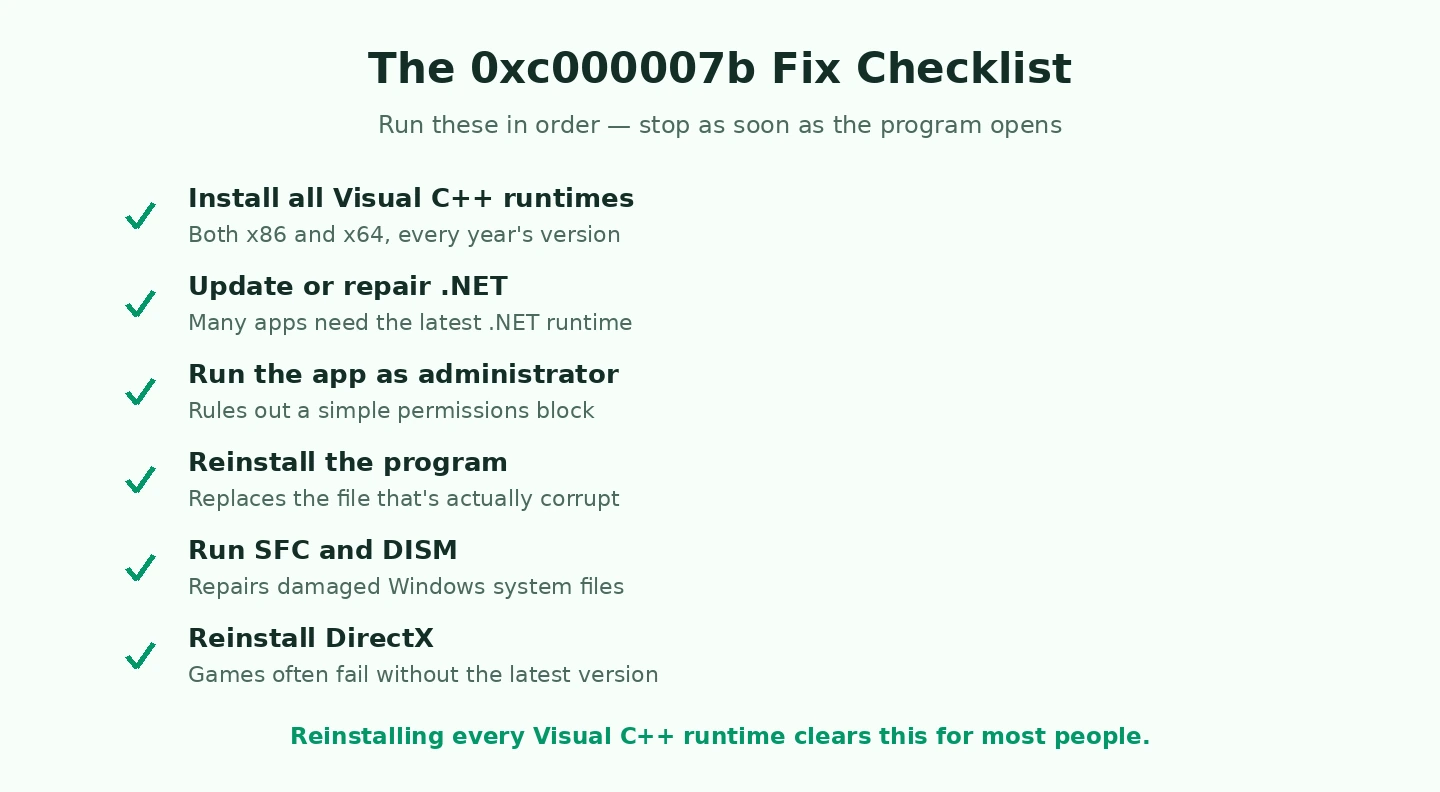
If you would rather follow a single sequence from start to finish, this is the exact order I work through for a 0xc000007b error. It escalates from the quickest, highest-yield steps to the rarer causes, so you spend the least effort possible before the program opens again:
- Reinstall both the 32-bit (x86) and 64-bit (x64) Visual C++ Redistributables, then reboot.
- Update or repair the .NET runtimes and DirectX.
- Run the affected program as an administrator.
- Uninstall and cleanly reinstall the app from its official source, or verify the game’s files in your launcher.
- Run
sfc /scannow, thenDISM /Online /Cleanup-Image /RestoreHealth, and reboot. - Install every pending Windows 11 update.
- Temporarily confirm your antivirus has not quarantined one of the program’s files.
- Remove any DLL files you previously copied into the program folder or a Windows system folder.
Most people never reach the bottom of that list. A 0xc000007b error usually clears within the first two or three steps, because the runtime libraries are the cause far more often than anything system-wide. Working top to bottom means you resolve it with minimal effort and only escalate when you genuinely have to. If a single program still shows 0xc000007b after every step, the safest conclusion is that its own download is corrupt or incompatible with your build of Windows 11, so fetch a fresh copy from the official source — and if it is very old software, check whether a newer release exists.
Advanced: pinpointing the exact missing component
For most people the broad fixes above are enough, but if you are comfortable digging deeper you can identify the precise library behind a 0xc000007b error rather than refreshing everything. This is entirely optional, and you should only bother with it if the standard fixes have not worked and you want to understand exactly which dependency is failing.
The two practical routes are Windows’ own logs and a dependency-inspection tool. Open Event Viewer and look under the Application log for an error logged at the moment the program failed; it will sometimes name the specific module involved in the 0xc000007b crash. For a more direct answer, a dependency-analysis utility can open the program’s executable and list every DLL it requires, flagging any that are missing or the wrong architecture — which points you straight at the 32-bit or 64-bit mismatch at the heart of many 0xc000007b cases.
Once you know the exact component, the fix is targeted: reinstall the specific runtime that provides it, in the correct architecture, rather than the whole set. That said, I want to be clear that this depth is rarely necessary — the broad runtime refresh and system-file repair resolve the overwhelming majority of 0xc000007b errors without ever needing to identify the individual file. Reach for this step only when you are troubleshooting a stubborn case that has resisted everything else.
0xc000007b: quick answers to common questions
Is the 0xc000007b error a virus?
In the vast majority of cases, no — 0xc000007b is a dependency or runtime problem, not malware. That said, because some malware does interfere with system files, and because antivirus software occasionally quarantines a legitimate library and triggers the error, it is reasonable to run a quick scan if you are unsure. But you should not assume an infection; start with the runtime and repair fixes above first.
Will reinstalling Windows fix 0xc000007b?
It usually will, because a clean Windows install lays down fresh runtimes and system files — but it is almost never necessary. The 0xc000007b error responds to the far quicker fixes covered here: refreshing the Visual C++ Redistributables, repairing system files, and reinstalling the affected app. Reserve a full Windows reinstall as a genuine last resort after everything else has failed.
Why did 0xc000007b appear suddenly when the program worked before?
A 0xc000007b error that appears out of nowhere usually means something changed underneath the app — a runtime got corrupted, a Windows update altered a component, antivirus removed a file, or a DLL was overwritten. The fixes do not change based on this; refreshing the runtimes and repairing system files addresses whatever the underlying change was. The “it worked yesterday” pattern is normal for this error and does not mean the hardware is failing.
Does 0xc000007b mean my files are at risk?
No. The 0xc000007b error only prevents a program from starting; it does not delete your documents or damage storage. Your personal files are not affected by the error itself. The fixes above are safe and reversible, and none of them put your data at risk, though keeping backups is always good practice.