After the recent headlines about billions of stolen logins circulating online, a lot of people are finally asking the obvious question: how do I stop reusing the same tired password everywhere? The honest answer is that you cannot do it in your head — you need a tool that remembers a different strong password for every account so you do not have to. Bitwarden is the one I recommend most often, because it is free, open-source, works on every device, and does not lock the essentials behind a paywall.
If you have been meaning to get your passwords under control but felt overwhelmed by where to start, this guide is for you. I will walk through exactly how to use Bitwarden from the ground up: creating your account, setting a master password you will not forget, importing your existing logins, installing the apps, and using the generator to replace weak passwords one by one. None of it is complicated, and you can be up and running in well under an hour.
By the end, you will have a single secure vault that fills in your logins automatically, syncs across your phone and computer, and quietly closes the door on the kind of password reuse that makes leaks so dangerous. Let us get into it.
What Bitwarden Is and Why It Is Worth Using
Bitwarden is a password manager: an encrypted vault that stores all of your usernames and passwords behind one master password. Instead of remembering dozens of logins — or worse, reusing one across everything — you remember a single strong master password, and Bitwarden handles the rest. What sets it apart is that the core product is genuinely free and open-source, so its security can be, and has been, independently audited.
The reason I keep coming back to Bitwarden is its zero-knowledge encryption. Your vault is encrypted and decrypted on your own device, which means Bitwarden’s servers only ever see scrambled data and could not read your passwords even if they wanted to. It runs on Windows, Mac, Linux, iOS, and Android, and plugs into every major browser, so your vault follows you everywhere. If you have used another manager before, my guide on how to use 1Password covers a paid alternative, but for most people Bitwarden’s free tier is more than enough.
It is worth being clear about who this is for: essentially everyone. Whether you have ten accounts or three hundred, learning how to use Bitwarden pays off immediately, because it turns password security from a chore into something that happens automatically. And given how much stolen credential data is floating around after recent breaches — the kind I covered in my write-up on the recent mega-leak of passwords — a unique password on every site is no longer optional.
Getting Started: Your Account and Master Password
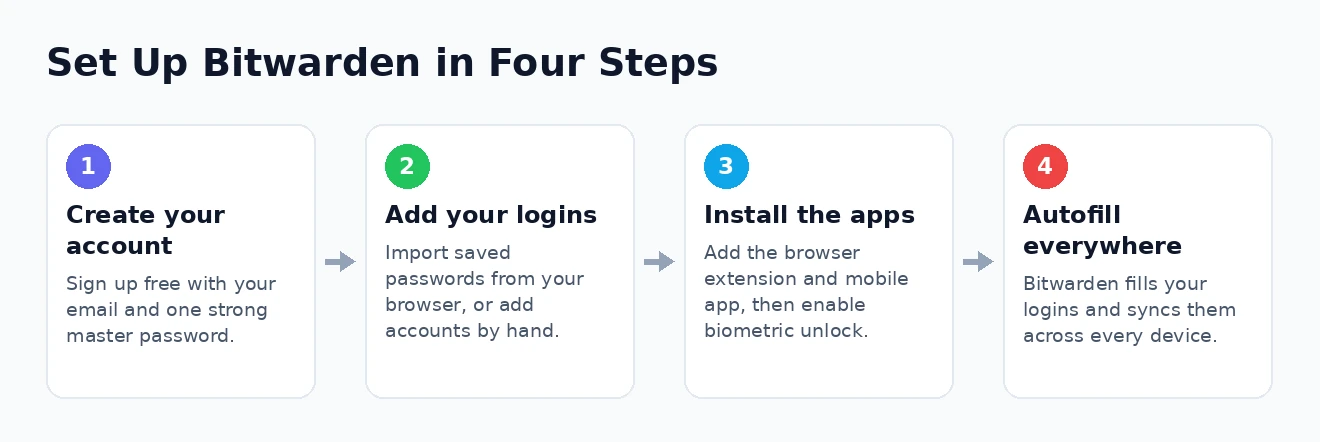
Setting up Bitwarden begins at its website or app, where you create a free account with your email address and, crucially, a master password. This one password unlocks everything, so it deserves real thought. The best approach is a long passphrase — four or five random words strung together with a number or symbol — which is both hard to crack and easy to remember. Do not reuse a password you have used anywhere else for this.
Because Bitwarden uses zero-knowledge encryption, nobody — not even Bitwarden — can reset your master password for you. If you forget it, you lose access to your vault. Write it down and store it somewhere physically safe until it is committed to memory.
During setup you can also add a hint and, importantly, turn on two-step login for the account itself, which I would do straight away. A password manager is a high-value target, so protecting the vault with a second factor is essential; my guide on passkeys versus passwords explains some of the modern options. Once your account exists and your master password is set, you have the foundation in place and can start filling the vault.
One habit worth building from day one: treat that master password as the single most important secret you own. Everything else in your digital life can be regenerated or reset through it, which is exactly why the rest of this guide on how to use Bitwarden matters so much once the account is live.
Adding and Importing Your Logins
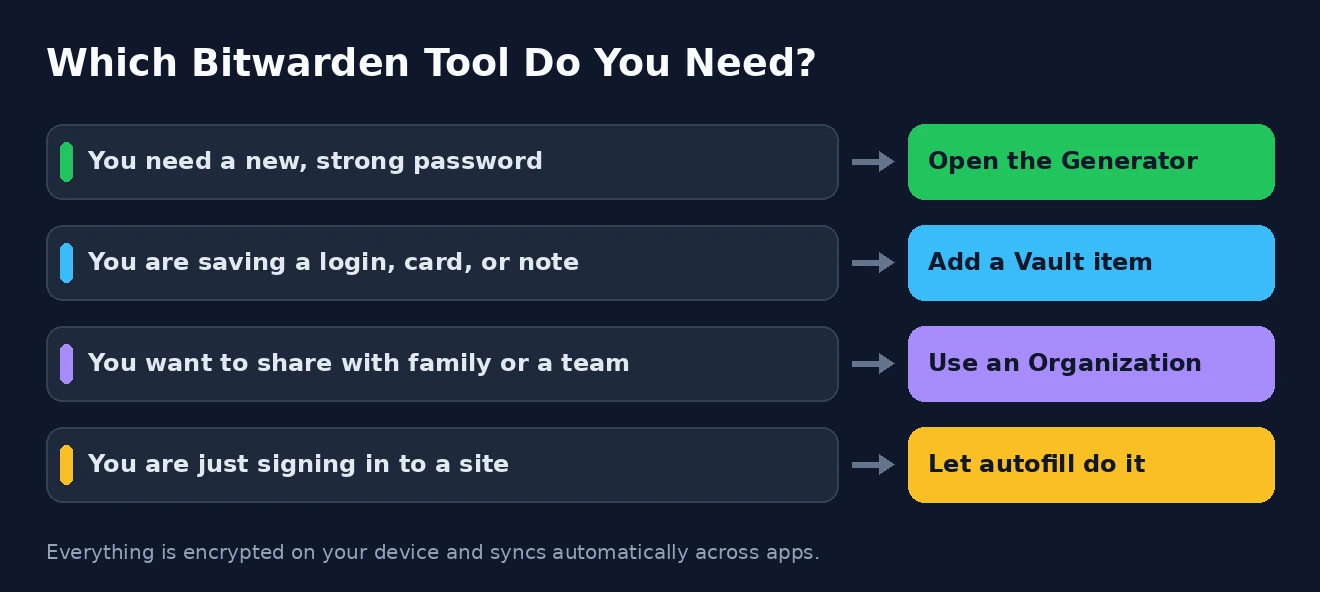
With your account ready, the next job is getting your existing passwords into the vault. You have two routes, and most people use both. The first is simply adding items by hand: click the plus button, choose the item type, and enter the site, your username, and password. Beyond logins, Bitwarden can store credit cards, identities for form-filling, and secure notes, so it becomes a home for far more than just website passwords.
The faster route is importing in bulk. Bitwarden can pull in passwords you have saved in Chrome, Firefox, Edge, or another password manager through a single import file, moving dozens of logins over in one go. If you have been relying on your browser to remember passwords, exporting them and importing them into Bitwarden is the moment your vault suddenly feels useful. After importing, delete the export file and clear the passwords saved in your browser so there is only one secure copy.
As you add items, use folders or collections to keep things tidy — grouping by category such as finance, work, and shopping makes the vault easier to navigate later. Do not obsess over organisation, though; Bitwarden’s search is fast, and the real value is simply having every login in one encrypted place rather than scattered across sticky notes and browser prompts.
Installing the Apps and Browser Extension
Bitwarden is only as convenient as it is accessible, so the next step is installing it everywhere you log in. The browser extension is the piece you will use most, because it detects login fields and fills them for you, and offers to save new logins as you create them. Installing it on your main browser is what turns Bitwarden from a storage locker into an everyday assistant.
- Install the browser extension for Chrome, Firefox, Edge, Safari, or your browser of choice from its add-on store, then sign in with your account.
- Install the mobile app from the Apple App Store or Google Play so your vault is on your phone, and enable fingerprint or face unlock for quick access.
- Optionally install the desktop app for Windows, Mac, or Linux if you prefer a standalone application alongside the browser.
- Sign in on each one — everything syncs automatically, so a password saved on your laptop appears on your phone within moments.
The mobile app is especially handy because it hooks into your phone’s autofill system, offering your saved logins inside other apps, not just the browser. Enabling biometric unlock means you get all of that convenience without typing your long master password every single time. Once the extension and the mobile app are in place, you have covered the two contexts — desktop and phone — where you do almost all of your logging in.
Using the Password Generator
Here is where Bitwarden starts actively improving your security rather than just storing what you already have. Built into the app and extension is a password generator that creates long, random, unique passwords on demand. Any time you sign up for something new or change an old password, you let Bitwarden generate one and save it — you never need to invent or remember it yourself.
The generator lets you tune the output: set the length (longer is stronger; aim for at least sixteen characters), and toggle uppercase, numbers, and symbols. If you occasionally need a password you might have to type by hand, switch it to passphrase mode, which strings together random words into something like “pilot-cobalt-lantern-42” that is strong yet memorable. For everything else, a long random string is ideal because you will never type it manually anyway.
The real power move is working through your most important accounts — email, banking, and anything tied to money first — and replacing each old, reused password with a freshly generated one. This is the single most valuable thing you can do after learning how to use Bitwarden, and it is exactly what neutralises leaked credentials. If you are worried an account may already be compromised, my guide on how to check if your email has been hacked is a good companion, as is setting up dark web monitoring to catch future exposures.
Autofill, Sync, and Everyday Use
Once everything is set up, Bitwarden mostly disappears into the background, which is the point. When you visit a site where you have saved a login, the extension shows a small indicator, and a click fills your username and password. On your phone, the autofill prompt appears above the keyboard inside apps and browsers alike. You go from typing passwords to simply approving them.
Syncing ties it all together. Because your encrypted vault lives in the cloud, any change on one device propagates to the others automatically — add a login on your desktop and it is on your phone by the time you pick it up. There is nothing to manage; it simply stays consistent everywhere. Combined with biometric unlock, the day-to-day experience is that you rarely type a password again, yet every one of them is long, unique, and strong.
It is worth spending a week just using it normally and letting Bitwarden offer to save logins as you go. New accounts get strong generated passwords automatically, and old weak ones surface naturally as you sign in to them, giving you a steady, low-effort path to replacing them. Before long, your vault reflects your entire digital life, and the mental load of remembering passwords is simply gone.
Free Versus Premium: What You Actually Need
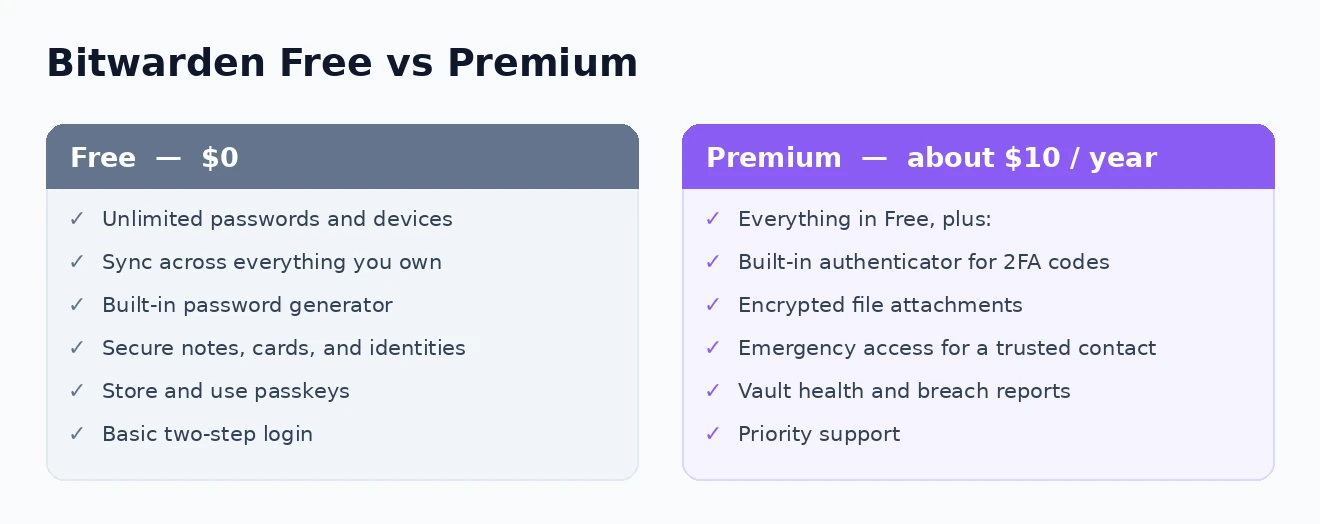
One of the best things about Bitwarden is that the free tier is not a crippled trial — it is a complete, genuinely usable password manager. Free gives you unlimited passwords, unlimited devices, syncing across all of them, the password generator, secure notes, and the ability to store and use passkeys. For the vast majority of people, that is the whole job done at no cost.
Premium, which costs around ten dollars a year at the time of writing, adds a handful of conveniences for power users. The headline feature is a built-in authenticator that generates your two-factor codes inside Bitwarden, along with encrypted file attachments, emergency access so a trusted contact can reach your vault if something happens to you, and vault health reports that flag weak, reused, or exposed passwords. There is also a Families plan if you want to share securely with a household.
My honest advice is to start on the free plan and only upgrade if you find yourself wanting those specific extras. You lose nothing by beginning free, and the core security — the encryption, the generator, the syncing — is identical either way. For most readers, the free version of Bitwarden will be all they ever need. If you want the bigger picture on locking down your accounts, our complete guide to security and privacy ties these habits together, and the Bitwarden website has resources you may find useful for the finer details.
Staying Secure With Bitwarden
A password manager dramatically improves your security, but it also concentrates it, so a few habits keep the vault itself safe. The most important is protecting your Bitwarden account with two-step login — ideally an authenticator app or a hardware security key rather than email codes. That way, even if someone somehow learned your master password, they still could not open your vault.
Beyond that, never reuse your master password anywhere else, keep your devices updated and free of malware, and be cautious of phishing sites that imitate the Bitwarden login page — always check the address, and rely on the extension, which will not autofill on a fake domain. These small disciplines are what turn Bitwarden from merely convenient into genuinely protective. Government security agencies echo this advice, and the CISA website has resources you may find useful on account protection.
Finally, think of Bitwarden as one strong layer in a broader plan rather than a magic bullet. Pairing it with unique passwords, two-factor authentication, and a little vigilance is what actually keeps you safe, and it is a far more effective combination than trying to prevent account takeover through memory and luck alone. Set it up once, build the habits, and your accounts are in a genuinely strong position.
How to Use Bitwarden: Frequently Asked Questions
Is Bitwarden really free?
Yes. Bitwarden’s free tier includes unlimited passwords, unlimited devices, syncing, and the password generator, with no time limit. A low-cost premium plan adds extras like a built-in authenticator and file attachments, but you can use Bitwarden fully and securely without ever paying.
Is Bitwarden safe to use?
It is widely regarded as one of the safest options available. Bitwarden uses zero-knowledge, end-to-end encryption, meaning your data is encrypted on your device and unreadable to Bitwarden itself. It is also open-source and has passed independent third-party security audits.
What happens if I forget my master password?
Because of that same zero-knowledge design, Bitwarden cannot recover or reset your master password — that is what keeps your vault private. If you forget it and have no recovery method set up, you lose access to the vault, which is why choosing a memorable passphrase and storing it safely at first is so important.
Can I use Bitwarden on my phone and computer together?
Absolutely, and that is a core part of how to use Bitwarden well. Your encrypted vault syncs automatically across the desktop apps, mobile apps, and browser extensions, so a password saved on one device is instantly available on the others without any manual copying.
That is everything you need to get started. Set up your account, move your logins in, let the generator replace the weak ones, and enable two-step login — and you will have turned password security from a constant worry into something that quietly takes care of itself.