Apple, Google, Microsoft, and the FIDO Alliance have jointly committed to passkeys as the replacement for passwords. More than just a better password — passkeys vs passwords represents a fundamental change in how authentication works. Google accounts, Apple ID, Microsoft accounts, GitHub, PayPal, 1Password, and hundreds of other major services now support passkeys. Understanding what passkeys are, how they compare to passwords on security and usability, and when to use each is the practical knowledge needed to navigate this transition. We go deeper on the whole subject in our Complete Guide to Online Security and Privacy.
The short version: passkeys eliminate entire categories of attacks that passwords cannot defend against. Phishing, credential stuffing, and brute force are all rendered ineffective because the authentication mechanism itself changes. But passkeys also introduce new considerations around device dependency and account recovery that passwords don’t have.
How each method works
Passwords are a secret shared between the user and the service — the user creates one, the service stores a hashed version, and the user presents it at login. The security depends on the password being hard to guess, the hash being hard to reverse, and neither side revealing it to an attacker. Every vulnerability in password-based authentication flows from this shared-secret model: passwords can be phished, stolen from service databases, or brute-forced.
Passkeys use asymmetric cryptography — the same fundamental technology as HTTPS certificates. When you create a passkey for a service, your device generates a key pair: a private key that never leaves the device, and a public key sent to the service. At login, the service sends a cryptographic challenge; the device signs it with the private key; the service verifies the signature with the stored public key.
The critical insight: the private key only signs challenges from the verified origin — the exact domain registered at passkey creation. A fake login page on phishing.attackersite.com receives nothing useful even if the user completes the “login” flow on it, because the domain doesn’t match. There’s also no shared secret to steal from the service’s database, because the service only ever holds the public key — which is intentionally public.
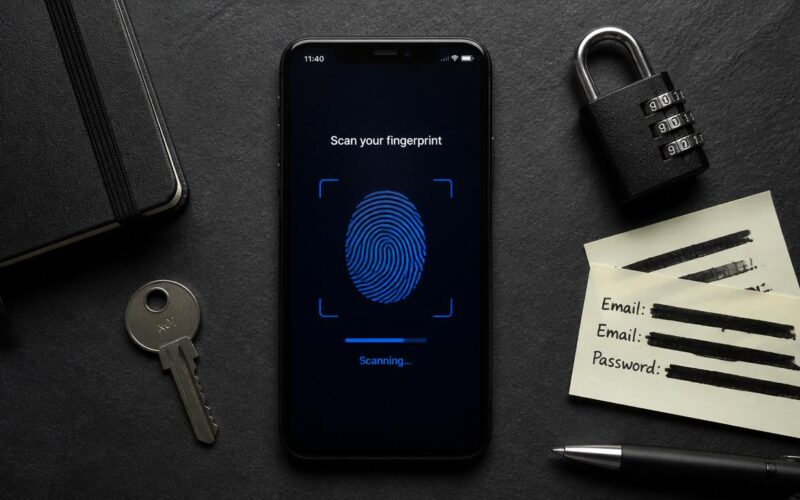
Biometric authentication (Face ID, Touch ID, fingerprint) or a device PIN is required to use a passkey because it unlocks the private key on the device. This is the “something you have plus something you are” combination built into a single step — you authenticate once with biometrics rather than typing a password and then entering a 2FA code. Faster for the user, more secure against attackers.
Security comparison — where passkeys are definitively better
| Attack type | Passwords | Passkeys |
| Credential stuffing (using breached username/password lists) | Vulnerable — all reused passwords exposed | Immune — no password to stuff |
| Phishing (fake login pages) | Vulnerable — users can be tricked | Immune — domain binding prevents credential extraction |
| Brute force / dictionary attacks | Vulnerable for weak passwords | Immune — 256-bit cryptographic key, not guessable |
| Database breach / hash cracking | Vulnerable if hash algorithm is weak or password is short | Immune — service never holds the private key |
| Keylogger on device | Vulnerable — keylogger captures the password | Largely immune — biometric/PIN activates key, doesn’t transmit it |
| Device theft / compromise | Protected if stored in password manager | Exposed if device PIN is weak or device is compromised |
The security advantage of passkeys over passwords for the first four attack categories is absolute, not marginal. These aren’t improvements in degree — phishing and credential stuffing simply don’t work against passkeys by design. The last row is the nuance: passkey security depends on device security. A device with a weak PIN, a compromised OS, or physical access by an attacker represents a risk. The Secure Enclave on iOS and Android, and TPM on Windows with Windows Hello, provide hardware-level key storage that raises the bar significantly — but it’s not unconditional.
Device-bound vs synced passkeys
This distinction matters practically more than most guides acknowledge:
- Device-bound passkeys (stored only on one device): strongest security — the private key physically cannot leave the device. If the device is lost: the passkey is lost, and you need to create a new passkey during account recovery using another authentication method.
- Cloud-synced passkeys (iCloud Keychain, Google Password Manager, 1Password, Bitwarden): accessible across all enrolled devices, making device loss manageable. The encryption-at-rest protection is strong, but the cloud account becomes part of the trust chain — which is why the cloud account (Apple ID, Google account) needs its own strong security.
For most users: synced passkeys in a password manager that stores them across devices is the right balance. Device-bound passkeys are most appropriate for hardware security keys (YubiKey) used for the highest-security scenarios.
Setting up passkeys — step by step
- Check whether the service supports passkeys. Passkeys.directory (maintained by the FIDO Alliance) lists every service with passkey support and implementation details. Not all services offer passkeys, and not all that do have made them easy to find.
- Navigate to the service’s security settings.
- Google: myaccount.google.com → Security → Passkeys → Use passkeys
- Apple ID: appleid.apple.com → Sign-In and Security → Passkeys
- GitHub: Settings → Password and authentication → Passkeys → Add a passkey
- Microsoft: account.microsoft.com → Security → Advanced security options
- Create the passkey. The service prompts you; your device handles key generation automatically using the platform authenticator. Face ID, Touch ID, fingerprint, or Windows Hello confirms the creation. The passkey is created and stored in seconds.
- Confirm sync is active so the passkey is accessible across your devices. iCloud Keychain: Settings → [Your Name] → iCloud → Passwords and Keychain → On. For 1Password or Bitwarden: the passkey appears in the vault entry and syncs automatically.
- Test the passkey login. Log out of the service and log back in using the passkey before trusting it as your primary login method. Confirm it works before removing the password as a backup.
- Keep the password as a fallback until passkeys are fully stable across all your devices and the recovery path is confirmed.
Step 4 — syncing to a password manager or iCloud Keychain — is the most important for avoiding lockout. A passkey stored only on a device that gets lost requires account recovery through whatever other authentication method exists. Synced passkeys are accessible from any enrolled device, making loss manageable without full account recovery.
When to use passkeys vs when to stick with passwords
In 2026, the ecosystem is still transitioning. Not every service offers passkeys, and some workflows have adoption challenges:
- Service supports passkeys: create a passkey and make it the preferred login method. Keep the password in the password manager as a fallback during the transition period.
- Service doesn’t yet support passkeys: use a unique strong password from the password manager plus authenticator-app 2FA — the strongest practical security available without passkeys.
- Shared accounts: passkeys are personal to the device/account that created them. Multiple people accessing a shared account each need their own passkey, or fall back to shared password + 2FA.
- Corporate environments: passkey adoption at work depends on the identity provider (Okta, Azure AD, Google Workspace). If the IdP doesn’t yet support passkeys, individual passkeys for consumer services don’t affect corporate authentication.
Our guides on using a password manager and setting up two-factor authentication cover the password-based security practices that remain the appropriate choice where passkeys are unavailable. For the complete list of services currently supporting passkeys, passkeys.directory provides a current, maintained list with implementation notes for each service.
Managing the passkeys vs passwords transition in practice
The transition creates a hybrid state where some accounts use passkeys, some use passwords with 2FA, and some are in between. A password manager that stores both passkeys and passwords in the same vault — 1Password and Bitwarden both do — provides a single interface for managing this hybrid state without separate tools for each authentication method.
An important coexistence consideration: if a passkey-enabled account is also accessible via password, an attacker who obtains the password can still access the account through the password login path. For accounts where you’ve created a passkey, consider strengthening the password as well — or, where the service supports it, removing or downgrading the ability to log in with just a password. Apple ID and GitHub both allow setting passkeys as the “required” method while keeping the password as an explicit fallback requiring additional verification.
Cross-device passkey portability is improving. iCloud Keychain syncs passkeys across Apple devices; Google Password Manager syncs across Android and Chrome. Password managers (1Password, Bitwarden) are adding cross-platform passkey sync that works across iOS and Android and between different desktop browsers. The FIDO Alliance’s Credential Exchange Protocol is developing standards for moving passkeys between password managers without re-enrollment — addressing one of the remaining practical limitations. As this infrastructure matures, the transition friction that currently makes passkeys contextual rather than universal will diminish.
Passkeys for less technical users — the usability argument
For users who struggle with remembering or managing passwords, passkeys remove the primary source of login friction and error. A password manager reduces friction significantly, but passkeys eliminate it more completely: tap the fingerprint, done. No typing, no copy-paste, no “I can’t remember which password I used here.”
This makes passkeys a genuine usability improvement for users who have historically struggled with the password management demands of the modern internet — not just a security improvement. If you’re setting up security for an elderly relative or someone who finds password management genuinely difficult, enabling passkeys on every service that supports it reduces both the security risk and the daily friction simultaneously. That combination — more secure and easier to use — is unusual enough in technology that it’s worth acting on wherever it’s available.
Enterprise passkey deployment considerations
For organisations evaluating passkeys for their authentication systems, the deployment model introduces considerations beyond individual users:
- Identity provider (IdP) support: Okta, Microsoft Azure AD, Google Workspace, and most major enterprise IdPs added FIDO2/passkey support through 2024–2025. Verify the specific IdP’s implementation before planning deployment.
- BYOD vs managed devices: BYOD environments where employees use personal devices to create passkeys introduce lifecycle questions about what happens to organisational account passkeys when the employee leaves or the personal device is replaced. Managed device environments (corporate-owned with MDM) provide cleaner passkey lifecycle management because the organisation controls the device.
- Recommended deployment path: start with IT-managed devices and internal tools, then extend to BYOD and consumer-facing authentication. This controlled path addresses management challenges before they become operational problems at scale.
- Legacy system coexistence: not all enterprise systems will support passkeys simultaneously. A hybrid authentication environment where some systems use passkeys and others use password + 2FA may persist for years — plan identity management accordingly.
Hardware security keys — passkeys at the extreme end
Hardware security keys (YubiKey, Google Titan Key) are physical FIDO2 devices that create device-bound passkeys. They represent the highest-security implementation:
- The private key is generated on the hardware key and physically cannot be exported
- Biometric or PIN requirement on the key itself adds a second factor within the hardware
- Completely phishing-resistant by FIDO2 design, like all passkeys
- Works across all devices with USB-A, USB-C, or NFC connectivity — not tied to any specific device’s ecosystem
Hardware security keys are the appropriate choice for accounts requiring the strongest available protection — journalist sources, high-value financial accounts, corporate administrative accounts, anyone with a specific threat model that includes targeted sophisticated attackers. For most users, platform passkeys (stored in iPhone Secure Enclave or Android hardware-backed keystore, synced via iCloud or Google) provide adequate security for everyday accounts at zero additional cost. If this sounds familiar, Secure Password Reset is worth a look.
The passkeys vs passwords transition is the most significant change in authentication security in the past decade — which is a high bar given that 2FA adoption was also a major shift. The difference is that 2FA added a step to the login process; passkeys replace the login process with something fundamentally more secure and actually easier. The services that support it today are worth enabling passkeys on now. The services that don’t yet support it will arrive over the next 1-2 years. The gradual transition, managed through a password manager that stores both, is how most users will navigate it without disruption. Our guide on Create Strong Passwords covers an adjacent issue.