
Windows does a great deal well, but anyone who lives in it all day eventually runs into the same small frustrations: windows that will not snap into the exact arrangement you want, a folder full of files that all need the same rename, text trapped inside a screenshot that you cannot select. None of these are big enough to switch operating systems over, yet together they add a surprising amount of friction to an ordinary day. Microsoft PowerToys is the free, official answer to almost all of them.
PowerToys is a single download that bolts a whole set of genuinely useful power-user utilities onto Windows — window management, bulk renaming, on-screen text capture, a fast launcher and more — and lets you switch on only the pieces you actually want. It is not a heavy third-party suite or a trial that nags you after a week; it comes straight from Microsoft, it is completely free, and it is open-source.
This guide explains what PowerToys is, how to install it safely, and the handful of modules that most people end up reaching for every day. I will also cover the two questions everyone asks — whether it is safe and whether it will slow your computer down — so you can decide which parts are worth turning on.
What Microsoft PowerToys is and why it is worth installing
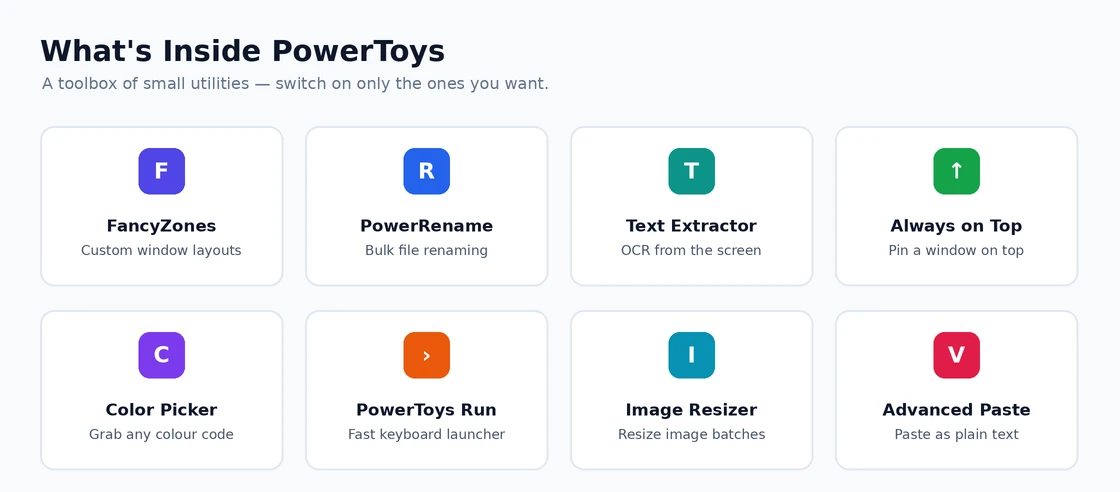
At its heart, PowerToys is a collection of small, independent utilities gathered under one roof. Each one solves a single, specific problem, and they all sit behind a tidy settings dashboard where you flip them on or off individually. You are never forced to take the whole bundle: if you only want better window snapping, you can enable that one module and ignore the rest entirely.
The reason I trust PowerToys in a way I would not trust a random utility from the internet is its provenance. It is built and maintained by Microsoft itself, released free of charge, and developed in the open as an open-source project, so the code is there for anyone to inspect. The Microsoft website has resources you may find useful if you want the official background on the project.
What makes PowerToys genuinely worth installing is that it fills gaps Windows leaves open, rather than duplicating things the system already does well. Many of its tools started life as features power users had begged for, and several have been so popular that Microsoft later folded similar ideas into Windows itself. Installing PowerToys is, in effect, a way to get tomorrow’s conveniences today, with no cost and very little risk.
How to install PowerToys
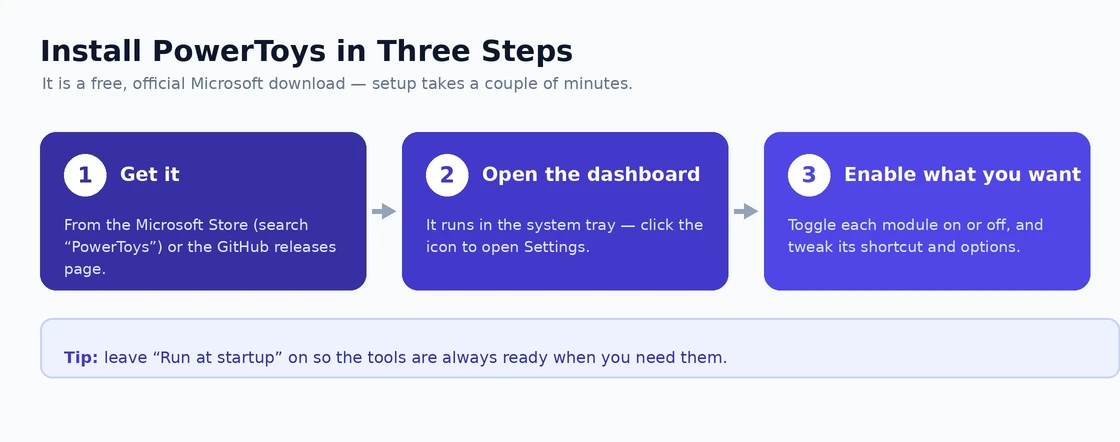
There are two official ways to get PowerToys, and both are completely free. The simplest is the Microsoft Store, which handles installation and future updates automatically. The alternative is the project’s releases page on GitHub, which is handy if you prefer to download the installer directly or want a specific version. The GitHub website has resources you may find useful if you go that route.
The process is quick:
- Open the Microsoft Store, search for PowerToys, and choose Get (or download the installer from GitHub and run it).
- Launch PowerToys once it is installed — it runs quietly in the background and places an icon in your system tray.
- Click that tray icon to open the Settings dashboard, where every module is listed.
- Toggle on the utilities you want, and leave the rest switched off.
One small decision worth making up front is whether to let PowerToys launch with Windows, which keeps its tools ready the moment you log in. I leave this on, because the background footprint is tiny. If you are the sort of person who likes to keep that list lean, our guide on managing startup programs in Windows 11 shows how to review everything that starts automatically, PowerToys included.
FancyZones: snap windows into custom layouts
FancyZones is the module I would install PowerToys for on its own. Windows can snap a window to half or a quarter of the screen, but FancyZones lets you design your own grid of zones — say, a wide central column with two narrow side panels — and then drop windows neatly into them. On a large or ultrawide monitor it transforms how much you can see at once.
Setting it up takes a couple of minutes: you open the FancyZones layout editor, pick or build a grid, and save it. From then on, you hold the Shift key while dragging a window and the zones light up, ready to catch it. It is one of those features that feels slightly fiddly to describe and completely natural after a day of use.
FancyZones pairs beautifully with the window-organising tools already in Windows. I use it alongside virtual desktops to keep different projects on separate screens, and a clean setup goes hand in hand with a tidy taskbar. Together they turn a cluttered desktop into something genuinely calm to work in, which is exactly the sort of quiet productivity win PowerToys is built to deliver.
Where FancyZones really earns its place is on an ultrawide or multi-monitor setup. You can build a layout that keeps a code editor in a wide central zone with a browser and a terminal stacked neatly beside it, then snap each app into position in seconds. It is a level of window control Windows simply does not offer on its own, and it is the single feature I would miss most if PowerToys disappeared tomorrow.
PowerRename: bulk-rename files in seconds
If you have ever sat renaming dozens of photos or documents one by one, PowerRename will feel like a small miracle. It adds a PowerRename option to the right-click menu in File Explorer: select a batch of files, choose it, and you get a search-and-replace box that renames every selected item at once.
The basic mode is simple find-and-replace — turn every “IMG_” into “Holiday-2026-“, for instance — but it also supports more advanced patterns for people who need them, including regular expressions and automatic numbering. Crucially, it shows you a live preview of the new names before you commit, so you can see exactly what will happen and back out if it looks wrong.
This is the kind of everyday chore PowerToys quietly removes. A task that used to take ten minutes of careful clicking becomes a single operation, and because of the preview it is safer than dragging files around by hand. For anyone who manages a lot of downloads, scans or camera files, PowerRename alone justifies keeping PowerToys installed.
A concrete example shows why it is so handy. Say you have two hundred photos saved with the camera’s cryptic codes: in PowerRename you can strip the prefix, add the date, and append a running number, watching the preview update as you type. What would have been an afternoon of tedious clicking becomes a ten-second job, and PowerToys never touches the originals until you press Apply.
Text Extractor and Color Picker: grab text and colours from anywhere
Text Extractor solves a problem that used to be genuinely annoying: getting text out of an image, a video frame, or any part of the screen that will not let you select it. With a keyboard shortcut you draw a box around the text, and PowerToys reads it with optical character recognition and drops it straight onto your clipboard, ready to paste. It is brilliant for copying a code from a screenshot or a quote from a paused video.
Color Picker is its visual cousin. Designers and anyone tweaking a website constantly need to know the exact colour of something on screen, and this tool grabs the precise code of any pixel with a shortcut, copying the hex or RGB value for you. No more guessing or opening a heavyweight image editor just to sample one colour.
Both modules share the same philosophy that runs through all of PowerToys: take a fiddly, multi-step job and reduce it to a single shortcut. They are small features, but they are the sort you reach for several times a week once you know they are there, and they cost you nothing to keep enabled in the background.
PowerToys Run and Always on Top: speed and focus
PowerToys Run is a fast keyboard launcher that opens with Alt+Space. Start typing and it instantly finds apps, files and settings, runs quick calculations, and more — all without lifting your hands from the keyboard. If you have ever envied the quick launchers on other platforms, this brings the same speed to Windows and quickly becomes muscle memory.
Always on Top does exactly what its name suggests: press Win+Ctrl+T and the current window is pinned above everything else, staying visible no matter what you click. It is perfect for keeping a video call, a reference document or a calculator in view while you work in another app underneath.
A few default shortcuts are worth committing to memory, and you can change any of them in the PowerToys dashboard:
| Module | Default shortcut |
|---|---|
| PowerToys Run | Alt + Space |
| Always on Top | Win + Ctrl + T |
| Text Extractor | Win + Shift + T |
| Color Picker | Win + Shift + C |
| FancyZones (snap) | Hold Shift while dragging |
Keyboard Manager: remap keys and shortcuts
Keyboard Manager is one of the most quietly powerful parts of PowerToys. It lets you remap individual keys — turning a key you never use into one you do — or build entirely new keyboard shortcuts that launch apps and trigger actions. If a key on your laptop sits in an awkward spot, or you miss a shortcut from another operating system, this is how you fix it for good.
The setup is visual and forgiving. You pick the key or combination you want to change, choose what it should do instead, and the remapping applies system-wide while PowerToys is running. Because it is non-destructive, you can undo any change instantly, so there is no risk in experimenting until the keyboard feels exactly right under your fingers.
It is especially welcome for anyone moving to Windows from a Mac or Linux, where muscle memory for certain keys runs deep. Rather than retraining your hands, you bend the keyboard to fit them — one more example of PowerToys smoothing over a rough edge that Windows otherwise leaves untouched.
Image Resizer and Advanced Paste: everyday time-savers
Image Resizer is another right-click gem. Select one image or a hundred, choose Resize with Image Resizer, pick a size, and PowerToys produces resized copies in seconds. It is ideal for shrinking photos before emailing them or preparing a batch of images for a website, without opening a single editor.
Advanced Paste tackles the small daily annoyance of pasting text that arrives with unwanted formatting. It can paste as plain text on a shortcut, and convert clipboard content on the fly, which is a real time-saver when you are pulling text between apps that disagree about fonts and styles. It builds directly on Windows’ own clipboard history, so the two work naturally together.
If your clipboard needs go beyond what Advanced Paste offers, it is worth knowing the wider landscape — our roundup of the best clipboard managers for Windows covers dedicated tools that keep long histories and sync across devices. For most people, though, the PowerToys modules cover the common cases without installing anything extra.

Which PowerToys modules should you turn on first?
Because PowerToys lets you enable each tool separately, the smart approach is to start with a few high-impact modules rather than switching everything on at once. That keeps the system tidy and helps you learn the shortcuts that actually matter to your workflow before adding more.
If you are not sure where to begin, these five are the ones most people get the most value from:
- FancyZones — for anyone with a large monitor or lots of open windows.
- PowerRename — the moment you ever rename files in batches.
- Text Extractor — for grabbing text out of images and videos.
- PowerToys Run — if you prefer launching things from the keyboard.
- Always on Top — for keeping a reference window in view.
From there, browse the rest of the PowerToys dashboard and turn on whatever fits how you work. There is no harm in experimenting, because everything can be switched off just as easily, and unused modules sit dormant rather than consuming resources. Treat it as a menu, not a meal you have to finish.
Is PowerToys safe, and will it slow my PC down?
On safety, the short answer is yes. PowerToys is an official Microsoft project, distributed through the Microsoft Store and the company’s own GitHub releases, and it is open-source so its code can be reviewed publicly. As long as you download it from one of those two official sources rather than a random mirror, you are installing exactly what Microsoft ships.
On performance, the impact is minimal for the vast majority of people. PowerToys runs lightly in the background, and most modules only do work when you trigger them with their shortcut. If you are on an older or lower-powered machine and want to be cautious, the simple answer is to enable only the handful of tools you use.
A good habit: open the PowerToys dashboard every so often and switch off any module you have stopped using. It keeps the background footprint as small as possible and the settings easy to navigate.
If you are curious which modules use the most resources, the honest answer is that none are heavy on a modern machine. The always-running pieces like FancyZones and the launcher are designed to stay dormant until you call them, and the rest only do work the instant you trigger their shortcut. On a very old PC, enabling fewer modules keeps PowerToys feather-light, and you lose nothing by being selective.
PowerToys: quick answers to common questions
Is PowerToys free? Yes, completely. It is a free, open-source project from Microsoft, with no paid tier, trial or subscription.
Does PowerToys work on Windows 10? Yes. PowerToys supports both Windows 10 and Windows 11, though a few newer modules need recent versions of Windows.
Where should I download it from? Use the Microsoft Store for automatic updates, or the official GitHub releases page if you prefer the installer directly. Avoid third-party download sites.
Will it slow my computer down? Not noticeably for most people. It is lightweight, and you can disable any modules you do not use to keep its footprint minimal.
How do I update PowerToys? The Microsoft Store version updates itself; the GitHub version can notify you of new releases, and PowerToys can check for updates from its own settings.
For anyone who spends real time in Windows, PowerToys is one of the easiest wins available: a free, official set of tools that quietly removes a dozen daily frictions. Install it, turn on FancyZones and PowerRename to start, learn a couple of shortcuts, and add more modules as you discover the need. Within a week the keyboard shortcuts become second nature, and you will wonder how you managed without it.