Chrome updates itself — that’s the design intent. The background update mechanism handles downloading and applying new versions without interrupting browsing sessions, requiring no user action, and producing no perceptible disruption. In practice, this works exactly as designed for most users most of the time. The challenge is that many users never fully relaunch Chrome — they leave it open for days or weeks, sleeping the computer rather than closing the browser — which means the pending Chrome update never applies and version lag accumulates. You’ll find the complete rundown in our Chrome How-To Guides.
This guide covers every path to update Chrome across platforms, how to verify the installation worked, what to do when updates fail, and the specific security reasons that make staying current a higher priority than most users treat it.
How to update Chrome manually on every platform
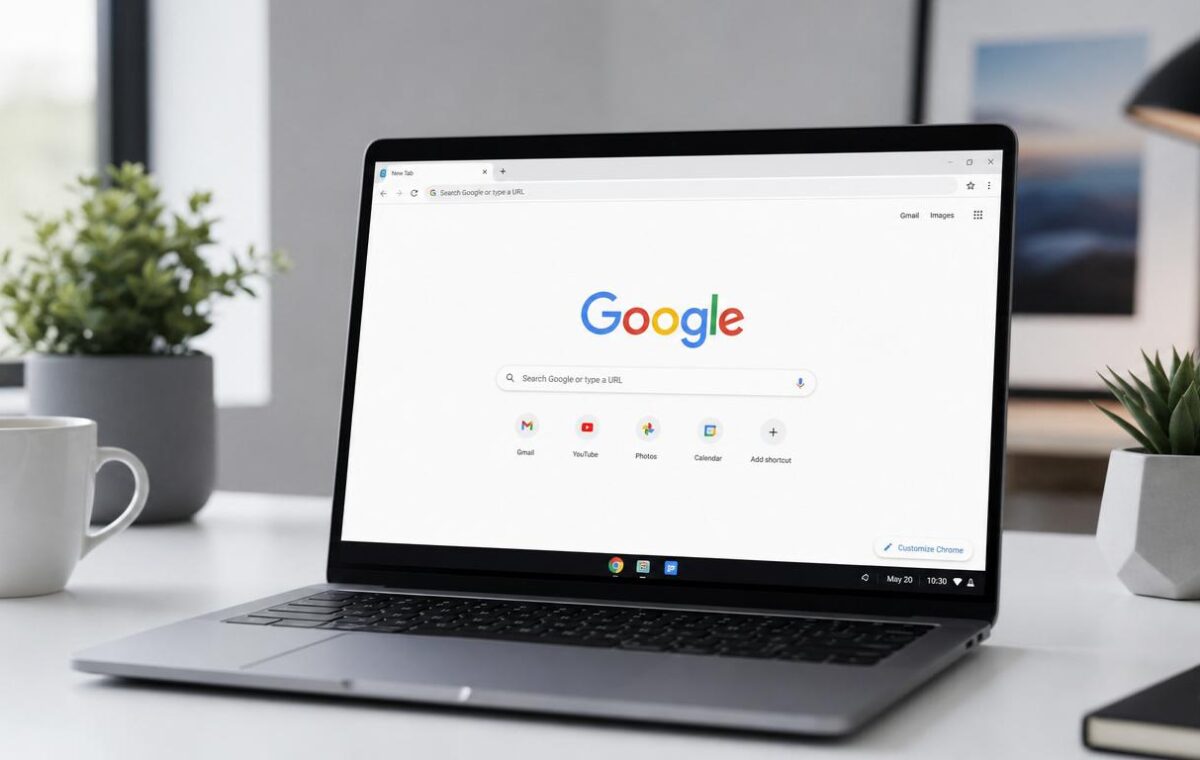
Windows and Mac — the fastest path: Click the three-dot menu (⋮) → Help → About Google Chrome. Chrome immediately checks for available updates and downloads any pending version automatically. A progress bar shows the download. When complete, a “Relaunch” button appears — clicking it restarts Chrome with the update applied, reopening all previously open tabs.
The update badge: when Chrome has downloaded an update and is waiting for a relaunch, a small coloured icon appears to the left of the three-dot menu. Green = update has been available less than two days; Yellow = two to four days; Red = four or more days. Clicking the badge and selecting Relaunch is the fastest path from a pending update to a current browser. The colour is also a useful signal — a red badge on a browser you’re about to use for anything security-sensitive is worth acting on first.
Android: Google Play Store → profile icon (top right) → Manage apps and device → Updates available → find Chrome and tap Update. Alternatively, search “Chrome” in the Play Store and tap Update if the button appears on Chrome’s app page.
iPhone and iPad: App Store → profile icon (top right) → scroll to available updates → find Chrome → tap Update.
ChromeOS: Chrome on Chromebooks updates as part of the ChromeOS system update rather than independently. Settings → About ChromeOS → Check for updates. ChromeOS downloads available system updates (which include Chrome) and prompts for a restart to apply. The Chrome version and ChromeOS version numbers align on Chromebooks.
The chrome://settings/help path is the most reliable way to trigger an immediate update on desktop — it checks right now rather than waiting for the background update scheduler. Users who see “Chrome is up to date” with a version number confirmed can trust they’re running the most recent release. Users who see “Relaunch to update” have already received the update — the download is complete, the relaunch is all that’s left.
Why staying current matters — it’s mostly about security
The most important reason to update Chrome promptly isn’t new features — it’s security. Chrome updates frequently because the security landscape changes frequently: new vulnerabilities in the browser, in its rendering engine (Blink), in its JavaScript engine (V8), and in the libraries Chrome depends on are discovered and patched regularly. Google typically releases major Chrome versions on a four-week cycle, with security-only patches available on shorter cycles when high-severity vulnerabilities require immediate patching.
A Chrome browser one or two versions behind the current release may be missing patches for vulnerabilities that are actively being exploited in the wild. The time between a vulnerability being publicly disclosed and it being actively used in attacks is often very short — days rather than weeks. This is the core reason Chrome’s update-on-next-relaunch model exists and why minimising the relaunch delay matters more than it might seem for a piece of software most people think of as just a web browser.
The performance and compatibility improvements are real too, but secondary. Developers who test sites against Chrome have direct interest in staying current; for general users, the cumulative improvements across versions make browsing noticeably more reliable and compatible with current web technologies — it just doesn’t feel urgent the way security patches do.
Chrome update channels — Stable, Beta, Dev, and Canary
| Channel | Update frequency | Stability | Best for |
| Stable | Every 4 weeks (major); security patches as needed | Highest — thoroughly tested | All regular users — default Chrome installation |
| Beta | Weekly major changes; next stable release preview | Mostly stable — occasional regressions | Users who want early access to upcoming features |
| Dev | Multiple times per week | Lower — actively developed | Developers testing Chrome features 9-12 weeks ahead |
| Canary | Daily | Lowest — cutting edge | Chrome developers and early adopters comfortable with instability |
The vast majority of users should remain on Stable. Beta is worth considering for users who want early access to features arriving in the next stable release — it’s generally reliable enough for daily use. Both Stable and Beta can be installed simultaneously on Windows and Mac as separate applications, each updating independently through their respective channels.
Troubleshooting Chrome update failures
The most common reason an update doesn’t apply after clicking Relaunch: Chrome processes are still running in the background after the visible windows close. Chrome maintains background processes for certain extensions and for its auto-update functionality — these prevent the application from fully closing, which means the update installer can’t replace the application files.
- Windows: Task Manager → Details tab → search for chrome.exe processes and end any remaining ones after closing all Chrome windows. Alternatively, wait 15-30 seconds after closing Chrome before relaunching — the background processes usually exit naturally within that window.
- Mac: Activity Monitor → search for “Google Chrome” → ensure no Chrome processes remain after closing the application before relaunching.
Chrome update errors — typically presented as error codes like 3, 7, or 11 on Windows — usually indicate network connectivity issues, permission problems preventing the installer from writing to the Chrome installation directory, or security software intercepting the update process. The most reliable fix for persistent update errors on Windows is to uninstall Chrome completely, download a fresh installer from google.com/chrome, and perform a clean installation. All user data — bookmarks, history, passwords, and settings — is stored separately from the Chrome installation and is preserved through an uninstall-reinstall cycle, as long as the profile data directory is not manually deleted during the process.
In managed enterprise or school environments: Chrome updates may be controlled by IT policy rather than the individual user. The Help → About Google Chrome page shows the current version but the update button may be absent or non-functional. Contacting IT support is the appropriate path for managed devices that appear significantly out of date.
Automatic updates — how Chrome keeps itself current without user action
Chrome’s automatic update system — the Google Update service on Windows, the Keystone framework on Mac, and the platform-managed update systems on Android, iOS, and ChromeOS — runs in the background independently of Chrome itself. On Windows, the Google Update service runs as a scheduled task that periodically checks for available updates, downloads them when found, and prepares the installation to apply on the next Chrome relaunch.
This is why Chrome updates are typically already downloaded and waiting when a user opens the About Google Chrome page — the download happened silently in the background hours or days earlier. The page check triggers the relaunch prompt, not the download.
The Google Update service on Windows: Task Manager → Services tab → search for “gupdate” → the service should be in a Running state. If it appears as Stopped or Disabled, automatic Chrome updates won’t download and must be manually triggered through the About page. A disabled Google Update service is the most common cause of Chrome running significantly out of date on Windows machines where users don’t manually check for updates.
Our guide on Chrome startup settings covers the session restore option that makes relaunching Chrome seamless — reopening Chrome restores all previously open tabs automatically, removing the main barrier that keeps users on the same session for days. For enterprise-level Chrome update management, Google’s Chrome Enterprise update documentation covers Chrome Browser Cloud Management, the Extended Stable channel (8-week major version cycle while still receiving security patches), and Group Policy templates for controlling update behaviour across managed fleets.
Verifying the update completed successfully
After relaunching Chrome following an update: navigate to chrome://settings/help. The version number shown should match the current Stable channel version. A mismatch suggests the update didn’t apply correctly and the manual update process should be repeated.
For users who want to know the current stable release version: the Chrome Releases blog announces every release with version numbers and a brief summary of what changed.
The practical summary: relaunch Chrome regularly. The background update system handles downloading new versions automatically. The only step required from the user is the relaunch that applies the downloaded update. The coloured badge (green, yellow, red) in the Chrome toolbar is the signal that a relaunch will install a waiting update — the colour indicates urgency, with red meaning the update has been waiting over four days. Clicking the badge and selecting Relaunch takes less than 30 seconds and delivers a fully current, fully patched browser.
What each Chrome version number means
Chrome version numbers follow a format like 124.0.6367.207. The first number (124) is the major version — this changes every four weeks on the Stable channel. The remaining numbers are minor, build, and patch numbers that increment with smaller updates within the major version cycle.
When a security-critical vulnerability is discovered and patched between major releases, Chrome ships a “stable channel update” with an incremented patch number (e.g., 124.0.6367.208) while the major version stays the same. These security-only patch releases are the most time-sensitive updates — they exist specifically because the vulnerability was deemed too urgent to wait for the next major release cycle.
The chrome://settings/help page shows the full version number. Comparing this against the latest stable release number (available on the Chrome Releases blog or by searching “Chrome current version”) immediately shows whether the installation is current or behind, and by how much.
Chrome updates on corporate and school networks
Enterprise environments add complexity to Chrome updates that home users don’t encounter. Beyond IT-managed update policies, some corporate networks require traffic to pass through a proxy that intercepts or blocks update requests, causing Chrome to report update failures even when internet access is otherwise working normally. On these networks, Chrome’s update service needs to be configured to use the network proxy — which is typically handled by IT when Chrome is deployed, but can break after network configuration changes.
A tell-tale sign of proxy-related update failure: Chrome works normally for browsing, but the About Google Chrome page repeatedly fails to check for updates even after multiple attempts. In this scenario, IT is the correct escalation path — they have the proxy configuration details Chrome’s update service needs, and end-user troubleshooting won’t reach the root cause.
Another enterprise consideration: the Extended Stable channel. Regular Stable receives major updates every four weeks, which some organisations find too frequent to test and deploy through their change management processes. The Extended Stable channel receives major version updates every eight weeks — a longer validation window — while still receiving security patches on the normal schedule. This makes it possible to maintain security coverage without the four-week cadence that regular Stable requires. Enterprise IT teams managing Chrome fleets should be aware this option exists if the regular Stable cadence creates operational pressure.
Why Chrome doesn’t update automatically in some cases
Several scenarios cause Chrome to stop automatically updating despite the update mechanism appearing to be in place:
- Never fully relaunching Chrome: the most common cause. Updates download automatically but can’t apply until Chrome fully closes and restarts. Users who sleep their computers without closing Chrome can go weeks without a relaunch applying.
- The Google Update service disabled on Windows: some system optimisation tools and “Windows tweaking” utilities disable the Google Update service as a startup optimisation. This completely prevents automatic Chrome update downloads.
- Insufficient disk space: Chrome downloads the update before installing it. If the disk is nearly full, the download fails silently. Clearing disk space resolves this.
- Antivirus software blocking the update: some security software incorrectly flags Chrome’s update process as suspicious behaviour. Adding Chrome’s update directory to the antivirus exclusion list resolves this, though the specific path varies by Chrome version and Windows edition.
- IT policy: on managed devices, update behaviour is often intentionally constrained. This is by design, not a malfunction.
Chrome’s update mechanism is robust and rarely fails for reasons other than these. When updates aren’t applying despite the browser appearing to be functioning normally: working through this list in order identifies the cause in most cases. The uninstall and clean reinstall approach resolves all software-level update failures simultaneously and takes less time than most troubleshooting sequences for persistent cases. See also Keep Your Phone Secure for a related case.
Keeping Chrome updated is, above everything else, a security decision. The feature improvements are real and cumulative; the compatibility benefits are genuine; but neither of those would justify the engineering effort Google has put into making Chrome update as seamlessly as possible. The security justification is the reason — and it’s the right reason for users to treat a waiting Chrome update as something worth addressing promptly rather than ignoring for weeks until the badge turns red. You might also run into Update Windows 11 Safely.