Discord began life as a chat app for gamers, but it has grown into something much bigger — a home for study groups, hobby communities, clubs, friend groups, and even businesses. If you have just been handed an invite link and opened it to a wall of channels, servers, and unfamiliar icons, it can feel genuinely bewildering. Learning how to use Discord, though, is far simpler than that first impression suggests.
At its heart, Discord is just a free way to talk to groups of people by text, voice, and video, organised in a way that keeps different conversations tidy. Once you understand a couple of core ideas — mainly servers and channels — the rest falls into place quickly, and you will be chatting, joining voice calls, and finding your way around like a regular in no time.
This guide walks through everything a newcomer needs: what Discord is, how to set up your account, how servers and channels work, how to chat and talk with voice and video, and how to keep yourself safe and in control. Whether you are joining a friend’s community or building your own, by the end you will know your way around comfortably.
What Is Discord?
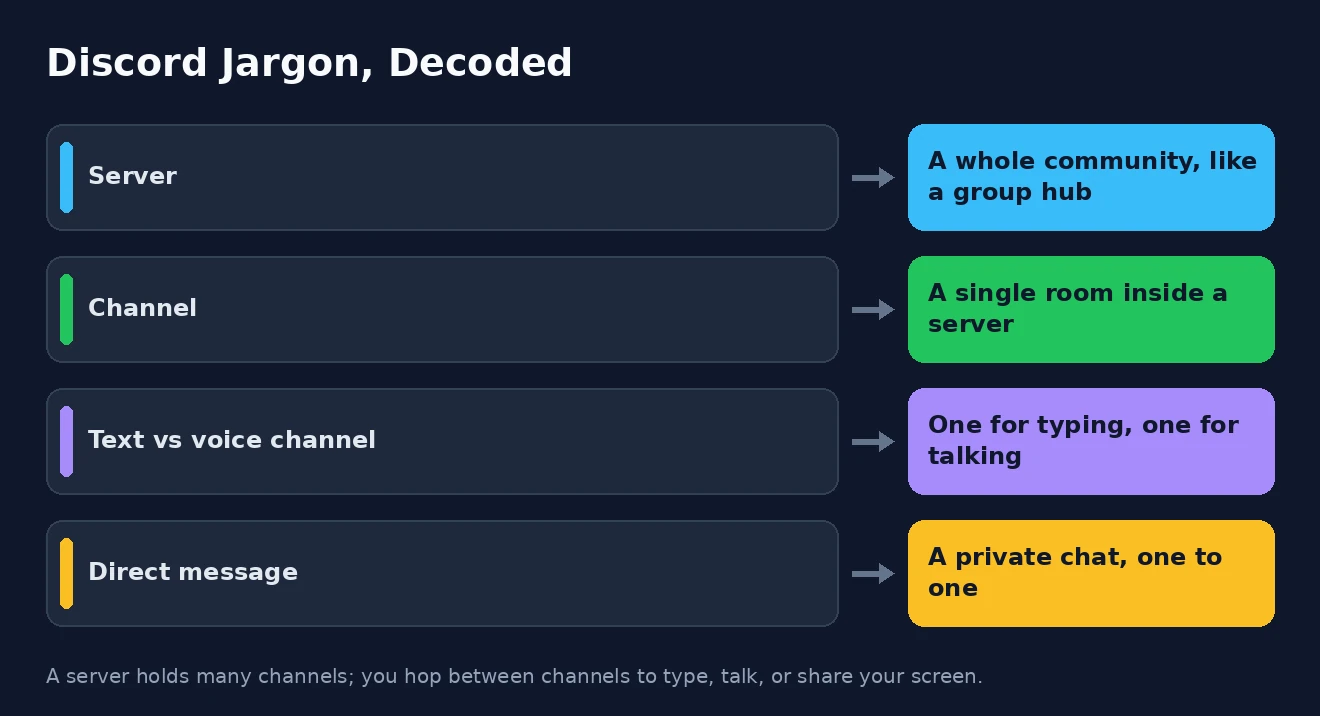
Discord is a free communication platform built around communities. Instead of one big contact list, conversations are grouped into servers — self-contained spaces for a particular group, game, or topic — and within each server are channels, which are the individual rooms where people actually talk. You can belong to many servers at once and dip in and out of each as you like.
What makes Discord distinctive is how it blends text, voice, and video in one place. A single server might have text channels for different subjects, voice channels you can drop into for a live chat, and the ability to share your screen or start a video call. This voice-first, community-oriented design is what sets it apart from more work-focused tools; if you are comparing options for a group, our roundup of the best team chat apps puts it in context alongside the alternatives.
It is also completely free to use, with apps for Windows, Mac, and mobile, plus a version that runs right in your web browser. There is an optional paid subscription called Nitro that adds perks, but you never need it to get the full core experience. That combination of being free, flexible, and genuinely good at group voice chat is why Discord has spread so far beyond its gaming origins, and it is a common pick among Slack alternatives for casual communities.
None of this requires any technical skill, which is worth saying plainly if that first screen looked intimidating. Learning how to use Discord is mostly a matter of clicking around and getting familiar with where things live, and the platform is forgiving — you can join a server, look around, and leave again with a single click, so there is no harm in exploring. With that reassurance in mind, let us get you set up.
Getting Started: Your Account and the App
Setting up Discord takes only a few minutes, and you can be up and running before you even join anything. The first decision is simply how you want to use it — in a browser for a quick look, or as an installed app for the smoothest experience.
- Create an account. Go to Discord’s site or open the app, enter your email, and choose a username and password. You will be asked to verify your email address, so keep an eye on your inbox.
- Choose how to run it. Download the desktop app for Windows or Mac for the best performance and features, install the mobile app to chat on the go, or simply use Discord in your web browser if you prefer not to install anything.
- Set up your profile. Add a profile picture and a display name so people recognise you. You can also set a status and a short “About Me” if you like.
- Adjust your basic settings. Take a moment in the settings menu to check your microphone and camera if you plan to use voice or video, so they are ready when you need them.
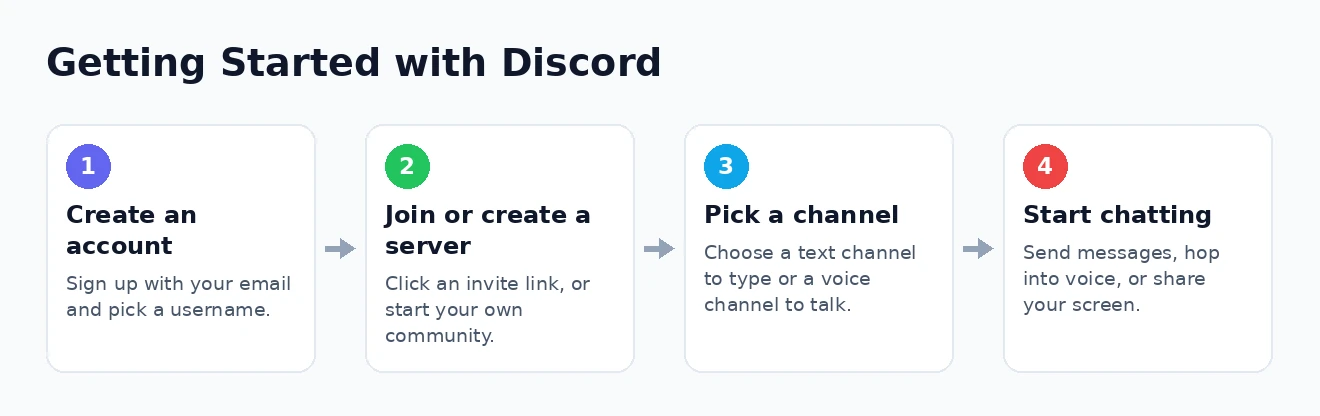
Once your account exists, you are ready to actually join the communities that brought you here. The desktop and mobile apps stay signed in and send you notifications, which is why most regular users install one rather than relying on the browser — but any version will do to start. Everything from here on works essentially the same whichever one you choose.
Understanding Servers and Channels
This is the single most important concept to grasp, and once it clicks, Discord stops feeling confusing. Think of a server as a whole community — a clubhouse for a game, a class, a fan community, or a group of friends. The column of icons down the left side of Discord is your list of servers, and clicking one takes you inside it.
Within each server are channels, the individual rooms listed down the side. Text channels, marked with a hash symbol, are for typed conversation, and each usually focuses on a topic so discussions stay organised — one for announcements, another for general chat, another for a specific subject. Voice channels are different: clicking one instantly drops you into a live audio room where you can talk with anyone else who has joined, no calling required. Channels are often grouped under collapsible categories to keep long lists manageable.
The mental model that makes everything simple: a server is a building, and channels are the rooms inside it. You pick a server to enter the community, then choose a channel depending on whether you want to type, talk, or listen in.
Joining a server is usually as easy as clicking an invite link someone shares with you, which drops you straight in. You can also find public communities through Discord’s built-in discovery feature. And if you want your own space, clicking the plus button at the bottom of the server list lets you create a server from scratch in seconds, ready for you to add channels and invite people. Most newcomers start by joining a server or two before ever thinking about making one.
Chatting, Voice, and Video
With a server joined, the actual communicating is refreshingly intuitive, and it spans everything from a quick typed message to a full video call. Text is where most people start: click a text channel, type in the box at the bottom, and press Enter to send.
It helps to take these one at a time rather than trying to learn everything at once. Most people find that text chat quickly becomes second nature, then add voice and video to their repertoire only when a server they are in actually uses them. There is no wrong order in which to learn how to use Discord’s features, so lean on whichever ones your communities rely on most.
Text chat has some handy extras worth knowing. You can reply directly to a specific message, react with emoji, and mention someone by typing the @ symbol followed by their name, which notifies them. You can also send a direct message — a private, one-to-one conversation outside any server — by clicking on a person’s name. Direct messages are the equivalent of a private text, separate from the public channels.
For live conversation, simply click a voice channel to join it and start talking; you can choose in the settings between transmitting whenever you speak or holding a push-to-talk key. From within a voice channel you can also turn on your camera for a video call or use the “Go Live” feature to share your screen, which is popular for watching things together or getting help. If your audio or video misbehaves, our guides to improving video call quality and fixing Discord screen share problems will sort most issues out.
Roles, Permissions, and Managing a Server
As you spend time on Discord, you will notice that members often have coloured names and different abilities. This comes down to roles, which are labels a server’s administrators assign to grant permissions and, often, a colour. A role might allow someone to moderate chat, access certain channels, or simply mark them as a member of a particular group.
As an ordinary member, you mostly just need to know that roles exist and determine what you can see and do in a server — if a channel is hidden or an action is unavailable, it is usually because your role does not include that permission. You can also set a per-server nickname so you appear differently in different communities, which is handy for keeping a gaming handle separate from a study group.
If you decide to run your own server, roles and permissions become your main tools. You can create roles for different types of member, set up channels for different purposes, and control who can do what in each. Start simple — a couple of channels and one or two roles is plenty for a small community — and expand as your group grows. There is no need to master every setting on day one; the basics cover the vast majority of what a new server needs.
Privacy and Safety on Discord
Because Discord connects you with people beyond your immediate friends, it is well worth spending a few minutes on your privacy and safety settings. The platform gives you real control here, and a little setup prevents most of the unpleasantness newcomers occasionally run into.
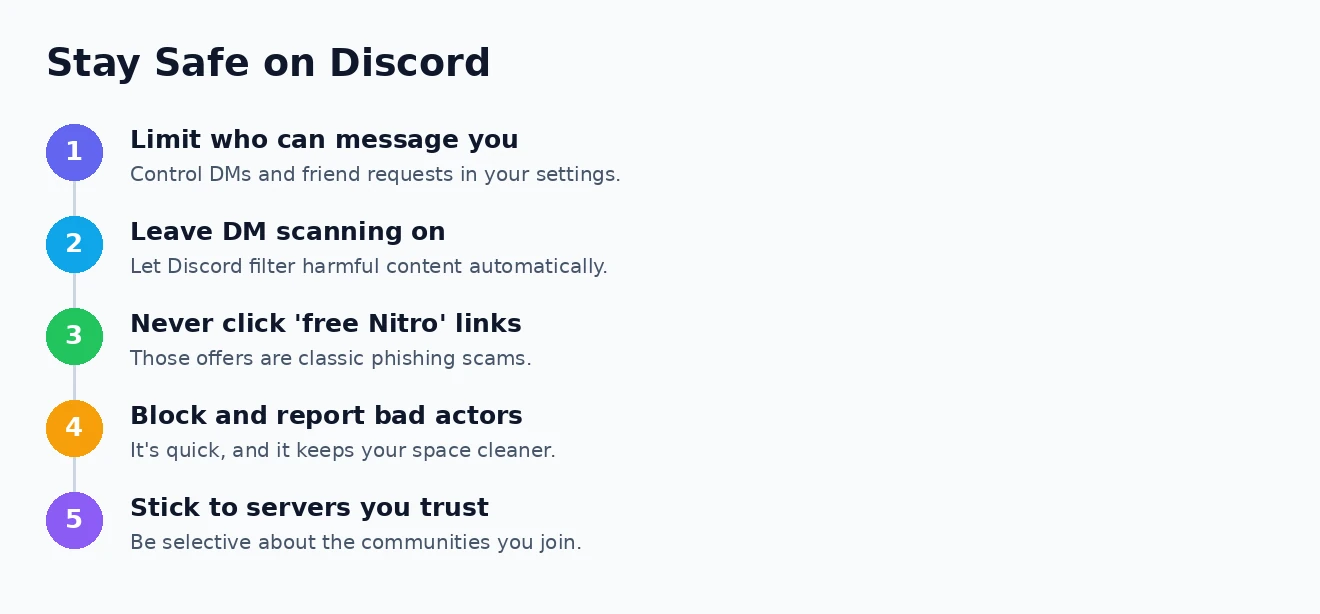
The key settings govern who can contact you. You can control who is allowed to send you a direct message and who can add you as a friend, which is the single most effective way to cut down on unwanted messages from strangers in large servers. Discord can also automatically scan direct messages for harmful content, a safety option worth leaving switched on. If someone does bother you, blocking and reporting them is quick and effective.
Be especially wary of scams, which are the most common hazard on Discord. Messages promising “free Nitro,” unexpected links, or requests to log in somewhere are classic phishing attempts, and you should never click suspicious links or enter your password anywhere but Discord itself — the same caution you would apply to phishing scams elsewhere. For parents helping younger users get set up safely, the Common Sense Media website has resources you may find useful, and Discord’s own safety pages on the Discord website are worth a read.
Customising Discord and Handy Tips
Once you are comfortable with the essentials, a few tweaks make Discord far more pleasant to live with day to day. The most valuable of these, by some distance, is taming your notifications, because a busy server left unmuted can quickly become overwhelming.
- Manage your notifications. You can mute entire servers or individual channels, or set them to notify you only when you are directly mentioned — essential for staying sane in large, chatty communities.
- Use dark mode and themes. Discord defaults to a dark appearance, but you can switch to a light one in the settings if you prefer.
- Learn a few shortcuts. Keyboard shortcuts for jumping between channels and marking things as read speed up everyday use once they become habit.
- Consider Nitro only if you want to. The paid Nitro subscription adds perks like larger file uploads and better emoji, but it is entirely optional and unnecessary for normal use.
It is also worth knowing that many servers use bots — automated accounts that provide music, games, moderation, or helpful commands. You do not need to set these up as a member; just be aware that a friendly account posting welcome messages or responding to commands is usually a bot doing its job. With notifications under control and the look set to your taste, Discord settles into a comfortable, everyday tool.
How to Use Discord: Frequently Asked Questions
Is Discord free to use?
Yes, entirely. All the core features — unlimited text chat, voice channels, video calls, screen sharing, and joining or creating servers — are free. There is an optional paid subscription called Nitro that adds extra perks, but you never need it for normal use.
Is Discord safe?
Discord can be very safe when you use its privacy tools. Control who can message and friend you, leave the automatic message-scanning option on, and never click suspicious links or “free Nitro” offers, which are common scams. Blocking and reporting troublesome users is quick, and being selective about the servers you join goes a long way.
Do I need to download Discord or can I use it in a browser?
Both work. You can use Discord straight from a web browser without installing anything, which is great for a quick start. For the best performance, notifications, and full features, though, most regular users install the free desktop or mobile app.
What is the difference between a server and a channel?
A server is an entire community — think of it as a building — while a channel is a single room inside that server. Servers contain many channels, some for typing and some for voice, and you move between channels depending on what you want to do.
That is everything you need to start using Discord with confidence. Set up your account, get comfortable with the idea that servers are communities and channels are the rooms inside them, and explore text, voice, and video at your own pace — while keeping your privacy settings sensible. What looks like a maze at first quickly becomes second nature, and before long you will be hopping between communities as easily as everyone else.