Cloud storage providers are very good at selling you space. The free tier always seems to fill up at the worst moment, the next plan up is only a couple of dollars a month, and before long you are paying for terabytes you may never touch. So it is worth pausing to ask the sensible question: how much cloud storage do you need, really, for the way you actually use it?
For most people the honest answer is less than they fear, but more than the free tier provides. A person who mainly keeps documents and the odd photo has wildly different needs from someone backing up a decade of family videos or an entire PC. The trick is to size your storage to what you genuinely keep, rather than to a marketing nudge or a moment of panic when the “storage full” warning appears.
This guide breaks it down plainly. I will explain how storage is measured, roughly how much space common files actually take, how to add that up for your situation, and how to tell whether you should pay for more or simply manage what you have — so you can pick a plan with confidence and stop overpaying.
How Cloud Storage Is Measured
Cloud storage is measured in gigabytes and terabytes, and the relationship is simple: one terabyte, or 1TB, is roughly a thousand gigabytes, or 1,000GB. Free plans are typically small, usually somewhere between about 5GB and 15GB depending on the provider, while paid plans commonly start around 100GB and climb through 1TB and 2TB to much larger tiers. Knowing those rough landmarks makes the whole question easier to reason about.
It is worth separating this from the storage built into your phone or computer, since the two are easily muddled. The space on your device holds your operating system and installed apps and is fixed by the hardware; cloud storage is separate, lives on a provider’s servers, and is reachable from any device you sign in on. Running low on one does not necessarily mean running low on the other, and it is cloud storage that this guide is concerned with.
One detail catches people out: what actually counts against your storage. Your quota is not just the files you deliberately upload — it usually includes your photo library, your device backups, and often more besides. Google, for instance, pools your Drive files, Gmail attachments, and Google Photos into one shared allowance, so a full inbox quietly eats into the space you thought you had for files.
This is why the number on the plan and the space you feel you have can differ so much. Before deciding how much cloud storage you need, it helps to look at what is already consuming your current allowance, because the answer is often photos and backups rather than the documents most people picture. Our guide to freeing up space in Google Drive shows how to see exactly what is taking up room.
How Much Space Do Common Files Actually Use?
The clearest way to size your needs is to know roughly what different things weigh, because the totals surprise people in both directions. Documents are featherlight; video is enormous. The figures below are approximate, but they are close enough to plan around.
- Documents and office files: tiny, typically a few kilobytes to a few megabytes each. You could store many thousands of them in just a gigabyte or two.
- Photos: a phone photo is usually around 2 to 5 megabytes, so a year of enthusiastic snapping can easily run to tens of gigabytes.
- Music: a few megabytes per track, so a large personal library lands in the tens of gigabytes.
- Video: the big one. High-resolution and 4K footage can consume several gigabytes for only a few minutes, so video libraries devour space faster than anything else.
- Device backups: backing up a whole phone or PC takes as much space as the data on it, which can be tens or hundreds of gigabytes.
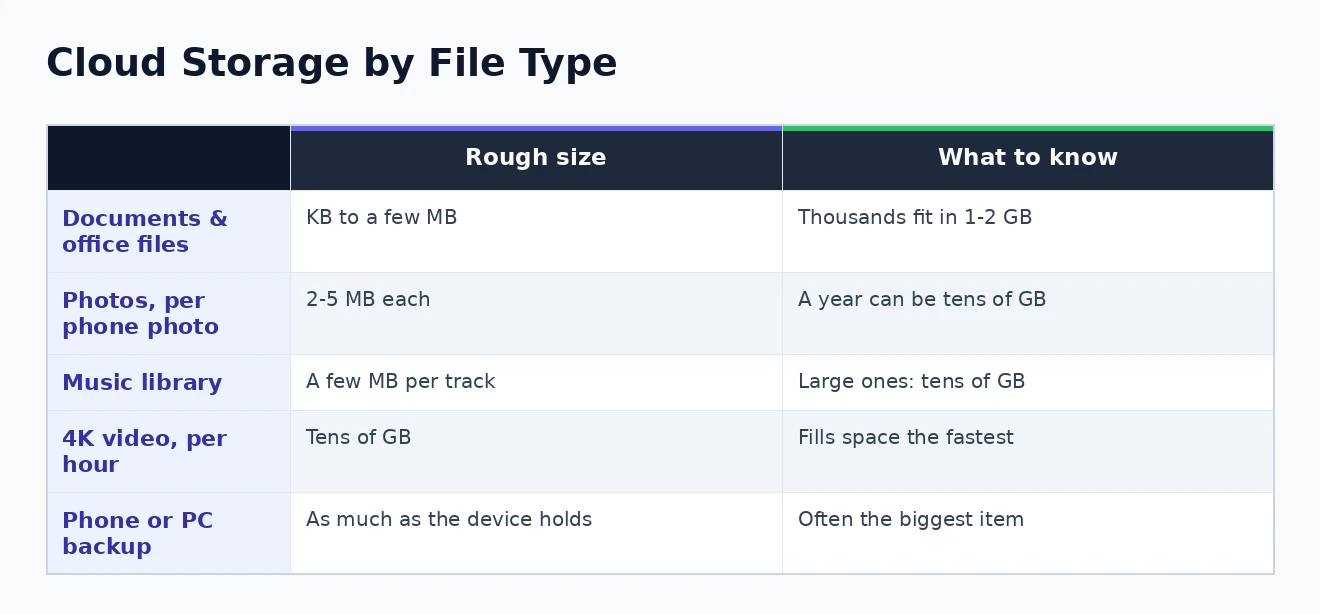
What jumps out is that documents are almost never the problem, while photos, video, and full backups are what fill a plan. If your life is mostly text and spreadsheets, even a modest amount of storage goes a very long way. If it involves cameras and backups, the numbers climb quickly — which is the heart of the sizing exercise, and the subject of the next section. The visual below sums up these rough sizes at a glance.
Adding It Up: Sizing Storage for Your Needs
With those rough weights in mind, you can estimate your own needs by thinking honestly about what you keep and, crucially, what you will keep over the next year or two rather than only today. Storage needs grow, so it pays to leave headroom. It helps to picture yourself as one of a few broad types of user.
A light user — someone who mainly stores documents, a modest photo collection, and a few important files — can often live comfortably within a generous free tier or a small paid plan. A keen phone photographer with years of images, on the other hand, will want a mid-sized plan in the region of 100GB to a couple of hundred gigabytes. And anyone backing up a whole computer, or several devices across a family, is quickly into 1TB territory, while those with large 4K video collections or professional photo libraries should be thinking about 2TB and beyond.
As a quick worked example, picture a fairly ordinary case: a few years of phone photos at perhaps 30GB, a laptop backup of around 80GB, and a scattering of documents and downloads adding a few gigabytes more. That already comfortably exceeds any free tier and lands squarely in the range where a 100GB or larger plan earns its keep. Run the same rough sum for your own files and the right size usually becomes obvious — which is really all that answering how much cloud storage you need comes down to.
The key habit is to count everything you want in one place at once, not one category at a time, and then add a comfortable cushion on top. For a household, remember that several people’s photos and backups add up fast, which is where family or shared plans start to make sense. Sizing this way almost always lands you somewhere more sensible than the biggest plan on offer.
Free Versus Paid: What the Tiers Give You
It is worth understanding what you actually get at each level, because the jump from free to paid is where the value question really lives. Free tiers, generally in the 5GB to 15GB range, are genuinely fine for light use — documents, a modest number of photos, and the odd shared file will fit without trouble. Many people never need more, especially if they are tidy.
The mistake to avoid at this level is jumping straight to a large plan the moment the free tier fills, without checking whether a smaller paid step would do. The tiers exist precisely so you can match the plan to your needs, and the gap between, say, 100GB and 2TB is often the difference between a sensible bill and a wasteful one.
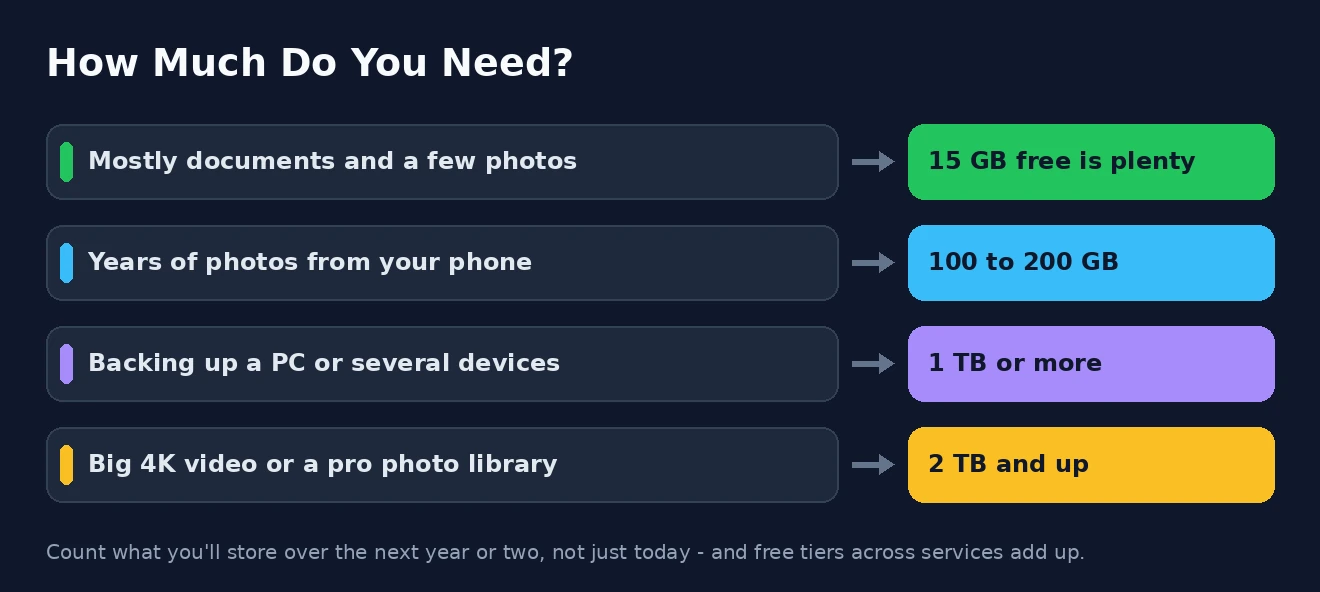
Paid plans exist for when photos, videos, and backups outgrow that. A plan around 100GB comfortably holds a substantial photo collection, while 1TB is the sweet spot for backing up a computer or covering a whole family’s files, and 2TB and above serve heavy video and professional use. A useful trick is to look at what you may already be paying for: some subscriptions bundle storage, most notably Microsoft 365, which includes a full terabyte of OneDrive space alongside the Office apps, so you might have far more available than you realise.
It is also worth remembering that free tiers across different services can be combined. Between the free allowances of two or three providers you can assemble a fair amount of space at no cost, and comparing what each includes — something our roundup of the best cloud storage for personal use covers in detail — helps you get the most for your money. The Google website and the Microsoft website both have resources you may find useful for comparing their current storage tiers.
Pay for More, or Manage What You Have?
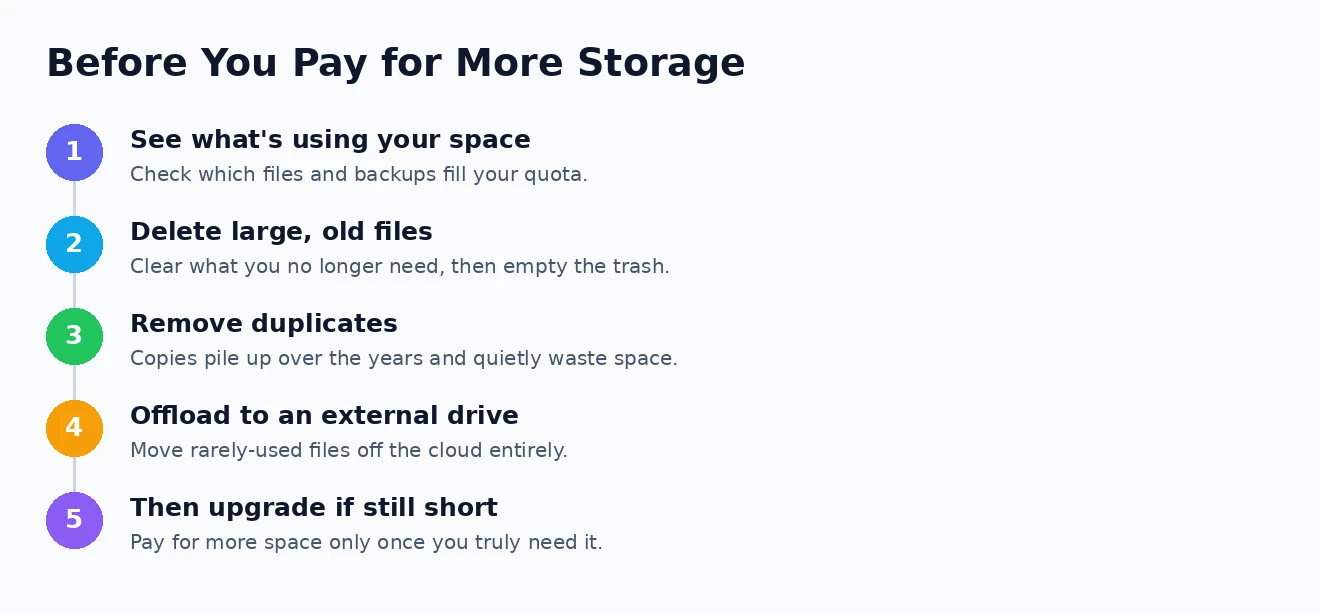
Before reaching for a bigger plan, it is worth asking whether you actually need more space or simply need to tidy the space you have. Very often a full account is not a sign you have outgrown it, but that it is cluttered with things you would happily lose — and a good clear-out can buy you a great deal of room for free.
Start by finding out what is consuming your storage, then work through the obvious wins: delete large old files you no longer need, empty the trash or recycle bin, since deleted files often still count until you do, and remove duplicates that have crept in over time. Offloading rarely-touched files — old projects, finished video — to an inexpensive external drive is another effective way to reclaim cloud space for the things you use daily.
A rule of thumb worth adopting: try a proper clean-up before you pay for an upgrade. People are frequently astonished how much space old backups, forgotten downloads, and a bulging trash folder were quietly holding, and the tidy-up costs nothing.
It is also worth reviewing your plan once a year or so, because needs drift over time. Photos and backups accumulate steadily, so a plan that once felt roomy can quietly fill, just as a big plan bought in a hurry can turn out to be far more than you ever use. A quick annual check keeps what you pay aligned with what you actually store.
If, after a genuine clean-up, you are still bumping against the ceiling, then upgrading is the right call — paying a little for space you truly use is money well spent, and far better than constantly fighting a full account. The goal is simply to make that decision deliberately rather than reflexively.
Don’t Rely on One Copy: Storage Versus Backup
One important caution belongs in any conversation about cloud storage: syncing your files to the cloud is not the same as backing them up, and confusing the two can cost you dearly. A sync service mirrors your files, so if you delete something on one device, or a file becomes corrupted, that change can propagate everywhere — the “copy” in the cloud vanishes too.
For anything irreplaceable, follow the long-standing principle of keeping more than one copy in more than one place. The widely recommended approach is to hold three copies of important data, on two different types of storage, with one kept somewhere separate — a genuine backup rather than a single synced folder. That way a mistake or a mishap on one device cannot wipe out the only version you have.
In practice this means pairing your everyday cloud storage with a proper backup for the files you cannot bear to lose, whether that is a dedicated backup service or a local copy. Our guides to the best cloud backup services and backing up Windows 11 walk through the options, and thinking about backup alongside storage is what turns a convenient system into a safe one. It also affects how much space you need, since backups are often the largest thing you will store — the same is true if you keep a lot of high-resolution images, as our look at online storage for photos explores.
How Much Cloud Storage Do You Need? Common Questions
Is free cloud storage enough for most people?
For light users, often yes. A free tier of 5GB to 15GB comfortably holds documents, a modest photo collection, and shared files. It tends to fall short only once you store a lot of photos, any significant amount of video, or full device backups, at which point a paid plan becomes worthwhile.
How much cloud storage do I need for photos?
It depends on how many you take, but plan for roughly 2 to 5 megabytes per phone photo. A casual collection might fit in a free tier, while years of frequent photography usually calls for 100GB to a couple of hundred gigabytes. Serious photographers with high-resolution libraries should consider 1TB or more.
Is 100GB or 1TB enough?
For most individuals, 100GB comfortably covers documents and a large photo collection. Step up to 1TB if you want to back up an entire computer or cover a whole family’s files. Only heavy video collections and professional use genuinely need 2TB and beyond, so many people are paying for more than they use.
Does cloud storage back up my files automatically?
Not in the way people assume. Most cloud storage syncs rather than backs up, meaning a deleted or corrupted file can disappear from the cloud too. For true protection, keep a separate backup of anything irreplaceable rather than relying on a single synced copy in the cloud.
So, how much cloud storage do you need? Almost certainly less than the biggest plan being marketed to you, but a little more than a bare free tier once photos and backups enter the picture. Work out what you really keep, add some headroom, tidy up before you upgrade, and never mistake a synced folder for a backup. Do that, and you will land on a plan that fits your life, protects what matters, and stops you paying for space you will never fill.