
The honest answer to “what is the best driver updater software for Windows” is that most users should not install any driver updater software at all. The category exists because it sells well to users who associate “out of date drivers” with the kind of vague computer problems that anyone with a computer eventually experiences, and the marketing positions these tools as a one-click solution to those problems. The reality is that Windows itself, in 2026, handles driver updates competently for the vast majority of devices, and the third-party driver updater category has historically been one of the most adware-bundled and bait-and-switch product categories in the Windows software ecosystem.
This guide is therefore structured differently from a typical “best driver updater” article. Most of the content explains why the category is unnecessary for most users, what Windows already does, and the specific narrow cases where third-party tools genuinely add value. The tool recommendations are deliberately limited to the credible options for those narrow cases. If after reading the explanation you still believe you need a driver updater, the recommendations near the end cover the safer options.
For broader context on the Windows maintenance software stack, our complete guide to Windows software covers the categories where dedicated tools genuinely add value rather than the categories where they primarily sell to the worried.
What Windows Update Already Does for Drivers
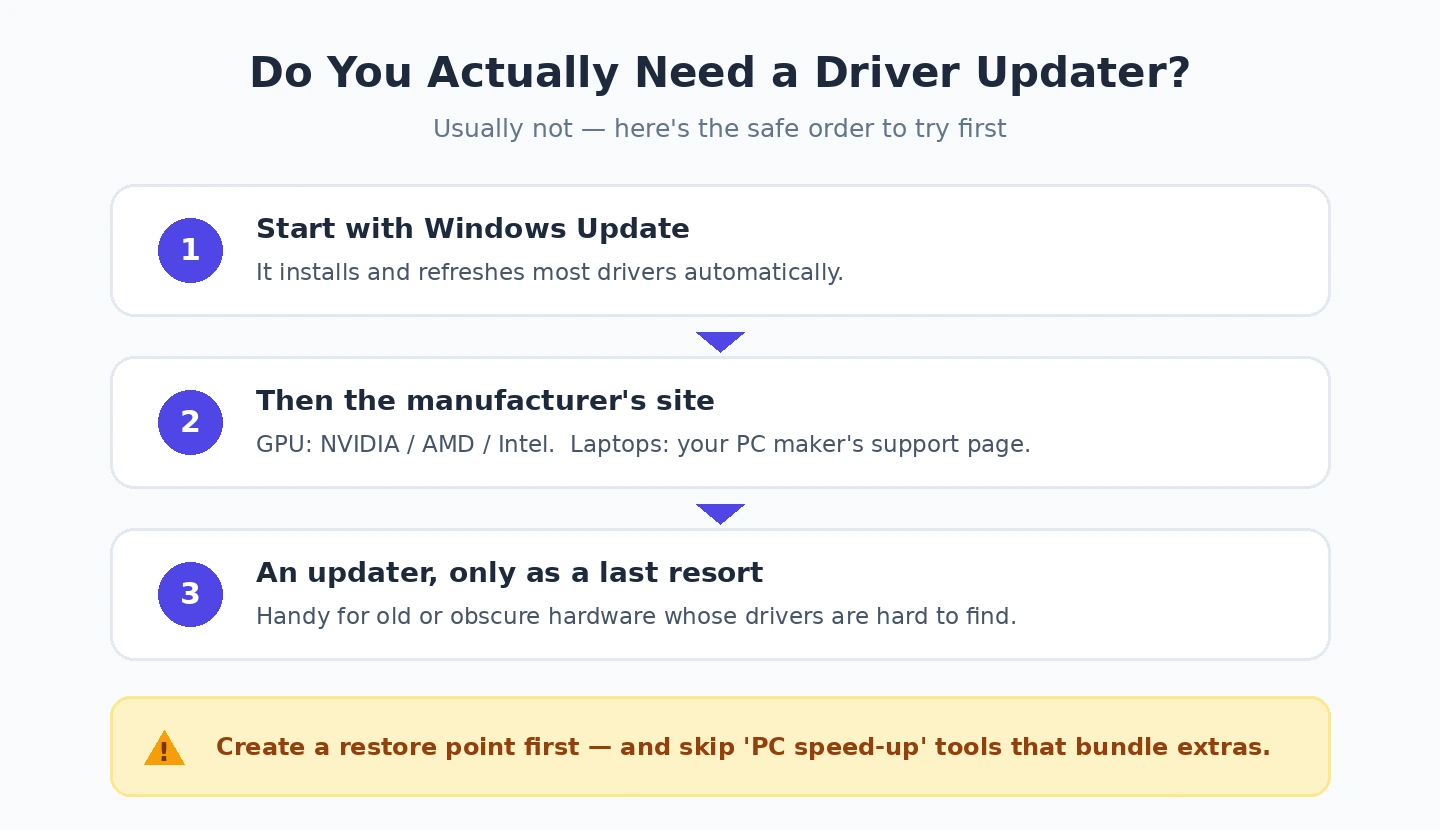
Windows 11 includes driver updates as a core function of Windows Update. The system queries Microsoft’s driver catalog against your installed hardware, downloads applicable driver updates, and installs them as part of routine update cycles. This covers the vast majority of devices for the vast majority of users adequately.
The drivers that Windows Update handles well are the common ones: chipset drivers from Intel and AMD, network adapter drivers from major manufacturers, USB and storage controller drivers, integrated audio drivers, and basic display drivers for the embedded GPU in most laptops. For the devices most users actually have, Windows Update keeps drivers current automatically without any user action.
The driver versions Microsoft ships are not always the absolute latest — there is typically a lag of weeks to months between when a hardware manufacturer releases a driver and when it appears in Windows Update — but this lag is usually deliberate quality assurance rather than negligence. The Windows Update version of a driver has gone through Microsoft’s certification process, which catches problems that bleeding-edge manufacturer releases sometimes have. For users who prioritise stability over having the absolute latest, the Windows Update version is often the better choice anyway.
The Windows Update Optional Updates section (Settings → Windows Update → Advanced options → Optional updates) sometimes lists additional driver updates that are available but not pushed automatically. Checking this section occasionally is worthwhile for users who want to ensure they have everything Microsoft offers; ignoring it is fine for users who are happy with automatic updates handling things.
For most users with mainstream hardware, the practical reality is that Windows Update covers your driver needs and additional tooling is unnecessary. The “outdated drivers causing problems” narrative that drives the driver updater category is rarely accurate for systems that are actually receiving Windows Updates.
When Manufacturer Tools Are the Right Answer
The specific cases where dedicated driver updates from a hardware manufacturer matter are concentrated around graphics cards and a few other performance-sensitive components. For these specific cases, the manufacturer’s own tool is the right answer rather than a third-party driver updater.
For NVIDIA graphics cards, NVIDIA App (which replaced GeForce Experience in 2024) is the right tool. NVIDIA releases driver updates for gaming performance optimisations frequently, and the Windows Update version of NVIDIA drivers is typically months behind the manufacturer release. For gamers, content creators using GPU acceleration, or anyone where graphics performance matters, NVIDIA App keeps drivers current with the gaming-optimised releases.
For AMD graphics cards, AMD Software Adrenalin Edition is the equivalent tool. The same logic applies — AMD releases optimisations for new game titles that may not appear in Windows Update for some time.
For Intel integrated graphics on newer laptops, Intel Driver and Support Assistant is the recommended approach for the same reason, though Intel’s release cadence is less frequent than NVIDIA’s or AMD’s so the lag matters less.
For motherboard and chipset drivers, the manufacturer support site (ASUS Armory Crate, MSI Center, Gigabyte App Center, ASRock Auto Driver Installer) typically has more accurate driver matching for your specific board than generic tools. This matters more for desktop systems with retail motherboards than for laptops where the chipset drivers are bundled into the manufacturer’s overall driver package.
For laptop manufacturer-specific drivers, the OEM’s own tool (Lenovo Vantage, Dell SupportAssist, HP Support Assistant, ASUS MyASUS) handles the laptop-specific drivers (firmware, fingerprint readers, function key behaviour, power management) that generic Windows Update or third-party tools cannot match accurately.
The pattern across all these is that the manufacturer knows what hardware you have and what drivers are correct for it. A generic third-party driver updater is guessing based on PCI IDs and other hardware identifiers, which works most of the time but produces the occasional mismatched driver that causes the problems the tool was supposed to prevent.
The Driver Updater Software Category Worth Considering: IObit Driver Booster
For users who specifically want third-party driver updater software despite the reservations above, IObit Driver Booster (free with limited features, Pro version around $22.95/year; iobit.com) is the credible option. The product has been actively maintained for many years, the database of driver matches is reasonably accurate, and the company has a track record without the active malware history that affects some competitors.
The case for Driver Booster specifically is when you have an older Windows installation with many devices that have not been updated in years, and you want a single tool to identify and update everything at once rather than visiting each manufacturer’s support site individually. The Pro version automates the bulk update process; the free version requires manual confirmation for each update.
The honest concerns with Driver Booster are real even though the product is more legitimate than many alternatives. The “optimised” drivers it sometimes installs may not be the same as what the hardware manufacturer would recommend for stability. The bundled features (turbo boost mode, gaming mode) are largely marketing rather than genuine performance improvements. The Pro tier’s automatic update feature, while convenient, removes the verification step that prevents driver problems.
The narrow recommendation: Driver Booster’s free tier is reasonable for a one-time cleanup scan on a neglected system, after which you should rely on Windows Update and manufacturer-specific tools rather than continuing with Driver Booster as ongoing maintenance. For continuous use over years, the value-to-risk ratio is not compelling.
Snappy Driver Installer Origin: The Offline Specialist
Snappy Driver Installer Origin (free, open-source; snappy-driver-installer.org) is the driver updater software for a specific specialist use case: updating drivers on machines that are not connected to the internet, or doing initial driver installation on a fresh Windows install where networking does not work yet because the network driver itself is missing.
The tool works by downloading a comprehensive driver package (typically tens of gigabytes) once, then using that local package to install drivers without internet access. For technicians who service multiple machines, build new computers, or work on systems in isolated environments, this offline capability is genuinely useful in ways that online-only driver updaters cannot match.
The case for SDI Origin is narrow but real for users in the specific scenario. The case against for typical users is that the offline capability is irrelevant when you have a working internet connection that Windows Update can use, and the comprehensive driver database is overkill for routine maintenance.
For technicians and power users who genuinely benefit from offline driver installation, SDI Origin is the right tool with essentially no competition. For everyone else, it is solving a problem you do not have.
What to Avoid in This Category
The driver updater category attracts a disproportionate amount of fraudulent and adware-bundled software because the underlying user motivation (fear of “outdated drivers” causing problems) is exploitable. The patterns worth recognising and avoiding.
Aggressive “Your drivers are out of date!” popup ads on websites are universally fraudulent. They appear during normal browsing on sites that have nothing to do with your computer’s actual drivers, and they exist to scare users into installing whatever the popup promotes. Closing the browser is the appropriate response; never click anything in these popups.
Free driver updaters from unfamiliar publishers that promise to find “hundreds of outdated drivers” on your system are almost universally scareware. The “hundreds of outdated drivers” figure is fabricated; even thoroughly neglected systems rarely have more than a dozen genuinely outdated drivers. Tools that report inflated numbers do so to motivate purchase of the paid version, not to provide accurate information.
“Driver pack” downloads from sites that aggregate drivers from various sources are categorically dangerous. The drivers in these packs are not verified, may be infected with malware, and frequently install older versions than what Windows Update would provide. There is no scenario where a generic driver pack is the right answer to your needs.
Tools that require payment before showing what they have found are operating under a deliberately deceptive sales model. Legitimate software shows you the value before requesting payment; pay-to-see-the-results products are designed to extract money from worried users without providing meaningful service. Our malware removal tool comparison covers what to do when one of these tools has been installed and turns out to be the actual malware problem.
When Driver Updates Actually Solve Problems
The honest cases where updating a driver fixes a real problem are narrower than the marketing suggests. Specific symptoms that have a meaningful chance of being driver-related:
A specific peripheral has stopped working after a Windows update — the printer no longer prints, the scanner is no longer detected, the audio interface produces no sound. In these cases, the driver for that specific device may need updating, and the manufacturer’s support site is the right source.
Graphics performance has degraded noticeably in a specific game or application after working previously, or new games launch with graphical glitches. These are graphics-driver-specific problems and the NVIDIA or AMD update is usually the fix.
A new device you have installed is not recognised by Windows, or shows up with a yellow exclamation mark in Device Manager. This indicates a missing or incorrect driver, and Windows Update may not have the right one for new hardware.
The cases where updating drivers does not fix the problem despite the marketing claims: general system slowness (almost always due to disk space, malware, or background processes, not drivers), random crashes or blue screens (usually hardware failure or memory issues, not driver problems), poor wifi performance (router and signal issues, not adapter drivers), and “the computer just feels slow” (rarely driver-related). Our PC optimisation software comparison covers the categories of issue that drivers cannot fix but that often get blamed on outdated drivers.
Backup Before Any Driver Update
Whatever approach you take to drivers, the practical safety advice is to create a system restore point before any meaningful driver update operation. Windows Update does this automatically for system-critical drivers; manual driver installations from third-party tools or manufacturer sites should be preceded by a manual restore point creation.
The reason matters: driver problems are one of the few software issues that can prevent Windows from booting properly. A successful driver installation produces no problems; an unsuccessful one can leave you needing to use Windows recovery to roll back, and the system restore point makes this trivial rather than painful. Our Windows backup software comparison covers the broader backup strategy that should be in place for the failure modes that go beyond what system restore can recover from.
The Practical Recommendation
For most Windows users in 2026, the answer to “what driver updater software for Windows should I use” is “none, beyond Windows Update itself.” Windows Update covers driver maintenance adequately for the vast majority of users with mainstream hardware. For graphics drivers specifically, install the manufacturer’s tool (NVIDIA App or AMD Software). For laptop-specific drivers, install the laptop OEM’s support tool. For a one-time cleanup of a long-neglected system, IObit Driver Booster’s free tier is acceptable. For offline driver installation in technician contexts, Snappy Driver Installer Origin is the specialist tool. Avoid the broader category of “driver updater software” that appears in aggressive SEO-optimised lists with names you do not recognise — the category exists more to sell to worried users than to solve actual driver problems. The right approach to drivers is to ignore them until something specifically breaks, then address that specific problem rather than running broad “updater” scans that often create problems they did not need to solve. Our disk space analyzer comparison covers a category where dedicated tools genuinely add value, in contrast to the driver updater category where they mostly do not.