
The graphic design software category is broad enough that “best graphic design software” is essentially meaningless as a question. What you are making determines what you need, and the tools that excel at one output are often poorly suited to others. A designer making web mockups and UI prototypes has different needs from a designer producing print marketing materials, who has different needs from someone creating social media graphics for non-design teams, who has different needs from a brand designer building identity systems. Lumping these into a single “best graphic design software” recommendation produces advice that fits none of them well.
The right way to navigate this category is to identify what specific outputs you are producing, then pick the tools that match those outputs. The good news is that within each output category, the recommendations are reasonably stable; the bad news is that you cannot pick a single tool for everything without compromising on some category.
This guide is structured around the major output categories with honest recommendations for each, plus discussion of the consolidation tools that try to handle multiple outputs (with the trade-offs that involves). For broader context on the creative software stack, our guide to the best software and apps covers the adjacent categories like photo editing and video editing.
For Social Media Graphics and Marketing Materials: Canva
Canva (free with paid Pro at $15/month or $120/year; canva.com) is the right answer for users whose primary output is social media graphics, simple marketing materials, presentations, and other “designed-looking” content that does not require true design skills. The platform’s template-driven approach lets non-designers produce professional-looking results by picking templates close to what they need and customising them, which is fundamentally different from how real graphic design tools work.
The case for Canva specifically is operational rather than artistic. For marketing teams that need to produce social media posts, Instagram graphics, simple flyers, presentation decks, and similar content at volume without hiring designers, Canva makes this possible. The template library is enormous, the brand kit features let organisations enforce consistent fonts and colours across team output, and the collaboration features support team workflows.
The case against Canva is the same as the case for it. Because the platform is designed around templates, the output tends to look template-derived rather than truly original. For brands wanting genuinely distinctive visual identity, Canva’s strengths become limitations — too many Canva-designed pieces look like other Canva-designed pieces. For organisations whose marketing visuals need to differentiate from competitors using the same templates, the tool is the wrong choice.
The Pro tier is reasonably priced for the value it delivers. The free tier is genuinely usable for occasional graphics; the Pro tier’s brand kit, premium templates, background removal, and team collaboration features matter for organisations producing graphics regularly. The case for Pro is clear when usage justifies it; for occasional personal use, the free tier covers the need.
For users whose Canva use grows beyond what the platform handles well, the natural next step is one of the dedicated design tools below — typically Adobe Illustrator for vector work or Figma for digital interface work. Canva serves the “competent non-designer” use case rather than the “developing designer” trajectory.
For Web and UI Design: Figma
Figma (free for individuals with limits, paid Professional from $15/editor/month; figma.com) has become the standard for web and user interface design work, replacing the previous category leader (Sketch) in most contexts. The product’s browser-based architecture means it works equally well on Windows, Mac, and Linux without platform-specific limitations.
The case for Figma specifically is the combination of design tools, collaboration features, and prototyping that no competitor matches. Multiple designers can work on the same file simultaneously with real-time editing. Stakeholders can leave comments on specific elements without needing editing accounts. Developers can inspect designs to extract CSS, colors, and dimensions for implementation. The plugin ecosystem extends functionality substantially. Design systems with shared components, variables for theming, and version history are all native rather than bolted on.
The pricing is reasonable for individual professional use. The free tier covers solo designer work with up to 3 files. The Professional tier at $15 per editor per month is competitive with alternative tools. The case against Figma is mostly for users whose work is not web-and-UI focused — for print design, illustration, or photo-heavy work, other tools serve better.
FigJam (covered in our whiteboard software comparison) is Figma’s collaborative whiteboard product, included in higher Figma tiers, that pairs naturally with the design work for ideation and stakeholder discussions.
For users whose work is primarily web and UI design, Figma is the default with essentially no competition for the bulk of work. The alternatives matter for users whose work bleeds into adjacent categories where Figma is less strong.
For Print Design and Vector Illustration: Adobe Illustrator
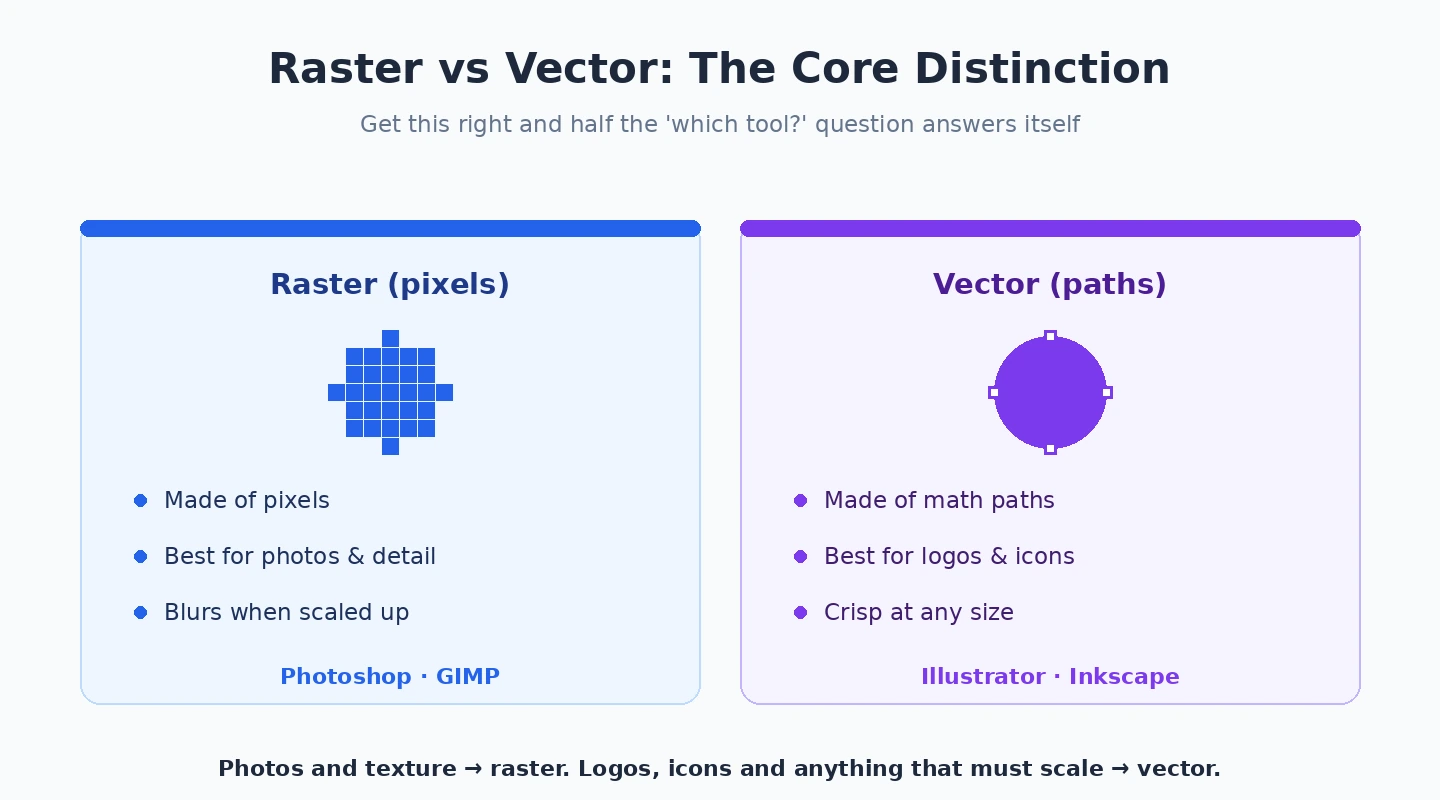
Adobe Illustrator (Single App plan at $22.99/month; adobe.com/illustrator) is the dominant tool for vector illustration, logo design, print marketing materials, and any design output that needs to scale infinitely while maintaining sharpness. The category leadership has been stable for decades and continues for genuine reasons — the vector tools are deeper than any alternative, the integration with the rest of Adobe Creative Cloud is genuinely valuable for designers working across photo, video, and design work, and the print production workflow (CMYK colour spaces, professional print prep) is more mature than in competitor tools.
The case for Illustrator specifically is when your output involves logos, branding, vector illustration, print materials, packaging design, or any work that will be reproduced at multiple sizes (where raster graphics would pixelate). For these outputs, the alternatives below come close but Illustrator’s depth wins for serious professional use.
The pricing reality is the subscription model that affects all Adobe Creative Cloud products. At $22.99/month for Illustrator alone, the annual cost is substantial. The Creative Cloud All Apps plan at $63.99/month for the full suite makes more sense for designers using multiple Adobe tools. The case for paying these prices is concentrated in professional designers whose income depends on the output quality.
For occasional vector work or learning users, the case for paying for Illustrator is weaker. Affinity Designer (covered below) and Inkscape (covered separately) handle the same work at much lower or zero cost, with capability that is adequate for most use cases short of high-end professional production.
For Photo Editing Within Design Work: Adobe Photoshop
Adobe Photoshop (Single App plan at $22.99/month, or included with Photo Plan at $9.99/month) is the dominant tool for photo editing within design contexts — preparing photographs for layouts, compositing multiple images, retouching for marketing materials, and the bitmap editing work that complements vector illustration work. The product’s market position has been stable enough that “Photoshop” has become a verb in common usage, which reflects the actual capability.
The case for Photoshop in graphic design work is concentrated in image-heavy outputs. Marketing materials with photography, retouched product shots, composite imagery combining multiple sources, and any design work where bitmap manipulation matters all benefit from Photoshop’s specific capabilities. For users whose design work is primarily vector or interface-based, Photoshop is less essential — the photo editing capabilities of Affinity Photo, GIMP, or even Lightroom may cover the realistic need without the Photoshop subscription.
The Photo Plan at $9.99/month (which includes Lightroom plus Photoshop) is meaningfully better value than the Single App plan for users who want photo capability rather than design-focused image editing. The Photo Plan is the more sensible entry point to Photoshop for users whose primary motivation is photo work; the Single App plan only makes sense for users specifically focused on design-context image editing.
Our photo editing software comparison covers the photo-specific tooling in detail for users whose work is primarily photo-focused rather than design-focused.
For Free or One-Time-Purchase Alternative: Affinity Designer and Photo
The Affinity suite from Serif (Affinity Designer, Affinity Photo, and Affinity Publisher; one-time license around £67.99 each, or £155.99 for the Universal Licence bundle covering all three; affinity.studio) is the credible alternative for users who specifically prefer one-time purchases over subscriptions. The capability is genuinely comparable to the Adobe equivalents for most professional use cases.
The case for Affinity specifically is the economics over time. The £155.99 one-time cost for the bundle is roughly equivalent to one year of Adobe Creative Cloud All Apps subscription, but the licence is permanent and includes major version updates. Over five years of use, the cost difference is substantial. For users committed to the Adobe ecosystem already, switching to Affinity introduces friction; for users starting fresh, the cost case for Affinity is genuinely strong.
The capability gap with Adobe is real but narrower than it used to be. Affinity Designer handles vector illustration nearly as capably as Illustrator. Affinity Photo handles bitmap editing comparably to Photoshop. Affinity Publisher handles page layout comparably to InDesign. The remaining gaps are concentrated at the high end of professional features (specific advanced typography options, certain colour management subtleties, the integration with other Adobe products for workflow continuity).
The case against Affinity for working professionals is mostly about ecosystem. If you work in contexts where files need to be exchanged with collaborators using Adobe tools, Affinity’s file format compatibility is good but not perfect — round-tripping complex files between Adobe and Affinity sometimes produces issues that require manual fixes. For solo designers or organisations standardised on Affinity, this is a non-issue; for designers working with clients or agencies on Adobe, it can be friction.
The honest recommendation: for users starting fresh in graphic design without specific Adobe commitments, Affinity is genuinely competitive and the one-time-purchase economics produce meaningful savings. For users already in the Adobe ecosystem with established workflows, the case for switching is weaker even though the capability is comparable.
For Open-Source Alternatives: Inkscape and GIMP
Inkscape (free, open-source; inkscape.org) and GIMP (free, open-source; gimp.org) are the open-source alternatives to Illustrator and Photoshop respectively. Both have been actively maintained for decades and the capability is genuinely substantial — skilled users produce professional-quality output that is indistinguishable from work produced in the commercial tools.
The case for the open-source path is real for users who specifically value open-source software, who have budget constraints that make even Affinity unaffordable, or who want tools that will remain available regardless of what happens to commercial vendors. The capability is enough for most realistic use cases.
The case against for typical users is the workflow friction compared to the commercial alternatives. Inkscape’s interface and feature organisation reflect open-source development patterns rather than commercial design polish. GIMP’s interface has improved substantially over the years but remains less smooth than Photoshop or Affinity Photo. The learning resources available are genuinely good but less abundant than for the commercial alternatives.
The realistic recommendation: open-source tools are the right pick for users with specific reasons to prefer them, and the wrong pick for users who would thrive with the commercial alternatives but choose open-source on price alone. The time cost of working around the friction often exceeds the licence cost saved. For users who genuinely value the open-source positioning, the tools are excellent; for users using them only because they are free, the productivity loss is real.
For Specialised Design Categories
Several specialist design tools serve specific narrower outputs.
Adobe InDesign is the dominant tool for multi-page print layouts (books, magazines, brochures, annual reports). For users whose work is genuinely layout-heavy with substantial text, InDesign is the right pick rather than trying to use Illustrator or Photoshop for this purpose. Affinity Publisher is the credible alternative with one-time-purchase economics.
Sketch remains popular for UI design among Mac-only designers, though Figma has substantially eclipsed it in the broader market. For solo Mac designers with established Sketch workflows, the case for switching is weaker than for new users picking a tool.
Procreate is the iPad-focused illustration tool that has become dominant for digital art and illustration. Worth knowing about for the use case even though it is not strictly Windows software.
For UI design specifically, several specialists (Penpot, Lunacy, UXPin) compete in the Figma-alternative space at different points. None has the market share to be a default recommendation, but each may serve specific use cases better than Figma — Penpot for organisations specifically wanting open-source UI design tooling, for example.
For specialised industry workflows (architectural visualisation, packaging-specific design, video graphics specifically), tools like Cinema 4D, ArtiosCAD, and others serve markets too narrow for general-purpose recommendations. Our video editing software comparison covers the related motion-graphics tools that pair with design work for video output.
The Workflow Question
One framing point worth making: in a category where multiple tools cover overlapping functionality, the workflow benefit of staying within one ecosystem is often the deciding factor. Adobe’s strength has historically been the smooth handoff between Photoshop, Illustrator, InDesign, and related tools — files move between the products without friction, brand assets stay consistent, version control works across the workflow.
The case for committing to one ecosystem is strongest for users producing complex multi-format design work. The case for mixing tools is strongest for users with specific use cases where the best tool for each output differs substantially. For most professional designers, the practical answer involves picking one primary ecosystem (Adobe Creative Cloud, Affinity suite, or open-source) and using its tools for the bulk of work, with occasional excursions to specialist tools for specific outputs.
For non-professional users or specialist designers whose work is concentrated in one output category, the workflow benefit matters less and picking the best tool for each output individually is reasonable. The Canva + Figma combination works well for marketing teams that need both social media graphics and web mockup capability, even though they are different ecosystems entirely. Our font manager comparison covers the related typography tooling that supports design work regardless of which design ecosystem you choose.
The Practical Recommendation
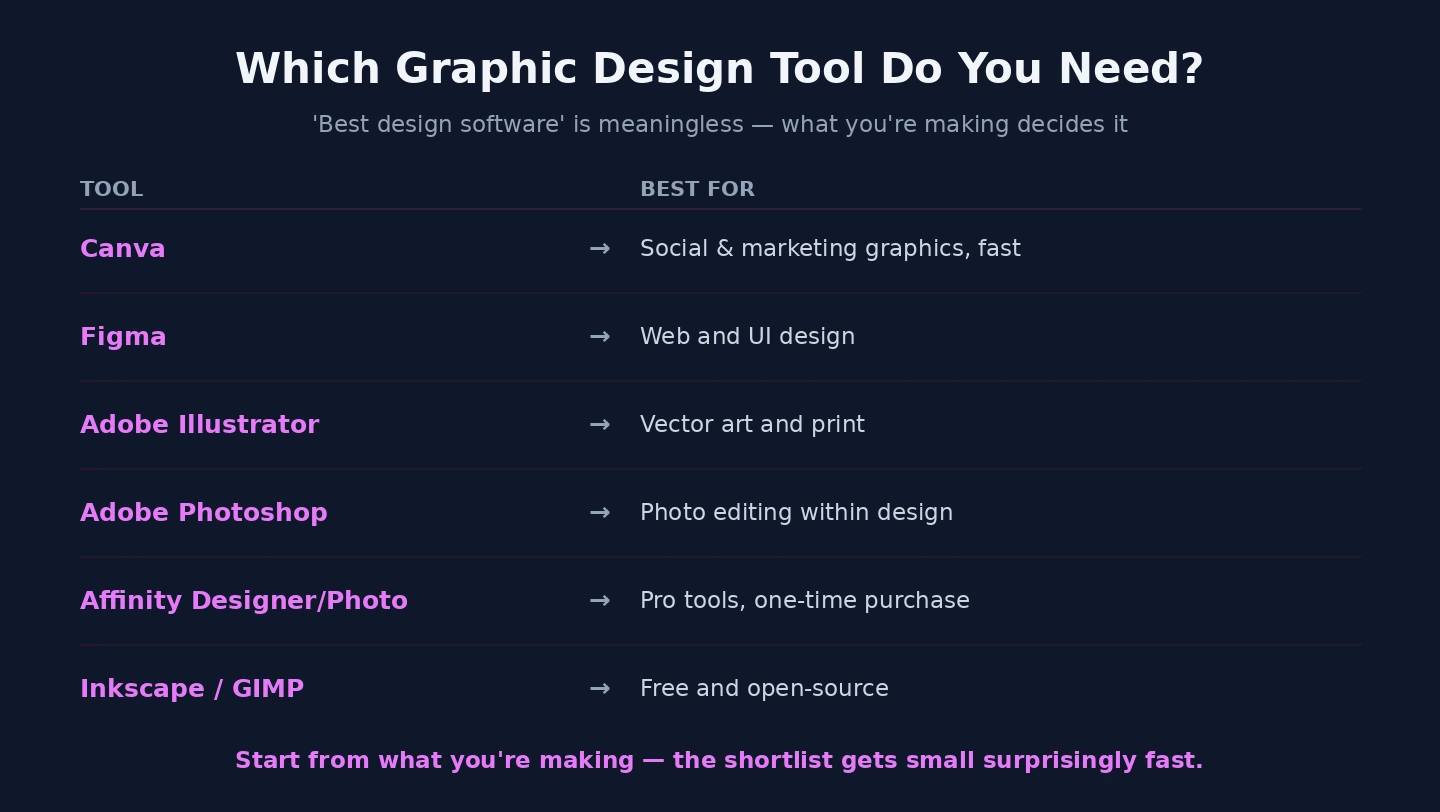
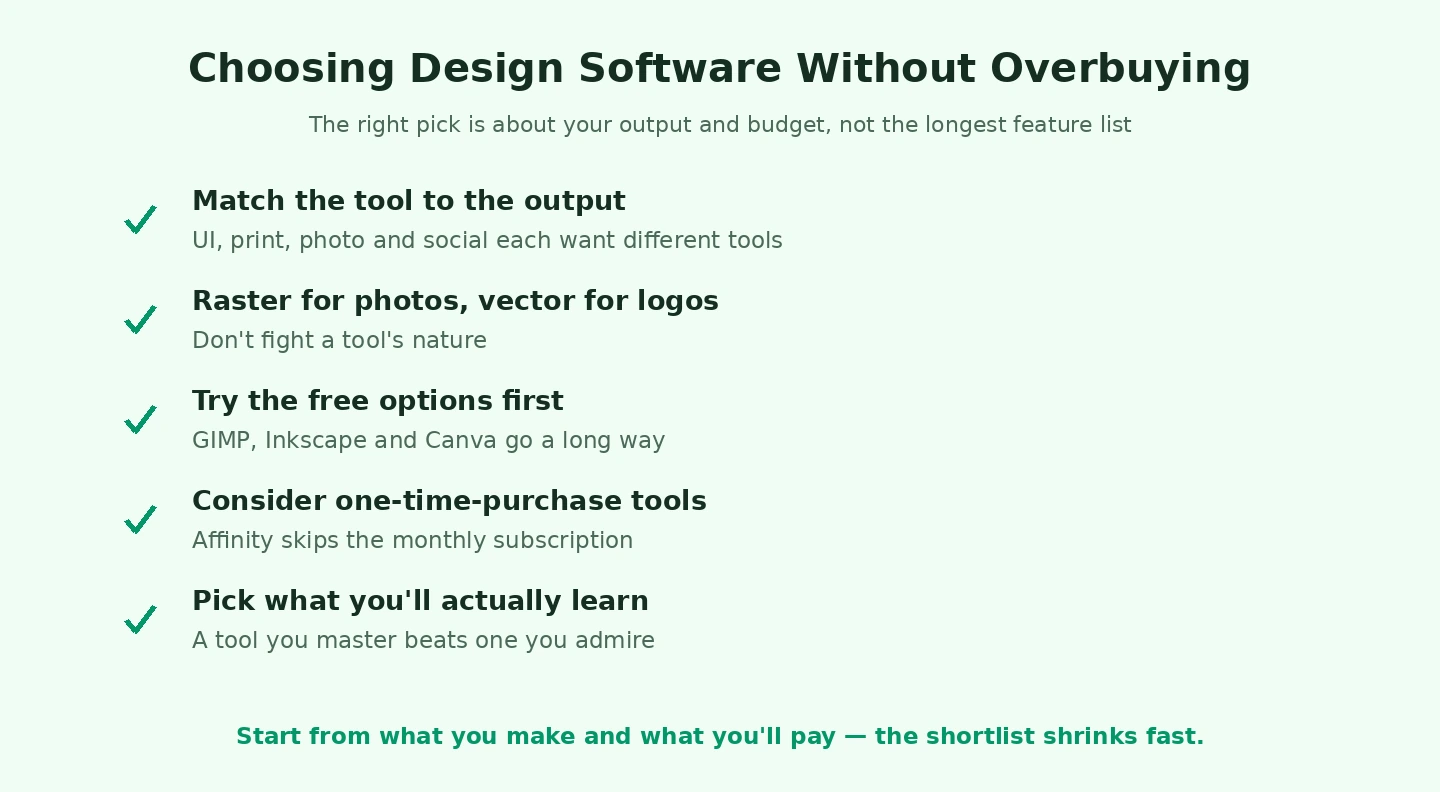
For most readers, the right pick follows from the output category. Marketing graphics, social media, simple presentations: Canva. Web and UI design: Figma. Print design, logos, vector illustration: Adobe Illustrator (with the Single App or Creative Cloud subscription) or Affinity Designer (one-time purchase). Photo editing within design work: Adobe Photoshop or Affinity Photo. Multi-page print layouts: Adobe InDesign or Affinity Publisher. Open-source path: Inkscape for vector work, GIMP for bitmap work. The wrong move is trying to pick “one best graphic design software” for all design outputs — the category is broader than any single tool serves well. Identify your primary outputs honestly, pick the appropriate tool for each, accept that some workflows will involve multiple tools, and the category becomes a productive set of choices rather than a single frustrating decision. Our screen capture tool comparison covers the related category for users whose design work involves substantial screenshot capture and annotation.