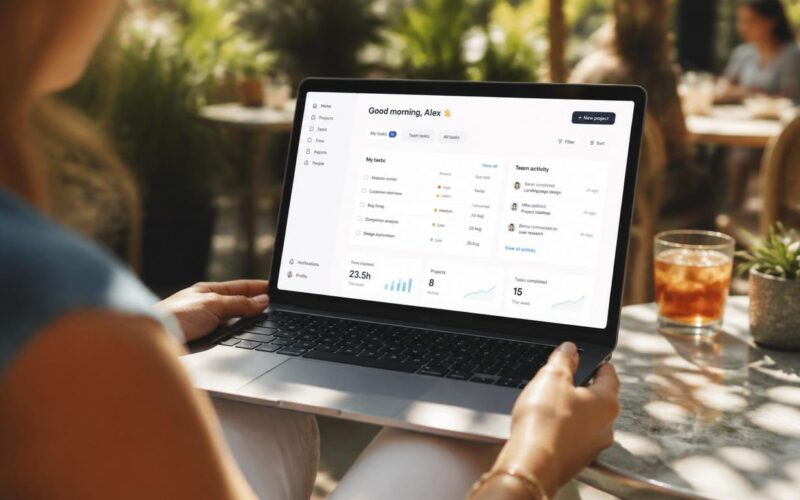
Asana is the structured end of the project management spectrum. Where Trello hands you a board and lets you figure out the rest, Asana gives you a defined hierarchy — projects, tasks, subtasks, sections, custom fields, and rules — that scales well for teams of 5-500 but can feel like overhead for solo users or very small teams. If you want the full context, see our Complete Guide to Software and Apps.
The setup choice that determines whether Asana saves time or wastes it: do you use one big project with sections, or multiple smaller projects? One big project is faster to set up but harder to navigate after a month; multiple projects take more setup but stay manageable as work scales. For most teams, multiple smaller projects organised under a Portfolio is the structure that pays off long-term.
Start with workflow #1 below (project + section structure) — it’s the foundation. The custom fields and automation rules build on it. If you’ve been using Asana for months and it feels chaotic, the project structure is almost always the reason.
Tasks, projects, and the core structure
Tasks are the fundamental unit of work. Each has a name, an assignee, a due date, and can belong to one or more projects. The right granularity: a task is an action one person can complete and mark done. If multiple people need to do different things for a task to be complete, it should be split into subtasks assigned to each person. Tasks that are too broad become bottlenecks; tasks that are too granular become noise.
Projects are containers for related tasks. A project represents a genuine scope of coordinated work — a product launch, a marketing campaign, a client engagement, an ongoing operational workflow. Projects have their own views, custom fields, and workflow rules that shape how the work inside them is managed. Creating one project for everything (or one project per team member) misses the point — the project structure is what enables per-project reporting, timelines, and automation.
Sections within a project group tasks into meaningful categories — workflow stages (To Do / In Progress / Review / Done), topic areas (Design / Development / Content), or phases (Discovery / Build / Launch). A project with 80 tasks across five sections is navigable in a way that 80 tasks in a single flat list is not. Add sections with “Add section” in any list or board view.
Step-by-step project setup
- Create the project. “+” in the left sidebar → “Project” → start blank, use a template, or import from a spreadsheet. Name the project, pick a colour, set the default view (List, Board, or Timeline), and add a description explaining the project’s purpose — context for team members who join later.
- Set up sections for workflow stages. What are the stages from start to complete for this type of work? For a content project: Ideas → Brief Written → In Production → In Review → Published. Each task’s position in the list reflects where it sits in the pipeline.
- Add custom fields. “Fields” in the project header → “Add field” → choose type (text, number, dropdown, checkbox, date, person). Custom fields extend each task with project-specific structured data — a content project might add content type (blog/video/social); a client project might add client name and project code. Custom fields appear as columns in List view and are filterable and sortable.
- Create tasks and assign them. “Add task” in any section → type the task name → assign a team member → set a due date. In the task detail panel, add a description — the “why” and “how” that turns a task name from a vague label into a clear brief. Add subtasks for multi-step actions.
- Set up dependencies. Task detail panel → “Dependencies” → “Mark as waiting on” → select the tasks that must complete first. Dependencies are visualised in Timeline view as connecting lines. This makes it visible exactly which tasks block which others — the developer can’t build until the designer delivers; legal can’t review until the business team drafts.
- Add project members. Project header → member avatars → “Add members.” Keep membership limited to relevant contributors — adding the whole company to every project creates notification overload for uninvolved people.
Dependencies — step 5 — are the feature that most distinguishes Asana for deadline-driven projects from simpler tools. With them set, the Timeline view shows the critical path: the sequence of dependent tasks whose combined duration determines the earliest possible completion date. Tasks with unmet dependencies are automatically flagged in the timeline when an upstream delay is about to impact downstream work.
Views, reporting, and portfolios
| View | What it shows | Best for | Plan required |
| List | Spreadsheet-style task list with columns for assignee, due date, custom fields | Daily task management, detailed filtering | Free |
| Board | Kanban cards in columns by section | Visual workflow management, drag-and-drop status updates | Free |
| Timeline (Gantt) | Tasks as bars across a calendar with dependency lines | Project planning, deadline management, critical path | Starter+ |
| Calendar | Due-dated tasks on a calendar | Deadline overview, workload by date | Free |
| Workload | Task count and estimated effort per team member | Capacity planning, preventing overload | Advanced |
| Dashboard | Charts and metrics for the project | Status reporting, stakeholder updates | Starter+ |
My Tasks is the personal view every Asana user should live in daily — a consolidated view of all tasks assigned to you across every project, organised by due date. Sort by project, priority, or due date. Use it as your daily plan: everything you’re responsible for, in one place, regardless of which project it lives in.
Portfolios (Advanced plan) collect multiple projects into a single overview showing status, progress, and upcoming milestones across all of them simultaneously. This is the view a programme manager or senior leader uses to monitor multiple concurrent projects without diving into each one. Each project reports its status (On Track / At Risk / Off Track) — set by the project owner in the project header — which rolls up into the portfolio view.
Goals (Advanced plan) connect projects and tasks to organisation-level objectives. A goal (e.g., “Increase website conversion rate by 20% this quarter”) can have contributing projects attached — so progress on those projects automatically contributes to goal progress. This makes the connection between day-to-day task work and strategic outcomes visible and measurable.
Rules, automation, and integrations
Rules are Asana’s automation engine (Starter and above). Each rule has a trigger and one or more actions:
- “When a task is moved to the Review section → assign it to [reviewer] and set due date to 2 days from now”
- “When a task is marked complete → add it to the Completed project and post a comment ‘Task complete — please archive when ready’”
- “When a task’s due date passes and it’s not complete → mark it as At Risk and notify the assignee”
Access: project → “Customize” → “Rules” → “Add rule.” The rule builder uses a visual if-then interface with no coding. The most impactful automation for most teams: routing tasks to the next person in the workflow automatically when the current step is completed, eliminating the manual “please review this” message.
Integrations connect Asana to external tools:
- Slack: create Asana tasks from Slack messages; get Asana notifications in Slack channels
- Google Drive / Dropbox: attach files directly from cloud storage to tasks without downloading and re-uploading
- GitHub / GitLab: link pull requests and commits to Asana tasks; task status updates when PRs merge
- Zoom: attach Zoom meeting links to Asana tasks; create tasks from Zoom meetings
- Salesforce: sync Salesforce opportunities to Asana projects; create tasks from CRM pipeline stages
Templates and onboarding
Asana’s template library (when creating a new project → “Use a template”) provides pre-built project structures for product launches, content calendars, event planning, bug tracking, hiring pipelines, and more. Starting from a template is faster and more reliable than building from scratch — modify it for your specific needs rather than designing the structure cold.
Once a project structure and custom field configuration works well — after running it for one cycle — save it as a team template: project options menu → “Save as template.” Future projects of the same type start pre-configured. Teams managing recurring workflows (monthly reporting, sprint cycles, quarterly reviews) benefit enormously: every cycle starts from a clean, correctly-structured project without the setup work of rebuilding.
For new team members: workspace settings → Members → Invite members → email invitations. New members join the workspace and must be added to individual projects by project members or admins. Create a short “Asana Onboarding” project template with tasks covering key projects to join and the workflow conventions your team uses — assigning it to every new member establishes how the tool works through actually doing it, rather than reading documentation. Our guide on using Trello covers the simpler Kanban-only alternative for teams that find Asana’s structure more than they need.
Asana vs other project management tools — the quick decision
- Choose Asana if: the team manages complex projects with dependencies and multiple stakeholders; cross-project portfolio visibility is needed; automation of multi-step workflows matters; reporting and goal-tracking are requirements
- Choose Trello if: Kanban is sufficient; the team is small and the free tier covers the need; simplicity is more important than structure
- Choose Jira if: the team is primarily software development with sprint management, git integration, and detailed engineering reporting requirements
- Choose Notion if: the team needs a combination of project management, wiki, and database functionality in one connected workspace
Asana’s free Personal plan is genuinely useful for teams up to 10 people — worth starting there and upgrading specifically when you hit a feature limit (timeline, workflow automation, portfolios) rather than upgrading speculatively. The Starter plan’s timeline and rules are the most commonly-cited reasons to upgrade from free.
Asana keyboard shortcuts worth memorising
Asana has one of the better keyboard shortcut systems in productivity software. Worth learning if you use it daily:
- Tab+Q — quick-add task from anywhere in the app. The single most useful shortcut
- Tab+M — assign the current task to yourself
- Tab+T — set today as the due date on the current task
- Tab+S — open the project sidebar to switch projects fast
- Tab+/ — show all shortcuts (this one’s worth remembering since it teaches you the others)
- Ctrl+Enter (Cmd+Enter on Mac) — submit a comment or task addition without clicking
The Asana automation rules that pay back the setup time
Automation rules are where Asana shifts from a task list to a workflow engine. Rules trigger automatic actions based on events. The ones that produce the most value:
- When task moves to ‘In Review’ section → assign to [reviewer name] — eliminates the manual step of remembering to hand off work
- When task is marked complete → add comment ‘✅ Done by [assignee]’ — keeps a visible audit trail in the project history
- When task has no assignee → assign to project owner — prevents tasks from sitting unassigned and forgotten
- When task due date passes without completion → move to ‘Overdue’ section — creates automatic visibility into what’s slipping
- When custom field ‘Priority’ = High → add Slack notification to project channel — surfaces important work where the team is actually paying attention
Asana automation is available on Premium and above (not free tier). The free tier lets you create rules but limits the number of active rules per project. For most teams, the Premium tier pays for itself in time saved within the first month of structured automation use.
Is Asana better than Trello?
Different tools for different problems. Trello (a board with cards) is faster to learn and works better for solo users and very small teams (under 5 people) doing relatively simple work. Asana scales better — it handles cross-project dependencies, custom fields, automation rules, and larger team coordination far more effectively. Choose by team size: under 5 people doing simple work, Trello; over 10 people or complex workflows, Asana.
How much does Asana cost?
Free for up to 10 users with limited features. Premium is $10.99/user/month annually ($13.49 monthly), Business is $24.99/user/month annually. Most teams get good value at Premium tier — it unlocks automation rules, Timeline view, custom fields, and most of what makes Asana genuinely useful versus alternatives. Business adds Portfolios, Goals, and advanced reporting.
Can Asana replace Slack for team communication?
No, and you shouldn’t try. Asana’s comments are good for task-specific discussion but not for general team chat. Most teams use both: Slack for synchronous discussion and quick decisions, Asana for tracking the work and decisions that come out of those discussions. The Asana-Slack integration is well-built and lets you create Asana tasks directly from Slack messages.
What’s the difference between projects, tasks, and subtasks in Asana?
Projects are containers for related work (e.g., ‘Q4 Marketing Launch’). Tasks are individual work items within a project (‘Write launch announcement’). Subtasks break down a single task into its components (‘Draft copy,’ ‘Get legal review,’ ‘Get marketing approval’). Use subtasks sparingly — too many subtasks make tasks hard to scan. If a task has more than 5-7 subtasks, it should probably be split into multiple top-level tasks.
Should I use Asana sections or separate projects?
Sections for stages within one workflow (To Do, In Progress, In Review, Done). Separate projects for genuinely different bodies of work (Q4 Marketing Launch vs Q1 Product Launch). The mistake most new Asana users make is one giant project with too many sections — it becomes ungovernable. Three or four mid-size projects almost always beats one massive one. Our guide on How to Use Stripe covers an adjacent issue.
Why don’t my Asana notifications work?
Asana notifications are configured per-user in three places: Inbox preferences (which events show in the Asana inbox), Email notifications (which events also send email), and Browser notifications. Profile → My Notifications. If you set up daily summary email and turn off individual notifications, that’s the most signal-rich notification setup for most users — you don’t get pinged constantly but you do get a digest of what matters. See also How to Use Monday.com for a related case.