Chrome spontaneously opening new tabs isn’t a Chrome bug. In nearly every case, something has been given permission to do this — a malicious extension, a website’s notification permission, or adware embedded in the Windows system. The behavior feels like Chrome is broken, but Chrome is actually doing what something instructed it to do. The job is finding what that something is. For a broader walkthrough, our Google Chrome Errors is a good next read.
The fastest diagnostic: when exactly do the new tabs open? Immediately when Chrome launches? After clicking specific links? While browsing with no clicking? Randomly after sitting idle? Each pattern points to a different cause.
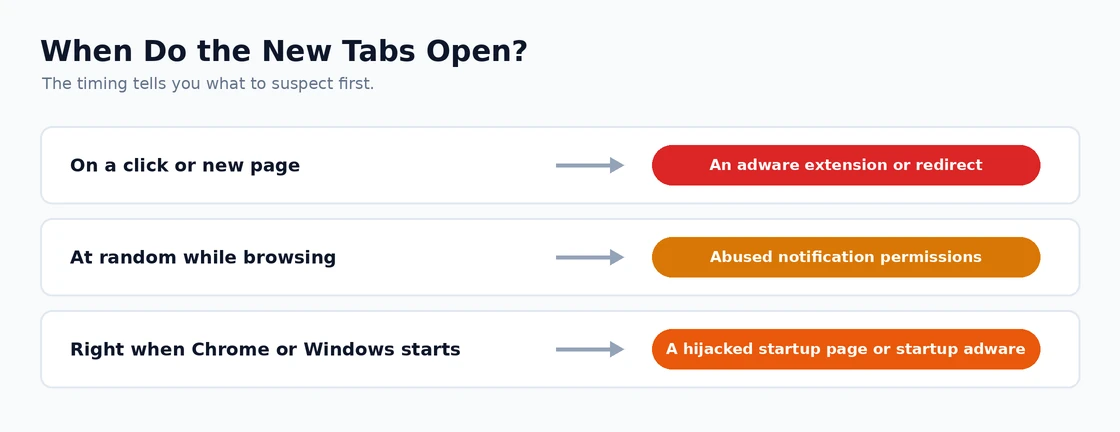
Extensions Are the Most Likely Cause — Check These First
Adware extensions are almost always the culprit. They disguise themselves as useful tools — video downloaders, PDF converters, shopping assistants, VPN services, search helpers — and their real purpose is opening tab after tab of ads and sponsored content. They often come bundled with software you actually wanted to install.
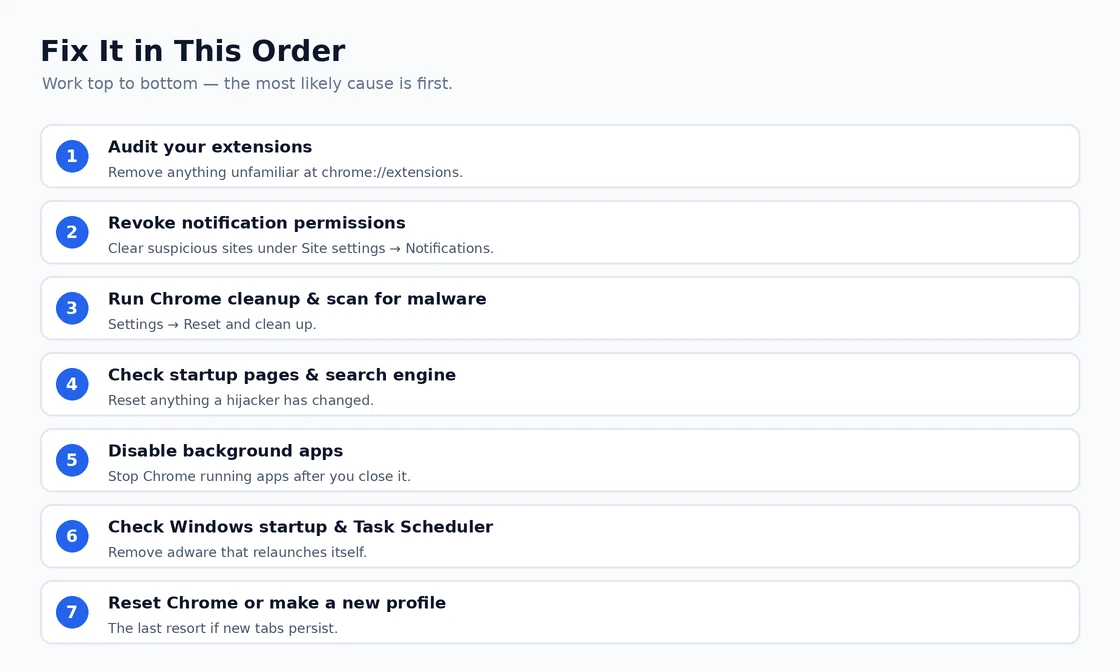
Go to chrome://extensions. Look at everything installed, including things you don’t remember installing. Anything that looks unfamiliar, anything with vague names like “Search Helper” or “Shopping Assistant” or “Video Downloader Pro” without a clear memory of installing it — disable it immediately, then remove it. Don’t just disable; remove it. Some adware extensions reinstall themselves or pass their tab-opening responsibility to a companion process.
After removing suspicious extensions, check whether the new tab behavior stops. If it does, you’ve found the cause. If new tabs continue, something else is responsible — work through the rest of the fixes below.
Notification Permissions — Exploited More Than Most People Know
This is the fix that most guides underemphasize. Chrome allows websites to send push notifications. Abusive websites exploit this by showing notifications that, when clicked, open new tabs. But some particularly aggressive sites configure their notifications to open tabs automatically without any click. If you ever clicked “Allow” on a notification prompt from a site you don’t trust, it now has a channel to keep pestering you.
Settings → Privacy and security → Site settings → Notifications. This page lists every site that has notification permission. Any site you don’t recognize or didn’t explicitly trust? Remove its permission. Be thorough — some sites appear with IP addresses or unfamiliar domains rather than recognizable names.
Also worth checking: Settings → Privacy and security → Site settings → Pop-ups and redirects. Sites with permission to show pop-ups can open new tabs without extension involvement.
This Is Usually Malware If Extensions Look Clean
If you’ve removed suspicious extensions and cleared notifications but Chrome keeps opening new tabs — especially to ad pages, redirect chains, or search engines you don’t recognize — malware is likely present at the system level rather than the browser level. System-level adware can inject tab-opening instructions into Chrome without appearing in the extensions list.
Run Chrome’s built-in cleanup first: Settings → Reset and clean up → Clean up computer → Find. Chrome’s scanner specifically targets software designed to hijack browsers. After that, run Malwarebytes (free tier) — it catches adware and PUPs (Potentially Unwanted Programs) that Windows Defender frequently misses. If Malwarebytes finds and removes something, restart Chrome and observe whether the tab behavior continues.
Check Startup Pages and Search Engine Settings
Browser hijackers commonly modify Chrome’s startup configuration so that Chrome opens specific URLs on launch — which then redirect through ad networks and open additional tabs. Settings → On startup → check what’s configured. If “Open a specific page or set of pages” is selected and there are URLs you didn’t set, remove them. Set startup to “Open the New Tab page” or “Continue where you left off” based on your preference.
Also check: Settings → Search engine. If the default search engine is something unfamiliar — not Google, Bing, DuckDuckGo, or a major search service — it’s been changed by a hijacker. Remove the unknown entries and set your preferred search engine as default.
Disable Background Apps
Chrome can run apps and extensions in the background after all Chrome windows are closed. Some adware exploits this to continue opening tabs even when you’re not actively using Chrome. Settings → System → toggle off “Continue running background apps when Google Chrome is closed.” This prevents any Chrome background process from acting while the browser window isn’t open.
Check Windows Startup Programs
Adware often installs itself as a Windows startup program — a scheduled task or startup entry that runs alongside Chrome (or instructs Chrome) to open specific URLs. Open Task Manager → Startup tab → look for anything unusual. Any unfamiliar entry, especially anything with a generic name or pointing to an executable in a temp folder, is suspect. Right-click → Disable.
Also check Windows Task Scheduler: search for Task Scheduler in Start → look for tasks with triggers set to “At startup” or “On a schedule” that run Chrome with URL arguments. A malicious scheduled task running chrome.exe https://adsite.com on a trigger would explain Chrome opening specific tabs on startup even if the adware extension was removed.
Reset Chrome Settings and New Profile
After clearing malware and removing suspicious extensions, Chrome’s internal settings may still carry configuration from the hijacker — modified search engines, custom startup pages, or altered permission settings. A full settings reset clears all of this: Settings → Reset settings → Restore settings to their original defaults → Reset settings. This preserves bookmarks and passwords but resets everything else to Chrome’s defaults.
If new tabs continue even after the settings reset — which is uncommon but possible if profile data is deeply corrupted — create a new Chrome profile. Profile icon → Add → Continue without signing in. Test Chrome’s behavior in the new profile. If it’s clean in the new profile, migrate to it by signing into your Google account.
Our guide on Chrome extensions not working covers the extension management side in more detail, which is useful when auditing extensions as part of this cleanup. For Chrome performance issues that accompany adware infections — slowdowns, high CPU from injected scripts — the Chrome running slow guide addresses those alongside the adware removal process. Google’s Chrome security documentation covers push notification management and how to report abusive websites that exploit Chrome’s notification system.
One practical note about adware reinstallation: some adware installs a companion program that monitors Chrome’s extensions and reinstalls the adware extension if it’s removed. After removing suspicious extensions, monitor chrome://extensions over the next few minutes — if a removed extension reappears without you installing anything, a companion program is reinstalling it. Check Programs and Features in Control Panel for recently installed software (sort by install date) and remove anything unfamiliar that was installed around the same time the tab-opening behavior started. Also check for browser helper objects in chrome://settings/system (or via a tool like Autoruns) that might be the reinstallation vector. Removing the reinstaller alongside the extension is what makes the fix stick.
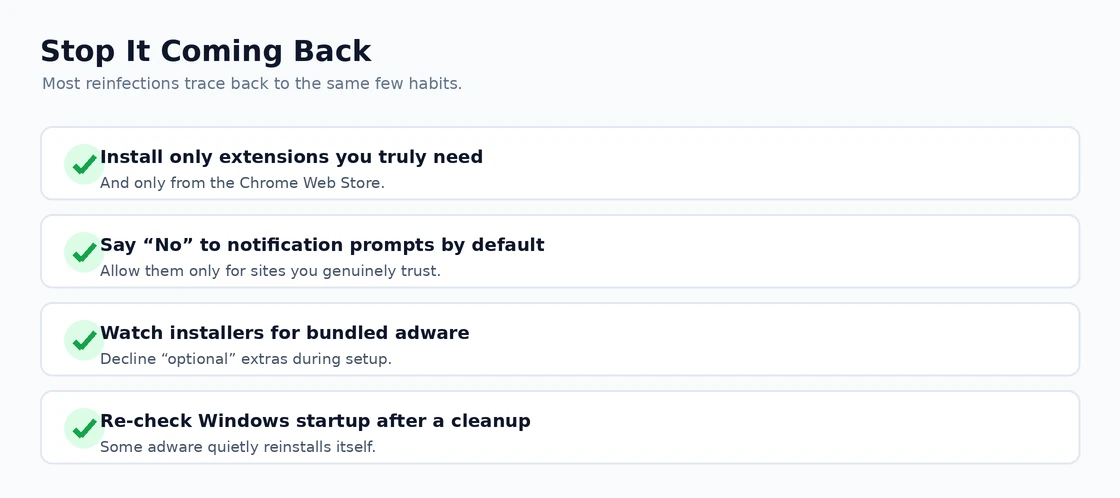
Chrome’s permission prompt fatigue is a real mechanism that adware exploits. When users are repeatedly shown “Allow notifications” prompts by sites, many develop a habit of clicking “Allow” to make the prompt disappear — without reading what they’re allowing. Legitimate sites show this prompt to enable genuinely useful notifications; abusive sites show it specifically to get the permission so they can later exploit it for tab-opening. After clearing notification permissions as described above, consider enabling Chrome’s “Quieter messaging for permission requests” setting (Settings → Privacy and security → Site settings → Notifications → toggle “Use quieter messaging”) — this replaces the prominent notification permission popup with a small unobtrusive indicator that’s harder to accidentally accept, reducing future permission fatigue grant risks.
Chrome’s SafeSearch enforcement and child safety settings are occasionally exploited by adware targeting family computers. Some browser hijackers specifically target machines where child profiles are set up because those machines often have less scrutiny of what’s installed. If new tabs are opening on a machine used by children, check both the adult Chrome profile and any child/supervised accounts set up in Chrome for suspicious extensions and notification permissions — hijackers sometimes install themselves in one profile and operate across all profiles through shared Chrome components. Also check the family safety application if one is installed; some parental control software has known extension vulnerabilities that adware exploits to gain browser access.
Website redirect chains that open new tabs are different from extension-caused or notification-caused tab opening. When clicking a link opens the intended page and simultaneously opens one or two additional tabs, the issue is often a JavaScript redirect on the clicked link’s destination page rather than any Chrome setting. Some sites — particularly media aggregators, content farms, and sites that rely heavily on programmatic advertising — embed redirect scripts that open additional tabs as a form of monetization. Chrome’s pop-up blocker catches many of these, but aggressive ones bypass it. The mitigation: Settings → Privacy and security → Site settings → Pop-ups and redirects → confirm “Sites can send pop-ups and use redirects” is set to Blocked. If a specific trusted site opens tabs intentionally (like opening a link in a new tab), you can add that site to the allowed list while keeping the general setting at Blocked.
Chrome’s flags include an experimental “Pop-up blocking” enhancement that’s more aggressive than the standard pop-up blocker. At chrome://flags, searching for “pop-up” reveals experimental settings for stronger redirect blocking that can catch some tab-opening scripts that bypass the standard pop-up blocker. These flags are experimental and may affect legitimate pop-up behavior on sites that need it, so testing them site by site is prudent — but for users who encounter persistent new tab opening on specific sites that the standard blocker doesn’t catch, these experimental flags provide an additional layer of defense.
Windows Registry modifications by adware sometimes redirect Chrome’s default URL handler in ways that cause Chrome to open additional tabs. Adware can modify the HKEY_LOCAL_MACHINESOFTWAREPoliciesGoogleChrome registry keys to force Chrome to open specific URLs, and these registry-level settings override Chrome’s UI settings — which is why a settings reset or even a Chrome reinstall doesn’t always stop the behavior. Checking chrome://policy in Chrome shows all active policies including those set via the registry. If unknown URL-related policies appear, they were set by adware through registry modification. Using Registry Editor to navigate to HKEY_LOCAL_MACHINESOFTWAREPoliciesGoogleChrome and deleting the entire Chrome key (after exporting it as a backup) removes all forced policies and allows Chrome to operate based on its actual settings rather than adware-injected ones.
Chrome Web Store permissions review is a useful final step after resolving new tab issues. Chrome’s extension permissions page (chrome://extensions → click Details on each extension) shows exactly what permissions each extension has requested. Extensions with permissions like “Read and change all your data on all websites” or “Access your browsing history” are the category of extension most capable of abusing Chrome for tab-opening and redirect purposes. Auditing which extensions have broad permissions and limiting them to extensions you actively use and specifically trust reduces future vulnerability to extension-based tab opening attacks. Chrome’s upcoming permission changes (as part of the Manifest V3 transition) will further restrict the ability of extensions to intercept and modify web requests in ways that enable tab-opening abuse, making the platform more resistant to this class of hijacking over time.
Keyboard shortcuts and mouse button macros are an uncommon but real cause of Chrome opening new tabs unexpectedly. If a gaming mouse or keyboard is configured with a macro that triggers Ctrl+T (new tab shortcut), or if an accessibility tool is generating keyboard events, Chrome may open new tabs when those events fire. If new tabs open during typing or when specific mouse buttons are pressed, check gaming peripheral software (Razer Synapse, Logitech G Hub, Corsair iCUE) for macros configured on buttons you might be pressing accidentally. Also check Windows Accessibility settings for keyboard shortcuts that might be triggering inadvertently — Sticky Keys, Filter Keys, and Toggle Keys all produce keyboard events that occasionally cause unintended browser actions.
One last note on the Chrome cleanup tool’s scope: Chrome’s built-in cleanup tool (Settings → Reset and clean up → Clean up computer) specifically looks for software that modifies Chrome’s startup behavior, injects into Chrome’s processes, or manipulates Chrome’s settings through unauthorized means. It does not catch all adware — specifically, it tends to miss adware that operates as a Windows service rather than a Chrome-specific process. For comprehensive system-level adware removal, combining Chrome’s cleanup tool with Malwarebytes and a check of Windows scheduled tasks and services gives the best coverage. The three-part approach (Chrome tool + Malwarebytes + manual Windows task check) resolves virtually all cases of new tab opening that persist after the extension and notification permission cleanup described earlier in this guide. Related: Chrome Keeps Reloading Tabs.
If the unwanted tabs trace back to changed search or startup settings, a clean reset is the most thorough fix. Our guide on how to reset Chrome settings safely walks through it without losing your bookmarks or saved passwords.