


A PDF is the format we all reach for when a document needs to look exactly the same on every screen and every printer. That reliability is its whole point. But the moment you end up with three or four separate PDFs that really ought to be one file — a scanned contract, a cover letter, a folder full of receipts — that same tidiness starts working against you. Learning how to merge PDF files turns that scattered pile into a single document you can email, print or archive in one move, and the good news is that you almost never need to pay for the privilege.
The reverse problem is just as common. Sometimes you are handed one enormous PDF and only need a handful of pages out of it, or you want to break a long report into smaller, more shareable chunks. The same tools that join documents together can usually pull them apart again, so it is worth learning both halves of the skill at once rather than hunting for a separate solution later.
This guide walks through every practical way to merge PDF files and split them again — on Windows, on a Mac and straight in your browser — along with the things that quietly go wrong, like ballooning file sizes, scanned pages that cannot be searched, and the privacy risk of uploading a confidential document to a website you have never heard of. I will start with what these operations actually do, then move through the methods from most private to most convenient.
What merging and splitting a PDF actually mean
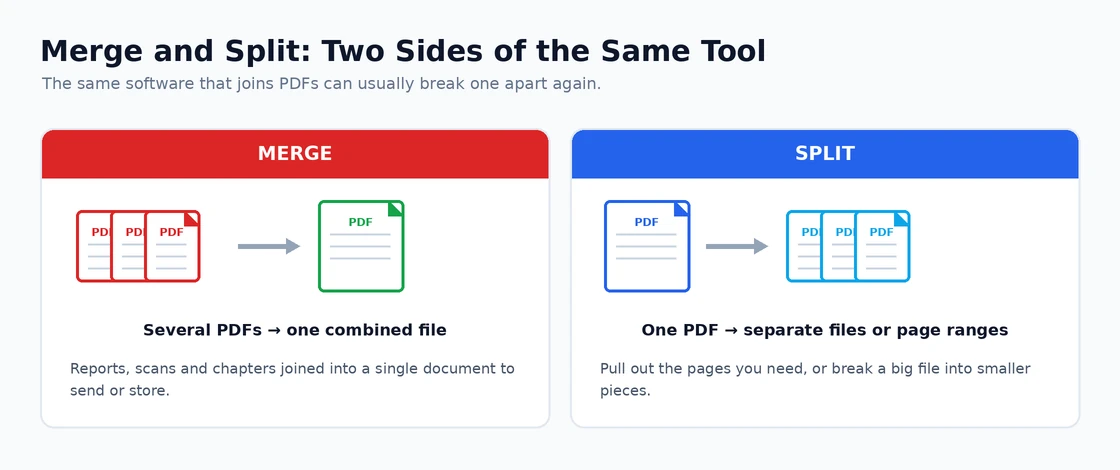
Merging is the simpler of the two ideas: you take several PDF documents and combine them into one continuous file, in an order you choose. Nothing inside the individual pages changes — the text, images and layout stay exactly as they were — you are just stacking the documents end to end so they open as a single file. When people talk about wanting to merge PDF files, this is almost always what they mean: a tidy way to keep related paperwork together instead of attaching five separate files to an email.
Splitting is the mirror image. You take one PDF and break it into smaller pieces — either pulling out specific pages, extracting a range like pages ten to twenty, or chopping a long document into several files of a set length. This matters when a file is too large to send, when only part of it is relevant to the person you are sharing with, or when you need to separate, say, the signed page of a contract from the rest of the document.
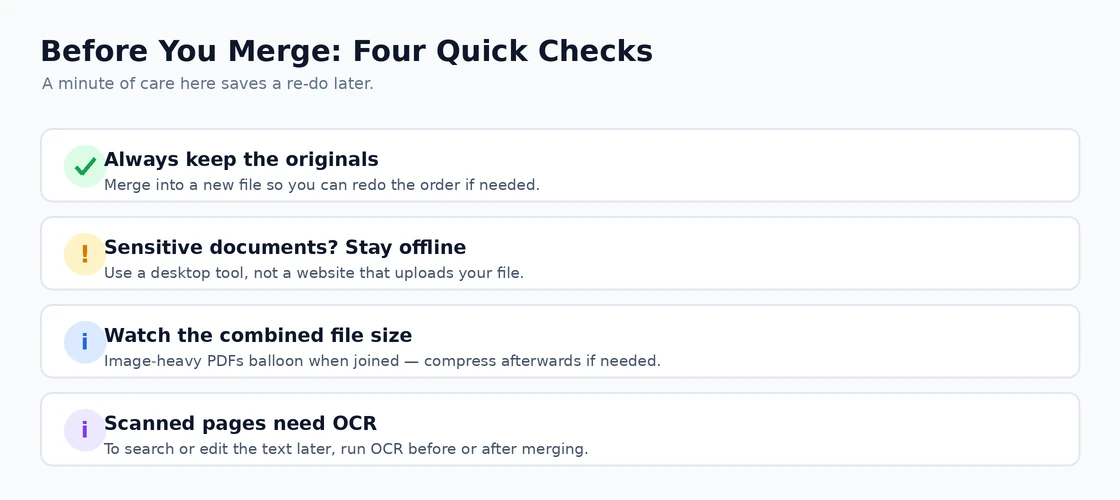
Both operations are non-destructive when you do them sensibly: your original files stay untouched and the result is saved as something new. That is worth holding onto as a guiding habit, because the most common regret when people merge PDF files is overwriting the source documents and then realising the page order was wrong. Keep the originals, work into a fresh file, and you can always start over.
How to merge PDF files with a free desktop app
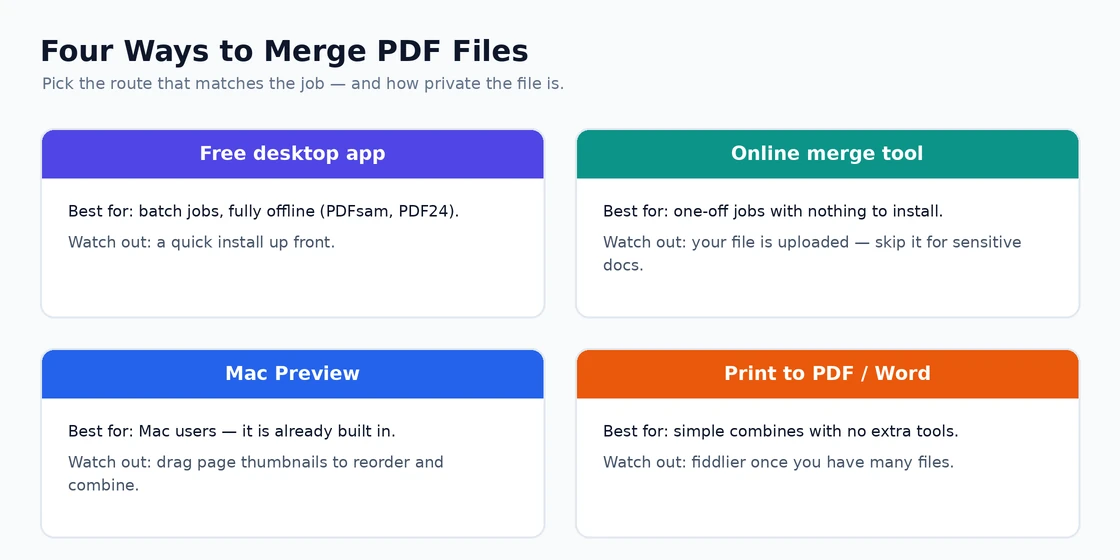
If you do this even occasionally, a small free desktop application is the route I reach for first. Tools like PDFsam Basic and PDF24 Creator run entirely on your own computer, which means nothing leaves your machine and you can merge PDF files in bulk without an internet connection. They are also genuinely free for the everyday joining and splitting most people need, rather than free trials that nag you after a week. The PDFsam website has free, open-source tools you may find useful if you want a clean, no-frills option.
The workflow is the same across most of these apps once you have one installed:
- Open the app and choose the Merge (or “Combine”) action.
- Drag your PDF files into the list, or use the Add button to pick them.
- Drag the rows up and down until the order is right — this is the step people skip and regret.
- Choose where to save the combined file and give it a clear new name.
- Click Run (or “Merge”), and a single PDF appears in your chosen folder.
The reason a desktop tool wins for anything sensitive is privacy: when you merge PDF files locally, your bank statements, medical letters or legal documents never touch a stranger’s server. It is also the most reliable choice for large batches, because you are limited only by your own computer rather than a website’s upload caps. The one cost is the initial install, which takes a couple of minutes — a small price for a tool you will keep coming back to.
Merging PDFs online without installing anything
When you just need a one-off job done quickly and the documents are not sensitive, a browser-based tool is hard to beat. You open the site, drag your files onto the page, reorder them, and download the combined PDF — no install, nothing to maintain, and it works the same whether you are on Windows, a Mac or a borrowed computer. For a quick, throwaway combine, this is often the path of least resistance.
The trade-off is the one people forget in the rush: an online tool works by uploading your documents to someone else’s servers. For a recipe collection or a set of holiday photos that is no problem at all. For anything with personal, financial or confidential information, it is exactly the wrong choice, because you have no real control over how long that file sits on a third party’s system or who can reach it.
Quick rule of thumb: if a document contains anything you would not want a stranger to read — names, account numbers, signatures, health details — do not put it through a website. Use a desktop tool that keeps the file on your own machine.
If you do use an online service, stick to well-known names, close the tab when you are finished, and remember that “files deleted after an hour” is a promise you are trusting rather than a guarantee you can verify. Treat the browser route as the convenient option for ordinary documents, not the default for everything.
Merging PDFs on a Mac with Preview
Mac users have a pleasant surprise waiting: the ability to combine PDFs is built right into Preview, the app that already opens your documents, so there is nothing to download at all. It is one of those quietly excellent macOS features that most people never discover, and it handles everyday joining perfectly well.
To do it, open the first PDF in Preview and show the sidebar of page thumbnails from the View menu. Then simply drag a second PDF file from Finder into that thumbnail sidebar, and its pages slot in alongside the first document. You can drag the thumbnails up and down to reorder pages, delete any you do not want, and when everything looks right, use File then Export to save the result as a brand-new PDF.
The same thumbnail view is how you split on a Mac too: select the pages you want, drag them out to the desktop, and Preview creates a new PDF from just those pages. It is not the fastest tool for joining dozens of files, but for the routine job of combining two or three documents, Preview is genuinely all most Mac owners need.
The no-extra-tools route: Print to PDF
On Windows there is a clever workaround that uses a feature already sitting in the system: the “Microsoft Print to PDF” printer. Because anything you can print can be printed to a PDF, you can use a document that contains several files — or print several open documents in sequence — to build a combined file without installing anything new. It is a little more hands-on, but it costs nothing and is always available.
A common version of this trick runs through Microsoft Word or another editor: insert each PDF or document onto the page in the order you want, then choose Print, pick “Microsoft Print to PDF” as the printer, and save. The result is a single PDF made from everything on the page. It works, and it is handy on a locked-down work computer where you cannot install software, though it gets fiddly once you are dealing with many files or complex layouts. The same print-to-PDF idea works from a browser too; our guide to Chrome’s print settings covers it.
I treat this as the fallback rather than the first choice. If you regularly need to merge PDF files, a proper desktop app is faster and tidier; but when you are on someone else’s machine with no tools and no time, knowing that Print to PDF can stitch documents together is a genuinely useful card to have up your sleeve.
How to split a PDF back into separate files
Splitting uses the very same tools you have already met. In a desktop app like PDFsam you choose the Split action instead of Merge, then tell it how to divide the file — after every page, at specific page numbers, or into equal-sized chunks. In Preview on a Mac you drag the pages you want out of the thumbnail sidebar. Online tools offer a “split” or “extract pages” option that mirrors their merge feature.
The most common reasons to split a PDF are size and relevance:
- Pulling out a few pages — extract just the signature page, the invoice, or the chapter someone actually asked for.
- Breaking up a large file — split a heavy report into parts small enough to email or upload.
- Separating sections — divide a combined scan back into the individual documents it was made from.
One detail trips people up: the page numbers printed in a document do not always match the PDF’s own page count, especially when there are cover pages or numbered appendices. Before you split, scroll through and note the actual page positions you want, so you extract pages eight to twelve rather than what the footer happens to call pages eight to twelve.
Keeping size, quality and privacy under control
The single most common surprise after you merge PDF files is a combined document that is far larger than the sum of its parts felt like it should be. This almost always comes down to images: scanned pages and photo-heavy PDFs carry a lot of data, and joining several together stacks all of it into one file. If the result is too big to send, run it through a PDF compressor afterwards, which can shrink image-heavy files dramatically with little visible loss.
Quality is the flip side of that coin. Good tools preserve your pages exactly when they combine them, so text stays sharp and selectable. The exception is a scanned document, which is really just a picture of text — it will look fine, but you cannot search or copy from it until you run optical character recognition (OCR), a step many PDF apps offer. If you will need to find or edit the words later, run OCR before or after merging. When your goal is to change the text rather than just read it, it is often easier to convert the PDF to Word instead.
Privacy deserves one last mention because it is so easy to get wrong under time pressure. For anything confidential, keep the whole job on your own computer and avoid online services entirely. If you want to understand the format itself in more depth, the PDF Association website has resources you may find useful. The simple discipline of keeping originals, working offline for sensitive files, and compressing only when needed will cover almost everything that goes wrong.
Merging and splitting PDFs on a phone
Plenty of this can be done from a phone, which is handy when the documents you need to combine are photos or scans you took on the device itself. On both iPhone and Android, the Files app and a range of free PDF apps can join several documents into one and share the result, without ever moving to a computer.
On an iPhone, the Files app lets you select multiple PDFs, then “Create PDF” or use the share options to combine them; scanning apps often offer the same feature straight after you capture a document. On Android, the approach varies by manufacturer, but a well-reviewed free PDF app from the Play Store will reliably merge and split files, and Google Drive can help you keep the pieces organised.
The same cautions apply on mobile as on a desktop, only more so: phone PDF apps are a crowded category full of products that push subscriptions and request more permissions than they need. Stick to reputable apps, be wary of anything that wants to upload your files to “process” them, and for sensitive paperwork, wait until you are back at a computer with an offline tool.
Common problems when you merge PDF files
The most frequent complaint is pages landing in the wrong order. Every decent tool lets you drag documents into sequence before you combine them, so the fix is simply to slow down at that step and confirm the order before you click the final button. If a finished file is wrong, do not try to edit it — go back to your originals and merge PDF files again from scratch, which is faster and cleaner than wrestling with the combined version.
A file that is suddenly too large to send is the next most common issue, and as covered above, it is nearly always image weight rather than the merge itself. Compress the combined PDF, or split off the heaviest section, and the problem usually disappears. If pages look blurry afterwards, the source documents were probably low-resolution scans to begin with — merging cannot improve what was never there. And if the finished file refuses to open at all, that is usually a viewer problem rather than the merge: our guides on PDFs not opening in Edge and blank PDF pages in Chrome walk through the fixes.
Finally, password-protected PDFs will often refuse to combine until the protection is removed, because the tool cannot read a file it is locked out of. If you own the document and know the password, open it, remove the protection, then merge as normal. If you do not have the password, that is the protection doing its job, and no merging tool should be able to bypass it.
Merge PDF files: quick answers to common questions
Do I have to pay to merge PDF files? No. Free desktop apps, your Mac’s built-in Preview, the Windows Print to PDF feature and reputable browser tools all handle everyday joining at no cost. Paid software is only worth it for heavy, professional document workflows, where a dedicated PDF editor earns its price.
Is it safe to merge PDFs online? For ordinary, non-sensitive documents, yes, as long as you use a well-known service. For anything confidential, no — use a desktop tool so the file never leaves your computer.
Will merging reduce the quality of my pages? No. Combining documents keeps each page exactly as it was. File size can grow with image-heavy PDFs, but the visible quality is preserved.
Can I change the page order after combining? It is far easier to set the order before you merge. If you got it wrong, go back to the originals and combine them again rather than editing the finished file.
How do I split a PDF back into separate documents? Use the same tool’s split or extract feature: choose the pages or ranges you want, and it saves them as new files, leaving your combined document intact.
For most people, the honest recommendation is to install one free desktop app and use it for everything: it keeps your documents private, handles both joining and splitting, and works without an internet connection. Save the online tools for quick, throwaway jobs on documents you would not mind a stranger seeing, lean on Preview if you are on a Mac, and keep your originals until you are sure the result is right. With those habits in place, merging and splitting PDFs stops being a chore you dread and becomes a thirty-second task.