Bookmarks are one of those things you don’t think about until they’re gone. Years of saved research, a carefully curated list of project resources, login links for services you use monthly — these are genuinely difficult to reconstruct from memory. The good news: Chrome gives you multiple ways to protect them, and backing them up properly takes under five minutes. We go deeper on the whole subject in our Chrome How-To Guides.
The fastest backup: export to HTML
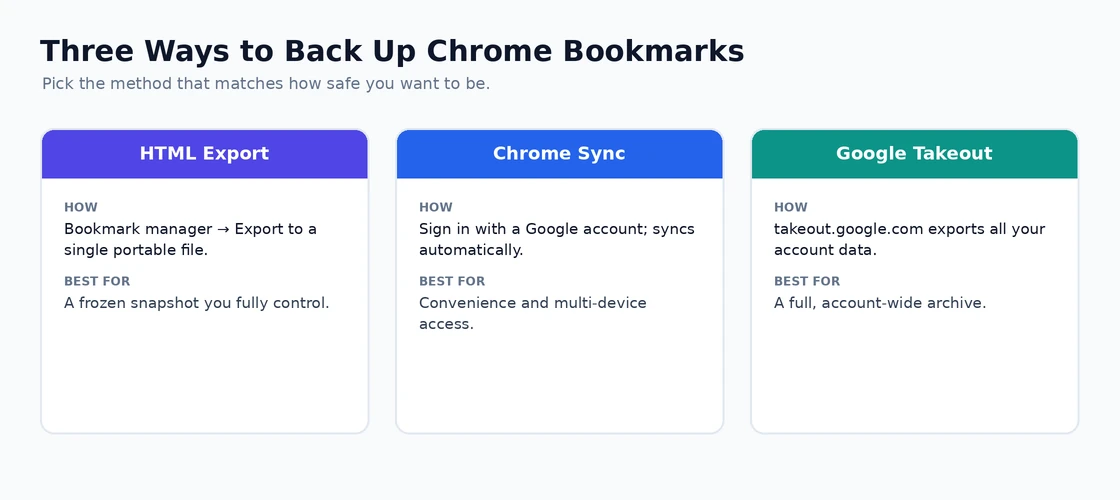
Chrome menu (three dots) → Bookmarks → Bookmark manager → three-dot menu in the top right of the Bookmark Manager → “Export bookmarks.” Chrome saves an HTML file to your Downloads folder. This file is a complete snapshot of every bookmark and folder. Import this file into any browser at any time: Bookmark Manager → three dots → “Import bookmarks.”
This is the simplest and most portable backup format. The HTML file can be stored in cloud storage, emailed to yourself, copied to an external drive, or kept on a USB drive. It’s also importable into Firefox, Edge, Safari, and most other browsers — not just Chrome. For the most resilient backup: export quarterly and store the file in a location separate from your main device.
Chrome Sync — the automatic backup you might already have
If you’re signed into Chrome with a Google account and sync is enabled: your bookmarks are automatically backed up to your Google account in real-time. Every added bookmark appears on your phone, your work laptop, and every other device where you’re signed in within seconds. And if Chrome is reinstalled, the device replaced, or the profile corrupted: signing back in restores everything from the cloud.
Check sync status: click your profile picture in Chrome → look at the top of the dropdown. “Sync is on” or a list of syncing items means bookmarks are in the cloud. “Sync is paused” means the backup stopped — click through to sign back in and resume it.
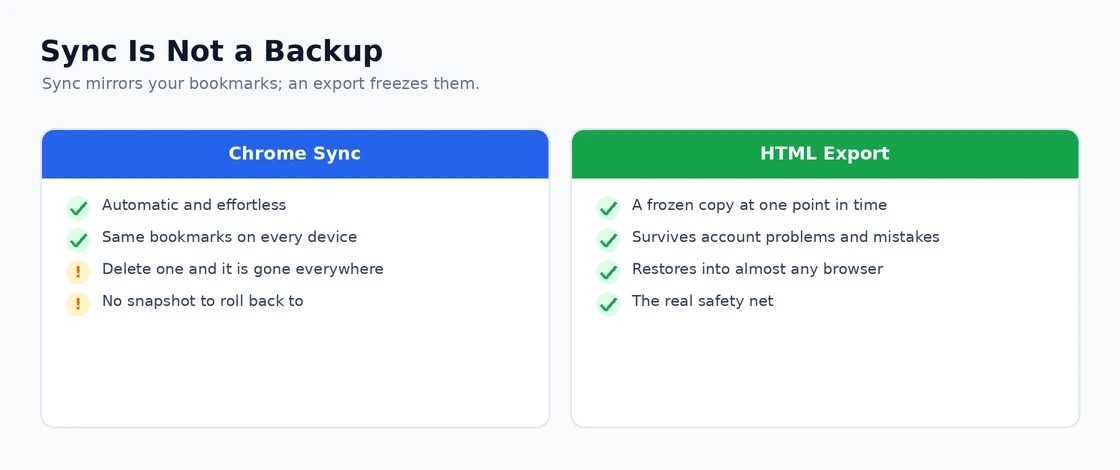
The Sync backup is effortless when it works, but it has one important limitation: if you accidentally delete bookmarks while sync is active, the deletion syncs to all devices and the cloud immediately. There’s no version history for bookmarks in Sync — what you delete is deleted everywhere. For protection against accidental deletion: the HTML export provides the recovery option that Sync doesn’t.
Google Bookmarks vs Chrome bookmarks
Chrome Sync stores your bookmarks in your Google account, but this is different from the older “Google Bookmarks” product (bookmarks.google.com). Chrome Sync bookmarks are accessible at chrome.google.com/sync/data but aren’t managed the same way as Google Bookmarks. Don’t confuse the two — they’re separate systems.
Your Chrome Sync bookmarks are viewable in the Google account settings: myaccount.google.com → Data & Privacy → Google services → Chrome → “Manage Chrome data.” This page shows when bookmarks last synced and allows you to reset sync data (use with caution — this is a nuclear option that clears all synced Chrome data from the cloud).
The bookmark file — what it is and where it lives
Chrome stores bookmarks locally in a file named “Bookmarks” (no extension) at: %localappdata%GoogleChromeUser DataDefaultBookmarks. Chrome also keeps a backup: “Bookmarks.bak” in the same location — this is the previous session’s bookmark state, saved automatically.
If you accidentally deleted bookmarks and Chrome Sync reflected the deletion before you noticed: close Chrome immediately → navigate to that folder → the Bookmarks.bak file contains the state from the previous session before the deletion. Rename “Bookmarks” to “Bookmarks.old” → rename “Bookmarks.bak” to “Bookmarks” → reopen Chrome. Your bookmarks are restored to their pre-deletion state. This only works if Chrome hasn’t been reopened after the deletion (which would overwrite .bak with the post-deletion state).
Our guide on Chrome profile management covers how bookmark data is stored within profiles and what happens to bookmarks when profiles are changed, and our Chrome Sync troubleshooting covers resolving sync issues that could affect bookmark backup reliability. For managing and exporting Google account data including Chrome bookmarks, Google Takeout allows downloading all your Google account data — including Chrome bookmarks — as a comprehensive archive.
Using Google Takeout for a full account export
Google Takeout (takeout.google.com) exports all data from your Google account, including Chrome bookmarks from Sync. Select “Chrome” in the Takeout product list → download → the archive contains a Bookmarks.html file identical in format to what Chrome’s own export produces. This is useful when you want a snapshot of all your Google data at a specific point in time, not just bookmarks. A Takeout export is more comprehensive than a Chrome export alone, covering all Google products you’ve opted in to.
Organising before backing up
A backup of a disorganised bookmark collection is harder to use when you need it than a backup of a well-organised one. Before the next export: spend 10 minutes in the Bookmark Manager (Ctrl+Shift+O) — create folders for main categories, move bookmarks into the right folders, delete entries for sites that no longer exist or that you’ll never visit again. An organised export is usable on restoration; an unorganised one requires the same cleanup work after restoring that you avoided before.
Restoring bookmarks after various scenarios
| Scenario | Restoration method |
| Chrome reinstalled, same device | Sign in to Chrome — Sync restores automatically |
| New computer or device | Sign in to Chrome — Sync restores; or import HTML backup |
| Bookmarks accidentally deleted | Immediately: restore from Bookmarks.bak; later: import HTML export |
| Profile corruption | Sign in to new profile — Sync restores from cloud |
| Switched to a different browser | Import HTML file exported from Chrome |
| Need access without Chrome installed | bookmarks.google.com (limited) or open HTML file in any browser |
The HTML export is the universal recovery tool. It works regardless of whether Sync is available, regardless of which browser you’re importing into, and regardless of how much time has passed since the backup. For the scenarios where Sync can’t help (switched browsers, no Google account, account-related issues): the HTML export is the only path to bookmark recovery. That’s why having a recent export somewhere accessible — cloud storage, email, external drive — is worth maintaining even for users who rely on Sync for day-to-day synchronisation.
Bookmark import from other browsers
When migrating from another browser to Chrome, or when creating a new Chrome profile after using a different browser: Chrome’s import tool brings bookmarks across. Chrome menu → Bookmarks → Import bookmarks and settings → choose the source browser. Chrome reads the other browser’s bookmark database directly (no need to export first from the source browser).
This also works as a cross-browser sync alternative: export from Firefox, import into Chrome. Export from Chrome, import into Firefox. Manually, not in real-time, but sufficient for maintaining a common bookmark set across browsers if you regularly use more than one.
Large bookmark collections and performance
Chrome handles bookmark collections well into the thousands of entries without meaningful performance impact. The Bookmark Manager may be slightly slower to render very large collections, but browsing performance is essentially unaffected by bookmark count — bookmarks are loaded lazily and don’t run in the background.
Where bookmark count becomes a practical issue: usability. Finding a specific bookmark in a collection of 5,000+ entries is slow without good folder organisation. The Bookmark Manager’s search (Ctrl+Shift+O, then type in the search box) finds bookmarks by title and URL, which helps. But the fundamental solution is organisation: a well-structured folder hierarchy makes any size collection manageable.
Bookmark deduplication
Chrome doesn’t prevent duplicate bookmarks — you can bookmark the same URL multiple times in different folders or accidentally create the same bookmark twice. For large collections that have accumulated over years: deduplication extensions (search the Chrome Web Store for “bookmark manager” or “duplicate bookmarks”) identify and help remove duplicates in bulk. Without an extension: the Bookmark Manager search for a URL can surface duplicates one at a time.
Bookmark security considerations
An exported Chrome bookmarks HTML file is plain text containing all your bookmarked URLs. For most users, this is fine — bookmarks are generally public or semi-public URLs. But if you bookmark internal work URLs, personalised service links, or anything that reveals sensitive contexts (medical portals, financial accounts): the HTML export contains those URLs in readable form.
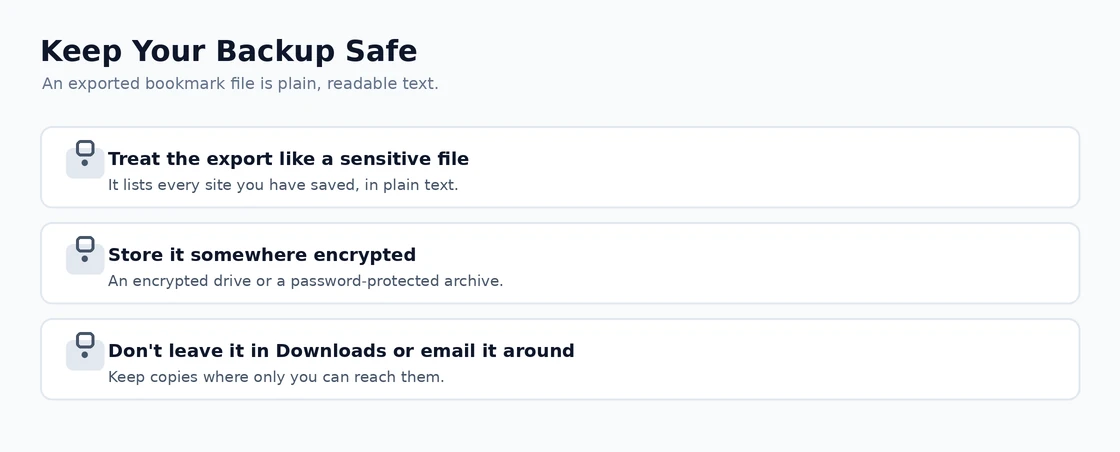
Store backup files accordingly: an encrypted backup location (encrypted cloud storage, password-protected archive, local encrypted drive) is appropriate if your bookmarks include anything you’d rather not leave in a plain text file. For most personal bookmark collections, the risk is low and the standard Downloads folder or cloud storage is fine. The important thing is having the backup — where to store it is a secondary consideration based on what’s in it.
Scheduled bookmark backup approach
A simple routine that ensures you never lose too much bookmark data:
- Enable Chrome Sync if you have a Google account — this creates an automatic real-time cloud backup
- Export an HTML backup monthly (or quarterly for smaller collections) — stores a point-in-time snapshot that Sync doesn’t provide
- Keep the last 2-3 HTML exports, not just the most recent — provides roll-back options if you accidentally deleted bookmarks weeks ago
- Store at least one HTML backup off-device (cloud storage or email) — protects against the device being lost or damaged
This four-step approach costs about five minutes per quarter and provides protection against all common bookmark loss scenarios: accidental deletion (HTML rollback), device loss (Sync + off-device HTML), browser or account issues (HTML import anywhere), and browser switching (HTML import to new browser). Over-engineering a backup system for browser bookmarks isn’t necessary; this simple approach covers everything practically important.
The key insight about Chrome bookmark backup: Sync is convenient but not sufficient alone because it replicates deletions immediately. The HTML export is the snapshot that Sync doesn’t provide. Having both — ongoing Sync plus periodic HTML exports — gives you both convenience and genuine data protection across all the scenarios where you might need to restore your bookmarks.
Bookmark sync across mobile and desktop
Chrome Sync makes bookmarks available across all signed-in devices — desktop, Android, iOS. On mobile Chrome: bookmarks synced from desktop appear in the browser’s bookmark section immediately after sign-in. Adding a bookmark on mobile syncs it to desktop within seconds.
Practical result: if you’re reading something on your phone and want to continue on your desktop: bookmark it on mobile → it appears in Chrome’s bookmarks on your desktop immediately. This cross-device bookmark flow works seamlessly when Sync is active, and is one of the most consistently useful Chrome features for users who switch regularly between devices.
For iOS specifically: Chrome bookmarks on iPhone are accessible only through the Chrome app — they don’t appear in Safari’s bookmark list. If you use Safari on Mac and Chrome on iPhone, or vice versa: the bookmark sets are separate. A cross-platform solution in that scenario requires manual HTML export/import or a third-party bookmark syncing tool that works across browsers.
Troubleshooting bookmark sync issues
If bookmarks made on one device don’t appear on another despite both showing Sync as active: the most effective fix is checking both devices’ sync status. Sometimes one device shows Sync active but has actually paused due to a token expiry. Profile icon → check the sync state on both devices → if either shows “Paused”: sign in again.
If signing in doesn’t help: chrome://sync-internals → “Type State” table → look at “BOOKMARKS” row → check the last successful sync timestamp. If it’s hours or days old: Sync has stalled for bookmarks specifically. Force a sync: turn Sync off and back on. If the problem persists: the sync reset approach (clearing the cloud data and letting it re-upload from one device) resolves most persistent bookmark sync conflicts.
Bookmarks are small in data terms but large in practical value. Protecting them properly takes five minutes of setup and five minutes per quarter to maintain. Given how long it would take to rebuild a curated collection manually, that investment is clearly worth making. The HTML export is the cornerstone — simple, universal, and reliable regardless of what happens to your Chrome installation, Google account, or device. Related: How to Reset Chrome Settings Safely.