Chrome freezes in two recognizably different ways, and which one you’re seeing points to different fixes. The first: a specific tab stops responding — the page hangs mid-load, the spinning cursor appears, but other tabs and the browser itself still work. The second: Chrome as a whole locks up — clicking anywhere does nothing, scrolling stops, and Windows eventually suggests closing the program. These are different problems with different solutions, and mixing up the fixes wastes time. For a broader walkthrough, our Google Chrome Errors is a good next read.
For a frozen tab, press Shift + Esc to open Chrome’s built-in task manager, find the tab using excessive memory or CPU, and end its process. That’s usually the complete fix. For a fully frozen browser, the rest of this guide covers the causes and solutions in order of how often they work.
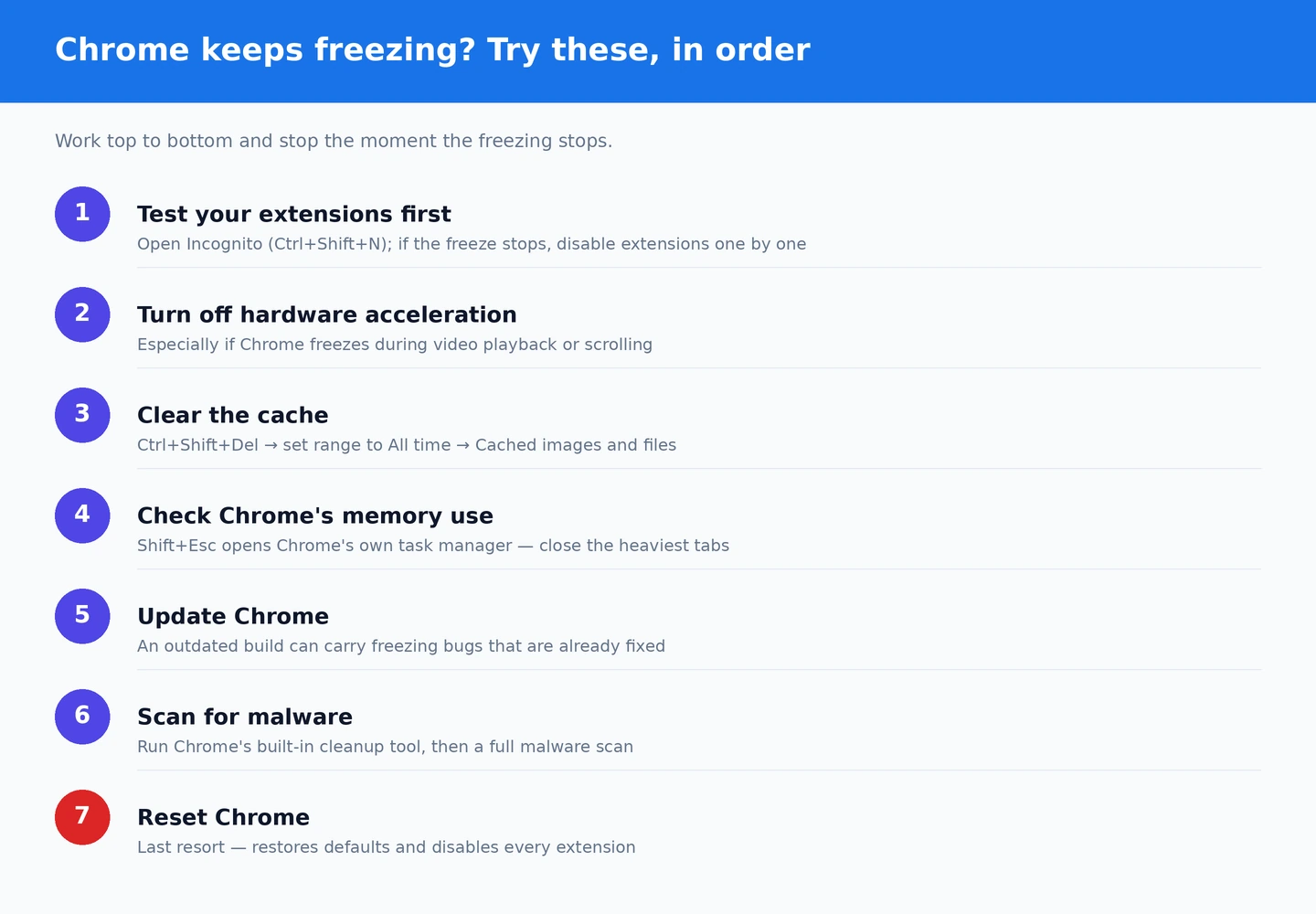
Extensions Are the Most Likely Cause — Test This First
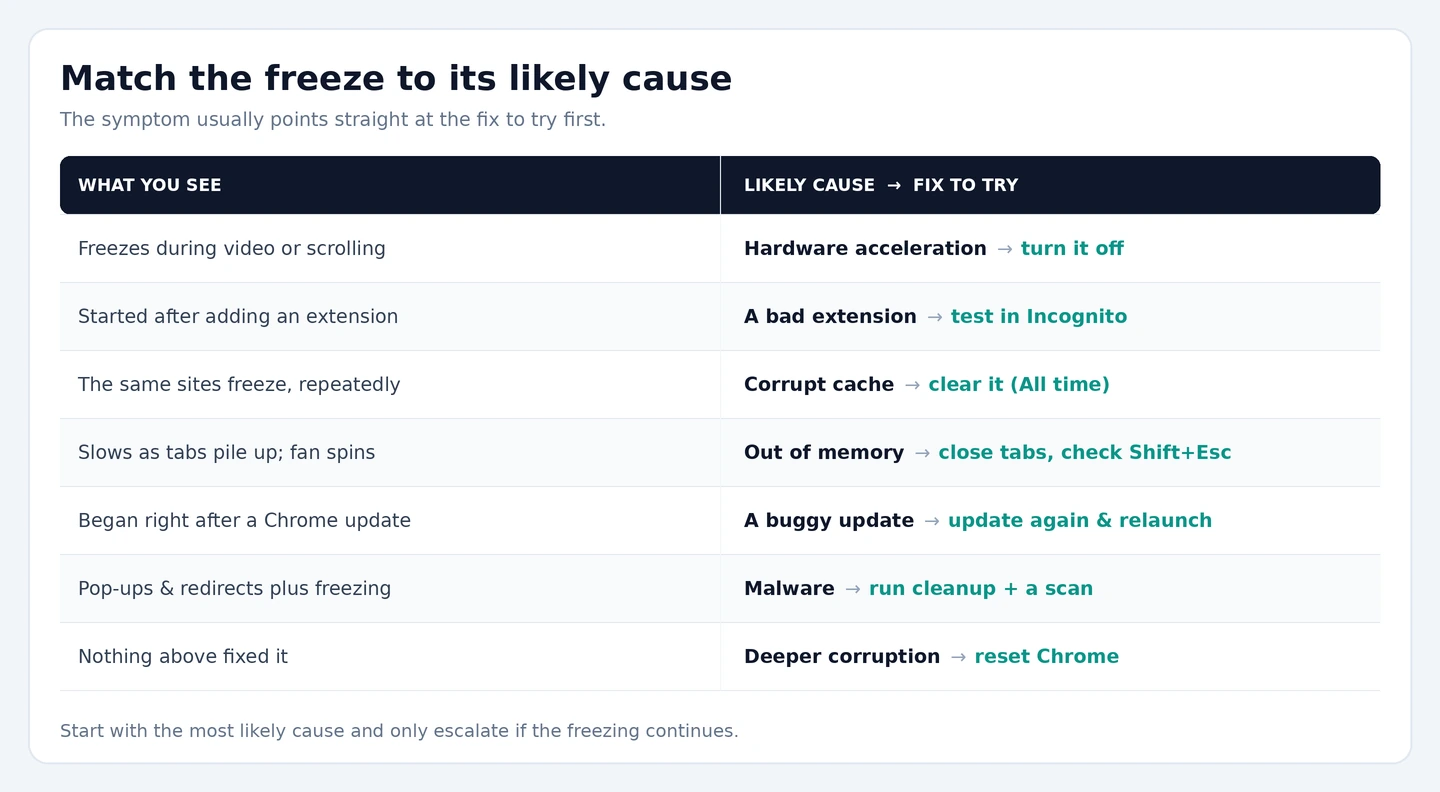
This is the fix that works most often when Chrome freezes during normal browsing, especially if the freezing started gradually rather than suddenly. Extensions run alongside every page Chrome loads. A poorly written extension, or one that hasn’t been updated to work with the current Chrome version, can leak memory, run expensive background operations, or enter infinite loops that lock up the browser.
The test: press Ctrl + Shift + N to open an Incognito window. Incognito disables all extensions by default. Browse for a few minutes the same way you normally would. If Chrome stays stable in Incognito but freezes in a normal window, an extension is responsible.
To find which one: go to chrome://extensions, toggle every extension off, restart Chrome, and use it normally. When it stays stable, re-enable extensions one at a time — after each re-enable, give Chrome a minute or two of normal use. When the freezing returns, the last extension you enabled is the problem. Update it, disable it, or remove it.
Hardware Acceleration: Common, Easy to Miss
Hardware acceleration uses the GPU to render web content and typically works well. On systems with older integrated graphics, outdated GPU drivers, or certain GPU/CPU combinations, it causes Chrome to freeze intermittently — particularly when scrolling through pages with lots of images or video, or when multiple tabs are open simultaneously.
The pattern that points to this: Chrome freezing specifically during visual-heavy activities (scrolling fast, playing video, loading image-heavy pages) but staying stable on text-heavy pages or with fewer tabs open.
Disable it here: three-dot menu → Settings → System → toggle off “Use hardware acceleration when available” → click Relaunch. Test Chrome for a session. If freezing stops, update the GPU driver (Device Manager → Display Adapters → right-click GPU → Update driver, or download directly from NVIDIA/AMD/Intel’s site). After the driver update, you can try re-enabling hardware acceleration — the updated driver often resolves the incompatibility.
Clear the Cache
Corrupt cached data causes Chrome to repeatedly fail on specific pages — it loads the cached broken version, hits an error, and hangs trying to handle it. This usually manifests as freezing on the same sites consistently while other sites work fine.
Ctrl + Shift + Delete → set time range to All time → check Cached images and files and Cookies and other site data → Clear data → restart Chrome. If the freezing was cache-related, it typically stops immediately. This takes about 30 seconds and has no real downside, so it’s worth doing early in troubleshooting even if you’re not sure whether cache is the cause.
Memory: Is Chrome Actually Running Out?
Chrome uses a lot of RAM — by design, because each tab running in isolation is more stable than all tabs sharing memory. On a machine with 8GB or less of RAM, running Chrome with many tabs plus other applications active can exhaust available memory, causing Chrome to freeze as it tries to swap memory to disk.
Open Chrome’s task manager (Shift + Esc) and look at the Memory column. If individual tabs are using 500MB+ each, and you have many tabs open, memory pressure is likely. Also open Windows Task Manager (Ctrl + Shift + Esc) and check the Memory row — if it’s consistently above 85–90%, Chrome is competing for RAM with everything else on the system.
Short-term fix: close tabs and unused applications. Long-term: Chrome has a Memory Saver feature (Settings → Performance → Memory saver) that automatically puts inactive tabs to sleep, reducing their memory footprint to near-zero until you return to them. Enable it. It meaningfully reduces Chrome’s baseline memory usage and prevents the RAM exhaustion that causes freezes on moderate-memory systems.
Update Chrome
An outdated Chrome version can have bugs that cause freezing — bugs that are already fixed in a newer release. It’s worth checking before doing anything more involved. Three-dot menu → Help → About Google Chrome. Chrome checks for and installs available updates when this page opens. Restart if prompted, then test.
If Chrome was working fine and started freezing after a recent update, the update itself introduced the issue. In that case, searching for “Chrome [version number] freezing” often turns up official bug reports and known workarounds. Google typically releases a patch within a week or two of widespread reports.
Check for Malware
Malicious software that hijacks Chrome — injecting ads, redirecting searches, or running cryptomining scripts — causes exactly the kind of CPU and memory exhaustion that looks like Chrome freezing randomly. If Chrome started becoming slow and unresponsive around the same time you installed software from an unofficial source, or after clicking something unexpected, malware is worth ruling out.
Chrome has a built-in cleanup tool: three-dot menu → Settings → Reset and clean up → Clean up computer → Find. It scans for software interfering with Chrome and removes it. For a more thorough scan, Malwarebytes (free tier) is the standard recommendation — it finds adware and PUPs that Windows Defender often misses.
Reset Chrome — When Nothing Else Works
If Chrome freezes persist through extension disabling, hardware acceleration changes, and cache clearing, the Chrome profile itself has accumulated enough corrupt configuration to need a reset. Three-dot menu → Settings → Reset settings → Restore settings to their original defaults → Reset settings.
This clears custom settings, disables extensions (you’ll need to re-enable them), and removes pinned tabs — but it preserves bookmarks and saved passwords. It’s not the nuclear option; it’s more like returning Chrome to default settings while keeping your data.
If even a full reset doesn’t stop the freezing, the Chrome profile data is the issue rather than settings. Rename the Default folder in %localappdata%GoogleChromeUser Data to Default.old and restart Chrome with a fresh profile. This is the same fix described for Chrome not opening — it creates a completely clean profile, which resolves any freezing caused by corrupted profile data.
Our guide on Chrome not opening on Windows covers the startup-specific failures that share several root causes with freezing. For Chrome running slowly without outright freezing, our Chrome running slow guide covers the performance-specific fixes. Additional troubleshooting for Chrome freezing in specific scenarios — on specific websites, in fullscreen, or during specific operations — is covered in the Google Chrome support documentation.
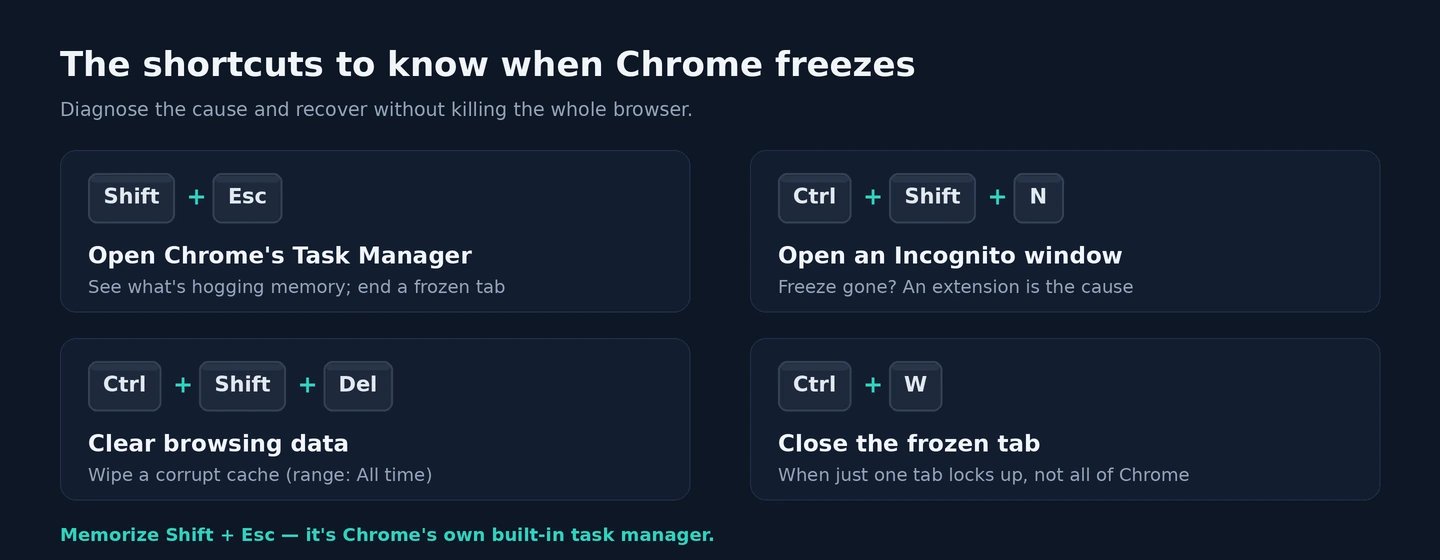
Chrome’s internal diagnostics are underused. When Chrome becomes unresponsive, pressing Shift + Esc opens Chrome’s own task manager even while the browser is partially frozen — because the task manager runs in its own process. This shows you in real time which tab, extension, or background service is consuming abnormal CPU or memory. A tab using 80%+ CPU is almost certainly running malicious or poorly written JavaScript. An extension using 500MB+ of memory has a memory leak. The task manager turns a vague “Chrome is frozen” into a specific “this thing is causing it” within about ten seconds.
JavaScript-heavy pages are a specific category of Chrome freeze that’s worth understanding separately. Some websites run extremely computation-heavy JavaScript — cryptocurrency price trackers refreshing every second, complex data visualisation dashboards, or websites using WebGL for 3D rendering. These pages can legitimately push Chrome to its limits even on powerful machines. If Chrome consistently freezes on specific sites but works fine everywhere else, the site itself is the cause rather than Chrome’s configuration. Nothing in Chrome settings will fully resolve it — the site’s code is just demanding. The only practical fixes are: keeping fewer other tabs open while using that site, using a tab suspension extension to free up resources from other tabs, or using a different browser for that specific site (Firefox sometimes handles memory-intensive pages differently).
Tab groups and tab hibernation are Chrome features that reduce freezing caused by too many active tabs. When you group tabs (right-click a tab → Add tab to new group), Chrome can collapse the group and reduce the number of simultaneously active renderers. Combined with Memory Saver (which freezes inactive tabs), these features can dramatically reduce Chrome’s memory footprint during heavy multitasking sessions. If Chrome freezes specifically happen after you’ve accumulated 20+ open tabs over a long session, these management features address the root cause more sustainably than repeatedly restarting Chrome.
Antivirus real-time scanning occasionally causes Chrome freezes by intercepting and scanning web content as it downloads. The freeze manifests as Chrome hanging when loading certain page resources — the antivirus is doing a content inspection that takes several seconds, and Chrome’s rendering pipeline stalls waiting for the resource to complete loading. The symptom is usually inconsistent: Chrome freezes on some sites but not others, or freezes intermittently rather than every time. Temporarily disabling real-time protection and testing whether freezing stops confirms whether the antivirus is involved. If it is, adding Chrome’s profile folder to antivirus exclusions — or using the antivirus’s “trusted browser” mode if it has one — prevents the scanning interference without disabling protection entirely.
Chrome flags are experimental features that can affect stability. If you’ve ever visited chrome://flags and enabled experimental features — or if extensions have done so on your behalf — some of those flags can cause freezing when the experimental feature doesn’t work correctly on your system. Resetting all flags to default (chrome://flags → Reset all in the top right corner → Relaunch) is a quick step that eliminates experimental feature interference. It’s particularly worth doing if Chrome’s freezing started after a Chrome update, since updates sometimes change how experimental flags interact with Chrome’s new code.
Profile sync conflicts are a less obvious freezing cause for users with Chrome sync enabled across multiple devices. When a Chrome extension or setting synced from another device creates a conflict with the current installation — a common scenario after migrating to a new PC and syncing an old profile onto it — Chrome can enter a loop trying to reconcile the conflicting state, causing periodic freezes. Temporarily disabling sync (Settings → You and Google → Sync and Google services → Turn off) and testing whether freezing stops confirms sync conflict involvement. If it does, signing out of the Google account, clearing the sync data from Google’s servers (Settings → You and Google → Manage your Google Account → Data & privacy → search “Chrome sync”), and re-enabling sync with a clean slate usually resolves the recurring conflict.
Chrome’s process model means a single frozen tab shouldn’t take down the whole browser — but it sometimes does, and understanding why helps with the fix. Each tab is supposed to run in an isolated renderer process. When Chrome’s parent browser process is doing something resource-intensive at the same moment — updating, syncing, or running a background task — and a tab’s renderer also hits a peak, the two compete for the main thread. Chrome’s UI thread (the one handling your clicks and scrolling) can become starved for CPU time, making the whole browser feel frozen even though individual processes are technically still running. Waiting 15–30 seconds without clicking anything sometimes lets Chrome’s main thread catch up and become responsive again — it’s not the most satisfying fix, but for transient freezes caused by momentary resource peaks rather than chronic overload, patience is sometimes the answer before resorting to force-quitting.
For developers and technically inclined users: Chrome’s –renderer-process-limit flag controls how many renderer processes Chrome creates. By default, Chrome limits the number of renderer processes based on available memory. On low-memory machines, Chrome consolidates multiple tabs into fewer renderer processes to save RAM — but this means a single renderer crash or freeze takes out multiple tabs simultaneously. Running Chrome with --renderer-process-limit=10 (adjustable) allows more separate processes and makes freezing less catastrophic when individual tabs encounter issues, at the cost of somewhat higher memory usage. This is a command-line flag added to the Chrome shortcut’s Target field and isn’t an official supported setting, but it’s a legitimate diagnostic and tuning option for users hitting this specific pattern. Our guide on Microsoft Edge Keeps Freezing covers an adjacent issue.
When freezing persists after the steps above, resetting Chrome to its defaults safely clears the corrupted settings and conflicting flags that cause it.