The right file compression software depends on what you are actually trying to do with the compressed file, not on which tool has the best feature comparison. Four distinct purposes account for most compression needs, and the optimal format and tool genuinely differ for each. Sharing files with someone who needs to extract them on their own computer wants maximum compatibility, which means ZIP almost always regardless of better alternatives. Long-term archiving where space matters more than speed wants formats that compress more aggressively (7Z, RAR). Encrypted transfer of sensitive files wants format-and-tool combinations with strong encryption properly implemented. Saving disk space on your own computer for files you rarely access wants different trade-offs than any of the above.
Most “best file compression software” articles ignore this and produce feature comparisons that fit none of these purposes specifically well. The result is recommendations that work for some uses and fail for others, with users discovering after the fact that the format they compressed in cannot be opened easily by their recipient or that the encryption they thought was secure was implemented in a way that defeats the purpose. This guide is structured around the four purposes because the right combinations of tool and format genuinely differ across them.
For broader context on the Windows utility software stack that compression tools sit within, our complete guide to Windows software covers the adjacent categories.
For Sharing Files With Other People: ZIP With Built-In Windows Tools
For the most common use case — sending files to someone else who needs to extract them — the right answer is almost always ZIP format using the built-in Windows compression. Windows 11 includes native support for creating and extracting ZIP archives without any third-party software, the recipient (regardless of whether they are on Windows, Mac, Linux, or anywhere else) can extract ZIP files without installing anything special, and the format is universally compatible across operating systems and decades of computing history.
The case for using the built-in tools rather than installing dedicated software for this purpose is overwhelming. Windows handles ZIP natively through File Explorer — right-click a file or folder, select “Compress to ZIP file,” and you have an archive ready to send. The extraction works similarly with no additional software needed. For the realistic case of “I need to email these files to someone,” this workflow is faster than installing and configuring third-party compression software.
Windows 11 also added native support for extracting (but not yet creating) several additional formats including 7Z, RAR, and TAR. This means recipients of files from people who used other compression formats can usually open them without installing software, which has reduced the operational friction in this category substantially over the past few years.
The realistic limits of the built-in tools are real. The compression ratios are not the best in the category — 7Z and RAR formats produce smaller files than ZIP for the same content, sometimes substantially smaller for compressible content like text and uncompressed images. The advanced features (multi-part archives, recovery records, sophisticated encryption) are not available. For users who specifically need these features, dedicated tools matter.
For the sharing use case specifically, the limitations rarely matter. The slightly larger ZIP file is rarely the binding constraint on email or file sharing — modern internet connections and reasonable file storage limits make compression efficiency a small concern compared to compatibility. The recipient being able to open the file without trouble is usually more valuable than saving 15% on file size with a format they cannot open easily.

For Maximum Compression and Archival Use: 7-Zip
7-Zip (free, open-source; 7-zip.org) is the right file compression software for users whose primary use case is archival storage where compression efficiency matters more than universal compatibility. The 7Z format produces meaningfully smaller files than ZIP for most content, sometimes 30-50% smaller for highly compressible data, and the LZMA2 compression algorithm is genuinely strong.
The case for 7-Zip specifically is when you are creating archives that you will mostly extract yourself or share with users who have 7-Zip installed. Long-term storage of project files, backup archives that need to fit within specific size limits, and personal archival of content you want to compress maximally — all of these benefit from 7Z’s better compression compared to ZIP. The tool itself is free, open-source, mature, and stable.
The case for using 7-Zip for ZIP files too is real even when you specifically need ZIP for compatibility. 7-Zip’s ZIP implementation produces slightly smaller ZIP files than Windows’ built-in tool because of better Deflate compression. The difference is small (typically 1-5%) but consistent. For users creating ZIPs frequently, 7-Zip as the default compression tool produces marginally smaller outputs than the Windows native handling.
The encryption feature in 7-Zip deserves specific mention. Files compressed in 7Z format with AES-256 encryption produce strongly encrypted archives that meaningfully protect contents from anyone without the password. This is the right approach for sending sensitive files via email or file transfer — the encryption is genuine, not the weak password-protection that older ZIP encryption used. For users who need to encrypt files for transfer to specific recipients, 7-Zip with the 7Z format and strong password is a credible approach. Our encryption software comparison covers the broader category of dedicated encryption tools for users whose needs go beyond compressed-with-password.
The realistic concerns with 7-Zip are about polish and integration. The interface is functional but dated, looking essentially the same as it has for many years. The integration with Windows File Explorer adds context menu entries that some users find cluttering the right-click menu. None of this affects whether the tool works (it does), but users coming from more polished commercial tools may notice the basic interface.
For RAR-Format Compatibility: WinRAR (Acknowledging Its Quirks)
WinRAR (win-rar.com; 40-day free trial that continues to work indefinitely after expiration, paid license $29 perpetual) is the file compression software for users who specifically need to create RAR-format archives. The RAR format is the property of the WinRAR developers and other tools can extract RAR archives but cannot create them, which makes WinRAR the unique tool for this specific use case.
The honest framing is that most users do not actually need to create RAR archives. ZIP is the right format for sharing; 7Z is the right format for archival. RAR exists in the middle as a format that some users prefer for specific features (multi-volume archives, recovery records, slightly different compression characteristics) but does not have unique capabilities most users need.
The unusual licensing model is worth understanding. WinRAR’s “trial” never actually stops working — the trial banner appears after 40 days but the functionality continues unchanged indefinitely. The paid license removes the banner. This produces the bizarre situation where WinRAR is one of the most widely-used “trial” software products in history, with most users never actually paying despite using the product for years. The developers seem fine with this; the product continues development and the paid licenses presumably provide enough revenue.
For users who specifically need RAR format (legacy archives that need to be added to, specific workflow requirements, preference for the format’s particular features), WinRAR is the only tool that creates RAR archives, and the practical experience is the same whether you pay or not. For users without specific RAR requirements, sticking with ZIP or 7Z through Windows built-in tools or 7-Zip is operationally simpler.
The encryption in RAR format is also strong (AES-256 in current versions) and the format supports recovery records that can repair damaged archives, which some users specifically value for archival use. For these specific cases, WinRAR is the right tool; for general compression needs, the alternatives are usually better-fitting choices.
For Sensitive Encrypted Transfers: 7-Zip With 7Z Format and Strong Password
The third primary use case — encrypting files for transfer to specific recipients — deserves separate treatment because the security properties matter more than for the other purposes. Several considerations affect whether your encryption actually protects what you think it does.
Format choice matters substantially. ZIP encryption in the original ZIP 2.0 implementation is genuinely weak by modern standards and can be broken with current computational power. ZIP files using the newer AES encryption (sometimes called “ZIP-AES” or “WinZip AES”) are strong but the format support is less universal — not all ZIP extraction tools support AES encryption, and recipients may need specific software to open them. 7Z format with AES-256 encryption is strong and is supported by the widely-available 7-Zip tool that recipients can install free.

The pragmatic recommendation for sending encrypted files: 7-Zip creating 7Z archives with AES-256 encryption and a long random password. The recipient downloads 7-Zip (free, well-known, trustworthy) to extract. The password gets communicated through a different channel than the file itself (text message if the file went by email, phone call if both came through the same channel, in-person handoff for highest security).
Password strength matters enormously for encrypted archives. Unlike online accounts where rate limiting protects against guessing, encrypted files can be attacked offline with unlimited password attempts. A short or guessable password defeats even strong encryption algorithms. The right password for serious encryption is either generated by a password manager (20+ random characters) or a memorable passphrase of 6+ random words. Short passwords or passwords based on personal information undermine the entire security model.
One specific failure mode worth understanding: the archive file format encrypts the file contents but does not necessarily encrypt the file names within the archive. Standard 7Z encryption with default settings encrypts contents but leaves filenames visible — an attacker who obtains the archive can see what files are inside (the names) even without the password. The “Encrypt file names” option in 7-Zip is required for full protection if filenames themselves are sensitive. Enabling this option is a single checkbox that many users miss.
For users whose encryption needs are operational rather than occasional, dedicated encryption tools (Cryptomator for cloud-stored encryption, VeraCrypt for encrypted containers) handle the workflow more smoothly than archive-based encryption. Our password manager comparison covers the related category for generating and storing the long random passwords that encryption requires.
For Saving Local Disk Space: Less Useful Than People Think
The fourth use case — compressing files on your own computer to save disk space — is less useful than users often expect, and the right approach is different from the other purposes.
The reality is that modern computers have generally been getting drives that are large enough that the marginal benefit of compressing files manually is small compared to the operational friction of working with compressed content. Compressing files makes them harder to use (you have to extract them before use, recompress to save changes if you modified them, deal with the working space the extraction requires). For files you actively use, this friction usually exceeds the storage savings.
The case for local file compression specifically is for files you rarely access but want to keep. Old projects, archived photos that are not part of your daily flow, log files for compliance purposes that you must retain but rarely read, software installers and ISO files you might need again. For this category, compression makes sense because the extraction friction is rare enough that storage savings dominate.
The Windows built-in feature for compressing folders in place (NTFS compression, accessible through folder Properties → Advanced → Compress contents) is the right answer for this specific use case. NTFS compression keeps files browsable normally in File Explorer, decompresses files on access transparently, and recompresses when saved. The compression ratio is more modest than 7Z (the algorithm is older and tuned for speed) but the operational simplicity is meaningful. For files you want compressed but accessible, NTFS compression handles this without the operational friction of archive-based compression.
For files in the “really rarely access” category, 7Z archives are reasonable. The combination of strong compression and the ability to leave them archived for years without touching them produces real storage savings. Just be aware that recovering them requires extraction, which means you need adequate working space available when you do need the content. Our disk space analyzer comparison covers the related tools for identifying what is actually consuming your disk space before deciding what to compress.
What to Avoid in This Category
The file compression category attracts some products that exploit users who do not know the alternatives are free. The patterns worth recognising and avoiding.
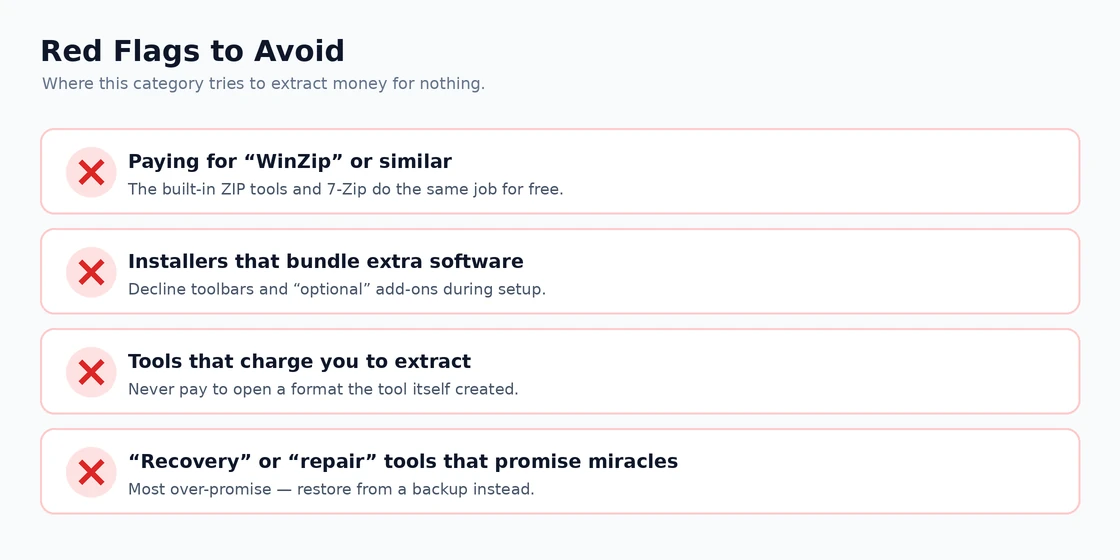
Aggressive marketing for “WinZip” or other paid compression products as the default tool. WinZip was the dominant ZIP tool in the 1990s when Windows did not include ZIP support, but the product has been substantially superseded by Windows’ built-in capabilities and free alternatives like 7-Zip. The paid licensing is not justified by capability advantages over the free alternatives in 2026.
Bundled installers that come with compression tools but include additional software you did not want. Some compression products use their installer as a delivery vehicle for ad-supported software, browser toolbars, or other unwanted additions. The mature open-source alternatives (7-Zip, PeaZip) and the built-in Windows tools do not have this problem.
Tools that require payment to extract files in formats they can supposedly handle. Legitimate compression software shows you the file contents and offers extraction; products that require payment before extracting are operating under a deliberately deceptive model. For ordinary extraction needs, 7-Zip handles essentially every realistic format for free.
“Recovery” or “repair” tools for compressed files that promise to fix corrupted archives. Most of these are scams or scareware. Genuine archive corruption is real but usually unrecoverable; the products that promise to fix it are typically either ineffective or actively malicious.
The Specialised Alternatives Worth Knowing About
A few specialist compression tools serve specific narrower needs.
PeaZip is the alternative open-source compression tool with similar capability to 7-Zip but with a different interface preference. For users who specifically find 7-Zip’s interface dated and want a more modern-looking free alternative, PeaZip is genuinely competitive.
Bandizip exists in free and paid tiers with strong feature set including the ability to preview some file types within archives without extraction. For users who specifically need this capability, Bandizip is worth considering.
For specifically Linux or macOS users dealing with TAR archives (the common Unix format), Windows now supports extracting these natively in Windows 11, and 7-Zip has supported them for years. The native handling means TAR files from Linux servers can be opened without conversion.
For programmers and developers, the command-line tools (7z.exe from 7-Zip, the built-in tar in Windows) are essential for scripted workflows. The GUI tools are appropriate for ordinary use; scripted compression needs command-line capability that the GUI tools include but most users do not know about. Our Windows backup software comparison covers the related automated compression category for users whose compression work is part of regular backup workflows.
The Practical Recommendation
For most Windows users in 2026, the answer follows from the purpose. Sharing files with other people: Windows built-in ZIP creation, no software installation needed. Maximum compression for personal archival: 7-Zip with 7Z format. Specific RAR format requirement: WinRAR (with awareness that you do not actually have to pay for it). Encrypted transfers: 7-Zip with 7Z format, AES-256 encryption, strong passwords, and the “Encrypt file names” option enabled. Local disk space saving for rarely-accessed files: NTFS compression for files you want to keep accessible, 7Z archives for files you genuinely rarely touch. The wrong moves are paying for WinZip when 7-Zip is free and better, using ZIP encryption when stronger options exist, or compressing files you actively use and creating operational friction without proportionate benefit. Match the format and tool to the actual purpose, and the category produces real value rather than ongoing small frictions. Our FTP client comparison covers the related category for users whose compression work is part of file transfer workflows.