
Task Manager refusing to open is one of those problems that feels worse than it usually is — Task Manager is what you’d normally use to investigate other problems, so when it’s broken too, you’re left without your usual diagnostic tool. We go deeper on the whole subject in our Complete Guide to Fixing Windows, Browser, and Software Errors.
There are only three real causes: malware disabling it (the most common — many malware strains specifically block Task Manager to prevent removal), group policy restriction (common on managed work computers), or a corrupted registry value. Each has a different fix.
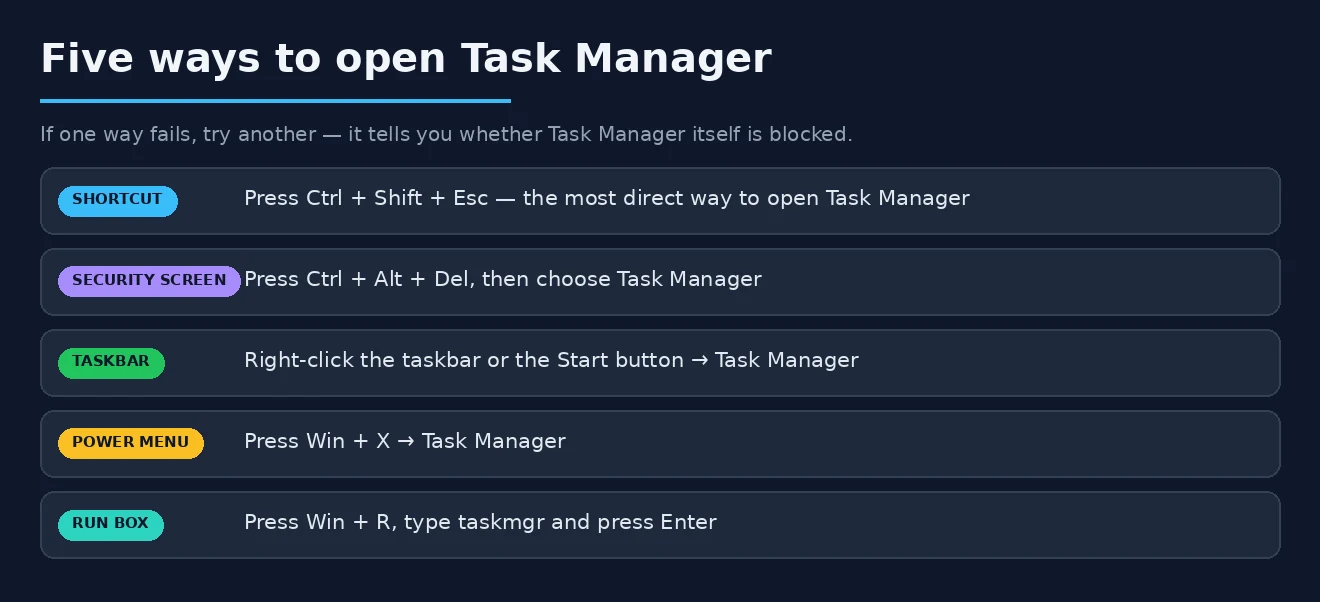
The fastest diagnostic: press Ctrl+Shift+Esc. If nothing happens at all, the problem is at the system level (registry/policy/malware). If you see a brief flash or error, the problem is likely a corrupted task manager process. Try alternative launch methods first: Ctrl+Alt+Del → Task Manager, or Win+R → type ‘taskmgr’ → Enter. If those also fail, the section below covers the registry and policy fixes that resolve the majority of cases.
It’s running but not visible
Task Manager may already be open but in a state where the window isn’t visible — minimised to the taskbar, moved off-screen, or hidden behind other windows. Click the Task Manager icon in the taskbar if it shows there. Or: right-click the taskbar → Task Manager — even if Ctrl+Shift+Esc doesn’t work, this menu option uses a different code path.
Another scenario: Task Manager opened in the compact/tiny mode (just a small CPU meter with no menu) and got moved off-screen. Press Windows key → search “Task Manager” → open it → it may appear with no visible content. Press Alt+Space → select “Move” → press an arrow key → move the mouse to bring the window back onto the screen.
Group Policy blocking Task Manager
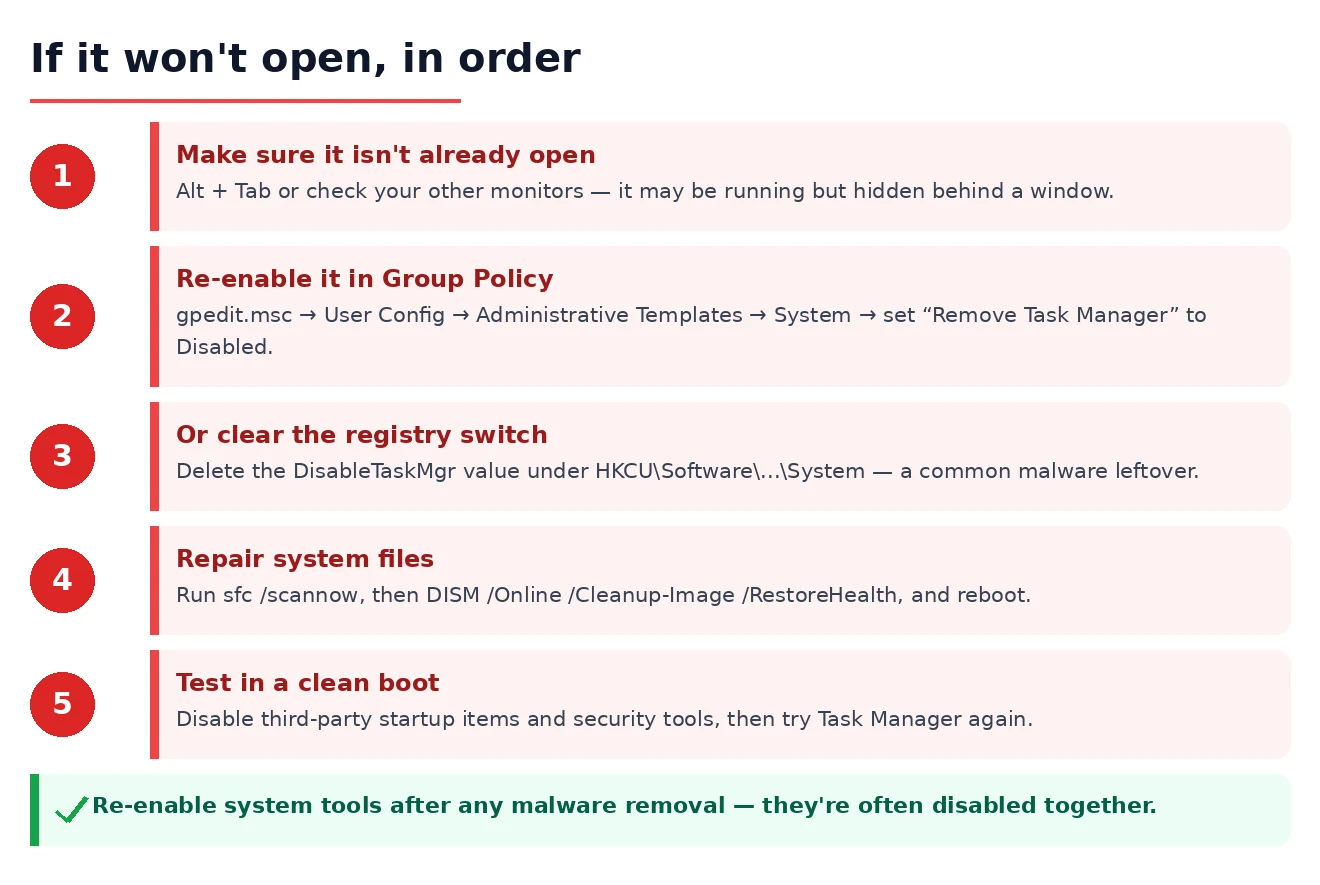
Windows has a Group Policy setting specifically to disable Task Manager: User Configuration → Administrative Templates → System → Ctrl+Alt+Del Options → Remove Task Manager. When this is enabled — by IT on corporate machines, or occasionally by malware on personal machines — Task Manager appears to open then immediately close, or shows a message “Task Manager has been disabled by your administrator.”
For personal machines where this appeared without IT involvement: this is a classic malware signature. Many viruses and ransomware disable Task Manager to prevent their processes from being visible and killed. Run a Malwarebytes scan immediately. After a clean scan: Win + R → regedit → HKEY_CURRENT_USERSoftwareMicrosoftWindowsCurrentVersionPoliciesSystem → find “DisableTaskMgr” → if the value is 1, change it to 0 or delete the key entirely.
SFC for corrupted Task Manager files
Task Manager (taskmgr.exe) is a Windows system file. If it’s corrupted by a disk error, failed update, or system crash:
sfc /scannowAdministrator Command Prompt. If SFC reports “found corrupt files and repaired them,” Task Manager should work after a restart. Running SFC from an administrator Command Prompt rather than a standard one is important — SFC needs elevated access to repair system files.
If Task Manager opens briefly then closes
This specific pattern — opens for half a second and disappears — is almost always the Group Policy restriction or malware. The DisableTaskMgr registry check above addresses both causes. After fixing the registry value, test immediately without restarting — the change takes effect without a restart.
Running Task Manager as administrator
Search “Task Manager” in Start → right-click → Run as administrator. If it opens as administrator but not normally: a permission issue is preventing the standard launch. This is uncommon but happens after user account configuration changes. The root cause is usually an ACL (Access Control List) change on taskmgr.exe or its containing folder. For an immediate fix: creating a shortcut that always runs as administrator works practically even if it doesn’t address the underlying permission issue.
Windows services dependency
Task Manager depends on specific Windows services to display performance graphs (the Windows Management Instrumentation service and Performance Counter infrastructure). When these services are stopped, Task Manager opens but shows no data in the Performance tab and sometimes fails to populate the Processes tab. Win + R → services.msc → find “Windows Management Instrumentation” → confirm it’s Running → restart it if not. Also restart “Performance Counter DLL Host” if present.
Creating a Task Manager replacement if it won’t open at all
Process Explorer from Sysinternals (free from Microsoft) is a full-featured Task Manager replacement that runs as a standalone executable — no installation, no dependency on Windows’ taskmgr.exe. Download, run, and use it as the immediate alternative while fixing the underlying Task Manager issue. Process Explorer shows more detail than Task Manager and isn’t affected by the Group Policy restriction or file corruption that affects taskmgr.exe.
Our guide on Windows 11 apps not opening covers the general application startup failure analysis in Event Viewer — the same approach applies if Task Manager’s crash is logged there. For malware that disables Task Manager alongside other system tools, our malware removal guide covers the full scan and system restoration process. Microsoft’s Task Manager documentation covers the Resource Monitor alternative (resmon.exe) which provides more detail than Task Manager and runs independently of taskmgr.exe if Task Manager itself is unavailable.
Third-party security software intercepting Task Manager
Endpoint security products — particularly those with application control features — can intercept or block specific system applications. Aggressive application whitelisting configurations sometimes block taskmgr.exe because it’s a potentially dangerous tool (Task Manager can be used to kill security software processes). The security software’s event log shows whether Task Manager was blocked and why.
For security software with application control: add taskmgr.exe to the trusted application list. On corporate machines with centralised security management: IT needs to make this change through the management console.
Task Manager in DISM repair
If SFC doesn’t repair the corrupted taskmgr.exe, DISM can restore the full Windows image:
DISM /Online /Cleanup-Image /RestoreHealthThis requires internet access as it downloads correct files from Microsoft’s update servers. After DISM completes: run SFC again to confirm all files are correct. If taskmgr.exe was restored, Task Manager works immediately without a restart. Running DISM before SFC is efficient because DISM fixes the component store that SFC uses as its repair source — running SFC first when the component store is corrupted means SFC can’t repair from its own corrupted source.
Checking the registry for other Task Manager restrictions
Beyond the DisableTaskMgr key, other registry locations can restrict Task Manager:
- HKEY_LOCAL_MACHINESOFTWAREMicrosoftWindowsCurrentVersionPoliciesSystem → “DisableTaskMgr” = 0
- HKEY_CURRENT_USERSoftwareMicrosoftWindowsCurrentVersionPoliciesSystem → “DisableTaskMgr” = 0
Both the per-user (HKCU) and system-wide (HKLM) locations need to be checked. Malware often sets both simultaneously to prevent a regular user from overriding the restriction. Setting both to 0 (or deleting both values) is the complete fix.
Task Manager behaviour after Windows 11 updates
Microsoft redesigned Task Manager significantly in Windows 11 version 22H2 with a new sidebar navigation style and updated appearance. If Task Manager’s appearance changed unexpectedly: this was an intentional update, not a problem. The new layout moves processes, performance, and other views to a left sidebar rather than tabs at the top. If the interface is unfamiliar: the Settings gear icon in Task Manager’s toolbar has layout options including switching back to a more compact view.
Elevated Task Manager from command line
When the standard launch fails and administrator launch doesn’t work: administrator Command Prompt →
taskmgr.exe /sThe /s flag starts Task Manager in the System context — a higher privilege level than even administrator. This bypasses most permission restrictions and application control blocks that prevent standard launches. If this opens Task Manager when other methods don’t: the restriction is at the user level, and the DisableTaskMgr registry fix in the HKCU hive (current user) is the permanent resolution.
Alternatives while troubleshooting
Several Windows tools provide Task Manager functionality independently:
- Resource Monitor (resmon.exe): runs independently, shows more detail than Task Manager for CPU, memory, disk, and network per-process
- Process Explorer (Sysinternals): the most detailed process viewer, runs as a single exe
- PowerShell:
Get-Process | Sort-Object CPU -Descendingshows processes sorted by CPU,Stop-Process -Name processnamekills processes — full Task Manager functionality from command line - Command Prompt:
tasklistshows all processes,taskkill /F /IM processname.exeforce-kills by name
PowerShell commands in particular are useful when Task Manager is blocked but Command Prompt isn’t — the commands work identically to Task Manager’s process management features without needing the GUI.
Task Manager not showing CPU usage correctly
A distinct problem from not opening: Task Manager opens but shows incorrect or blank CPU/memory data. This is usually the Performance Counter infrastructure rather than Task Manager itself. Administrator Command Prompt →
lodctr /rThis rebuilds the Performance Counter registry settings. After running it, restart the machine and test Task Manager. If performance data wasn’t showing before: it should populate correctly after the counter registry rebuild. This fix is specifically for the “Task Manager opens but shows 0% CPU for everything” or “performance graphs are all blank” symptoms rather than Task Manager not opening at all.
After malware removal — re-enabling system tools
Malware that disabled Task Manager often also disables other administrative tools: Registry Editor (regedit), Command Prompt, and System Configuration (msconfig). If multiple tools are blocked simultaneously: this is a classic malware pattern where the malware sets multiple DisableXxx registry keys to prevent removal. A Malwarebytes scan followed by a clean full system scan is the correct response — the malware removal restores access to these tools as part of the cleanup process.
After the malware is removed: verify all system tools are accessible again. If some remain blocked: the malware’s registry changes persisted after the malware itself was removed. Use Registry Editor (if it’s working) to check the HKCUSoftwareMicrosoftWindowsCurrentVersionPoliciesSystem key for any “DisableXxx” values set to 1 and reset them to 0. If Registry Editor itself is blocked: boot from a Windows PE environment or Windows recovery to edit the registry offline.
Windows built-in security tools blocked simultaneously
When Task Manager, Registry Editor, and Command Prompt are all inaccessible simultaneously, and malware has been confirmed and removed: a System Restore to before the malware infection restores all system tool accessibility at once. Settings → System → Recovery → Open System Restore → select a restore point from before the problem started. System Restore doesn’t affect personal files but reverses all system configuration changes from that period — including the malware’s tool-disabling registry changes that the malware remover may have missed.
Clean boot to test Task Manager
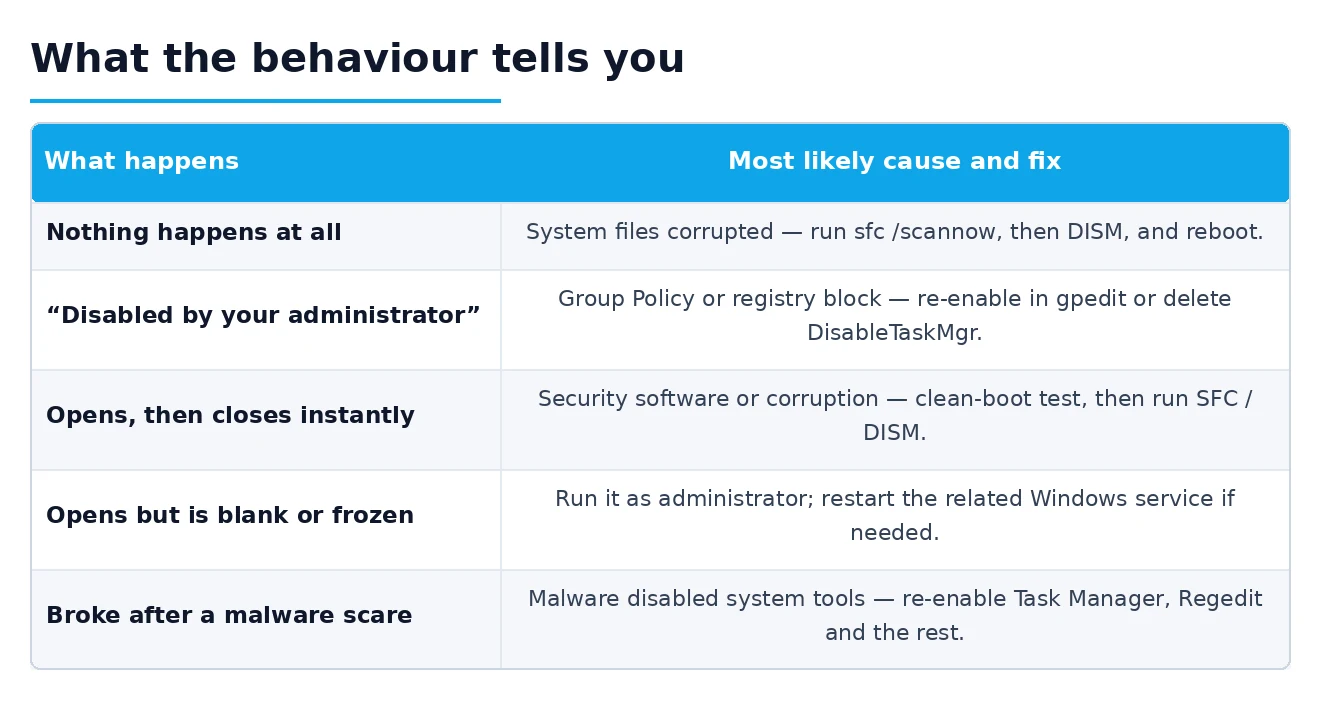
If Task Manager opens in Safe Mode (hold Shift → Restart → Startup Settings → Safe Mode) but not in normal Windows: a startup application or non-Microsoft service is interfering with Task Manager in normal mode. This is different from the Group Policy restriction — it’s a third-party application actively preventing Task Manager from running.
Win + R → msconfig → Services tab → Hide all Microsoft services → Disable all → Startup tab → disable all → OK → restart. In this clean boot state: test Task Manager. If it opens: re-enable services and startup items in groups to isolate which specific item causes the conflict. The clean boot is the methodical approach for “Task Manager worked before and stopped” situations where no obvious single cause is identifiable.
The most common resolution sequence for this problem: try Ctrl+Shift+Esc and Ctrl+Alt+Delete first → if it opens via one method, the issue is the shortcut not the application → if it shows “disabled by administrator,” check the DisableTaskMgr registry key → if it runs malware scan → SFC /scannow → DISM if SFC can’t repair → Process Explorer as a working alternative in the interim. This sequence covers 95% of cases systematically without needing to try all possible fixes.
One thing worth noting about the “opens then immediately closes” pattern specifically: malware that disables Task Manager often also creates a watchdog process that kills Task Manager when it detects it opening. The DisableTaskMgr registry key prevents the launch, but some malware uses an active monitoring approach instead. In this case: fixing the registry key allows Task Manager to launch for half a second before the watchdog kills it. The fix: use Process Explorer (which has a different executable name that the watchdog may not target) to identify and kill the watchdog process, then fix the registry key, then reopen Task Manager. If Process Explorer is also killed: boot in Safe Mode → kill the watchdog → fix registry → restart in normal mode.
For a computer that’s never had Task Manager work — perhaps a freshly installed Windows on unusual hardware — check whether the installation is a valid Windows license. Pirated Windows installations sometimes have Task Manager and other administrative tools removed or modified as part of activation bypass mechanisms. Genuine Windows 11 licenses from Microsoft include full Task Manager functionality. If the machine was built from a non-standard Windows image: verify the installation is legitimate.
And a final practical note: once Task Manager is working again, it’s worth investigating what caused the problem in the first place rather than treating it as a one-off. Task Manager doesn’t stop working spontaneously without a cause — something changed. Event Viewer logs, recent Windows Update history, and recently installed software are the three places to look. Understanding the cause prevents recurrence and may also reveal other system issues that the Task Manager failure was a symptom of. Related: Photoshop Not Opening in Windows 11.