
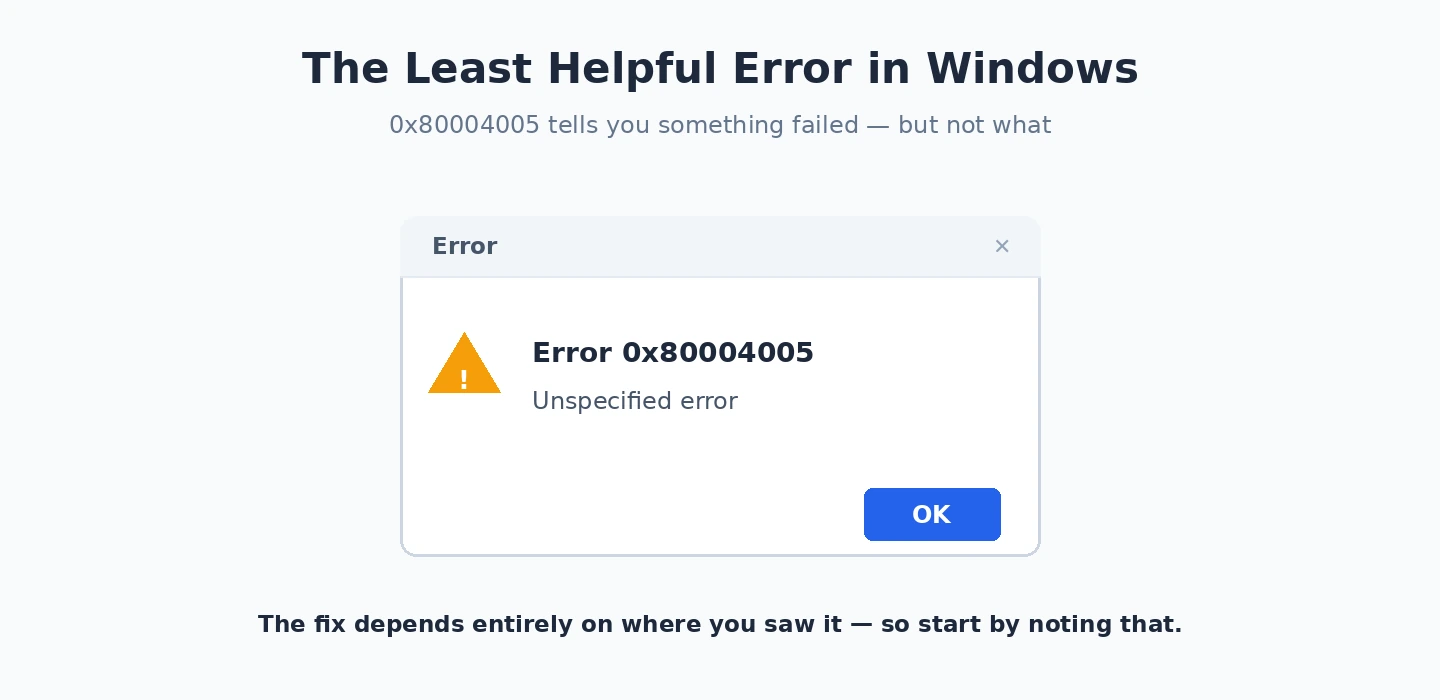
Few Windows messages are as unhelpful as “Error 0x80004005: Unspecified error.” It tells you something failed without telling you what — and it turns up in wildly different places: opening a shared folder, extracting a ZIP file, installing a Windows update, starting a virtual machine, or sending email. The reason it is so vague is that 0x80004005 is a generic failure code, not a description of any one fault, which is exactly why a single universal fix does not exist.
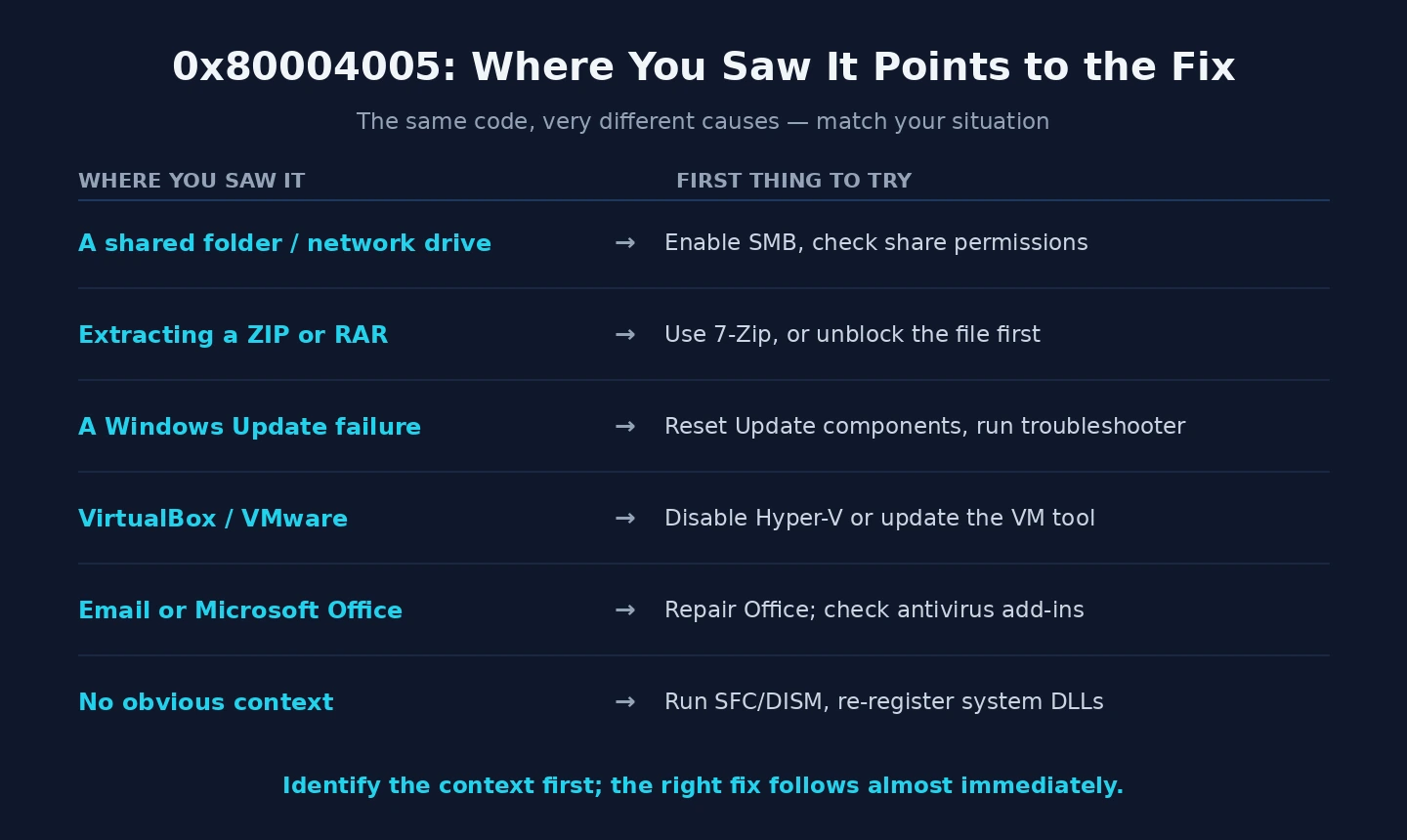
The trick to clearing 0x80004005 is to use the context as your guide: where you saw the error matters far more than the number itself. In this guide I will start with the few fixes that help in any situation, then walk through the specific scenarios one by one so you can jump straight to the one that matches what you were doing when 0x80004005 appeared.
What the 0x80004005 error actually means
Under the hood, 0x80004005 maps to a generic Windows result code that simply means “unspecified failure.” It is the catch-all a program returns when something went wrong but the software either could not, or did not bother to, report a more specific reason. That is why you will see the identical 0x80004005 code attached to completely unrelated problems — the code describes the failure of an operation in the broadest possible terms, nothing more.
Because of this, treating 0x80004005 as one problem with one solution leads people in circles. A 0x80004005 error while opening a network share has almost nothing in common with a 0x80004005 error while running a virtual machine, even though the number is the same. The useful information is the surrounding context: what you were doing, which application showed the message, and what changed recently.
So as you read on, anchor yourself to the scenario rather than the code. Below I cover the universal first steps, then the network, archive-extraction, Windows Update, virtual machine, and email or Office cases in turn. If you ever need to translate a different, more specific code you run into along the way, our Windows error code lookup tool will decode it, and the interactive PC troubleshooter can help if you are unsure which scenario you are even in.
The universal first fixes
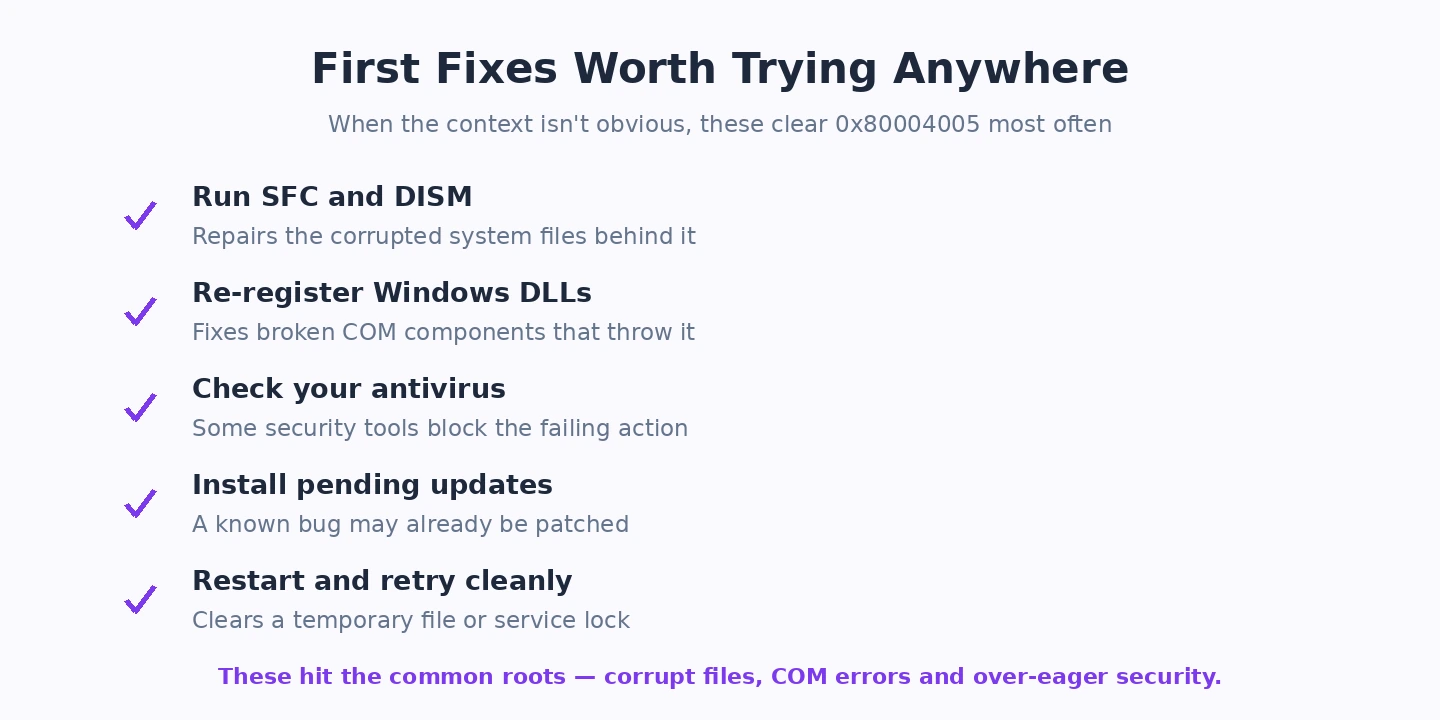
Before diving into scenarios, there are a handful of steps that help with a 0x80004005 error regardless of where it appeared, because they address the broad system health that many of the specific causes depend on. They are quick, safe, and worth doing first — sometimes they resolve the problem outright, and even when they do not, they rule out a whole class of causes.
Run these before anything scenario-specific:
- Repair system files. Open an elevated terminal and run
sfc /scannow, thenDISM /Online /Cleanup-Image /RestoreHealth. Corrupted system files are behind a meaningful share of 0x80004005 errors. - Install pending Windows updates. Make sure Windows 11 is fully current — Microsoft regularly fixes the components involved, and the Microsoft website has support resources you may find useful.
- Check your antivirus. Security software is a frequent, overlooked cause of 0x80004005 — temporarily disabling it to test, then adding an exclusion if it was the culprit, resolves many cases.
- Reboot and retry. A restart clears transient state that can produce a one-off 0x80004005.
If the 0x80004005 error survives these universal steps, it is genuinely tied to whatever you were doing, so move to the matching section below. Do not keep repeating the universal fixes — once they are done, the answer lies in the specific scenario, not in running the same commands again.
On a shared folder or network drive
One of the most common places to meet 0x80004005 is when trying to open a shared folder, map a network drive, or reach a NAS. In this context the error is almost always about how Windows 11 handles network sharing and authentication, which has tightened in recent versions for security reasons. The first things to check are that network discovery and file sharing are turned on, and that you are supplying valid credentials for the share.
If discovery and credentials are fine and you still get 0x80004005, the cause is often Windows 11 blocking insecure or guest connections that older devices rely on. Confirm the network type is set to Private rather than Public, review your sharing settings, and check whether the device you are connecting to needs guest access enabled on your PC. For older NAS boxes that only speak the legacy SMB1 protocol, you may need to enable that Windows feature — but do so cautiously, as SMB1 is insecure and best avoided unless the hardware genuinely requires it.
Network-side problems frequently overlap, so it is worth confirming the basics of your setup at the same time. Our guides on network discovery not working and a network drive not connecting in Windows 11 cover the sharing and mapping steps in depth, and how to share files between computers walks through a clean setup. You can also review your adapter and discovery options through the Windows 11 network settings. Get the sharing configuration right and a network-context 0x80004005 usually disappears.
When extracting a ZIP or RAR file
A 0x80004005 error while unzipping or extracting an archive is its own distinct case, and it usually comes down to one of three things: the archive is damaged, your antivirus is interfering, or the extraction path is problematic. The single most common cause is a corrupt or incompletely downloaded archive, so the first step is simply to download the file again from the source and try once more.
If a fresh copy still throws 0x80004005, suspect your security software next. Antivirus tools sometimes lock or quarantine files mid-extraction — especially with executables inside the archive — which surfaces as this unspecified error. Temporarily disabling real-time protection to test, or adding an exclusion for the folder you are extracting to, often clears it. It is also worth trying a different extraction tool; the 7-Zip website has resources you may find useful, and switching tools can sidestep a 0x80004005 caused by a quirk in whichever utility you were using.
Finally, watch the destination. Extracting to a path that is very long or contains unusual characters can trigger 0x80004005, so try extracting to a short, simple location such as a folder directly on your desktop or drive root. Between re-downloading, checking antivirus, and simplifying the extraction path, the archive-context version of this error is one of the more straightforward to resolve.
During a Windows update
When 0x80004005 appears while installing a Windows update, the problem sits in the update mechanism itself — usually a damaged update cache or a stalled update service. The quickest starting point is the built-in Windows Update troubleshooter, which automatically resets several common fault conditions and clears a fair number of 0x80004005 update failures without any manual work.
If the troubleshooter does not do it, the reliable manual fix is to reset the update components. That means stopping the Windows Update, BITS, and Cryptographic services, renaming the SoftwareDistribution and catroot2 folders so Windows rebuilds them cleanly, and then restarting the services and retrying the update. This clears a corrupted update cache, which is the most frequent cause of a 0x80004005 error during updates. Making sure you have adequate free disk space and a healthy .NET installation helps too, since both can block updates.
Update problems often travel together, so if your updates are broadly unhealthy rather than failing on one specific patch, it is worth addressing that first. Our walkthroughs on Windows 11 update failing and an update stuck in Windows 11 cover the reset process step by step, and how to update Windows 11 explains the normal update flow. Restore the update pipeline to health and the 0x80004005 it was throwing typically goes with it.
In a virtual machine (VirtualBox or VMware)
If you hit 0x80004005 when starting a virtual machine, the cause is almost always a conflict between your VM software and the virtualization features built into Windows 11. Tools like VirtualBox expect direct access to the CPU’s virtualization, but Windows features such as Hyper-V, the Windows Hypervisor Platform, Virtual Machine Platform, and Memory Integrity (core isolation) can claim that access first, producing a 0x80004005 when the VM tries to launch.
The standard fix is to resolve that conflict. Depending on which VM software you use, that may mean turning off the conflicting Windows features, disabling Memory Integrity, or — for newer VirtualBox versions that can cooperate with Hyper-V — making sure both are properly configured. Reinstalling the VM software and installing its matching extension or guest additions package is also a common cure, since a mismatched or incomplete install readily produces 0x80004005. The vendor’s own documentation is the best reference for the exact toggle your version needs.
It is also worth confirming that hardware virtualization is actually enabled in your PC’s BIOS or UEFI, as a disabled virtualization setting can present as this error too. Between aligning the Windows virtualization features with your VM software, reinstalling with the correct extension pack, and checking the BIOS setting, the virtual-machine flavour of 0x80004005 is very fixable — it is fundamentally a “two things both want exclusive access” problem, and the fix is deciding which one gets it.
With email or Microsoft Office
A 0x80004005 error in Outlook — typically during send and receive — or in another Office application points to either a profile or registry quirk or, again, antivirus email scanning. For Outlook send/receive failures, antivirus integration is a classic trigger: many security suites hook into email, and that hook can produce 0x80004005, so disabling email scanning to test is a sensible first move.
If antivirus is not the cause, an Outlook profile issue may be, and recreating the mail profile often clears a persistent 0x80004005. Some specific Outlook send/receive cases are resolved by adding a particular registry value, but treat any registry change carefully and only apply one you can verify applies to your exact symptom. For Office as a whole, a 0x80004005 can also appear around licensing, in which case the activation path is the place to look — our guide on the Office activation error covers that side.
Cloud sign-in sits adjacent to this, since account and authentication failures can surface as a 0x80004005 too; if your issue involves OneDrive or a Microsoft account rather than mail specifically, our walkthrough on the OneDrive sign-in error is the better match. The common thread across the email and Office cases is that 0x80004005 is reporting a failure in authentication, profile data, or a security hook — identify which, and the fix follows.
When the fix means editing the registry
Several specific 0x80004005 scenarios — particularly certain network and Outlook cases — are resolved by adding or changing a registry value. The registry is powerful and a correct edit can clear a 0x80004005 cleanly, but it is also unforgiving: a wrong change can cause new problems, so this is a step to approach with care rather than as a first resort.
If you do need to edit the registry to resolve a 0x80004005, the essential rule is to back up first. Export the key you are about to change (or create a system restore point) so you can roll back instantly if anything goes wrong, then make only the specific, verified change your scenario calls for. Do not apply random registry “fixes” you cannot confirm are meant for your exact situation — that is how a single error becomes several.
If you are not comfortable in the registry, that is completely reasonable, and in most cases the non-registry fixes above will resolve a 0x80004005 without ever touching it. When you do need to go in, our guide to the Windows 11 Registry Editor explains how to navigate and back up safely. Used carefully and sparingly, a targeted registry edit is a legitimate tool for the specific 0x80004005 cases that genuinely require one.
0x80004005: quick answers to common questions
Why does 0x80004005 have no specific meaning?
Because it is a generic catch-all code. 0x80004005 literally translates to “unspecified error,” so it is the result Windows returns when an operation fails without a more detailed reason being reported. That is why the same 0x80004005 appears across totally unrelated tasks — the meaning comes entirely from the context in which you saw it, not from the number.
Is the 0x80004005 error caused by a virus?
Usually not, but antivirus software is a common cause — which is the opposite of what people expect. Security tools can block file access, email operations, or extraction in ways that surface as 0x80004005. Running a quick malware scan is reasonable for peace of mind, but more often the fix is testing whether your own antivirus is the thing interfering, then adding an exclusion.
Will fixing 0x80004005 delete my files?
No. The fixes for 0x80004005 — repairing system files, adjusting sharing settings, resetting update components, reconfiguring a VM, or a careful registry edit — do not delete personal data. The error itself only marks a failed operation. As always, keeping backups is sensible, and exporting a registry key before changing it gives you an instant undo if you take that route.
Does the same 0x80004005 fix work everywhere?
No, and assuming it does is the main reason people struggle with it. A 0x80004005 in a shared folder, an archive, a Windows update, and a virtual machine all need different fixes. Start with the universal steps, then go to the section that matches where you saw the error — matching the fix to the context is the whole strategy. For a structured path through this and other faults, our guide to fixing Windows errors ties everything together.