The phrase IP address is one of those technical terms that sounds intimidating until you actually need one — at which point it becomes oddly elusive. Setting up a printer asks for it. Configuring a security camera asks for it. Helping a friend remote into your home server asks for it. Sometimes a service refuses to load and the support agent asks for it. And each time, half the household scrambles for ten minutes trying to remember which menu actually shows the number. You’ll find the complete rundown in our Home Networking.
The encouraging news is that finding an IP address in 2026 is genuinely easy on every device that matters. The menus have improved, the commands are short, and the underlying concepts have not really changed in years. Once you understand which kind of IP address you actually need — and there are usually two distinct ones in play — the rest is mostly about knowing which button to click.
This guide walks through everything I check when I need to find an IP address quickly — what the different types are, where they live on Windows, Mac, iOS, Android, and your router, and how to read the result correctly. By the end you will be able to surface any IP address you might need in under thirty seconds, on any common device, with no support call required.
Why You Have More Than One IP Address at Once
The first surprise for most people is that a single device usually has at least two IP addresses simultaneously, and a single household usually has dozens scattered across its hardware. This is not a glitch. It is how the system was designed. Understanding the distinction between the two is half the battle when you are trying to find the right one.
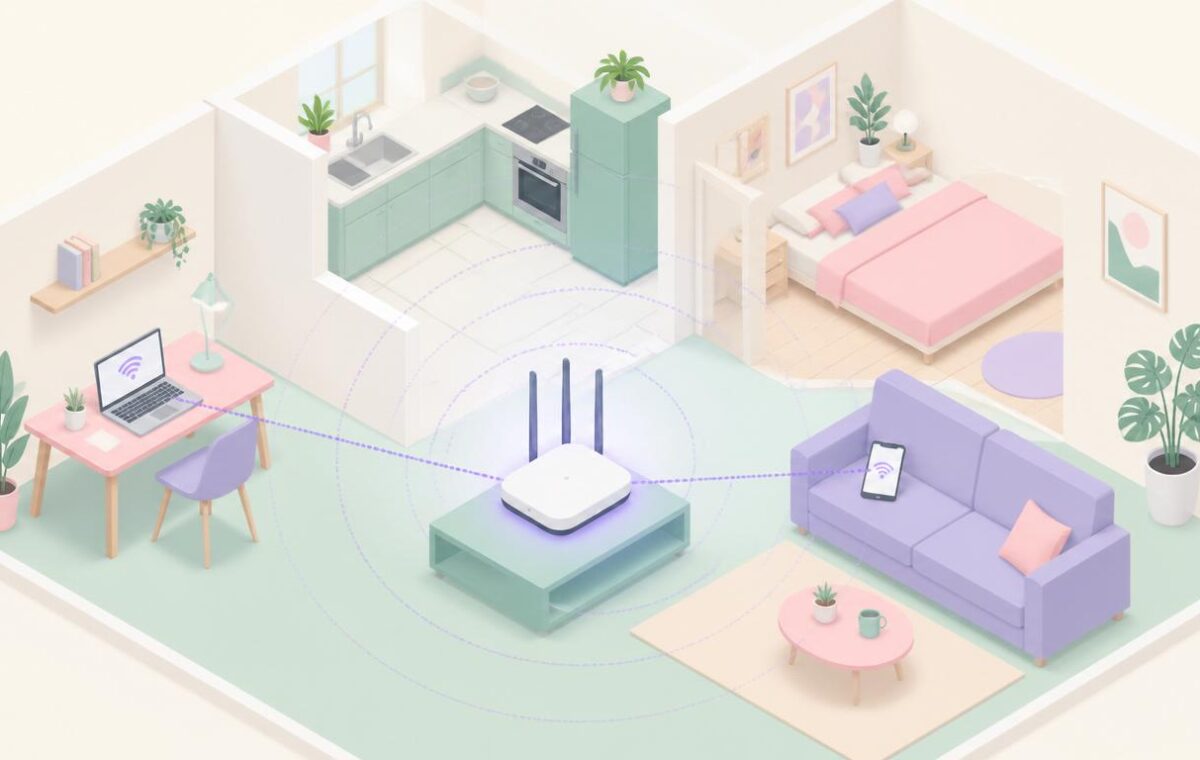
Your local or private IP address is the one your home network assigns to your device. It looks something like 192.168.1.45 or 10.0.0.12. It is unique inside your home but invisible to the wider internet. Every device on your network — your phone, your laptop, your printer, your smart speaker — gets its own local IP address from your router. This is the IP address you usually want when configuring a printer, accessing a device by name, or setting up port forwarding.
Your public IP address is the one your internet provider assigns to your entire home, and it is what the wider internet sees. Every device behind your router shares this single public address. It looks like a more arbitrary string of numbers because it has been pulled from the global pool — something like 203.45.78.122. This is the IP address you usually want when telling someone how to reach your home network from outside, or when checking what websites see when you visit them. According to internet engineering standards organisations, this separation between private and public ranges is the foundation that allows billions of home devices to coexist behind a shrinking pool of public addresses.
There is also IPv4 versus IPv6. IPv4 addresses are the familiar dotted-decimal format. IPv6 addresses are longer, contain letters as well as numbers, and look something like 2001:db8::8a2e:370:7334. Most home networks in 2026 run both simultaneously, with IPv4 still doing most of the practical work and IPv6 quietly handling some traffic in the background. When someone asks for your IP address without specifying, they almost always mean the IPv4 version.
A useful way to keep all of this straight: imagine your home as a building with a single front door. The front door has the public address that the postal service uses to find your building. Inside the building, every flat or office has its own internal number, and that internal number only matters to people already inside. Your public IP is the building’s street address; your local IP is the flat number. Visitors from the outside see the building; the people who already live there know which door belongs to whom.
How to Find Your IP Address on Windows 11
Windows 11 makes finding your local IP address straightforward, though there are several paths to the same answer. The fastest is usually the Settings app, which puts the information one click away from the network status page. The most reliable, especially for troubleshooting, is the command line, which has not changed in decades.
Through Settings, click the network icon in the system tray, then click the Properties arrow next to your active connection. Scroll down and you will see the IPv4 address, the IPv6 address, and the default gateway (which is your router’s IP address) all listed cleanly. This is the right path when you want to see everything at a glance and you are not in a hurry.
Through the command line, open Command Prompt or PowerShell and type ipconfig. The output is denser than the Settings view but contains the same information plus a bit more detail. Look for the section corresponding to your active connection — usually labelled “Wireless LAN adapter Wi-Fi” or “Ethernet adapter Ethernet” — and find the IPv4 Address line. The number next to it is your local IP address. The Default Gateway line below it shows your router.
Quick tip — if you only need your public IP address, do not bother with any of the local methods. Just open a browser and search for “what is my IP.” Search engines now display your current public address directly in the results, no clicks required. This is the simplest way to grab the address that matters when you are coordinating remote access or troubleshooting an external service.
Both methods work equally well, and the right choice depends on what you find faster to type. Power users tend to live in ipconfig because it is fast, scriptable, and surfaces more diagnostic information when something goes wrong. For one-off looks the Settings app is perfectly fine. Either way, the IP address you are seeing is the local one — the one your router gave your device — and that is the one most home configuration tasks need.
Finding Your IP Address on Mac, iPhone, and Android
Apple and Google have both made finding an IP address on their platforms more discoverable in recent years, though the paths look quite different from each other. The good news is that none of them require a terminal or special knowledge if you know which screen to open.
On macOS, open System Settings, click Network in the left sidebar, click your active connection (Wi-Fi or Ethernet), then click Details. The next screen lists your IPv4 address, your IPv6 address, your router, and your DNS servers all on one page. For users who prefer the command line, opening Terminal and typing ifconfig produces a longer output where the address sits on a line labelled “inet” inside the en0 or en1 section, depending on whether you are wired or wireless.
On iPhone and iPad, open Settings, tap Wi-Fi, and tap the small info icon next to your connected network. The address appears under the IPv4 Address section, alongside your router and DNS server. The interface has not changed substantially in years, so the steps work on essentially any recent iOS version. Mobile data has its own separate identifier that Apple does not surface as easily — if you need it specifically, the easiest method is to load a public IP-checker site in Safari while disconnected from Wi-Fi.
On Android the steps depend slightly on which manufacturer skin you use, but the general path is consistent. Open Settings, tap Network or Connections, tap Wi-Fi, then tap the connected network. You will see the address listed there along with the network name, signal strength, and connection speed. As with iOS, your mobile-data identifier is different from your Wi-Fi one, and a quick browser-based check is the simplest way to surface it when you need it.
One thing worth noting across all three mobile platforms: modern phones now randomize their MAC address per network as a privacy feature, which sometimes confuses people into thinking the IP has changed too. The two are different. The MAC address identifies the hardware; the IP address is assigned by the router. A randomized MAC usually does result in a new local IP address being issued on the next reconnection, but the cause is the MAC change, not anything mysterious about the address itself.
If you only ever check the IP on a phone or tablet, install a small dedicated network-info app from your platform’s app store. The built-in pages cover the basics, but a dedicated app surfaces additional fields like the DHCP lease time, the subnet mask, and signal strength all on a single screen. None of this is required for casual use, but it makes diagnosing a problematic Wi-Fi connection genuinely faster when you would otherwise be hopping between three different settings menus.
How to Find Your Router’s IP Address Specifically
The router’s own IP address is the one you type into a browser to reach the admin panel — sometimes called the gateway IP. It is also the address that nearly every device on your network uses as its default gateway. Finding it matters whenever you want to log into the router itself, which our walkthrough on accessing your router settings covers in more detail.
The router’s address appears in every device’s network details under the label “Default Gateway” on Windows or simply “Router” on macOS and iOS. On Android it usually appears under Gateway in the advanced settings of a Wi-Fi network. It is the same number regardless of which device you check from, because every device on your home network points at the same router.
Common defaults include 192.168.1.1 (used by Netgear, Linksys, and many ISP gateways), 192.168.0.1 (used by D-Link and several TP-Link models), and 192.168.50.1 (commonly used by Asus). If none of those work, your router may use a less common value or it may be reachable by hostname instead of IP address. Many modern manufacturers advertise a friendly hostname like routerlogin.net or tplinkwifi.net that resolves to the right address without requiring you to memorise the number.
| Operating System | Fastest Way to Find Your IP Address | Result Shown |
|---|---|---|
| Windows 11 | Open Command Prompt → type ipconfig |
Local IPv4 + IPv6 + gateway |
| macOS | System Settings → Network → Details | Local IPv4 + IPv6 + router + DNS |
| iOS | Settings → Wi-Fi → info icon | Local IPv4 + router + DNS |
| Android | Settings → Wi-Fi → tap network | Local IPv4 + gateway |
| Router admin | Default Gateway address from any device | The router’s own IP address |
| Public IP | Search “what is my IP” in any browser | Public IPv4 of the household |
If the gateway address shown on your device does not respond when you type it into a browser, the most common cause is that you are on a different network than expected — a phone falling back to mobile data, a laptop connected to a guest network, or a device that is offline entirely. Confirm you are on the home network you think you are on before assuming the IP address is wrong.
Why Your IP Address Sometimes Changes
IP addresses are not always permanent. Both your local and your public addresses can change over time, sometimes daily, sometimes once a year, depending on how your network is configured and how your provider operates. Understanding why this happens prevents a lot of confused troubleshooting when something that worked yesterday stops working today.
Local IP addresses change because of DHCP, the system your router uses to assign addresses dynamically. Each device receives one with a lease — typically a day to a week — and after the lease expires, the device may receive the same address again or a different one. This usually does not matter because devices identify each other by name or by an active connection. It does matter when something depends on a fixed local address — a printer mapped by IP, a port forwarding rule, or a static reservation in a smart-home setup. Our walkthroughs on setting up port forwarding and accessing your router settings both touch on how to lock specific devices to fixed local addresses to prevent this drift.
Public IPs change for a different reason. Most residential internet providers assign them from a pool that is occasionally reshuffled. You may keep the same one for months or even years, then one day your modem reboots and you have a new one. This is normal and rarely a problem, except when external connections depend on knowing your current address. Dynamic DNS services solve this by mapping a memorable hostname to your current IP address and updating automatically when it changes. Reviews from outlets like major technology publications regularly point out that dynamic IP addressing remains the default on most consumer plans, with static public IPs available as a paid upgrade for those who genuinely need them.
If you need a truly stable IP address for a service that depends on one, the options are limited but workable. Pay for a static public IP from your provider, set up dynamic DNS to mask the changing address, or migrate the service to a cloud-tunnel approach that does not depend on your home IP at all. For most households the second or third option is more practical than the first.
If you need a truly stable IP address for a service that depends on one, the options are limited but workable. Pay for a static public IP from your provider, set up dynamic DNS to mask the changing address, or migrate the service to a cloud-tunnel approach that does not depend on your home IP at all. For most households the second or third option is more practical than the first.
Quick Tips for Working With IP Addresses
Once you can reliably find your IP address on any device, a handful of small habits make the information more useful in everyday life. None of these are mandatory; all of them save time when something needs configuring.
Keep a small reference note somewhere safe — a password manager works well, and our roundup of the best password manager options covers good 2026 picks. List the router’s IP address, the typical IP range your network uses (usually 192.168.1.x or similar), and any device whose IP you have reserved or assigned manually. When something breaks at 11pm, the difference between thirty seconds of looking up a reference and twenty minutes of menu-hunting comes down to whether you wrote things down.
Use the connected-devices list in your router admin panel periodically. It shows every device currently on the network alongside its IP address and a friendly name where available. This is the single best way to identify a mystery device, audit which addresses are in use, and assign a fixed IP address to anything that needs one. The same panel covered in our companion walkthrough on accessing your router settings is where this lives on most consumer routers.
Be cautious about sharing your public IP address. It is not exactly a secret — every server you visit sees it — but broadcasting it publicly or pasting it into untrusted forums opens you to targeted scanning. For most legitimate sharing needs, you can give a friend access to a service without revealing the underlying IP at all, either through a dynamic DNS hostname or through one of the overlay network tools that have become common in recent years.
Finally, do not panic when an IP address looks unfamiliar. The home network has dozens of valid addresses in play at any moment, and seeing one you do not recognise immediately is usually just a device you have forgotten about — a smart bulb, a streaming dongle, a guest’s phone. Confirm before acting. For broader home network fundamentals, our guide on setting up a home WiFi network covers the wider context that every IP address conversation eventually circles back to.