Chrome’s address bar — officially called the Omnibox — does considerably more than navigate to URLs and run Google searches. One of its least-known capabilities is the ability to assign keyword shortcuts to specific search engines and websites, so that typing a two-letter code followed by Tab transforms the Omnibox into a direct search field for that service. Chrome custom search engines are the mechanism behind this. For a broader walkthrough, our Chrome How-To Guides is a good next read.
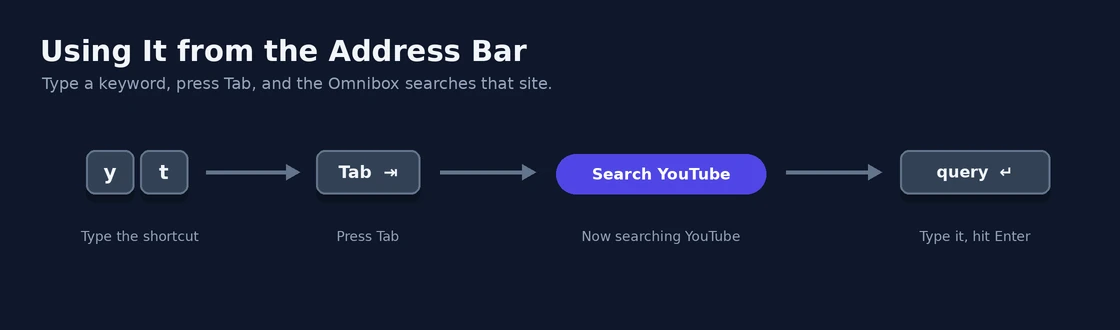
With these shortcuts configured: typing “yt” + Tab searches YouTube directly from the address bar, “mdn” + Tab searches Mozilla Developer Network, “am” + Tab searches Amazon. The typed keyword disappears and a coloured badge with the site name replaces it, signalling that the next query goes to that service rather than through Google. Once a few shortcuts are in muscle memory, cross-site searching becomes dramatically faster.
How custom search engines work
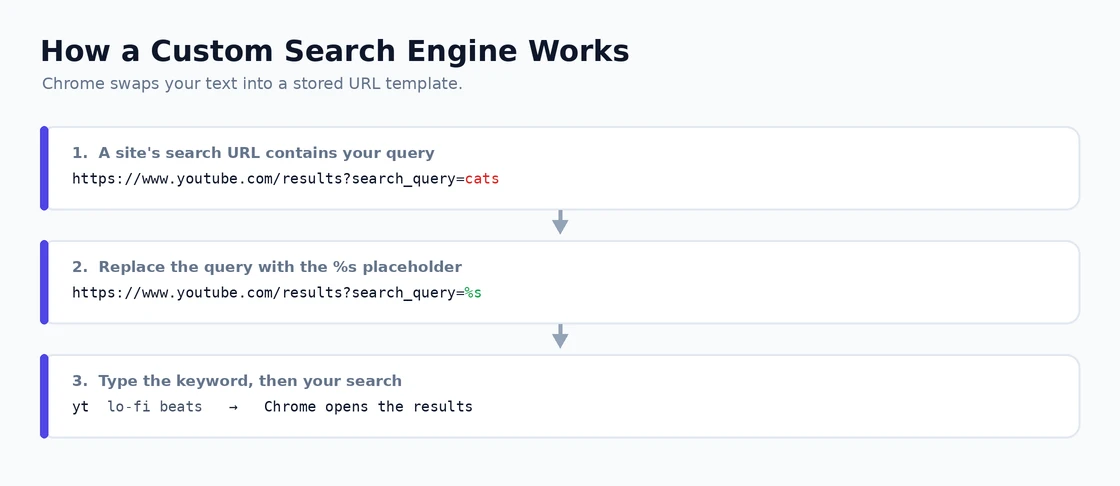
Every search engine and most website search functions use a URL pattern where the search query appears at a predictable location in the URL. Google searches follow https://www.google.com/search?q=QUERY. YouTube searches follow https://www.youtube.com/results?search_query=QUERY. Wikipedia uses https://en.wikipedia.org/wiki/Special:Search?search=QUERY.
By capturing this URL pattern and storing it alongside a keyword shortcut, Chrome can substitute any query typed in the Omnibox for the QUERY placeholder and navigate directly to the results page for that service. From the user’s perspective: the search happens on the target site. From Chrome’s perspective: it’s constructing a search URL from a template and navigating to it.
Chrome pre-configures custom search engine entries automatically based on sites you visit that have a search function. When you use a site’s own search box, Chrome detects the URL pattern and quietly adds an entry to the custom search engines list, assigning the site’s domain as the default keyword shortcut. This means many sites you use regularly may already have entries ready to use without any manual setup. The auto-detected entries often use the full domain (like “amazon.com”) as the keyword — editing those to shorter abbreviations is one of the first management tasks worth doing.
The Omnibox interaction for using a custom search engine: type the assigned keyword → press Tab (or Space in some Chrome versions) → the Omnibox shows a coloured badge with the site name → type the search query → press Enter. Immediate navigation to the results page on that site. Alt+Enter instead of Enter opens the result in a new tab rather than the current one.
Adding a custom search engine for any site
- Navigate to the site whose search you want to add. Use the site’s search function to search anything — the specific query doesn’t matter.
- Look at the URL of the results page. Identify where your search query appears in the URL. Searching “keyboard” on DuckDuckGo produces
https://duckduckgo.com/?q=keyboard— the query appears after?q=. - Open Chrome Settings → Search engine → “Manage search engines and site search.”
- In the Site search section, click the “Add” button.
- Fill in three fields:
- Name: a descriptive name for the site (e.g., “YouTube” or “MDN Web Docs”)
- Shortcut: the keyword abbreviation you’ll type in the Omnibox (e.g., “yt” for YouTube, “mdn” for MDN). Keep it two or three characters — shorter is faster.
- URL: take the results URL from step 2, replace the specific search query text with
%s, and paste the result. For DuckDuckGo:https://duckduckgo.com/?q=%s. For YouTube:https://www.youtube.com/results?search_query=%s.
- Click Save. The entry is immediately ready to use from the Omnibox.
The %s placeholder is the critical element — it’s exactly where Chrome substitutes the search query when the custom search engine is triggered. Any site whose search URL contains the query as a URL parameter is compatible. Sites that use JavaScript to generate their search URLs dynamically (some complex filtering interfaces) may not work, but the vast majority of search-powered websites use standard URL query parameters.
Managing and editing the list
Settings → Search engine → “Manage search engines and site search” → Site search section. Each entry shows the site name, keyword shortcut, and URL template. The three-dot menu on any entry reveals: Edit, Make default, and Delete.
Editing keywords for auto-detected entries is the most common management action worth doing immediately. An entry with keyword “wikipedia.org” requires typing the full domain to activate — changing it to “w” or “wi” makes the same entry significantly faster. The only constraint: keywords must be unique across all entries.
“Make default” promotes any entry to Chrome’s primary search engine — the one used when searching from the address bar without a keyword shortcut first. This is how Chrome’s default search engine is changed from Google to DuckDuckGo, Brave Search, or any custom site: add the engine with its %s URL template, then click its three-dot menu → Make default.
The most useful shortcuts to configure immediately
| Service | Keyword | URL template |
| YouTube | yt | https://www.youtube.com/results?search_query=%s |
| Wikipedia (English) | w | https://en.wikipedia.org/wiki/Special:Search?search=%s |
| Amazon | am | https://www.amazon.com/s?k=%s |
| DuckDuckGo | dd | https://duckduckgo.com/?q=%s |
| MDN Web Docs | mdn | https://developer.mozilla.org/en-US/search?q=%s |
| GitHub | gh | https://github.com/search?q=%s |
| r | https://www.reddit.com/search/?q=%s | |
| Google Images | gi | https://www.google.com/search?tbm=isch&q=%s |
| Google Maps | gm | https://www.google.com/maps/search/%s |
| Stack Overflow | so | https://stackoverflow.com/search?q=%s |
| IMDb | im | https://www.imdb.com/find?q=%s |
| Google Translate | tr | https://translate.google.com/?text=%s |
The Google Images and Google Maps entries are particularly valuable because they provide keyword-triggered access to Google’s specialised search modes without navigating to the service first. Typing “gi” + Tab + “cable tie knot” delivers Google Images results for that query directly — faster than any alternative approach.
Our guide on Chrome keyboard shortcuts covers Omnibox-related shortcuts that pair with custom search engines, and our guide on Chrome profiles covers the profile-specific nature of custom search engine lists. For the OpenSearch protocol that allows websites to register themselves as search engine candidates automatically when visited, Google’s Chrome search engine documentation covers the full mechanism.
Sync and profile-specific behaviour
Custom search engines sync across all devices signed in to the same Chrome account when Chrome sync includes “Settings” in its scope. A shortcut configured on a desktop appears and works identically on a laptop and Chromebook signed in to the same account. Changes made on any device — additions, keyword edits, deletions — sync bidirectionally.
Custom search engines are profile-specific in the multi-profile context. Each Chrome profile maintains its own independent list, and shortcuts in one profile don’t appear in another. This separation is appropriate for the work/personal split: work-related shortcuts (internal documentation, company tools) stay in the work profile; personal shortcuts stay in the personal profile. If a specific shortcut is useful in both contexts, it must be added separately in each profile.
For users who manage websites: a custom search engine using the site’s own search URL template provides one-click access to site content from the address bar. Checking whether a piece of content exists on the site, finding a specific article by keyword, or verifying that a tag has content all become addressable directly from the Omnibox without navigating to the site first.
Troubleshooting shortcuts that don’t trigger
The most common problem: a shortcut appears in the settings list but doesn’t activate in the Omnibox. Two usual causes:
- Browsing history conflict: when a typed keyword matches an existing browsing history entry, Chrome prioritises the history suggestion over the custom search engine trigger. Fix: choose a keyword that doesn’t match any URL or title in your browsing history, or clear history for the conflicting entry.
- Conflict with Chrome’s built-in search engines: Chrome maintains a separate list of full search engines (shown in the “Search engines” section above “Site search” on the management page) that have priority over site search shortcuts. If your shortcut “g” is also assigned to the Google search engine in the Search engines section, the full search engine wins. Check both sections for keyword conflicts.
Also verify that the keyword in the settings exactly matches what you’re typing — a single character difference prevents the trigger from firing. This sounds obvious but copy-paste errors when setting up entries are surprisingly common.
Custom search engines are one of the highest-return-on-investment Chrome features available for users who search the same services repeatedly throughout the day. The five minutes it takes to configure a dozen shortcuts produces immediate, permanent time savings across every future Chrome session on all synced devices. The barrier to using them isn’t the feature — it’s awareness that the feature exists, which is why most people who learn about it immediately go set them up.
Adding internal company sites and tools
Custom search engines aren’t limited to public search services. Any internal company tool with a URL-based search — internal documentation (Confluence, Notion, SharePoint), internal ticketing (Jira), internal knowledge bases — can be added as a shortcut in the same way. For organisations where employees frequently search internal tools: having shortcuts like “jira” + Tab or “conf” + Tab pointing directly to internal search URLs saves navigation steps that add up significantly over a working day.
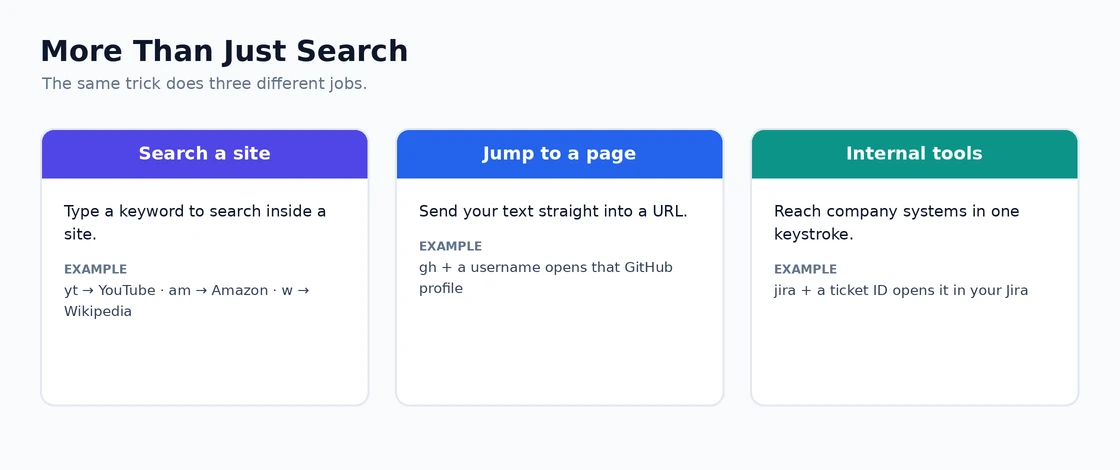
For Jira specifically, the search URL pattern depends on the Jira instance URL but typically follows https://yourcompany.atlassian.net/issues/?jql=text+%7E+%22%s%22 for JQL text search, or https://yourcompany.atlassian.net/browse/%s for navigating directly to a ticket by number (very useful — typing “jira” + Tab + “PROJECT-1234” takes you directly to that ticket). The ticket-number shortcut alone is one of the most time-saving custom search engines possible for anyone who works with Jira daily.
Creating navigation shortcuts, not just search shortcuts
Custom “search engines” aren’t exclusively for searching. The %s placeholder can be used for anything — including sites that use URL patterns for navigation rather than search. Useful examples:
- GitHub profile navigation:
https://github.com/%swith keyword “ghu” — typing “ghu” + Tab + “torvalds” navigates directly to github.com/torvalds - Wikipedia specific article:
https://en.wikipedia.org/wiki/%swith keyword “wk” — “wk” + Tab + “Python_(programming_language)” navigates to that article - Google Drive file search:
https://drive.google.com/drive/search?q=%swith keyword “gd” — searching Drive content from the address bar - npm package page:
https://www.npmjs.com/package/%swith keyword “npm” — “npm” + Tab + “lodash” goes directly to the lodash npm page - PyPI package:
https://pypi.org/project/%swith keyword “py” — developer-specific but very practical
This navigation shortcut use case extends Chrome custom search engines well beyond searching — it effectively creates a keyboard-triggered URL scheme for any site with predictable URL patterns. Developers, researchers, and anyone who navigates to many similar URLs (package pages, documentation entries, specific user profiles) find this particularly useful because it eliminates the navigation overhead for patterns they access repeatedly.
Enterprise deployment of custom search engines
For organisations deploying Chrome at scale where specific site search shortcuts should be standardised across all employee browsers: Chrome’s enterprise policy management allows deploying custom site search entries centrally through the Google Admin console. Administrators can pre-configure shortcuts for internal documentation systems, company search portals, and professional reference tools, ensuring all employees have the same optimised set of address bar shortcuts without relying on individual users to configure them manually. The enterprise policy approach also prevents users from deleting centrally managed entries, keeping the standardised shortcut set stable across device reassignments and profile recreations.
Chrome custom search engines represent one of the rare features where the payoff is immediate and directly proportional to how frequently the same sites are searched. Configuring the twelve shortcuts from the table above takes under five minutes; the benefit compounds across every subsequent Chrome session. The feature is there, it works, it syncs to all devices, and most people who use Chrome professionally have never touched it — which means there’s meaningful efficiency sitting unclaimed for most users reading this. Our guide on Chrome Reading List covers an adjacent issue.
Quick tips for a more effective custom search engine setup
- Use single characters for the most-used shortcuts: “y” for YouTube, “w” for Wikipedia, “g” for Google Images — one character + Tab is the fastest possible interaction. Reserve two-character shortcuts for secondary services.
- Audit the auto-detected entries periodically: Chrome adds entries automatically as you browse, which means the list accumulates entries for sites visited occasionally. Settings → Search engine → Manage search engines → Site search → review and delete entries for sites you won’t search regularly. A shorter, intentional list is more useful than a long auto-generated one.
- Document your shortcuts somewhere: with a large set of custom search engines, the specific keywords aren’t always in memory. A short text file or note with “Shortcut → Site” pairs prevents the “what was my GitHub shortcut again?” problem. After a week of consistent use, the most-used shortcuts become automatic; the documentation covers the less-frequent ones.
- Test a new shortcut immediately after creating it: open a new tab, type the keyword, press Tab, check that the correct site badge appears before relying on it. Occasional sync delays or settings cache issues mean the shortcut sometimes doesn’t appear immediately — testing after creation confirms it’s working before you next need it.
Chrome’s Omnibox is the most-used interactive element in the browser — every browsing session flows through it. Custom search engines transform it from a URL bar and Google search field into a multi-destination search interface that covers every service regularly used. That transformation, available with a few minutes of configuration, is the kind of improvement that makes everyday computer use measurably more efficient in a way that compounds over years of use. See also Chrome Energy Saver for a related case.