You upload a new theme, click Activate, and WordPress shows a red admin notice: “The theme is missing the style.css stylesheet.” Or you switch themes and the front-end shows broken, unstyled content. Or a theme purchased from a marketplace refuses to activate. The WordPress theme missing stylesheet error is one of the most common theme installation failures, and it almost always has a simple cause related to how the theme file was uploaded rather than anything wrong with the theme itself. We go deeper on the whole subject in our WordPress Errors Complete Guide.
WordPress Theme Missing Stylesheet — The Most Common Cause
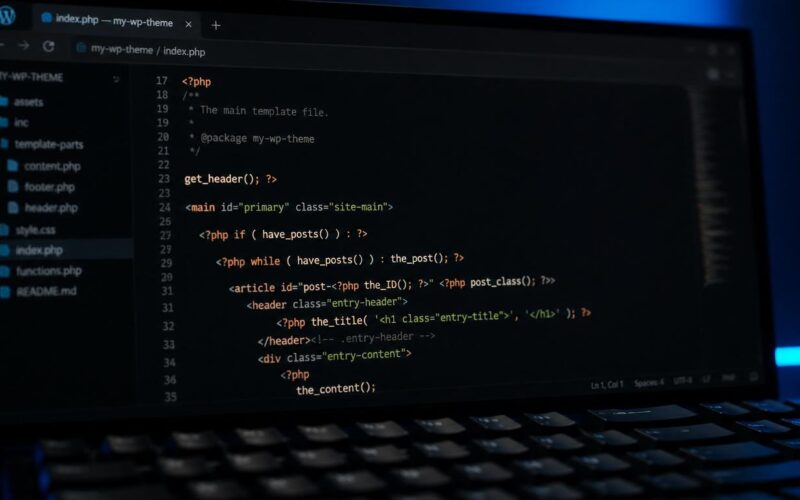
The WordPress theme missing stylesheet error appears when WordPress cannot find the style.css file in the uploaded theme folder. WordPress identifies a valid theme by looking for a style.css file in the theme’s root directory that contains the required header comment block (Theme Name, Author, Version, etc.). When this file is missing or located in a subdirectory rather than the root, WordPress cannot recognise the theme and shows the error.
The most frequent cause is a double-nested folder created during ZIP extraction. When you download a premium theme ZIP from a marketplace (ThemeForest, Creative Market, StudioPress), the ZIP often contains multiple items: the actual theme folder, documentation, demo content files, and a child theme folder. When uploaded to WordPress via Appearance → Themes → Add New → Upload Theme, WordPress attempts to find style.css in the uploaded ZIP’s root. If the ZIP contains a folder (e.g., “theme-name-package”) which then contains the actual theme folder (“theme-name”), WordPress looks for style.css in “theme-name-package/” — but style.css is actually in “theme-name-package/theme-name/”. The file exists but is one level too deep, producing the WordPress theme missing stylesheet error.
Identify and fix the nesting problem: download the theme ZIP → extract it on your computer (do not extract on the server) → open the extracted folder → if the folder contains subfolders and other files (documentation, child-theme, sample-content) rather than PHP files and style.css directly, the installable theme folder is one of those subfolders → find the subfolder that contains style.css → ZIP only that subfolder → upload this correctly-nested ZIP to WordPress. Appearance → Themes → Add New → Upload Theme → select the correctly-nested ZIP → Install Now → Activate. The WordPress theme missing stylesheet error resolves immediately because WordPress now finds style.css exactly where it expects it. Our guide on creating a WordPress child theme covers the style.css header format and child theme folder structure that relates to the same theme file organisation principles behind this error.
Installing the Theme Correctly via FTP
When ZIP upload keeps producing WordPress theme missing stylesheet error despite correctly nesting the theme folder, installing the theme via FTP bypasses WordPress’s ZIP extraction and places the files directly in the correct location.
FTP installation resolves WordPress theme missing stylesheet without ZIP handling: extract the complete theme ZIP locally → identify the correct theme folder (the one containing style.css, functions.php, and PHP template files directly) → connect to the server via FTP (FileZilla) → navigate to /wp-content/themes/ → upload the theme folder directly to this location. Do not zip and re-upload; drag and drop the theme folder from the local computer directly into /wp-content/themes/ via FTP. After the upload completes, navigate to WordPress admin → Appearance → Themes → the theme appears in the list without the stylesheet error because FTP bypassed WordPress’s ZIP extraction entirely and placed the files in the exact correct structure.
For managed WordPress hosting (Kinsta, WP Engine) where FTP is replaced by SFTP or a proprietary file manager, the same principle applies — the theme folder containing style.css must be placed directly inside the /wp-content/themes/ directory. Some managed hosts provide a file manager in their hosting dashboard that can upload folders directly, or cPanel’s File Manager with drag-and-drop folder upload. After FTP installation, the WordPress theme missing stylesheet error will not appear because WordPress reads the theme files directly from the filesystem rather than processing a ZIP. According to the WordPress developer documentation, a valid theme requires at minimum a style.css file with the Theme Name header and an index.php file in the theme’s root directory — any theme that meets these requirements will activate without the missing stylesheet error regardless of how many other files it contains.
Validating the style.css Header
A persistent WordPress theme missing stylesheet error after correct installation the theme with style.css at the root level means the style.css file exists but has an invalid or missing header comment block. WordPress parses the comment block at the top of style.css to read theme metadata — a corrupted, malformed, or missing header block causes WordPress to treat style.css as a non-theme file.
Check the style.css header to fix WordPress theme missing stylesheet: open style.css in a text editor → the file should begin with exactly this format:
/*
Theme Name: Your Theme Name
Author: Author Name
Version: 1.0
Description: Theme description
*/
The minimum required field is “Theme Name.” Other fields (Author, Version, Description, Theme URI, Tags) are optional but recommended. Common problems that cause WordPress theme missing stylesheet despite the file existing: the file begins with a BOM (byte order mark) — an invisible character added by some text editors before the comment block that prevents WordPress from recognising the comment header; the comment block uses single-line comments (//) instead of the required block comment (/* … */); or there is whitespace or PHP code before the comment block. Fix BOM issues by saving the file with UTF-8 encoding without BOM in a code editor (VS Code: File → Save with Encoding → UTF-8). Fix the comment format by ensuring the opening /* is the absolute first character in the file. After correcting the header, upload the corrected style.css via FTP or file manager and attempt to activate the theme.
Child Theme Missing Stylesheet Error
The WordPress theme missing stylesheet error on a child theme has an additional cause beyond the parent theme issues above: the Template field in the child theme’s style.css header does not match the parent theme’s folder name. WordPress reads the Template field to identify which parent theme the child theme extends — if the folder name does not exactly match (including capitalisation and hyphens), WordPress cannot associate the child with its parent and may produce the missing stylesheet error or a “Template is missing” error.
Verify the Template field to fix child theme WordPress theme missing stylesheet: open style.css → find the Template: parent-folder-name line → navigate to /wp-content/themes/ via FTP and confirm the parent theme’s actual folder name exactly. If the parent theme folder is “astra” (lowercase), the Template field must be “astra” — “Astra” or “ASTRA” will not match. If the parent theme folder was renamed (sometimes done by hosting tools during migration), update the Template field to match the new folder name. After correcting the Template field, the WordPress theme missing stylesheet error on the child theme resolves. Our guide on fixing themes broken after updates covers the parent-child theme relationship that also affects template file inheritance when the parent theme updates and changes its folder structure.
Troubleshooting After the Theme Activates
After resolving the WordPress theme missing stylesheet error and activating the theme, a few immediate checks confirm the theme is functioning correctly rather than activated but broken.
Check the front-end after activation: visit the homepage while logged out → the theme should render correctly with its own styling. If the site shows unstyled HTML (plain text with no CSS), the theme’s style.css is either empty, not being enqueued correctly, or the theme is loading styles from a file that does not exist. Inspect the page source and look for the stylesheet link element — confirm the href points to a URL that resolves correctly (load the CSS URL directly in the browser to verify the file is accessible). If the CSS file exists but is not loading, the theme’s functions.php may have a PHP error preventing script enqueuing — enable WP_DEBUG temporarily to expose any PHP errors in the theme’s functions.php.
Premium themes often require a licence key activation step after the WordPress theme missing stylesheet error is resolved and the theme activates. Navigate to the theme’s dedicated settings page in the admin (usually added to the Appearance menu or the admin sidebar after activation) → find the licence activation section → enter the licence key from the marketplace purchase receipt. Without licence activation, many premium themes operate in a limited demo mode — blocking theme updates, hiding premium features, and displaying dashboard notices. Licence activation is theme-specific and handled through the theme developer’s own API — if activation fails, confirm the licence key is correct (copy-paste rather than retyping) and that the key has not been used on more sites than the licence allows. Reviews from the WordPress support community confirm that the double-nested ZIP folder problem explains the overwhelming majority of WordPress theme missing stylesheet errors reported by users who have correctly downloaded a valid premium theme.
Installing themes from the WordPress.org theme directory never produces the WordPress theme missing stylesheet error because WordPress downloads and extracts the theme directly from the repository in the correct format — the nesting and style.css header are validated before themes are approved for the directory. The error only occurs when uploading ZIP files from third-party sources (premium theme marketplaces, direct developer downloads, or custom-built themes where the ZIP was created incorrectly). If a WordPress.org theme shows this error, the issue is with the WordPress installation or the wp-content/themes/ directory permissions — not the theme file itself. Check that WordPress can write to the themes directory (755 permissions, owned by the web server user) and that the available disk space allows the theme files to be extracted.
Hosting-related causes of WordPress theme missing stylesheet include PHP zip extension being disabled, which prevents WordPress from extracting uploaded ZIP files. WordPress requires the PHP zip extension (php_zip) for theme and plugin uploads via the admin interface — without it, the upload appears to proceed but nothing is extracted. Check whether the extension is active: WordPress admin → Tools → Site Health → Info → PHP Extensions → look for “zip” in the list. If missing, contact the hosting provider to enable the PHP zip extension for the account. On cPanel hosting, PHP extensions can sometimes be enabled via the PHP Selector or MultiPHP Extensions Manager without requiring a support ticket. After enabling the zip extension, retry the theme upload — the extraction completes correctly and the WordPress theme missing stylesheet error does not appear.
Verifying a theme ZIP file before uploading prevents the WordPress theme missing stylesheet error before it occurs. Download the theme ZIP → right-click → “Open with” → a ZIP archive viewer (or extract to a temporary folder) → confirm the structure shows PHP files and style.css directly at the root of the ZIP, not nested inside another folder. A correctly structured theme ZIP opens to show: style.css, index.php, functions.php, and optionally other template files and folders (inc/, template-parts/, assets/) all at the root level of the ZIP. If the ZIP opens to show a single folder, that folder contains the theme — either re-ZIP only the contents of that folder, or upload the theme via FTP by extracting the inner folder directly. This 30-second pre-upload check eliminates the most common cause of the error before it occurs.
The WordPress theme missing stylesheet error during a theme migration (moving a site from one server to another and the theme not activating on the new server) is typically a file transfer incompleteness issue rather than a ZIP nesting problem. During FTP or cPanel backup transfers, large themes with many files sometimes have individual files fail to transfer — style.css may have transferred but as an empty file, or may not have transferred at all. Verify by connecting to the new server via FTP → navigating to wp-content/themes/theme-name/ → confirming style.css exists and has content (right-click → View/Edit or check file size — an empty style.css shows 0 bytes). If missing or empty, re-upload just the style.css file from the source server or the original theme download, and WordPress will activate the theme correctly.
Custom theme development producing a WordPress theme missing stylesheet error on a freshly built theme almost always means the developer created the files in a local folder but the folder is being zipped with the wrong parent directory included. When creating a theme ZIP for upload: open the terminal in the theme directory (the folder containing style.css) → run zip -r theme-name.zip . -x "*.git*" -x "node_modules/*" — this ZIPs the contents of the current directory rather than the directory itself, producing a correctly structured ZIP where style.css is at the root. The alternative method: navigate to the parent directory → select only the theme folder (not its parent) → compress just that folder. Testing the ZIP before uploading by extracting it to a temporary location and confirming style.css appears at the root level prevents upload-time errors during development iterations. Our guide on WordPress Media Alt Repair covers an adjacent issue.