You publish a page, click the link to check it, and land on a “404 Not Found” screen. Or a WordPress update runs and suddenly internal links across your site stop working. Or you add a new custom post type and every URL for it returns a 404. The WordPress 404 error is one of the most disorienting problems because the page clearly exists in the admin — you can see it, edit it — yet WordPress refuses to display it on the front-end. In virtually every case, the fix is faster than the frustration it caused. If you want the full context, see our WordPress Errors Complete Guide.
WordPress 404 Error — Why It Happens and What Triggers It
The WordPress 404 error almost never means the content is actually missing. WordPress uses a rewrite system to translate human-readable URLs (like /blog/my-post/) into database queries. When this rewrite system breaks or has not been initialised for a particular URL pattern, WordPress cannot resolve the URL and falls back to the web server, which returns a 404 because it cannot find a physical file at that path either.
The most common trigger for a sudden WordPress 404 error on pages that previously worked is a corrupted or missing .htaccess file. The .htaccess file in the WordPress root directory contains the rewrite rules that tell Apache web servers how to route all WordPress URLs through the index.php front controller. When this file is deleted, overwritten, or corrupted — typically by a plugin, a hosting migration, or a manual server edit — every WordPress URL except the homepage stops working and returns a 404.
Other common triggers include changing the permalink structure without flushing rewrite rules, installing a new plugin that registers custom post types or taxonomies with conflicting rewrite rules, and migrating WordPress to a new domain or subdirectory without updating the WordPress URL settings. Each of these creates a different variant of the WordPress 404 error — some affect all pages, some only custom post types, and some only affect paginated archives. Identifying which pages return 404 and when the problem started narrows the cause immediately before attempting any fix.
The One-Minute Fix — Resave Permalinks
In most WordPress 404 error situations — including after plugin installations, theme switches, and minor WordPress updates — the solution takes under sixty seconds and requires no technical knowledge whatsoever.
Navigate to WordPress admin → Settings → Permalinks → scroll to the bottom → click Save Changes without changing anything. This action forces WordPress to regenerate the rewrite rules and rewrite the .htaccess file with the current permalink structure. WordPress reads all registered post types, taxonomies, and rewrite rules from all active plugins and themes, then writes a complete updated .htaccess file. The WordPress 404 error disappears immediately after the save because WordPress has re-established the URL-to-content mapping that was broken.
If the Permalinks page itself returns a 404, or if saving does nothing because WordPress cannot write to .htaccess, the problem is at the file system level rather than the database level — skip directly to the .htaccess and file permission sections below. The resave fix works because most WordPress 404 error occurrences are caused by stale rewrite rules that a simple flush corrects, not by deep configuration problems. Bookmark this as your first step whenever a 404 appears after any WordPress or plugin update — it resolves the majority of cases in seconds without FTP or file editing. Our guide on updating WordPress safely covers the pre-update checklist that prevents WordPress 404 errors from occurring after updates in the first place.
Fixing the .htaccess File
When the permalink resave does not resolve the WordPress 404 error, the .htaccess file needs direct attention. Either WordPress cannot write to it (permission problem), it has been corrupted, or it is missing entirely.
Connect to your site via FTP (FileZilla, Cyberduck) or your hosting control panel’s File Manager → navigate to the root directory (where wp-config.php is located) → look for .htaccess. If it is missing, create a new file named .htaccess with these exact contents for a standard WordPress single-site installation:
# BEGIN WordPress
<IfModule mod_rewrite.c>
RewriteEngine On
RewriteBase /
RewriteRule ^index.php$ - [L]
RewriteCond %{REQUEST_FILENAME} !-f
RewriteCond %{REQUEST_FILENAME} !-d
RewriteRule . /index.php [L]
</IfModule>
# END WordPress
If .htaccess exists but the WordPress 404 error persists, the file’s content may be corrupted or contain conflicting rules. Rename the current .htaccess to .htaccess_old → create a fresh .htaccess with the default WordPress content above → navigate to Settings → Permalinks → Save Changes. WordPress rewrites the file with the current permalink rules added to the default block. After this, visit a page that was returning 404 to confirm the fix worked. A WordPress 404 error that survives a correct .htaccess means WordPress cannot write to it, check file permissions — .htaccess should be 644. Incorrect ownership (the file owned by a different user than the web server) also prevents WordPress from writing rewrite rules.
WordPress 404 Error on Custom Post Types and Taxonomies
A WordPress 404 error that affects only specific post types — custom posts, portfolio items, products, events — while regular pages and posts work correctly points to a rewrite rule registration problem specific to those post types.
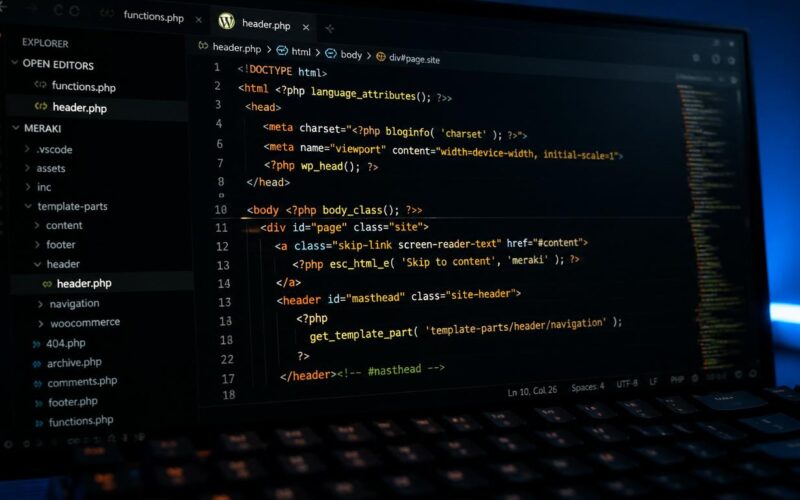
Custom post types must be registered with 'rewrite' => true (or with a specific rewrite slug array) to get proper URL handling. If a plugin or custom code registers a post type with 'rewrite' => false or omits the rewrite argument entirely, WordPress does not create URL routing for that post type and every URL returns a 404. Check the post type registration code — either in a plugin or in functions.php — and verify the rewrite argument is configured correctly. After correcting the registration code, navigate to Settings → Permalinks → Save Changes to flush the rewrite rules and register the corrected URL patterns.
Slug conflicts between post types also generate WordPress 404 errors selectively. If two post types (or a post type and a page) share the same slug, WordPress resolves the conflict by serving only one and returning 404 for the other. WooCommerce’s /shop/ page is a classic example — if a regular page also uses the slug “shop,” WooCommerce’s product archive returns 404 while the page is served. Check all registered post type slugs in Settings → Permalinks → Custom Structure and look for any pages whose slugs match post type archive slugs. Renaming the conflicting page or changing the post type’s rewrite slug resolves the conflict. According to the WordPress developer documentation, custom post type slug conflicts are the most common source of selective 404 errors that affect only specific URL patterns on a site.
WordPress 404 Error After Migration or Domain Change
A WordPress 404 error that affects the entire site after a migration, domain change, or move between subdirectory and root is caused by incorrect WordPress URL settings rather than rewrite rules. The site loads at a new location but WordPress still tries to route URLs based on the old location.
Update the WordPress and Site URL: navigate to Settings → General → verify WordPress Address (URL) and Site Address (URL) both reflect the current domain and path exactly. If you cannot access the admin (because the homepage also returns 404), update via wp-config.php directly — add these two lines above the “That’s all, stop editing!” comment:
define('WP_HOME','https://yournewdomain.com');
define('WP_SITEURL','https://yournewdomain.com');
After accessing the admin with the corrected URLs, remove those defines and save the settings properly through Settings → General. Also update all internal links that reference the old domain: use the Better Search Replace plugin to find all instances of the old domain in the database and replace them with the new domain. A single Find/Replace run on all tables — particularly wp_posts, wp_options, and wp_postmeta — updates every hardcoded URL stored in the database. After the URL update and link replacement, flush permalinks once more. The combination of correct WordPress URLs and updated database references eliminates the WordPress 404 error that appears after domain changes and migrations. Our guide on changing WordPress URL safely covers the full migration URL update process including search-replace procedures and .htaccess redirect rules for the old domain.
Nginx, Multisite, and Persistent 404 Errors
On Nginx servers — common on managed WordPress hosting, VPS environments, and cloud infrastructure — the WordPress 404 error fix is different because Nginx does not use .htaccess files. Nginx reads its configuration from server block files, and WordPress rewrites must be explicitly configured in the Nginx server block.
The correct Nginx configuration for WordPress includes a try_files directive that routes all requests through WordPress’s index.php. The standard block is: location / { try_files $uri $uri/ /index.php?$args; } — this must be present in the server block for WordPress to handle URLs correctly. Without it, every WordPress URL that does not correspond to a physical file returns a 404 directly from Nginx before WordPress even sees the request. If you manage your own Nginx server, add this directive to the WordPress site’s server block → test the configuration with nginx -t → reload Nginx with systemctl reload nginx. On managed hosting with Nginx, contact support to confirm the WordPress rewrite rule is configured in their Nginx setup.
WordPress Multisite installations have additional WordPress 404 error complexity because each subsite needs its own URL handling. Subdirectory multisite requires additional Nginx rules or .htaccess blocks that differ from single-site WordPress. The WordPress Codex provides specific .htaccess blocks for subdirectory multisite — ensure the multisite-specific block is present in addition to the standard WordPress block. For subdomain multisite, wildcard DNS must be configured to point all subdomains to the server, and the server must have a wildcard virtual host or server name matching configured. A missing wildcard DNS entry causes every subsite’s URL to return a 404 at the DNS level before even reaching WordPress. Reviews from the WordPress support community confirm that permalink flushing and .htaccess repair together resolve the vast majority of WordPress 404 error cases across all WordPress versions and hosting environments.
Running WordPress’s built-in diagnostic after fixing a WordPress 404 error confirms no secondary issues remain: Tools → Site Health → run all tests. The Site Health tool checks permalink configuration, rewrite rule status, REST API availability, and database health — all of the systems involved in URL resolution. Any issue flagged under “Should be improved” or “Critical” related to permalinks or rewrites should be addressed immediately. If the Site Health REST API test shows a failure (REST API returning unexpected results), correct the REST API issue before considering the 404 fix complete, since both problems share the same rewrite infrastructure and a broken REST API often signals that permalink rules have not been correctly applied.
Deactivating and reactivating plugins systematically is the most reliable method for diagnosing a WordPress 404 error that returns after a permalink flush. Connect to your site via FTP → rename the /wp-content/plugins/ folder to /wp-content/plugins_backup/ → visit the admin (WordPress falls back to plugin-less mode) → navigate to Settings → Permalinks → Save Changes → test the pages that were returning 404. If they now load correctly, a plugin was registering conflicting rewrite rules. Rename the folder back → reactivate plugins one at a time → flush permalinks after each activation → test until the 404 returns. The last activated plugin is the cause — check its rewrite slug settings or contact its developer with the conflict details.
Checking the Error Log when a WordPress 404 error is not resolving through standard methods reveals PHP errors and rewrite rule failures that are invisible in the admin. Access the error log via cPanel → Logs → Error Log, or via FTP at /wp-content/debug.log if WP_DEBUG_LOG is enabled. PHP errors in the log that appear at the same timestamp as a 404 request indicate a plugin or theme code error that is causing WordPress to fail before generating the correct URL response. The error message in the log identifies the specific file and line number, making it straightforward to determine which plugin or theme file is generating the error and whether disabling it resolves the 404.
For WooCommerce sites where the shop page or product pages return a WordPress 404 error, there is a WooCommerce-specific fix in addition to the standard permalink flush: WooCommerce → Settings → Products → scroll to “Shop page” → verify the correct page is selected as the shop page. If this setting is blank or pointing to a deleted page, WooCommerce cannot resolve shop and product URLs regardless of how many times permalinks are flushed. Setting the correct shop page → saving → flushing permalinks restores all WooCommerce URLs in a single operation. If this sounds familiar, WordPress Category Page 404 is worth a look.