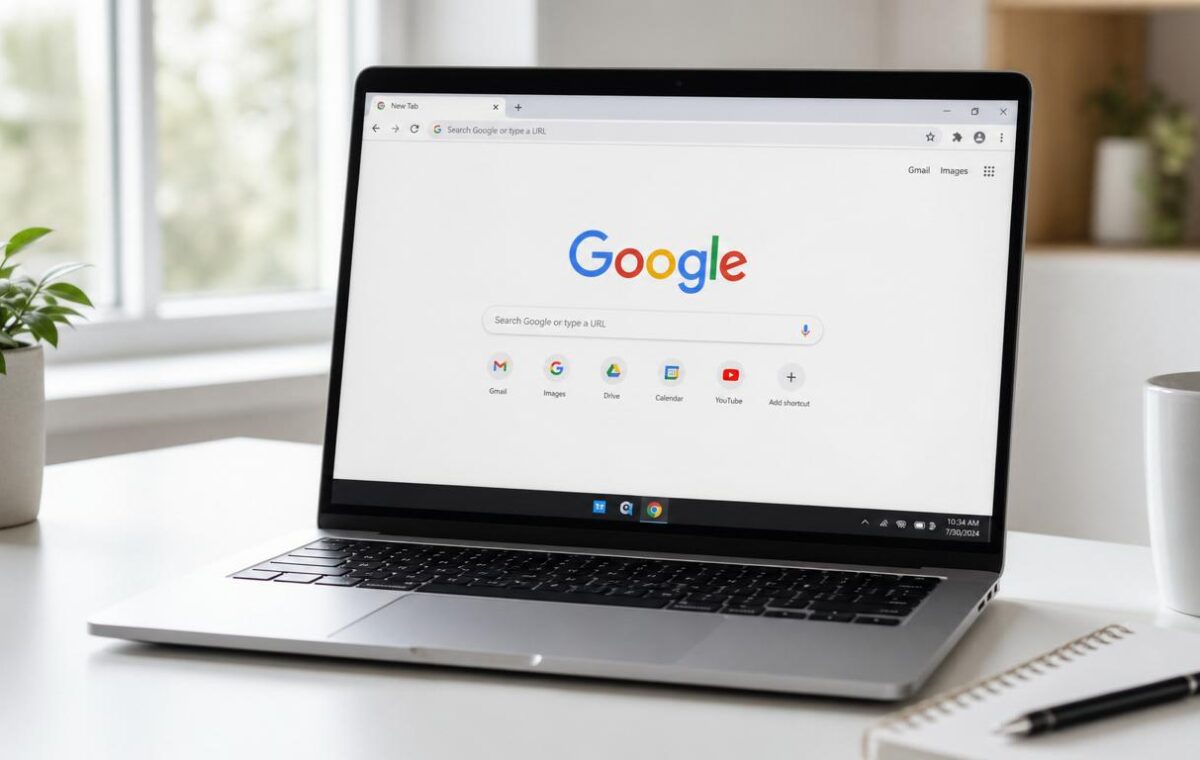
You spend hours a day in Chrome — it makes sense to want it to feel like your space rather than Google’s default. Chrome themes change the colours and textures of the tab bar, address bar, and frame. They’re the easiest customisation Chrome offers, but the Chrome Web Store buries the theme section three menus deep and most themes are forgettable corporate stock images. For the bigger picture, our Chrome How-To Guides pulls everything together.
The direct link to the theme section: chrome.google.com/webstore/category/themes. Bookmark it. The categories on that page (Dark & Black, Minimalist, Space, Nature) are vastly more useful than browsing the Extensions section’s theme listings — which mix themes from hobbyists with promotional themes from brands.
If you want to go beyond what themes allow — changing fonts, tab spacing, hiding UI elements — you need the Stylus extension. Themes can only change colours and backgrounds; Stylus lets you apply custom CSS to Chrome’s interface and any website. We’ll cover the practical setup below.
Finding and installing Chrome themes from the Web Store
The Chrome Web Store is the primary source for themes, accessible from Chrome’s Customise controls or by navigating to chrome.google.com/webstore and selecting Themes from the category menu. The Web Store organises themes into curated collections (Editor’s picks, Trending, By Google, For dark mode) and category filters (Landscape, Dark and black, Life, Nature, Art).
Installing a theme is one click: navigate to any theme’s page in the Web Store → click “Add to Chrome.” The theme applies immediately — Chrome’s interface updates in real time without any browser restart. If the theme doesn’t suit after seeing it in context: click “Undo” in the confirmation bar that appears at the top of the Chrome window immediately after installation. This undo window is brief — it disappears after a few seconds — but it’s the easiest path back to the previous state.
To remove a theme and return to Chrome’s default: Chrome Settings → Appearance → “Reset to default.” Alternatively, installing any other theme from the Web Store automatically replaces the current one — no explicit removal step needed. Each Chrome profile can only have one active theme at a time.
The preview screenshots in the Web Store don’t always accurately represent how a theme looks in actual use. Previews are rendered with a specific number of tabs in controlled conditions. The most important practical consideration that previews often misrepresent: tab text legibility. A theme where the tab bar colour is too similar to the text colour makes it frustrating to identify open tabs daily, regardless of how attractive the theme looks in a promotional screenshot. Reading written reviews specifically mentioning legibility or contrast provides practical signal before installing.
Chrome’s built-in colour themes vs Web Store themes
| Approach | Access | Customisation level | Syncs? |
| Built-in colour picker | New Tab page → Customise → Colour and theme | Solid colour accent from palette + custom hex input | Yes |
| Web Store theme | chrome.google.com/webstore → Themes | Full visual treatment: background images, patterns, illustrated designs | Yes |
| Custom background (New Tab only) | New Tab page → Customise → Background | Upload any personal photo or choose from curated collections | Yes |
The built-in colour theme option — accessible through the Customise button on the new tab page, or Settings → Appearance → Colour and theme — provides a simpler path to personalising Chrome without installing any Web Store extension. The built-in tool shows a grid of solid colour options and allows entering a custom hex code for a precise colour match. The chosen colour applies as an accent to the tab bar, address bar, and browser frame, producing a coordinated single-colour theme. For users who want subtle personalisation without the visual noise of a full illustrated theme, this produces results that feel intentional without being distracting.
Chrome themes and dark mode — how they interact
The relationship between themes and Chrome’s dark mode setting determines whether the combination looks coherent or creates visual conflict. A light-palette theme (pastel backgrounds, light frame colours) installed alongside a dark mode OS setting produces a mixed result: the theme’s light colours apply to some interface elements while dark mode applies dark backgrounds to others — inconsistency in the visual treatment.
The cleanest approach: choose themes explicitly designed for the active mode. The Web Store’s “For dark mode” category filters to themes tested and designed for coherent appearance alongside dark mode settings. Chrome’s dark mode setting and themes apply in layers: the theme sets the overall visual design of the frame, while the dark mode setting overrides specific interface elements (menus, settings pages, new tab page background) regardless of the theme. Testing any theme in the actual mode it will be used in is more reliable than assuming it will look as it does in the Web Store preview, which is typically shown in light mode.
Chrome themes are treated as extensions internally, appearing at chrome://extensions with a “Theme” type designation. Unlike extensions that run code on every page load, a theme only contributes visual assets to Chrome’s rendering — no ongoing computational cost once installed. Our guide on Chrome dark mode covers the mode settings that interact with themes in detail, and our guide on Chrome’s new tab page covers the background and colour settings that provide simpler alternatives to full themes for users who only want to change specific visual elements. For creating a completely custom theme from a personal image, Chrome’s developer documentation on theme extensions covers the technical specification including the manifest format and colour property keys.
Chrome themes across profiles and devices
Chrome themes sync across all devices signed in to the same Chrome account, subject to Chrome sync settings including the Theme data type. A theme installed on desktop Chrome appears automatically on a laptop, Chromebook, and Android Chrome signed in to the same account, within seconds of installation on the source device.
Each Chrome profile maintains an independent theme selection — a work profile can use a minimal professional colour scheme while a personal profile uses an illustrated landscape theme, and the two display their respective themes independently when active. Switching between profiles switches the active theme simultaneously — this creates a useful visual cue about which profile context is active beyond the profile name. Choosing deliberately distinct themes for work and personal profiles means the current profile context is immediately obvious from the browser’s appearance, reducing the risk of accidentally working in the wrong profile context.
Evaluating theme quality before installing
The most reliable quality indicators for any Web Store theme:
- Review count and rating: themes with thousands of reviews and ratings above 4.0/5.0 have been tested across many displays, operating systems, and browsing configurations. Reviews mentioning readability problems are particularly useful signal.
- Tab text legibility: the most practical quality consideration. Preview screenshots typically show few tabs in ideal conditions; daily use involves many tabs with varying title lengths. A theme that makes tab text barely legible in the preview may be completely unreadable with ten tabs open.
- “By Google” filter: the highest-confidence quality shortcut. Google-produced themes have passed internal design review that specifically evaluates readability and cross-platform appearance. They represent a more conservative aesthetic range (fewer illustrated backgrounds, more colour-system-based designs) but the trade-off for reliable quality is worthwhile.
Starting with a Google-created theme and moving to third-party offerings informed by what the Google themes reveal about personal preference — colour vs illustration, minimal vs detailed — is a reliable path to a theme setup that improves rather than complicates the daily browsing experience.
Creating a custom theme
For users who want complete control over every visual element beyond what the built-in colour picker or Web Store themes offer: Chrome themes are packaged as .crx extension files with a specific manifest format that defines image assets and colour property keys for each visual element (tab bar, frame, toolbar, active tab, inactive tab, etc.).
Third-party tools like Chrome Theme Creator (available via community guides) allow generating a custom theme package from a personal image and colour configuration without writing the manifest manually. The resulting file is installed by dragging it onto the Chrome extensions page (chrome://extensions). This approach requires more technical comfort than standard installation methods but provides complete control — the theme is genuinely unique rather than a selection from what others have created.
One practical consideration for custom-built themes: they don’t receive updates through the Chrome Web Store. If a Chrome update changes the theme API or adds new visual elements that the theme doesn’t specify: those elements revert to Chrome’s defaults. Web Store themes are maintained by their creators and updated for compatibility; a self-built theme requires manual updates for the same coverage.
Chrome themes are a small but persistent part of the browsing experience — the visual environment that surrounds every tab opened, every URL typed, every page read. Getting this right means the browser’s frame disappears into the background as a comfortable, familiar environment rather than drawing attention to itself with an ill-chosen colour that doesn’t match anything or text that’s difficult to read. The built-in colour picker handles the majority of what most users want; the Web Store covers the rest. Both are reversible and low-risk to experiment with, which makes trying a few options until something feels right the most practical approach.
Seasonal and rotating themes
Google periodically releases seasonal or limited-time themes for Chrome through the Web Store — holiday themes, themes tied to cultural events, and collaborations with artists. These appear in the “By Google” and “Editor’s picks” sections when active. Some users deliberately choose these for variety; others prefer a stable theme that doesn’t change involuntarily. Web Store themes don’t change unless you change them — Google releasing a seasonal theme doesn’t replace what you have installed.
The “Daily refresh” background option in Chrome’s new tab page Customise settings provides a built-in rotating visual experience without changing the actual theme. The background image cycles daily from a curated collection while the frame colours (controlled by the theme) remain constant. For users who want visual variety without managing theme installations: combining a stable solid-colour theme with a daily-refresh background collection provides fresh visual interest within a consistent overall aesthetic.
Chrome themes on mobile
Chrome for Android’s theme options are more limited than desktop. The system dark/light mode preference affects Chrome’s interface appearance, and there’s limited granular theme control through the browser itself. The Chrome Web Store themes selected on desktop sync to mobile through Chrome sync, but their visual application on Android is more limited — the browser frame elements that themes style on desktop are less extensive on Android’s mobile interface.
Chrome for iOS similarly follows the iOS system dark/light mode setting for its interface appearance, with limited additional theme control. For mobile Chrome: the most impactful visual customisation is the system-level dark mode setting, with the new tab page background image as the secondary personalisation layer accessible through the new tab page Customise option.
Chrome themes, taken as a whole, occupy a small but meaningful part of the browser experience. They don’t affect performance, don’t change any functionality, and don’t require ongoing management after installation. They do affect how the browser feels — whether it looks like a generic piece of software or something that has been adapted to the user’s aesthetic preferences. For a tool used for hours each day, that’s worth spending 10 minutes on.
Theme versus extension new tab page — the important distinction
A Chrome theme and a new tab page extension (like Momentum or Dark Reader’s new tab override) are different things that are easy to conflate because both affect Chrome’s visual appearance. The distinction:
- Chrome theme: changes the browser frame — tab bar, address bar, browser borders, frame colours. Has no performance overhead. Syncs. Can’t add functionality.
- New tab page extension: replaces the entire new tab page content — productivity widgets, clocks, task lists, background images. Runs JavaScript on every new tab open. Can add functionality (to-do lists, focus timers, information feeds). Doesn’t affect the browser frame colours.
They’re installed differently, affect different parts of the browser, and complement each other — a Chrome theme can be active simultaneously with a new tab page extension that provides a completely different background and content layer. For example: a “By Google” minimal colour theme provides consistent frame colours while a Momentum new tab page extension provides task and focus functionality on the new tab content area. Both can be active at the same time without conflict.
Understanding which part of the browser’s appearance each controls makes it possible to solve specific visual problems with the right tool. Want to change the tab bar colour? That’s a theme. Want to change what appears when a new tab opens? That’s a new tab page extension or Chrome’s own Customise background setting. Want to change both? Install a theme for the frame and an NTP extension for the content — or Chrome’s built-in tools for both if extensions aren’t wanted.
Are Chrome themes safe to install?
Themes from the official Chrome Web Store are vetted by Google and safe. Themes installed from third-party sites are not — they can include tracking scripts or malicious code. Stick to chrome.google.com/webstore for installs. If you’re unsure about a theme, check the publisher name, install count, and reviews before clicking ‘Add to Chrome.’
Why does my Chrome theme look different than the preview?
Theme previews assume default Chrome UI density. If you’ve changed tab spacing (chrome://flags) or are running Chrome at a non-standard zoom level, themes display differently than the preview shows. Reset to default density and 100% zoom to see themes as intended.
How do I remove a Chrome theme?
Settings → Appearance → Theme → click ‘Reset to default.’ This removes the active theme. To uninstall the theme extension entirely, go to chrome://extensions and remove it from there — though just resetting to default usually achieves what you want.
Can I use the same theme on Chrome and Chrome on my phone?
No — Chrome themes are desktop only. Chrome on Android and iOS doesn’t support themes the same way; they have a more limited ‘colour scheme’ option in their settings instead.
Do Chrome themes slow down the browser?
Themes are lightweight and don’t measurably affect Chrome’s speed. They’re essentially image assets and colour values — far less resource-intensive than even a basic extension. If Chrome is running slow, themes are not the cause; it’s typically extensions, cache, or tab count. You might also run into Chrome Energy Saver.
Can I make my own Chrome theme?
Yes. Google provides a free Chrome theme creator at chrome.google.com/webstore/detail/themebeta — upload your images, set colours, and download a working theme as a .crx file. For Chrome theme distribution to others, you’d need to publish it to the Web Store (which requires a developer account). Related: Chrome Bookmarks.